
Knowing how to fix keyboard shortcuts not working saves a lot of frustration, because combinations like Ctrl+C, Alt+Tab, and the Windows key suddenly doing nothing can stall an entire workday. The cause is usually a setting, a remapped key, or a conflicting app rather than a dead keyboard. This guide walks through the most likely culprits in order, from the quickest checks to the deeper fixes.
Key Takeaways
- Start by confirming whether the keyboard itself works, then check Fn Lock, Game Mode, and a stuck modifier key.
- Sticky Keys, Filter Keys, and remapping tools such as PowerToys or AutoHotkey are common reasons shortcuts stop responding.
- A conflicting background app can claim a shortcut before the active program ever sees it.
- Reinstalling the keyboard driver and running the built-in Keyboard troubleshooter solves most remaining cases.
Common Causes of Keyboard Shortcuts Not Working
Shortcuts depend on modifier keys (Ctrl, Alt, Shift, and the Windows key) being read correctly alongside a second key. When anything interferes with that pairing, the shortcut fails even though typing still feels normal. Most people find that one of these is behind it:
- A modifier key that is physically stuck or held down by debris.
- Fn Lock or a keyboard Game Mode switch that changes what the function row or Windows key does.
- Accessibility features such as Sticky Keys or Filter Keys changing how key presses are timed.
- A key remapped by PowerToys Keyboard Manager, AutoHotkey, or the keyboard maker’s own software.
- Another app that registered the same shortcut as a global hotkey.
- A wrong input language or layout, a corrupted driver, or a wireless connection problem.
How to Fix Keyboard Shortcuts Not Working Step by Step
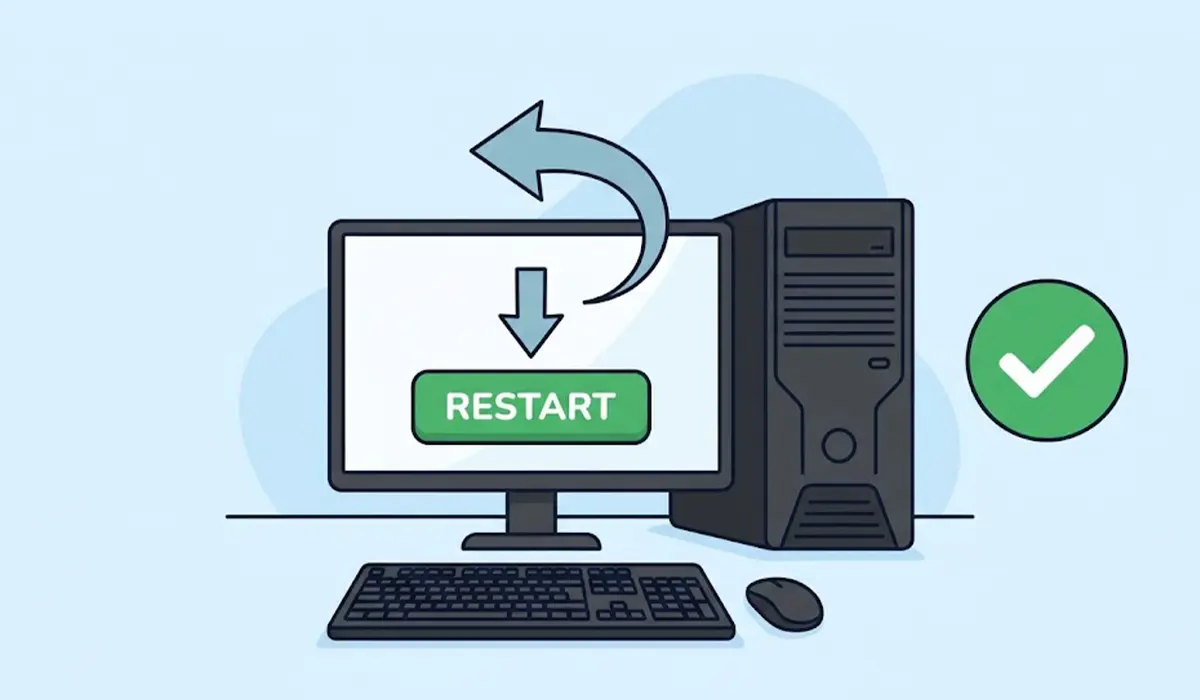
- Step 1: Restart the PC. A restart clears a stuck key state and reloads the keyboard driver, and it solves the problem more often than expected.
- Step 2: Test the keyboard in a different place. Press the keys in Notepad, then open the On-Screen Keyboard (press Windows key + Ctrl + O, or search for it in the Start menu) and click a modifier such as Ctrl, then press C on the physical keyboard. If the On-Screen Keyboard shows the modifier highlighting, the keyboard is registering it correctly.
- Step 3: Check for a stuck modifier. Press Ctrl, Alt, Shift, and the Windows key one at a time and watch the On-Screen Keyboard for any key that stays highlighted. Gently tap the suspect key several times to free it.
- Step 4: Look at Fn Lock and Game Mode. On many laptops, Fn + Esc toggles Fn Lock, which swaps the function row between its media actions and F1 to F12. Gaming keyboards often have a dedicated Game Mode key or software toggle that disables the Windows key. Turn it off and test again.
- Step 5: Turn off Sticky Keys and Filter Keys. Open Settings, go to Accessibility, then Keyboard, and switch off Sticky Keys, Filter Keys, and Toggle Keys. Filter Keys in particular ignores brief or repeated presses, which can make quick combinations fail.
- Step 6: Close remapping and hotkey tools. Quit PowerToys, AutoHotkey scripts, and any keyboard utility from the manufacturer, then test the shortcut. If it works, reopen each tool one by one to find the one that changed the key behavior.
- Step 7: Run the Keyboard troubleshooter. In Windows 11, open Settings, then System, Troubleshoot, Other troubleshooters, and run Keyboard. In Windows 10, open Settings, Update and Security, Troubleshoot, and run Keyboard from the additional troubleshooters list.
- Step 8: Reinstall the keyboard driver. Right-click Start, open Device Manager, expand Keyboards, right-click the keyboard entry, and choose Uninstall device. Restart the PC and Windows will reinstall a fresh driver automatically. On a desktop with a USB keyboard, try a different USB port at the same time.
- Step 9: Install pending updates. Run Windows Update, and for a laptop, also check the manufacturer’s support page for keyboard, hotkey, or chipset driver updates.
Tip: Change one thing at a time and test the shortcut after each step. That way the exact cause is clear and no setting gets changed for no reason.
Fixing Shortcuts That Fail in Only One Program
When shortcuts work everywhere except one app, the keyboard is almost certainly fine. The problem sits in that program.
Check the App’s Own Shortcut Settings
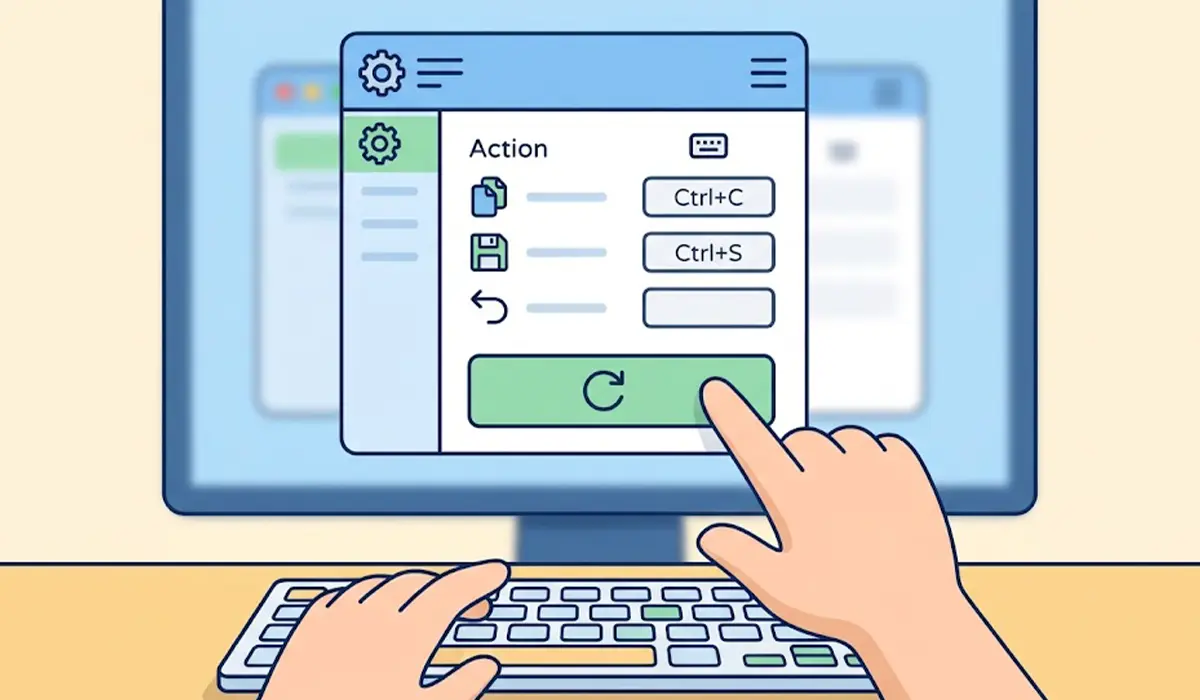
Many apps let users customize shortcuts, and a changed or cleared binding looks exactly like a broken keyboard. Open the app’s keyboard or shortcut settings and use the reset to defaults option if one is offered.
Look for Conflicting Global Hotkeys
Screen recorders, clipboard managers, translation tools, and graphics driver overlays often register global hotkeys. If one of them claims Ctrl+Shift+S, for example, the shortcut never reaches the active program. Close or change the hotkey in the background app and test again.
Disable Browser Extensions
In a web browser, an extension can intercept key combinations. Open the browser in a private window with extensions off, or disable extensions one at a time, to find the one responsible.

Checking Input Language and Layout
A second keyboard layout can quietly change how keys map, especially punctuation and some Ctrl combinations. Open Settings, go to Time and Language, then Language and Region, and review the installed keyboards. Remove any layout that is not needed, and confirm the language indicator in the taskbar shows the expected one.
Tip: If the Windows key works but only some Windows key shortcuts fail, a layout switch or a remapping tool is a better suspect than hardware.
Cleaning and Checking the Hardware
If the On-Screen Keyboard test showed a modifier not registering, the key itself may be the issue. Power off the device, then tilt the keyboard and use short bursts of compressed air around the affected keys. A soft brush works for loose crumbs. For a wireless keyboard, replace or recharge the battery and re-pair it, since a weak battery can cause dropped key presses. If a key still fails after this, an external USB keyboard will confirm whether the built-in one needs professional repair. Opening a laptop to replace a keyboard can affect the warranty, so a technician or the manufacturer’s service is the safer route.
Common Problems and Fixes
Shortcuts Work After Restart but Stop Again Later
A background app is usually the trigger. Note when the shortcut stops, then check which program was opened just before. Close or uninstall that app, or do a clean boot by turning off non-Microsoft startup items and services, to narrow it down.
The Windows Key Does Nothing
Check for a Game Mode switch on the keyboard, then check PowerToys Keyboard Manager or similar tools for a remapped Windows key. Gaming software profiles can also disable it while a game is running.
Ctrl Shortcuts Work Only Sometimes
Filter Keys or a worn Ctrl key is the likely reason. Turn off Filter Keys first, then use the On-Screen Keyboard test to check that Ctrl registers every time it is pressed.
Function Row Shortcuts Trigger Volume or Brightness Instead
That is Fn Lock behavior. Toggle it with the Fn Lock key combination on the keyboard, or change the function key behavior in the BIOS or the manufacturer’s keyboard software.
Shortcuts Still Fail After Reinstalling the Driver
Test with an external keyboard. If the external keyboard works normally, the built-in keyboard has a hardware fault or a laptop-specific hotkey driver issue, and the manufacturer’s support page is the next stop.
Frequently Asked Questions
Why are my keyboard shortcuts not working in Windows?
The most common causes are a stuck modifier key, Sticky Keys or Filter Keys, a remapped key, Fn Lock, or another app using the same shortcut. A corrupted keyboard driver is less common but also possible.
How do I check if a key is stuck?
Open the On-Screen Keyboard and watch the physical keyboard being pressed. A key that stays highlighted when untouched is stuck or being held down by debris.
Can Sticky Keys stop shortcuts from working?
Yes. Sticky Keys changes how modifier keys are held and released, and Filter Keys ignores quick presses. Both can make normal shortcuts behave oddly, so turning them off in Accessibility settings is a good early check.
Why does the Windows key not work on my keyboard?
Many gaming keyboards disable it in Game Mode. It can also be turned off by remapping software or a gaming profile, so check the keyboard’s Game Mode toggle and any installed keyboard utilities.
Will reinstalling the keyboard driver delete anything?
No personal files are affected. Uninstalling the keyboard device in Device Manager only removes the driver entry, and Windows reinstalls it automatically after a restart.
Why do shortcuts work in some programs but not others?
That points to the program, not the keyboard. The app may have custom or cleared shortcut settings, or a background tool may be claiming the same global hotkey.
Can a wireless keyboard cause shortcuts to fail?
Yes. A low battery, interference, or a weak connection can drop key presses, and combinations are the first to fail because they need several keys registered together. Replace the battery and re-pair the keyboard.
When should a keyboard be repaired or replaced?
If a key fails the On-Screen Keyboard test, does not respond after cleaning, and an external keyboard works fine, the built-in keyboard is likely faulty. At that point, repair or replacement is the practical choice.
