
A Windows update finishes, the PC restarts, and suddenly a USB mouse, keyboard, or flash drive stops responding. To fix USB ports after a Windows update, the usual culprit is a driver conflict or a power management setting that got reset during the install, and both are fixable without any hardware replacement.
Key Takeaways
- Most post-update USB failures come from corrupted or mismatched USB controller drivers, not a dead port.
- Uninstalling and letting Windows reinstall the USB controllers usually resolves the issue in a few minutes.
- Disabling USB selective suspend and power-saving settings stops Windows from cutting power to ports it thinks are idle.
- A quick BIOS or UEFI check rules out a setting that got flipped during a firmware-linked update.
- If only one port fails while others work fine, the problem is more likely physical damage than software.
Before You Start
None of the fixes below require opening the case, but a few basics make troubleshooting smoother. Save any open work, since one of the steps involves a restart. Keep a wired keyboard or mouse handy in case the USB ports being tested are the only ones connected. Sign in with an administrator account, since driver changes and Device Manager access both require admin rights on most Windows setups.
Step-by-Step: Fix USB Ports After Windows Update
Work through these steps in order. Most people find the driver reinstall in Step 2 solves the problem on its own, so start there before moving to the more advanced fixes.
- Step 1: Unplug the USB device, wait about 10 seconds, and plug it back into a different port. This rules out a one-off connection glitch before digging into drivers.
- Step 2: Open Device Manager by right-clicking the Start button and selecting it from the list. Expand ‘Universal Serial Bus controllers,’ right-click each entry, and choose ‘Uninstall device.’ Once all entries are removed, restart the PC. Windows reinstalls the controllers automatically on boot, which often clears out whatever the update corrupted.
- Step 3: Back in Device Manager, right-click each USB controller again and select ‘Update driver,’ then ‘Search automatically for drivers.’ This catches any controller that failed to reinstall cleanly in Step 2.
- Step 4: Open Device Manager, right-click each USB Root Hub under ‘Universal Serial Bus controllers,’ choose ‘Properties,’ go to the ‘Power Management’ tab, and uncheck ‘Allow the computer to turn off this device to save power.’ Repeat for every root hub listed.
- Step 5: Open Control Panel, go to ‘Power Options,’ click ‘Change plan settings’ next to the active plan, then ‘Change advanced power settings.’ Expand ‘USB settings’ and set ‘USB selective suspend setting’ to ‘Disabled’ for both battery and plugged-in states.
- Step 6: Check for a pending Windows Update. Microsoft frequently ships a follow-up patch shortly after a major update to fix driver regressions it introduced. Go to Settings, then ‘Windows Update,’ and install anything listed as available.
- Step 7: Restart the PC one more time. Reinstalled drivers and changed power settings sometimes only take full effect after a fresh boot.
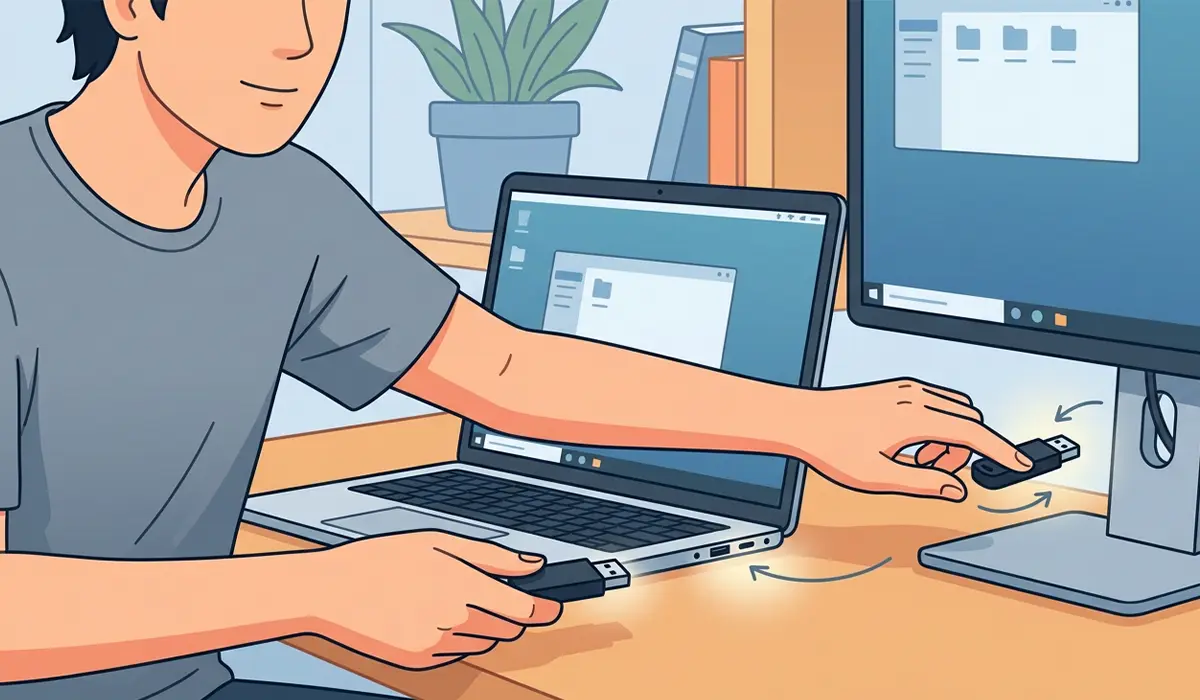
Tip: If a USB 3.0 or 3.1 device stopped working but a USB 2.0 device in a different port still functions, the issue is almost always the xHCI (USB 3.0) controller driver rather than the port hardware itself.
Checking the BIOS or UEFI Settings
Some Windows updates also touch firmware settings on laptops with integrated update tools, which can leave USB ports disabled at a level Windows cannot control. Restart the PC and enter the BIOS or UEFI setup, usually by pressing F2, F10, F12, Delete, or Esc during boot, depending on the manufacturer. Look for a section labeled ‘Onboard Devices,’ ‘Integrated Peripherals,’ or ‘USB Configuration,’ and confirm that USB controllers and legacy USB support are set to enabled. Save changes and exit to apply them.

When the Fast Startup Setting Gets in the Way
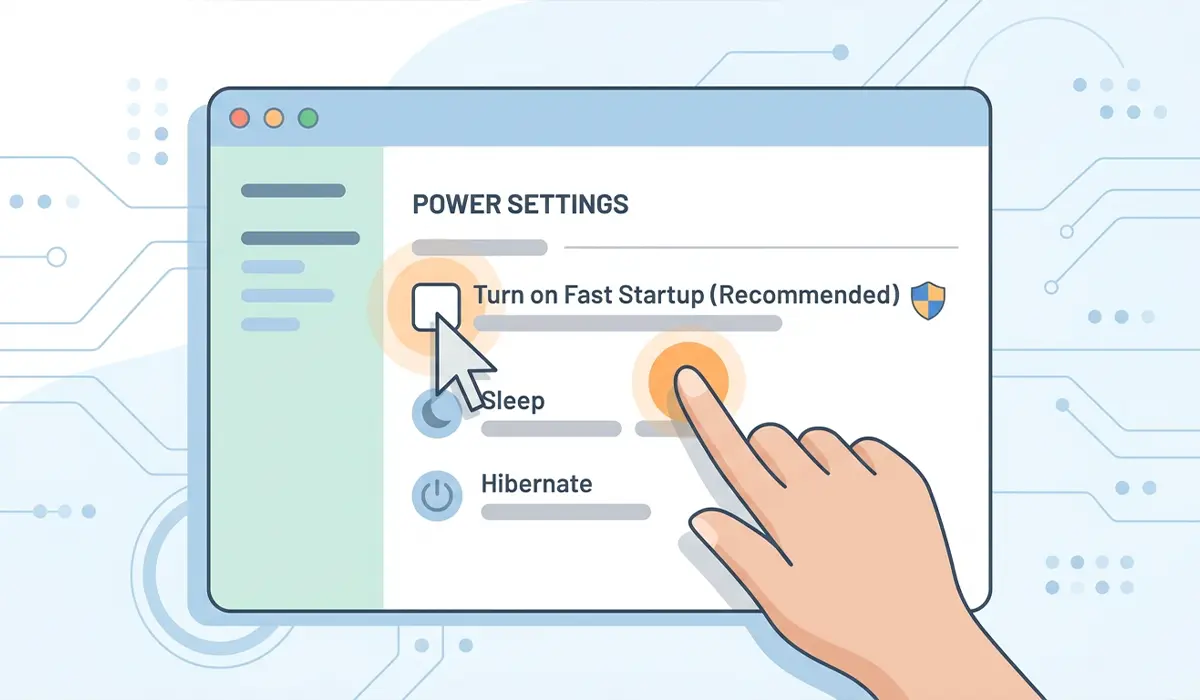
Fast Startup is a Windows feature that saves a partial system state to speed up boot times, and it can interfere with USB devices reconnecting properly after an update-triggered restart. To turn it off, open Control Panel, go to ‘Power Options,’ select ‘Choose what the power buttons do,’ click ‘Change settings that are currently unavailable,’ and uncheck ‘Turn on fast startup.’
Common Problems and Fixes
- USB ports still not working after uninstalling and reinstalling drivers: Run the Windows built-in Hardware and Devices troubleshooter from Settings, under ‘System’ then ‘Troubleshoot,’ then ‘Other troubleshooters.’ It scans for and repairs common device recognition issues that a manual reinstall can miss.
- Only USB 3.0 ports fail while USB 2.0 ports work normally: Update the chipset driver directly from the motherboard or laptop manufacturer’s support page rather than relying on Windows Update, since generic Microsoft drivers do not always include full USB 3.0 controller support.
- USB devices connect and disconnect repeatedly (a clicking or chime loop): This points to a power delivery issue rather than a driver problem. Test the device on a different PC; if it behaves the same way there, the device itself is failing rather than the ports.
- ‘USB device not recognized’ error keeps appearing: Open Device Manager, check for any entry with a yellow warning triangle, right-click it, and select ‘Uninstall device’ with the box for removing driver software checked if available. Restart the PC to let Windows detect it fresh.
- Only one specific port fails while every other port works fine: This is a strong sign of physical damage to that individual port rather than anything the update changed. A technician can inspect and, in many cases, replace just that port without needing to replace the whole board.
Tip: Keep a note of which fix resolves the issue. If it happens again after the next Windows update, the same step usually works a second time.
Frequently Asked Questions
Why do USB ports stop working right after a Windows update?
Windows updates sometimes replace or reset driver files for USB controllers, and occasionally reset power management settings to their defaults, which can cause ports to stop responding until the drivers are refreshed.
Can a Windows update actually damage a USB port physically?
No. A software update cannot cause physical damage to a port. If a single port fails while others work, that points to wear, dust, or a loose connection rather than the update itself.
Do all USB devices stop working, or just some?
It varies. Some updates affect only USB 3.0 controllers, leaving USB 2.0 ports functional, while others affect specific device classes like printers or external drives more than keyboards and mice.
Is it safe to uninstall the USB controller drivers?
Yes. Windows automatically detects and reinstalls the correct drivers on the next restart, so uninstalling them is a standard and reversible troubleshooting step.
Will a system restore fix USB ports after an update?
It can, if a restore point exists from before the update. This rolls back the driver and system changes made during the update, though it also removes any other updates or apps installed since that point.
How long does it typically take to fix this issue?
Most cases resolve within 10 to 15 minutes using the driver reinstall and power settings steps, since no hardware needs to be opened or replaced.
Should USB selective suspend be left disabled permanently?
On desktops, leaving it disabled causes no meaningful downside. On laptops running on battery, it can slightly reduce battery life, so re-enabling it once the port issue is resolved is a reasonable trade-off for battery users.
What if none of these steps fix the USB ports?
If ports still fail after driver reinstalls, power setting changes, and a BIOS check, the issue may be a failing USB controller chip on the motherboard. At that point, having a technician test the hardware directly is the more reliable next step.
Does this issue affect USB-C ports the same way?
Yes, USB-C ports run through the same underlying controllers and drivers, so the same troubleshooting steps apply, though some USB-C docking or Thunderbolt features may need an additional manufacturer-specific driver update.
