
An HDMI port not detecting monitor is one of the most frustrating display problems a PC or laptop owner can run into, especially when the cable looks fine and the monitor powers on without a hitch. The good news is that this issue almost always traces back to a handful of common culprits, and most of them can be fixed without opening the computer at all.
Key Takeaways
- A loose connection, faulty cable, or wrong input source causes most HDMI detection failures.
- Windows display settings and outdated graphics drivers are frequent software-side culprits.
- Testing the monitor and cable on a different device quickly narrows down where the fault lives.
- Updating or rolling back a graphics driver resolves detection issues far more often than most people expect.
- A dead HDMI port on either the PC or the monitor usually needs a different port or an adapter as a workaround.
Common Causes of an HDMI Port Not Detecting Monitor
Before diving into fixes, it helps to understand what typically goes wrong. This narrows the troubleshooting path considerably.
Loose or Damaged Cable Connection
HDMI cables can look perfectly seated while still not making full contact, particularly if the port has worn down over years of plugging and unplugging. A cable with internal wire damage can also pass a visual inspection and still fail electrically.
Wrong Input Source Selected
Monitors with multiple inputs (HDMI 1, HDMI 2, DisplayPort, and so on) need to be manually switched to the correct source. This is one of the most overlooked reasons a screen stays black even though everything is connected properly.
Outdated or Corrupted Graphics Drivers
Windows relies on the graphics driver to recognize a newly connected display. A driver that has not been updated in a while, or one that got corrupted during a Windows update, can quietly stop detecting external monitors.
Display Settings Not Configured for Multiple Monitors
Sometimes the hardware is working fine, but Windows has the display set to show output on only one screen, which makes a properly connected monitor appear unresponsive.
Faulty HDMI Port on the PC or Monitor
Physical damage to the port itself, whether from a bent pin or a cracked connector, is less common but does happen, especially on laptops where the HDMI port takes more wear.
How to Fix an HDMI Port Not Detecting Monitor
Work through these fixes in order. Most detection problems get resolved within the first few steps.
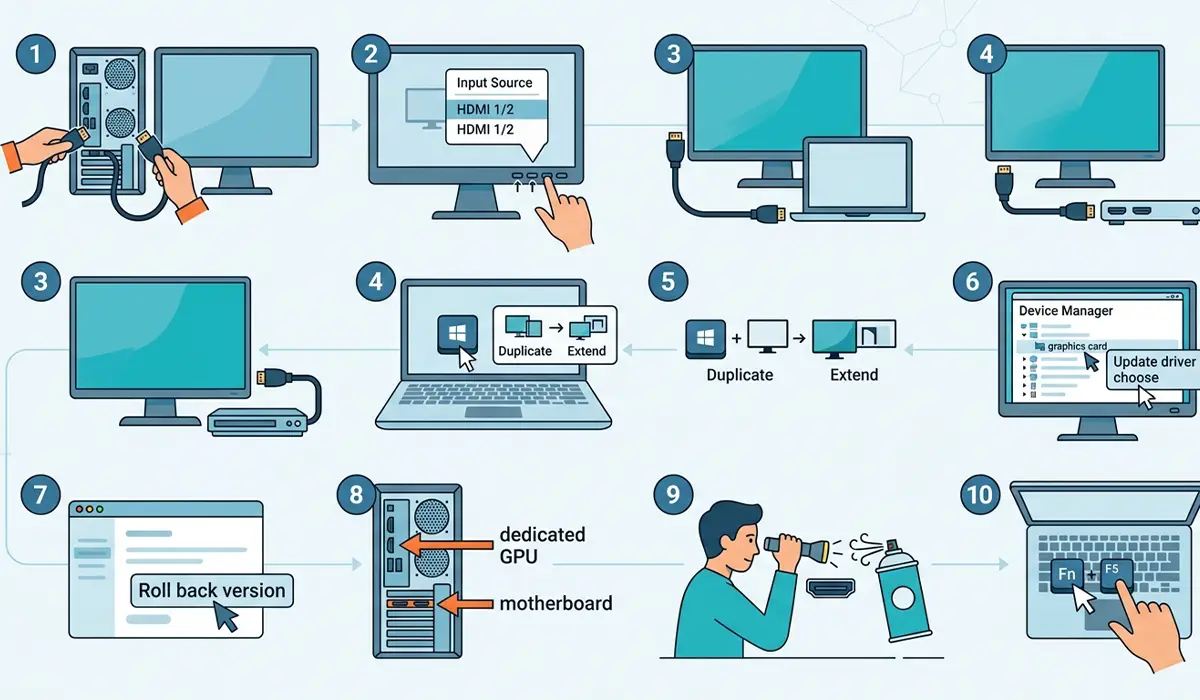
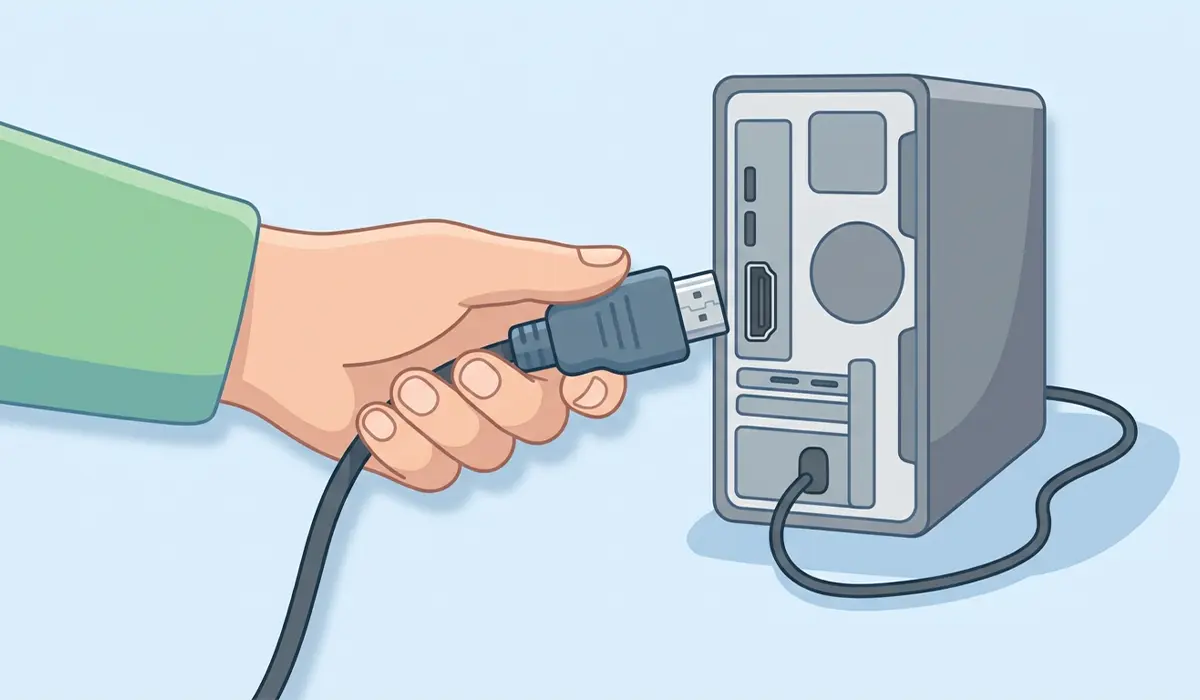
- Step 1: Power off the monitor and the PC completely, then unplug the HDMI cable from both ends. Reinsert it firmly until it clicks or seats fully, then power both devices back on.
- Step 2: Use the monitor’s physical buttons or on-screen menu to confirm the input source matches the HDMI port actually in use, such as HDMI 1 versus HDMI 2.
- Step 3: Test the current HDMI cable on a different monitor or TV. If the picture still does not appear, the cable itself is likely the problem and needs replacing.
- Step 4: Test the monitor with a different HDMI cable and, if possible, a different source device. This isolates whether the monitor’s port is the actual point of failure.
- Step 5: On the PC, press Windows key + P and cycle through the display modes (Duplicate, Extend, Second screen only) to rule out a Windows display setting as the cause.
- Step 6: Open Device Manager, expand Display adapters, right-click the graphics card, and choose Update driver. Select ‘Search automatically for drivers’ and let Windows install anything available.
- Step 7: If the problem started right after a recent driver update, right-click the graphics card in Device Manager, choose Properties, open the Driver tab, and select Roll Back Driver if that option is available.
- Step 8: Try a different HDMI port on the PC if more than one is present, such as a dedicated graphics card port versus the motherboard’s onboard port.
- Step 9: Inspect the HDMI port on both the PC and the monitor with a flashlight for bent pins, dust buildup, or visible damage. A can of compressed air can clear out debris without risking the connector.
- Step 10: If a laptop is involved, check the manufacturer’s function key combination (often Fn plus F4, F5, or F8) that toggles external display output, since this gets disabled more often than people expect.
Tip: Keep one known-working HDMI cable set aside specifically for troubleshooting. Having a cable that is already confirmed to work removes one variable immediately and saves a lot of guesswork.
Before You Start
No disassembly is required for the fixes above, but a few basics keep the process safe and avoid wasted effort.
- Power off the monitor and PC before disconnecting or reseating any cable.
- Handle HDMI cables by the connector, not the wire, to avoid stressing the internal pins.
- Avoid forcing a cable into a port at an angle, since this is a common cause of bent pins.
- If a bent pin or physical port damage is found inside the PC itself, stopping and having a qualified technician inspect it is safer than attempting a DIY repair, since a damaged port sometimes points to a deeper motherboard issue.
Common Problems and Fixes
Monitor Detects the PC Briefly Then Loses Signal
This flickering pattern usually points to a marginal cable connection or a cable that is too long or low-quality for the resolution and refresh rate being pushed. Swapping in a shorter, higher-spec HDMI cable often resolves it.
Screen Shows ‘No Signal’ Only After Waking from Sleep
This is typically a power management setting rather than a hardware fault. In Device Manager, opening the graphics card’s Properties, going to the Power Management tab, and unchecking ‘Allow the computer to turn off this device to save power’ frequently fixes it.
External Monitor Works with One PC But Not Another
This points to a driver, settings, or port issue on the specific PC rather than the monitor or cable, since the same monitor and cable pairing works elsewhere.
Picture Appears but with Wrong Resolution or Flickering Colors
This is usually a cable bandwidth limitation rather than a detection failure. Using an HDMI cable rated for the monitor’s native resolution and refresh rate, such as HDMI 2.0 or 2.1 for higher-end displays, generally clears it up.
Laptop Detects External Monitor in BIOS But Not in Windows
If the display shows up during the BIOS or startup screen but goes blank once Windows loads, this points squarely at a graphics driver problem, and reinstalling the driver from the manufacturer’s website is the most reliable fix.
Frequently Asked Questions
Why does my HDMI port work with one device but not another?
This usually means the fault lies with a specific device’s port, driver, or settings rather than the cable or monitor itself, since the same cable and monitor combination works fine elsewhere.
Can a bad HDMI cable really cause a monitor to not be detected at all?
Yes. HDMI carries both video and the signaling data that lets devices recognize each other, so a cable with internal damage can prevent detection entirely even though it appears fine on the outside.
Why does my monitor say ‘No Signal’ even though the cable is plugged in?
This message typically means the monitor is not receiving any data over the connection, which points to a loose cable, wrong input source, sleeping graphics card, or an outdated driver.
Does updating the graphics driver really fix HDMI detection issues?
It does in a large share of cases, since the driver is what allows Windows to recognize and communicate with an external display in the first place.
Why does my laptop not detect an external monitor over HDMI?
Common reasons include the external display output being toggled off via a function key, an outdated graphics driver, or Windows still being set to show output on the laptop screen only.
Is it safe to use an HDMI adapter if the port on my PC is damaged?
Yes, provided the adapter is rated for the resolution and refresh rate needed. A DisplayPort-to-HDMI or USB-C-to-HDMI adapter is a practical workaround when the HDMI port itself is unusable.
Why does my second monitor work sometimes but not after a restart?
This intermittent pattern often comes down to a power management setting or a marginal cable connection that only fails under certain conditions, such as after the display goes to sleep.
Can dust inside the HDMI port cause detection problems?
Yes. Dust or debris inside the port can prevent full contact with the cable’s pins, and clearing it out with compressed air often restores a reliable connection.
Should I try a different HDMI cable before assuming the port is broken?
Yes, always test with a different cable first. A faulty cable is far more common than a genuinely broken port and is the easiest variable to rule out.
Does the length of an HDMI cable affect signal detection?
It can. Longer cables, especially ones running higher resolutions or refresh rates, are more prone to signal degradation, which can present as detection failures or flickering.
