
Figuring out how to calculate power supply wattage is one of the most important steps in planning any PC build or upgrade. Get the number wrong and a system can crash under load, refuse to boot, or wear out components faster than it should. The good news is that the math behind it is simpler than most people expect.
Key Takeaways
- Add up the power draw of every major component, with the GPU and CPU carrying the biggest share of the total.
- Build in 20 to 30 percent of headroom above the calculated total for stability, efficiency, and future upgrades.
- Modern GPUs draw power in short, sharp spikes, so the power supply needs to handle transient loads, not just the average wattage.
- Online PSU calculators are useful starting points, but cross-checking against manufacturer specs gives a more reliable result.
- Buying a slightly larger, higher-quality unit almost always beats buying the exact minimum wattage on paper.
How to Calculate Power Supply Wattage Step by Step
This method works for both new builds and upgrades where an existing PSU is being reconsidered. Each step narrows down the total more accurately than a single rough guess ever could.
Step-by-Step Wattage Calculation
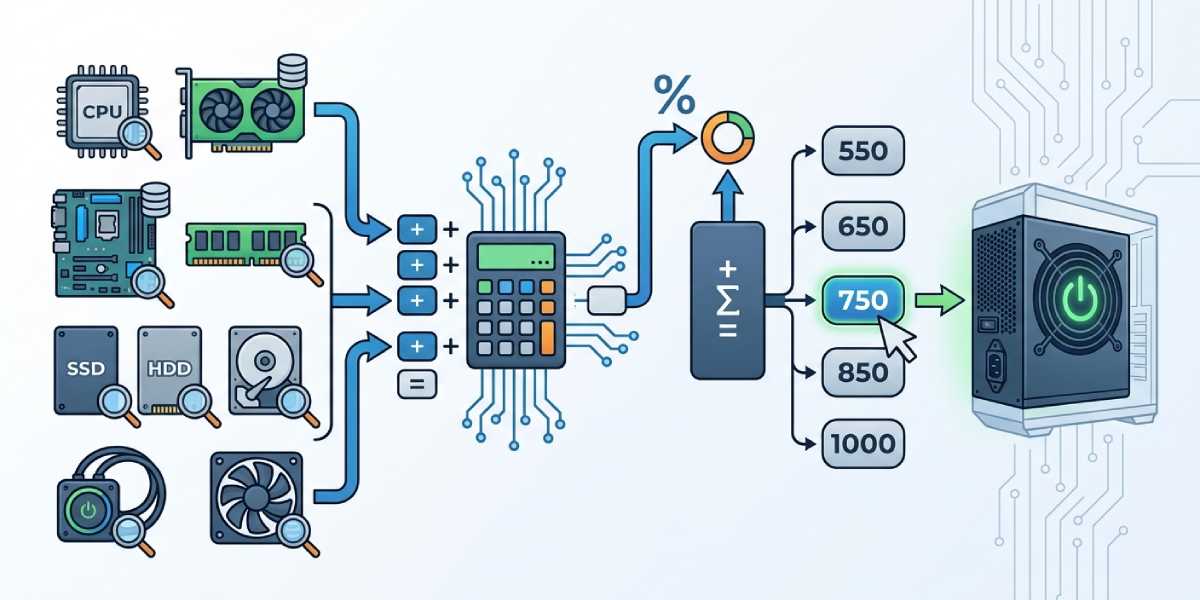
- Step 1: List every component that draws power: CPU, GPU, motherboard, RAM, storage drives, case fans, an AIO cooler pump if one is installed, and any add-in cards.
- Step 2: Look up the TDP (thermal design power) for the CPU on the manufacturer’s product page or spec sheet. This figure is a reasonable stand-in for typical power draw under load.
- Step 3: Look up the recommended system wattage for the GPU. Graphics card makers publish this figure directly on the product page, and it already accounts for the card’s real-world draw, including boost behavior.
- Step 4: Add rough estimates for the remaining parts. A typical motherboard draws somewhere in the 30 to 60 watt range, each RAM stick is only a few watts, SSDs and hard drives usually sit under 10 watts each, and case fans are a few watts apiece.
- Step 5: Add all of these figures together for a baseline system total.
- Step 6: Apply a headroom buffer of 20 to 30 percent on top of that baseline. This covers power spikes, aging components, and any hardware added down the line.
- Step 7: Round up to the nearest common PSU wattage tier, such as 550W, 650W, 750W, 850W, or 1000W, rather than searching for an exact custom number.
Tip: When in doubt between two wattage tiers, choose the higher one. A power supply running well within its comfortable range is quieter, cooler, and more efficient than one working near its limit.
Using an Online PSU Calculator
Reputable tools from PSU manufacturers such as Seasonic, be quiet!, and Cooler Master, along with retailer tools like the one on Newegg, let a user plug in specific components and get an estimated wattage instantly. These calculators are convenient, but they should be treated as a cross-check rather than the final word, since they sometimes assume higher-end configurations than what is actually installed.
Accounting for Overclocking and High-End GPUs
Overclocking the CPU or GPU increases power draw beyond the stock TDP figure, sometimes significantly. Anyone planning to overclock should add extra headroom on top of the standard buffer rather than treating the stock numbers as final.
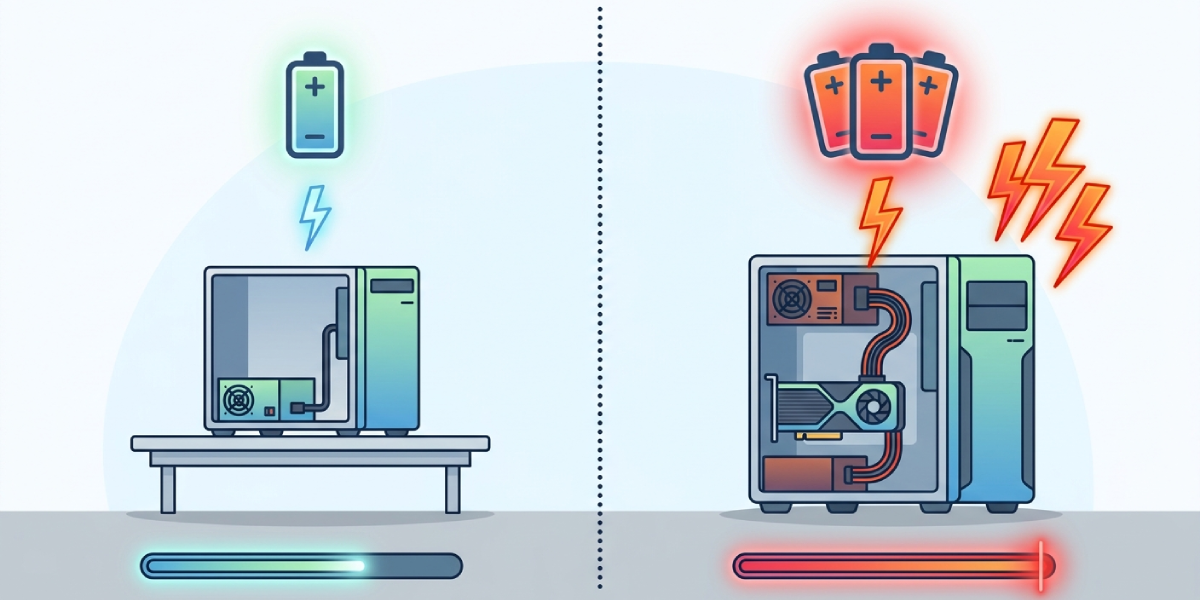
This matters even more with flagship GPUs that use high-power connectors, since these cards can produce brief but sharp transient spikes well above their average draw. A power supply with a strong transient response and enough connector headroom handles these spikes far more gracefully than one calculated to the bare minimum.
Common Problems and Fixes
- System shuts down or restarts under heavy gaming load: This usually points to a PSU that is undersized for the GPU’s real-world power spikes. Recalculating with extra headroom and choosing a unit one tier higher typically resolves it.
- PC will not power on after a GPU upgrade: Check that the power supply has enough PCIe power connectors of the correct type for the new card, since a wattage total can look sufficient on paper while still lacking the right connectors.
- Different calculators give very different totals: This happens because some tools assume worst-case scenarios while others use average draw. Treat the highest reasonable estimate as the safer baseline.
- PSU runs hot or the fan spins up constantly at idle: A unit sized too close to the system’s actual load runs less efficiently at everyday usage levels. Sizing slightly above the calculated need, rather than at the bare minimum, usually keeps operation cooler and quieter.
- Uncertainty about future upgrades: Calculating only for the current build can mean replacing the PSU again soon after a GPU or storage upgrade. Building in extra headroom from the start avoids this.
Frequently Asked Questions
Is it better to overestimate power supply wattage than underestimate it?
Yes. A power supply with some extra capacity runs cooler, quieter, and more reliably than one sized right at the edge of what a system needs.
Does a higher wattage power supply use more electricity?
No. A power supply only draws as much power as the connected components actually need. Wattage rating is a capacity limit, not a fixed consumption level.
How much headroom should be added above the calculated wattage?
A buffer of 20 to 30 percent above the calculated system total is a reliable standard for most builds, including some room for future upgrades.
Does the 80 Plus efficiency rating affect how much wattage is needed?
Efficiency rating affects how much power is drawn from the wall and how much heat is produced, but it does not change how much wattage the components themselves require. A higher rating simply means less energy is wasted as heat during conversion.
Which component uses the most power in a typical build?
The graphics card is usually the largest single power draw in a gaming PC, followed by the CPU. Together these two components often account for the majority of total system wattage.
Do multiple storage drives significantly change the wattage calculation?
Not usually. SSDs and hard drives draw relatively little power individually, so adding a few extra drives has a minor impact compared to the CPU and GPU.
Should overclocking be factored into the wattage calculation?
Yes. Overclocking increases power draw above stock specifications, so anyone planning to overclock should add extra headroom beyond the standard buffer.
Can a power supply be too large for a system?
A significantly oversized unit is not damaging, but it can run less efficiently at very low loads and adds unnecessary cost. Matching capacity reasonably to the system, with sensible headroom, is the better approach.
Are online PSU calculators accurate enough to rely on?
They provide a solid starting estimate, especially from established PSU manufacturers, but cross-referencing with the GPU maker’s recommended wattage and applying manual headroom gives a more dependable final number.
Does RGB lighting or extra fans meaningfully change the total wattage?
Individually these draw very little power, only a few watts each. Even a build with several RGB fans and accessories adds a relatively small amount to the overall total.
