
Quick Answer: To change the primary mouse button on Windows 11, press Windows key + I, go to Bluetooth & devices, select Mouse, and switch the Primary mouse button dropdown from Left to Right. The change applies instantly, with no restart needed.
Left-handed and right-handed users don’t use a mouse the same way, but Windows ships with the same default for everyone. Anyone who’s misclicked on a borrowed laptop or just unboxed an ergonomic mouse that feels backward knows the frustration. The good news is fixing it takes less than a minute, and there’s no need for extra software to do it.
Below are four ways to switch the primary button, starting with the simplest for everyday users and ending with the options IT admins use for managing several machines at once.
Method 1: Settings App (Easiest, Works for Most People)
- Press Windows key + I to open Settings.
- Click Bluetooth & devices, then click Mouse.
- Open the Primary mouse button dropdown and choose Left (default) or Right.
- Close Settings and test it out by clicking a few desktop icons.
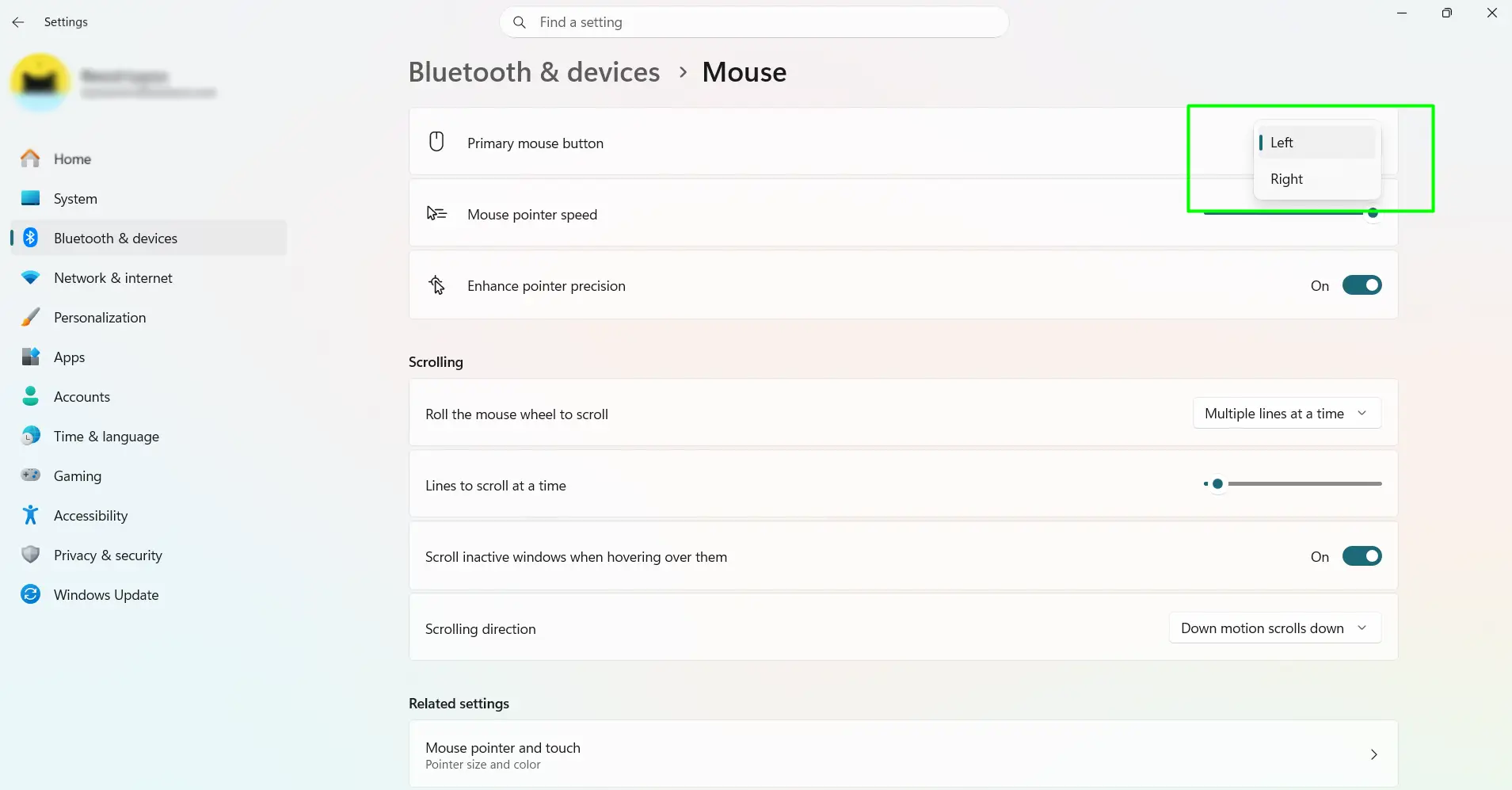
Using Windows 10? Go to Settings → Devices → Mouse and use the same dropdown, labeled Select your primary button.
Method 2: Control Panel (Good for Adjusting Several Mouse Settings at Once)
- Press Windows key + R, type main.cpl, and press Enter.
- Mouse Properties opens directly on the Buttons tab.
- Check Switch primary and secondary buttons to make the right button primary. Uncheck it to go back to default.
- Click Apply, then OK.
This is also where pointer speed, double-click timing, and ClickLock live, so it’s a convenient stop if more than one setting needs tweaking.
Method 3: Registry Editor (For IT Pros and Shared Machines)
- Press Windows key + R, type regedit, and press Enter.
- Go to HKEY_CURRENT_USER\Control Panel\Mouse.
- Double-click the SwapMouseButtons entry.
- Set the value to 0 for left primary (default) or 1 for right primary, then click OK.
- Sign out and back in, or restart, for it to take effect.
Unlike the first two methods, this one needs a sign-out or restart before the change actually applies.
Method 4: PowerShell (For Deploying Across Multiple Machines)
- Press Windows key + R, type powershell, and press Enter.
- Run one of these commands:
Left button primary (default): Set-ItemProperty -Path "HKCU:\Control Panel\Mouse" -Name "SwapMouseButtons" -Value "0"
Right button primary: Set-ItemProperty -Path "HKCU:\Control Panel\Mouse" -Name "SwapMouseButtons" -Value "1"
- Sign out and back in, or restart, to apply it.
Why Switch the Primary Mouse Button
Left-handed users make up roughly one in ten people, yet every mouse defaults to a right-handed layout out of the box. Switching the primary button just lets the dominant hand do what it’s already good at. It also helps with ergonomic mice and trackballs, which are sometimes designed around a different grip than the standard setup assumes. For anyone dealing with limited mobility or a temporary hand injury, reassigning the button can make day-to-day clicking a lot less awkward too.
What Changes After Switching
Once the button swap is active, the old secondary button now opens files, drags items, and selects text — basically everything the left button used to do. Right-clicking moves to the opposite button as well, so context menus show up where it might feel unexpected at first. Most apps, including browsers, Office, and file managers, pick up the change immediately. Older programs and some games sometimes ignore the system setting entirely and use their own button mapping instead, so it’s worth checking those individually if something feels off.
Tips for a Smooth Transition
- Give it time before switching back. Most people find the adjustment period is shorter than expected — usually just a few hours of deliberate use.
- Practice with low-stakes tasks first. Opening folders and clicking around the desktop is a safer way to build new muscle memory than jumping straight into work.
- Browse the web to test it. Clicking links and selecting text on a website is one of the fastest ways to tell if the new setup feels natural yet.
- Check games separately. Many games hardcode mouse buttons and won’t follow the Windows-level change, so look in each game’s own settings menu if needed.
- Remember it’s shared across devices. The setting applies to the mouse, touchpad, and any trackball connected at once — Windows doesn’t allow different button setups per device.
- On a shared computer, there’s no need to keep switching it back and forth. Each Windows account keeps its own setting, so everyone gets their preferred layout automatically at login.
Switching Back to the Default
Reversing the change uses the exact same steps. There’s no downside to toggling it as often as needed.
- Press Windows key + I to open Settings.
- Go to Bluetooth & devices, then Mouse.
- Set Primary mouse button back to Left.
The original setup returns right away, no restart involved.
Frequently Asked Questions
How do you switch the primary mouse button on Windows 11?
Press Windows key + I, go to Bluetooth & devices → Mouse, and change the Primary mouse button dropdown from Left to Right. It applies immediately.
Does this setting work the same way on Windows 10?
Yes. Go to Settings → Devices → Mouse and use the Select your primary button dropdown. Control Panel, Registry Editor, and PowerShell methods work identically on both versions.
Will switching the primary button mess up my keyboard shortcuts?
No. Shortcuts like Ctrl+C and Alt+Tab stay exactly the same. Only mouse click behavior changes.
Do I need to restart my PC after changing it?
Only with the Registry Editor or PowerShell methods. Settings and Control Panel apply the change instantly with no restart needed.
Does the primary button setting affect the touchpad too?
Yes. It applies to every connected pointing device, including a laptop’s built-in touchpad. Gestures like two-finger scrolling and pinch-to-zoom are handled separately and aren’t affected.
Can two people share one computer with different button settings?
Yes. Windows saves the setting per user account, so one person can use right-button primary while another keeps the default — it switches automatically at login.
Why does my mouse button setting keep resetting on its own?
This usually points to third-party mouse software, a group policy, or a login script overriding the Windows setting. Checking the manufacturer’s mouse app and the SwapMouseButtons registry value usually reveals the cause.
Does switching the primary button work with any mouse brand?
Yes. It’s a Windows-level setting, so it works the same regardless of brand — Logitech, Razer, Microsoft, or generic mice all respond to it the same way.
What happens to extra buttons on a gaming mouse after switching?
Only the primary and secondary buttons swap. Side buttons, scroll wheel clicks, and other custom inputs keep whatever assignment they already had.
Will this affect two-finger tap or right-click gestures on a touchpad?
No. Gestures like a two-finger tap are handled by the touchpad driver, not the primary button setting, so they’ll keep working as context-menu shortcuts regardless of the swap.
