
Plugged in your headphones and sound still blasts from the speakers? Or Windows acts like nothing is connected at all? Here are 10 fixes for troubleshooting headphone detection, from easiest to most hands-on:
- Select the headphones as the output device
- Run the audio troubleshooter
- Show hidden and disabled sound devices
- Check the app’s own audio output
- Fix Bluetooth headphone detection
- Fix USB and USB-C headphone detection
- Turn off jack detection in Realtek Audio Console
- Restart the Windows audio services
- Update, reinstall, or roll back the audio driver
- Turn off Fast Startup
Why Windows 11 Doesn’t Detect Headphones
Here’s the thing: most of the time, the headphones are fine. Windows just isn’t sending sound to them. The usual causes are:
- The plug isn’t pushed all the way in, or the jack is dusty.
- Windows is still set to use the speakers.
- The headphones were disabled or hidden in sound settings.
- The audio driver broke after a Windows update.
- The app (Zoom, Teams, Discord, Spotify) has its own output setting.
- Bluetooth headphones connected in the wrong mode.
Find Your Fix Fast
Match what you’re seeing to the right fix and skip the rest.
- Headphones don’t show up anywhere: Fix 3, then Fix 9.
- Headphones show up, but sound still comes from the speakers: Fix 1.
- Sound works everywhere except one app: Fix 4.
- Windows says “Not plugged in” with a wired 3.5mm plug: Fix 7.
- Bluetooth connected, but no sound or poor quality: Fix 5.
- USB or USB-C headset not recognized: Fix 6.
- Stopped working after a Windows update: Fix 9 (roll back), then Fix 10.
- “No audio output device is installed”: Fix 8, then Fix 9.
Quick Checks Before You Start
These take a minute and fix more problems than you’d expect.
- Push the plug in all the way. A 3.5mm plug should click in. Half-inserted plugs often play nothing.
- Restart the PC. Use Start > Power > Restart, not Shut down.
- Test the headphones on a phone. If they don’t work there either, the headphones are the problem, not Windows.
- Check volume and mute. Look at the Windows volume, the app volume, and any mute switch or volume wheel on the headphone cable.
- Try a different jack or port. On a desktop, try the rear jack on the motherboard instead of the front panel.
Fix 1: Select the Headphones as the Output Device
Windows doesn’t always switch to headphones on its own. Most people find this is all it takes.
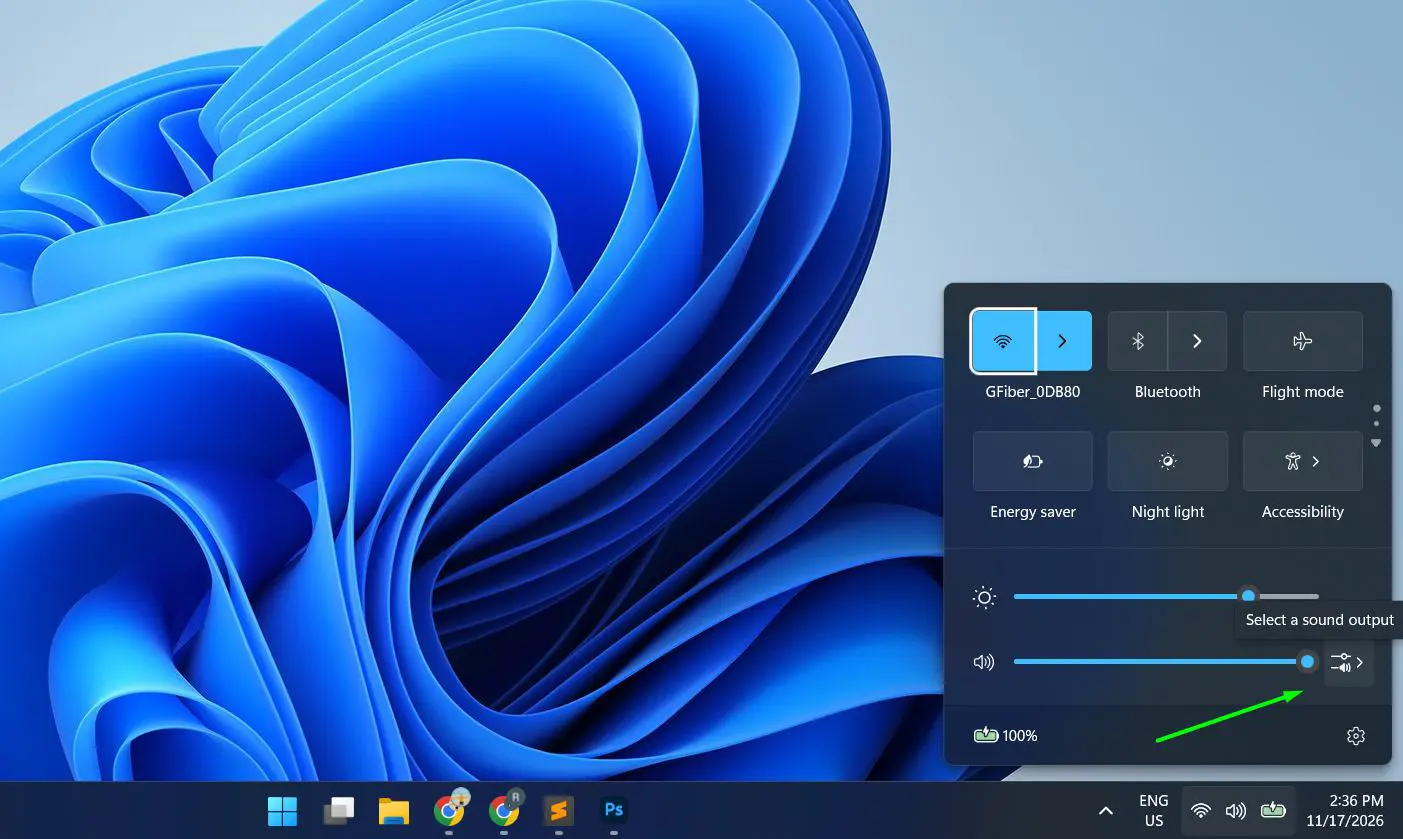
- Press Windows + A to open Quick Settings.
- Click the arrow (>) next to the volume slider.
- Select your headphones from the list.
- Play a video or song to test.
Not in the list? Go to Settings > System > Sound, look under Output, and check for your headphones there. If they’re missing, move to Fix 3.
Fix 2: Run the Audio Troubleshooter
Windows can find and fix common sound problems automatically.
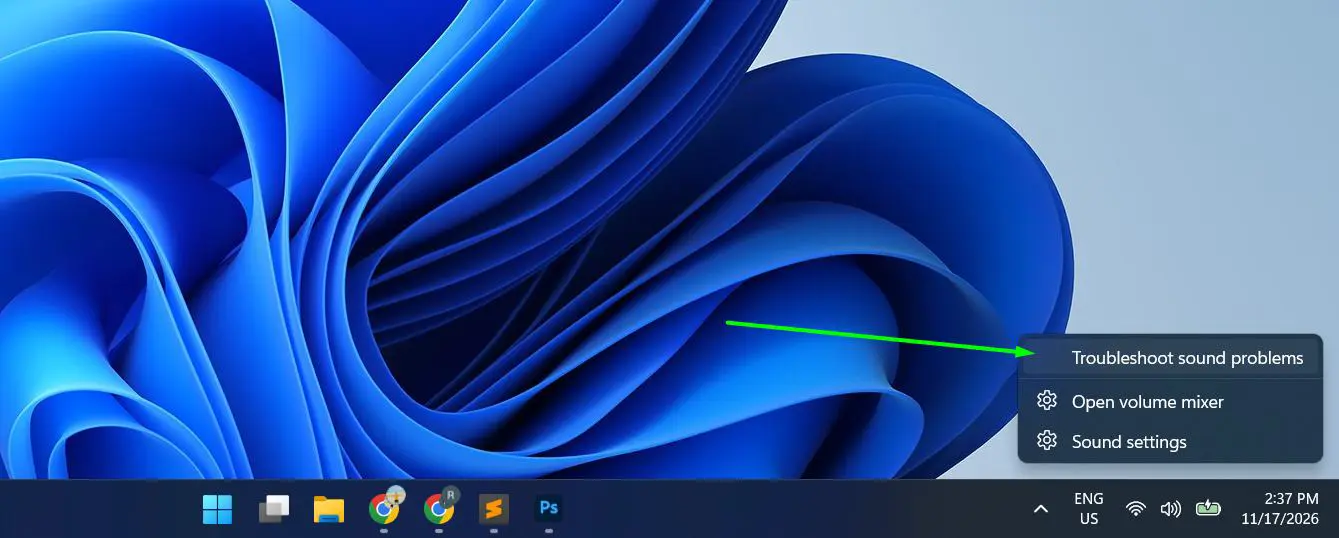
- Right-click the speaker icon on the taskbar.
- Select Troubleshoot sound problems.
- The Get Help app opens. Click Yes when asked to run diagnostics.
- Pick your headphones when it asks which device has the problem.
- Follow the suggested fixes, then test the sound.
Fix 3: Show Hidden and Disabled Sound Devices
If the headphones were disabled once, Windows hides them completely. This brings them back.
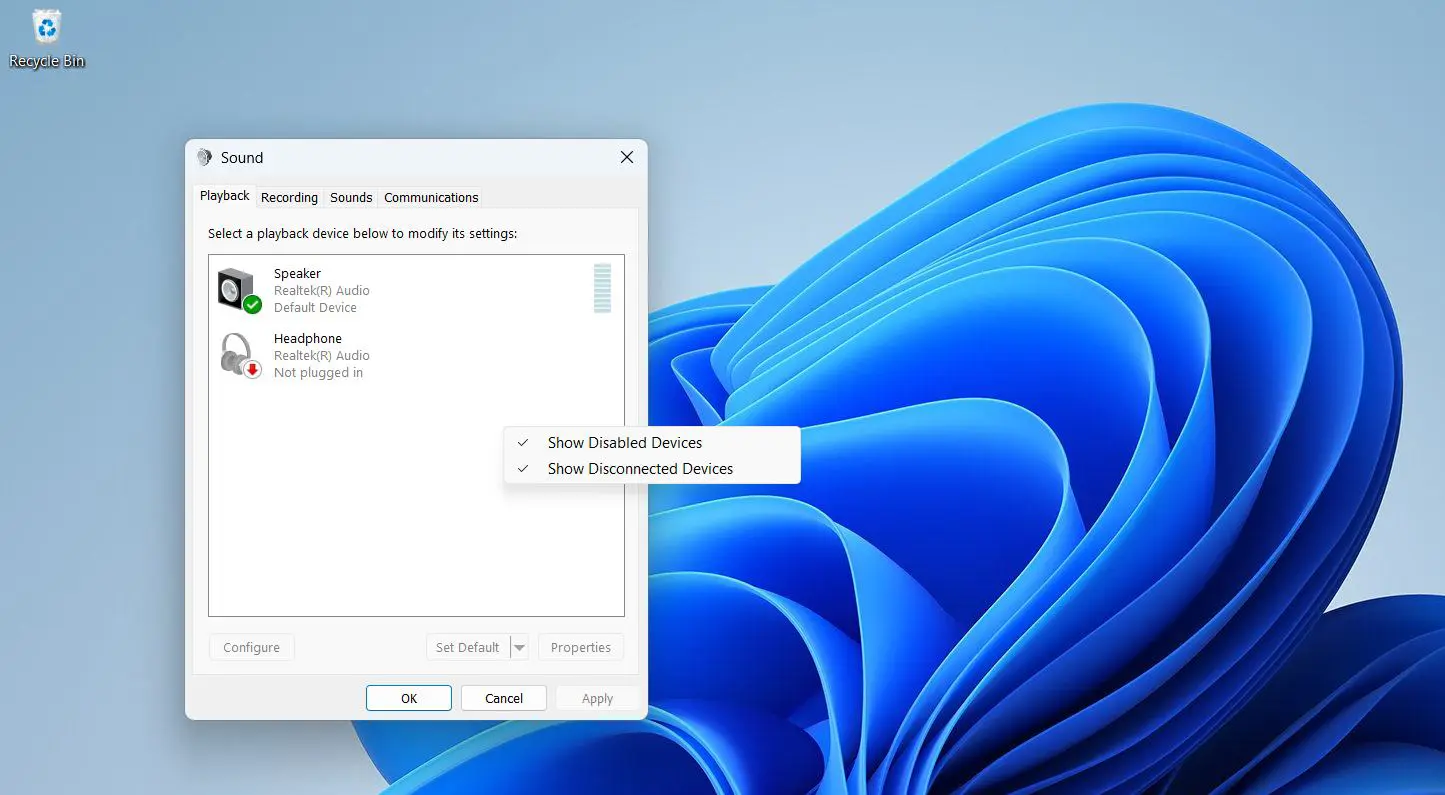
- Plug in the headphones.
- Press Windows + R, type
mmsys.cpl, and press Enter. - On the Playback tab, right-click an empty area.
- Check both Show Disabled Devices and Show Disconnected Devices.
- If your headphones appear grayed out, right-click them and choose Enable.
- Right-click them again and choose Set as Default Device.
- Click OK.
Fix 4: Check the App’s Own Audio Output
Sound works on YouTube but not in Zoom? The app is probably set to a different device. Windows 11 lets each app use its own output.
- Go to Settings > System > Sound > Volume mixer.
- Find the app in the Apps list and click the arrow next to it.
- Set Output device to your headphones (or Default).
- Restart the app.
For Zoom, Teams, Discord, and games, also open the app’s own Audio or Voice settings and pick your headphones as the speaker.
Fix 5: Fix Bluetooth Headphone Detection
Bluetooth problems usually come down to a bad pairing or the wrong audio mode.
Re-pair the Headphones
- Go to Settings > Bluetooth & devices > Devices.
- Click the three dots next to your headphones and select Remove device.
- Disconnect the headphones from your phone or any other device nearby.
- Put the headphones in pairing mode (usually hold the power or Bluetooth button until the light flashes).
- Click Add device > Bluetooth and select your headphones.
Pick Stereo Mode, Not Hands-Free
Many Bluetooth headsets show up twice: once as Headphones (Stereo) and once as Headset (Hands-Free). Hands-Free mode sounds muffled, like a phone call. Press Windows + A, click the arrow next to the volume slider, and pick the Stereo option for music and videos.
Fix 6: Fix USB and USB-C Headphone Detection
- Plug the headphones directly into the PC. Skip USB hubs, docks, and extension cables for now.
- Try a different USB port, ideally one on the back of a desktop.
- Using a USB-C to 3.5mm adapter? Make sure it has its own audio chip (often called a DAC adapter). Cheap passive adapters only work with some laptops.
- Right-click Start and open Device Manager.
- Click Action > Scan for hardware changes.
- Check Sound, video and game controllers for your headset.
Fix 7: Turn Off Jack Detection in Realtek Audio Console
Many PCs use Realtek audio. Its jack detection can wrongly report “Not plugged in,” especially with front panel jacks on desktops.
- Click Start, type Realtek Audio Console, and open it. (Not installed? Get it from your PC maker’s support page or the Microsoft Store.)
- Click Device advanced settings.
- Turn on Disable front panel jack detection.
- Turn on Enable auto popup dialog when device has been plugged in.
- Unplug the headphones and plug them back in. If a popup asks what you connected, choose Headphones.
Fix 8: Restart the Windows Audio Services
If Windows says “No audio output device is installed” or the speaker icon shows a red X, the audio services may have stalled.
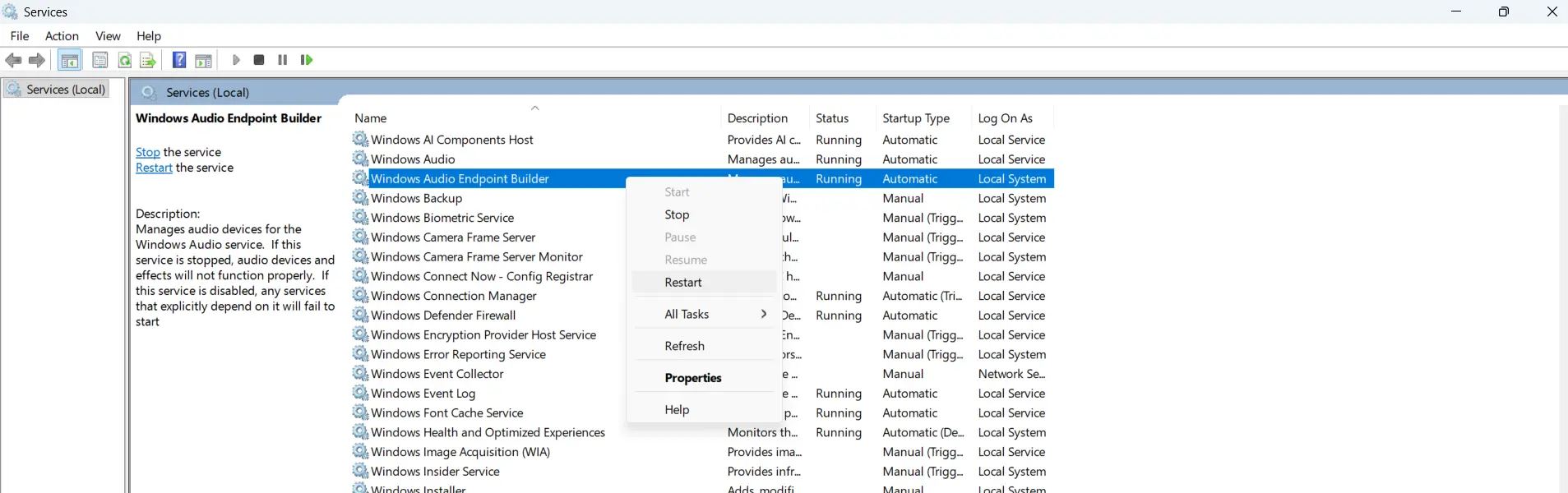
- Press Windows + R, type
services.msc, and press Enter. - Find Windows Audio Endpoint Builder, right-click it, and choose Restart. Click Yes if asked to restart related services.
- Find Windows Audio and make sure its Status shows Running. If not, right-click it and choose Start.
- For Bluetooth headphones, also check that Bluetooth Support Service is Running.
Fix 9: Update, Reinstall, or Roll Back the Audio Driver
A broken audio driver is the most common reason headphones disappear completely.
Update the Driver
- Go to Settings > Windows Update > Advanced options > Optional updates.
- Expand Driver updates, check any audio or Realtek driver, and click Download & install.
- Restart the PC.
Reinstall the Driver
- Right-click Start and open Device Manager.
- Expand Sound, video and game controllers.
- Right-click your audio device (for example, Realtek(R) Audio) and choose Uninstall device.
- Leave the “Attempt to remove the driver” box unchecked and click Uninstall.
- Restart the PC. Windows reinstalls the driver automatically.
Roll Back After a Windows Update
- In Device Manager, right-click your audio device and choose Properties.
- Open the Driver tab and click Roll Back Driver.
- Pick a reason, click Yes, and restart.
Roll Back grayed out? Download the audio driver for your exact model from your laptop or motherboard maker’s support site (Dell, HP, Lenovo, ASUS, Acer, MSI, and so on) and install it.
Fix 10: Turn Off Fast Startup
Fast Startup saves the system state when you shut down, which can carry a stuck audio driver into the next session. The key is a truly fresh start.
- Press Windows + R, type
powercfg.cpl, and press Enter. - Click Choose what the power buttons do on the left.
- Click Change settings that are currently unavailable.
- Uncheck Turn on fast startup (recommended).
- Click Save changes, then shut down and turn the PC back on.
Still Not Detected? Check the Hardware
If every fix above fails, the jack or headphones may be the problem.
- Clean the jack. Turn off the PC, then gently blow out the jack or use a dry wooden toothpick to remove lint. Never use metal.
- Check the plug type. Headsets with a mic use a 4-pole (TRRS) plug. If your PC has separate mic and headphone jacks, use a splitter adapter.
- Try another pair. If a different pair works in the same jack, the original headphones are faulty.
- Use a workaround. A cheap USB audio adapter or USB headset skips the built-in jack entirely.
If nothing works on any headphones, the audio jack may be damaged. Contact your PC maker for repair, especially if the device is still under warranty.
Tips to Prevent Headphone Detection Problems
- Plug in before opening apps. Zoom, Teams, and games often pick their audio device at launch.
- Rename your devices. In mmsys.cpl, right-click your headphones, open Properties, and give them a clear name like “Work Headset.”
- Don’t disable devices you might need later. Disabled devices vanish from Settings and are easy to forget.
- Keep audio drivers updated through Windows Update. Avoid third-party “driver updater” tools.
- Disconnect Bluetooth headphones from your phone before connecting them to the PC. Most can only play from one device at a time.
- Pull from the plug, not the cable. Yanking the cord wears out both the plug and the jack.
- Keep the jack clean. Lint from pockets and bags builds up fast in laptop jacks.
- Restart after big Windows updates. Feature updates often swap the audio driver, and a restart finishes the job.
Frequently Asked Questions
Why does Windows 11 not detect headphones when plugged in?
The most common causes are a loose plug, Windows still using the speakers, a disabled sound device, or a broken audio driver. Restart the PC, pick the headphones in Quick Settings, and turn on Show Disabled Devices in mmsys.cpl.
Why do headphones show as “Not plugged in” in Windows 11?
The jack’s detection switch isn’t registering the plug. Push the plug in fully, clean the jack, and turn on Disable front panel jack detection in Realtek Audio Console. Reinstalling the audio driver also helps.
Why is sound still coming from the speakers with headphones plugged in?
Windows hasn’t switched the output. Press Windows + A, click the arrow next to the volume slider, and select your headphones. Also check the app’s own audio settings.
How to make Windows 11 detect headphones automatically?
Set the headphones as the default device in mmsys.cpl. With Realtek audio, turn on Enable auto popup dialog when device has been plugged in in Realtek Audio Console so Windows reacts every time you plug them in.
Why did headphones stop working after a Windows update?
The update likely replaced the audio driver. Open Device Manager, go to your audio device’s Properties > Driver, and click Roll Back Driver. If that’s grayed out, install the driver from your PC maker’s support site.
Why are Bluetooth headphones connected but there’s no sound?
Windows may be using the Hands-Free mode or a different output. Select the Headphones (Stereo) option in Quick Settings. If that fails, remove the headphones in Bluetooth settings and pair them again.
Why do Bluetooth headphones sound muffled on Windows 11?
They’re in Hands-Free mode, which is meant for calls. Switch to the Stereo output in Quick Settings. If an app is using the headset mic, it may force Hands-Free mode until the call ends.
Why is a USB headset not recognized in Windows 11?
Plug it directly into the PC instead of a hub or dock, try another port, and click Scan for hardware changes in Device Manager. If it still fails, test it on another computer.
How to tell if the headphone jack or the headphones are broken?
Test the headphones on a phone, and test a different pair in the PC. If the headphones work elsewhere but nothing works in the PC jack after a driver reinstall, the jack is likely the problem.
Do headphones with a mic work in a single headphone jack?
Yes, most laptops have a combo jack that supports 4-pole (TRRS) headsets. Desktops with separate pink and green jacks need a splitter adapter for headsets with a mic.
