
Quick Answer: To change pointer appearance on Windows 11, open Settings, click Accessibility, then Mouse pointer and touch. From there, pick a color and drag the size slider — changes apply instantly, no restart needed.
The default Windows 11 cursor works fine until it doesn’t. Maybe it’s a tiny white arrow that disappears on a bright background, or maybe it just looks outdated. Either way, fixing it takes under a minute and doesn’t need any extra software. This guide covers every way to change the cursor in Windows 11 — size, color, full schemes, custom cursor files, and even the blinking text cursor — starting with the easiest option.
Method 1: Change Pointer Size and Color (Easiest, Settings App)
This is the fastest way to adjust how the cursor looks, and it’s done entirely through Settings.
- Open the Start menu and click Settings.
- Click Accessibility in the left panel.
- Under Vision, click Mouse pointer and touch.
- Under Mouse pointer style, choose from White, Black, Inverted, or Custom.
- Select Custom to open a color picker and choose any color.
- Drag the Size slider to resize the pointer, from 1 (default) up to 15.
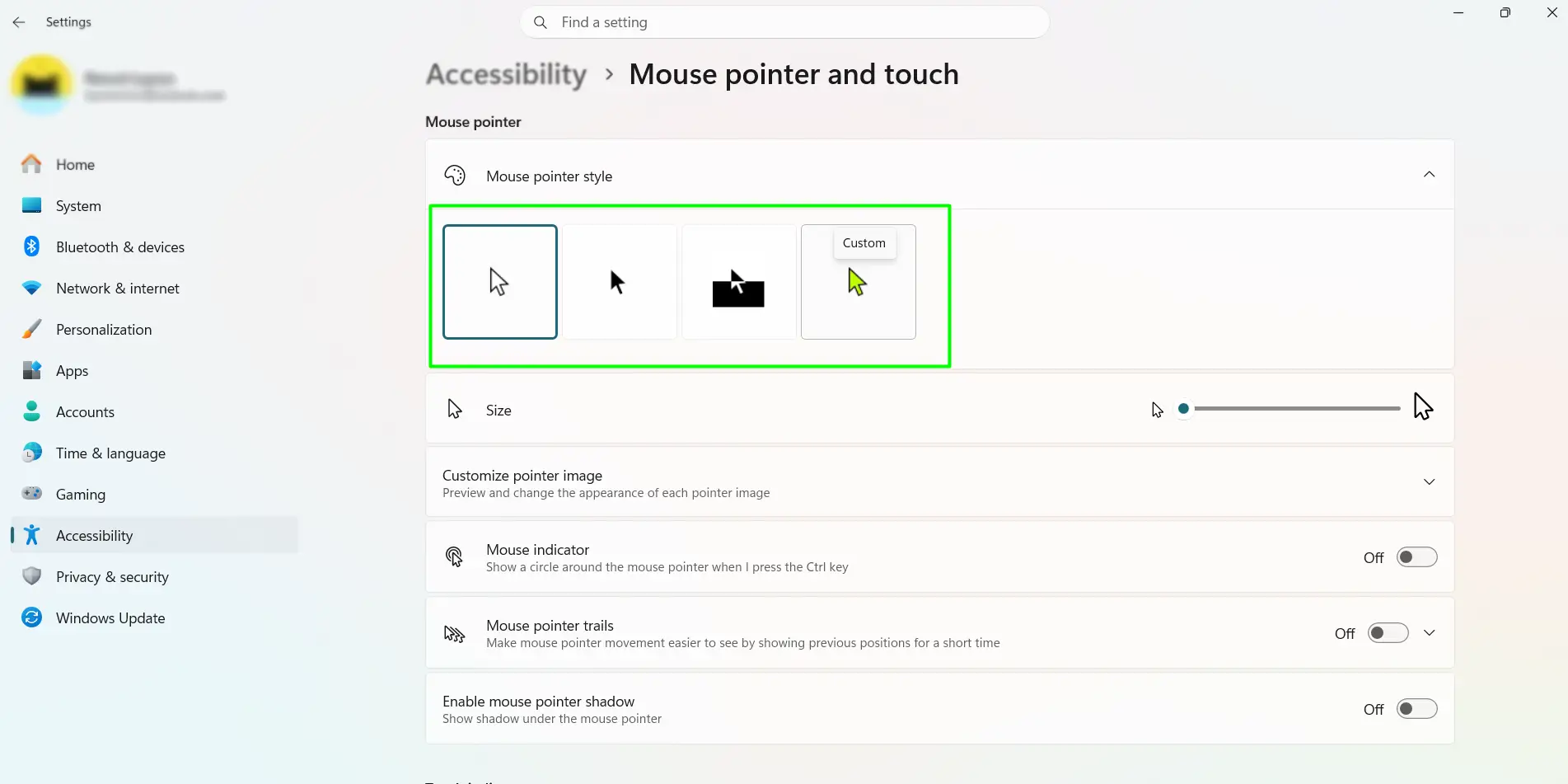
Everything updates the moment it’s changed. There’s no save button and no restart involved.
Method 2: Change the Full Cursor Scheme (Control Panel)
A scheme swaps out every cursor type at once — the pointer, the loading spinner, the resize arrows, all of it. This still runs through the classic Mouse Properties window.
- Press Windows key + R, type main.cpl, and press Enter.
- Click the Pointers tab.
- Open the Scheme dropdown and browse the available options, including large, extra-large, and high-contrast styles.
- Select a scheme to preview each cursor type below it.
- Click Apply, then OK.
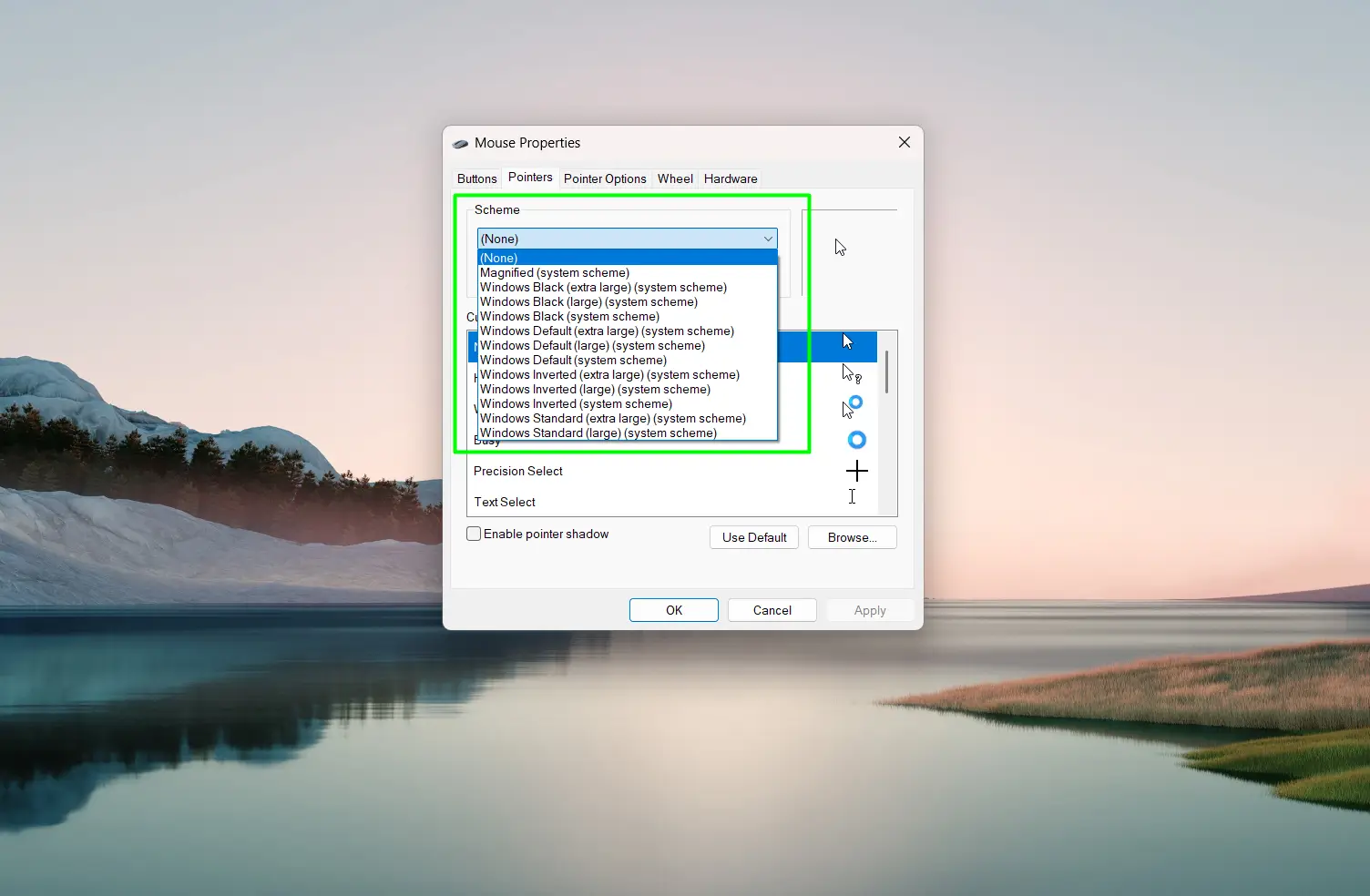
On a 4K or high-resolution display, jump straight to one of the large schemes. The standard size looks almost invisible at higher DPI.
Method 3: Load a Custom Cursor File (.cur or .ani)
For anyone who wants something the built-in schemes don’t offer, Windows 11 accepts custom .cur (static) and .ani (animated) cursor files.
- Find a cursor file ending in .cur or .ani and save it somewhere easy to find, like the desktop.
- Press Windows key + R, type main.cpl, and press Enter.
- Click the Pointers tab.
- In the Customize list, click the cursor type to replace — for example, Normal Select.
- Click Browse, find the saved file, and click Open.
- Repeat for other cursor types, then click Apply and OK.
Once everything looks right, click Save As under the Scheme section and give the setup a name. Switching back later becomes a one-click job instead of starting over.
Method 4: Customize the Text Cursor
The text cursor — the blinking line inside text fields — has its own settings, separate from the mouse pointer. This helps anyone who tends to lose track of it while typing in long documents or code.
- Open Settings and click Accessibility.
- Under Vision, click Text cursor.
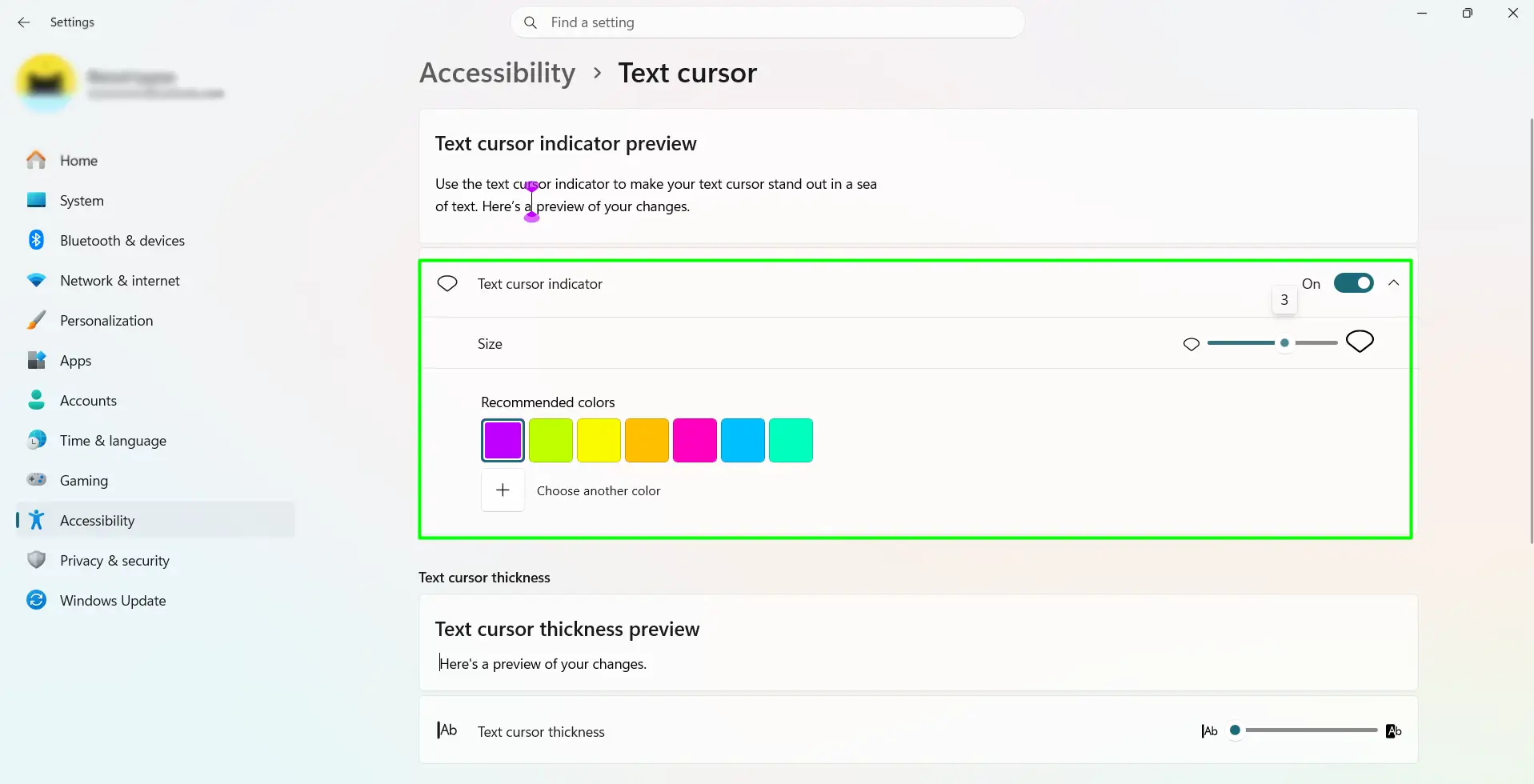
- Toggle on Text cursor indicator to add a colored highlight above and below the cursor.
- Use the size slider to adjust how large the indicator appears.
- Pick a preset color, or open the custom color picker for something specific.
- Use the Text cursor thickness slider to make the blinking line easier to spot.
Tips for Getting the Best Pointer Setup
- On large or 4K monitors, bump the pointer size up to at least 3 or 4. The default size gets lost easily once the resolution climbs.
- The Inverted style is worth trying first. It flips color automatically based on what’s behind it, so it stays visible on both light and dark backgrounds without picking a specific color.
- High-contrast schemes work better in bright rooms or on glossy screens, where a plain white cursor tends to wash out.
- Testing a custom cursor pack means checking every cursor state, not just the pointer. Loading spinners, resize arrows, and text cursors all change separately, and a pack can look mismatched if only half of it gets applied.
- Give the text cursor indicator a different color than the mouse pointer. The contrast makes the two easy to tell apart, especially in dense code or long documents.
- Check appearance on both light and dark app themes before settling on a final look. A color that pops on a white page can disappear completely on a dark editor.
Adjusting Pointer Speed Too?
Pointer appearance and pointer speed are two separate settings. Speed involves its own options, including pointer precision and how mouse DPI interacts with Windows sensitivity — that’s a different setup process entirely from anything covered here.
Frequently Asked Questions
How do you change the cursor color on Windows 11?
Go to Settings → Accessibility → Mouse pointer and touch, select Custom under pointer style, then pick any color from the picker that appears.
How do you make the mouse cursor bigger on Windows 11?
In the same Mouse pointer and touch menu, drag the Size slider to the right. It ranges from 1, the default, up to 15.
Does changing the cursor scheme affect every app?
Mostly, yes. It works system-wide for nearly everything, though some browser-based tools and older software apply their own cursor styling and ignore the Windows scheme.
Can animated cursors be used in Windows 11?
Yes. Windows 11 supports .ani files the same way it supports .cur files — load one through Mouse Properties, Pointers tab, Browse, then select the file.
Do custom cursor settings carry over to a new PC with the same Microsoft account?
Not reliably. Cursor schemes and custom cursor files usually don’t sync automatically, even with Windows Backup enabled. The setup needs to be repeated manually on each device.
Is any extra software needed to customize the cursor in Windows 11?
No. Everything — size, color, schemes, custom files, and the text cursor — is built into Settings and Mouse Properties already. Third-party tools only matter for very specific effects Windows doesn’t offer.
Why does the cursor look tiny on a 4K monitor even at the default size?
Higher resolution packs more pixels into the same physical space, so a standard-size cursor looks smaller than it would on a 1080p screen. Bumping the size slider up to 3 or 4, or switching to one of the large cursor schemes, usually fixes it.
What’s the difference between changing the pointer style and changing the scheme?
Pointer style, found in Accessibility, only changes the look of the main arrow cursor. A scheme, found in Mouse Properties, changes every cursor type at once — the arrow, loading spinner, resize handles, and more.
Can the text cursor be a different color from the mouse pointer?
Yes, and it’s worth doing. The text cursor indicator color is set separately under Accessibility → Text cursor, so it can be a completely different shade than the mouse pointer for easier visibility.
