
Learning how to calibrate monitor colors accurately is the difference between guessing at how a photo or video will look elsewhere and knowing for certain. Whether the screen leans too warm, too cool, or the blacks look washed out, a proper calibration fixes it using real measurements instead of eyeballing a slider. This guide walks through the exact process a technician would use, from prepping the display to saving a working color profile.
Key Takeaways
- Accurate calibration requires a hardware colorimeter, not just eyeballing sliders in the display menu.
- The monitor needs at least 20 to 30 minutes of warm-up time before calibration for stable readings.
- Room lighting affects perceived color, so a consistent, dim environment matters during the process.
- Calibration software generates an ICC profile that the operating system applies automatically going forward.
- Re-calibrating every one to three months keeps colors accurate as the display ages.
Before You Start
This is a software and settings based task, so there is no need to power down or open the device. A few simple preparations make the results far more reliable.
- Gather a hardware colorimeter (a puck-style sensor made for display calibration) and its bundled or manufacturer-recommended software.
- Confirm the graphics driver is up to date, since outdated drivers can interfere with how color profiles get applied.
- Set the monitor to its native resolution and refresh rate in the display settings.
- Dim overhead lighting and avoid direct sunlight hitting the screen, since ambient light skews how colors are perceived during the process.
- Let the monitor run for at least 20 to 30 minutes before starting, since panels shift slightly in color output as they warm up.
Tip: If the room lighting changes throughout the day, calibrate at the time when the screen is actually used most, since that lighting condition is what the calibration should be optimized for.
How to Calibrate Monitor Colors Step by Step
Once the display has warmed up and the room is set, the actual calibration follows a consistent sequence. This applies to most colorimeter and software combinations, even though menu names vary slightly between brands.
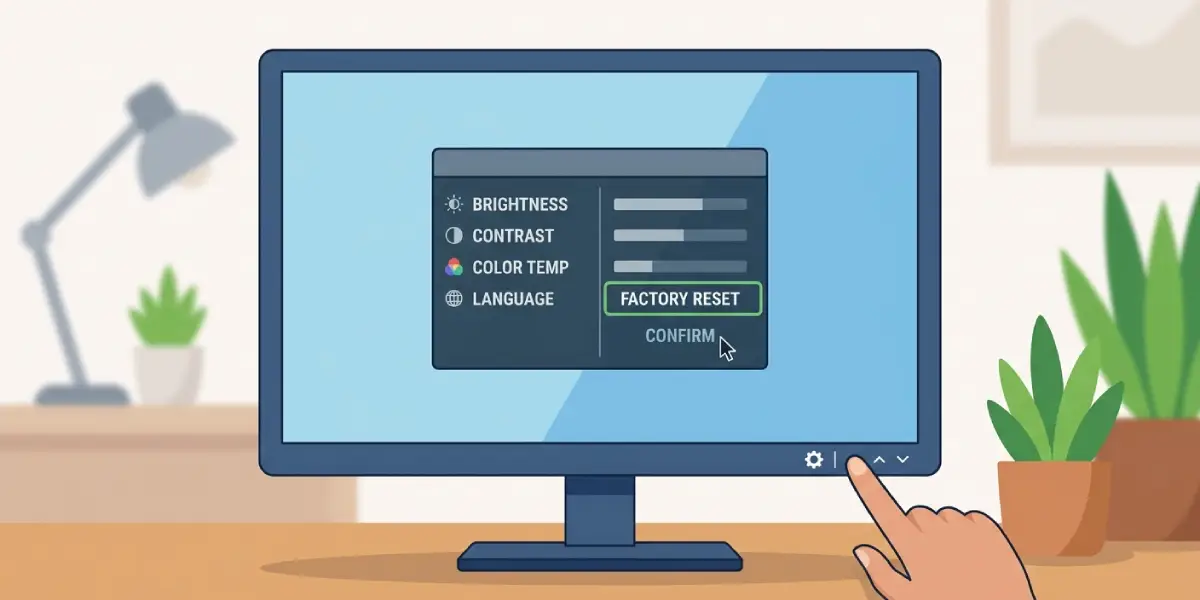
- Step 1: Reset the monitor’s on-screen display settings to factory defaults so the calibration starts from a known baseline rather than stacking on top of previous manual adjustments.
- Step 2: Install the calibration software that came with the colorimeter, or a widely used third-party calibration application, and connect the sensor to a free USB port.
- Step 3: Open the software and select the target settings, typically a gamma of 2.2, a white point around 6500K (D65), and a brightness target suited to the room, often between 100 and 120 cd/m2 for typical indoor lighting.
- Step 4: Place the colorimeter flat against the screen where the software indicates, usually centered, and make sure the cable has enough slack that the sensor sits flush without pulling away.
- Step 5: Run the automated measurement pass. The software will display a series of color patches while the sensor reads each one, and this takes several minutes depending on the number of patches.
- Step 6: Adjust brightness and contrast using the monitor’s physical buttons if the software prompts for it during the process, since some steps require manual input before the automated readings continue.
- Step 7: Let the software generate and save the ICC or ICM color profile once the measurement pass finishes.
- Step 8: Confirm the operating system has applied the new profile as the default for that display, checking the color management settings in Windows or the Displays panel in macOS.
Tip: Open a known reference image, such as a photo with skin tones or a neutral gray gradient, right after calibration to do a quick visual sanity check before trusting the result for real work.
Verifying the Calibration
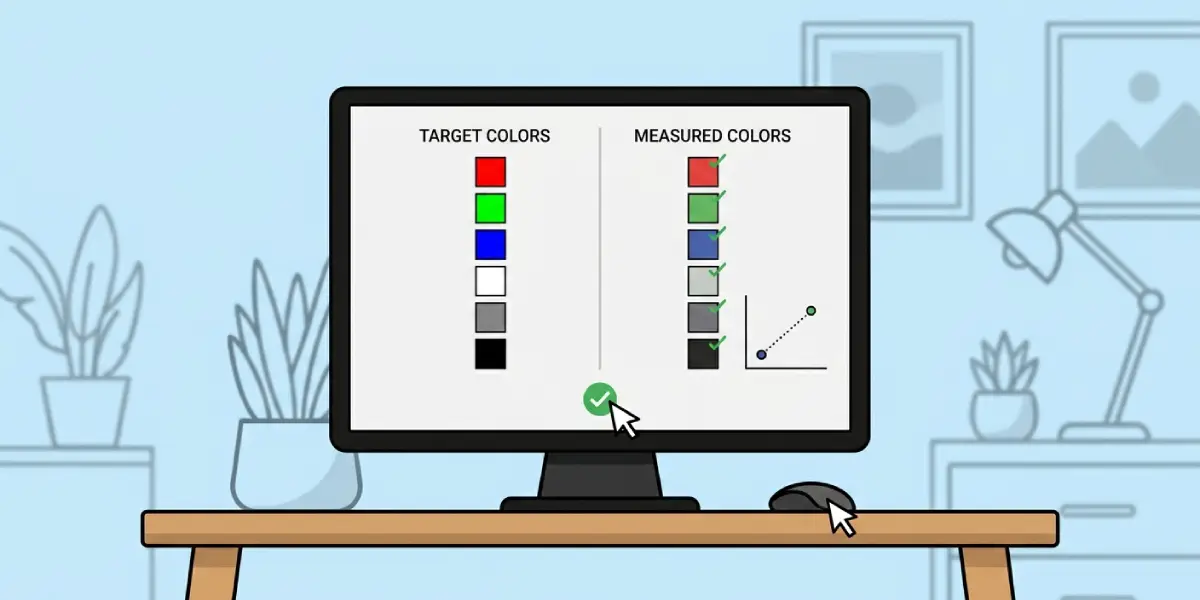
Most calibration software includes a verification step that re-measures a smaller set of patches after the profile is created and reports how closely the display matches the target. This score is usually expressed as a Delta E value, and lower numbers mean less visible color error. A well-calibrated monitor for general photo or video work typically lands well under a Delta E of 2, which is close to the point where the human eye cannot detect a difference from the target color.
Common Problems and Fixes
- Colors still look off after calibration: Check whether the ICC profile actually loaded as the default, since some systems revert to a generic profile after a restart if the calibration software is not set to launch on startup.
- Colorimeter not detected by the software: Try a different USB port, ideally connected directly to the motherboard rather than through a hub, and confirm the sensor’s lens cover has been removed before placing it on the screen.
- Profile looks correct in one app but not another: Some applications, especially certain browsers and games, do not respect ICC profiles by default. Check that application’s color management settings rather than re-running the calibration.
- Visible banding or gradients after calibration: This usually points to the graphics card output being limited to 8-bit color at that resolution and refresh rate combination. Lowering the refresh rate slightly or checking cable type can restore a full color signal.
- Laptop screen and external monitor look mismatched: Each display needs its own separate calibration and profile, since panels vary even from the same manufacturer, and Windows assigns profiles per display rather than system-wide.
Frequently Asked Questions
How often should a monitor be recalibrated?
Most displays hold a calibration reasonably well for one to three months before color drifts enough to matter, though heavily used professional displays sometimes benefit from monthly checks.
Can monitor colors be calibrated without a colorimeter?
Software-only calibration using the eye and on-screen test patterns can improve obvious issues, but it relies on human perception and the eye’s own limitations, so it will never match the accuracy of a hardware-measured calibration.
Does calibrating a monitor affect its brightness settings?
Yes, calibration often adjusts brightness as part of hitting the target luminance, so the screen may appear dimmer or brighter than it did before the process, particularly on displays that were previously set far above typical viewing brightness.
Is calibration different for gaming monitors versus professional displays?
The process itself is the same, though gaming monitors sometimes have wider or less accurate factory color gamuts, so the calibration may show a larger correction and a higher starting Delta E value.
Why do colors look different in different applications after calibration?
Not every application is color-managed. Some read the ICC profile automatically, while others display raw pixel values without adjustment, which creates a visible mismatch between programs even though the profile itself is correct.
What is the ideal room lighting for calibrating a monitor?
Dim, consistent lighting without direct light hitting the screen works best, since bright or shifting ambient light changes how the eye perceives contrast and color during the process.
Can a laptop screen be calibrated the same way as a desktop monitor?
Yes, the same colorimeter and software process works on laptop screens, though laptop panels often have a narrower color gamut, so the achievable accuracy may be more limited than on a dedicated professional display.
What does the Delta E number mean after calibration?
Delta E measures the difference between the target color and the color the display actually produces, with lower values indicating a more accurate result. Values under 2 are generally considered visually indistinguishable from the target.
Will Windows or macOS updates reset a saved calibration profile?
Occasionally, major operating system updates reset the default color profile back to a generic setting, so it is worth checking the color management settings after a large update and reselecting the calibrated profile if needed.
Do budget monitors benefit from calibration as much as expensive ones?
Budget panels often see the largest visible improvement, since their factory color accuracy tends to be less precise, though the achievable end result is still limited by the panel’s underlying color gamut and bit depth.
