
Screen tearing shows up as a horizontal line where the top and bottom halves of a frame don’t line up, and learning how to fix screen tearing in games usually comes down to matching the monitor’s refresh rate with the graphics card’s output. The good news is that this is almost always a settings problem, not a hardware failure, and it can be solved in a few minutes once the right options are found.
Key Takeaways
- Screen tearing happens when the monitor refreshes mid-frame, showing parts of two different frames at once.
- Enabling V-Sync, G-Sync, or FreeSync in the graphics driver or in-game settings fixes most cases.
- A mismatched refresh rate or an outdated graphics driver is a common hidden cause.
- Cheap or damaged display cables can also cause tearing-like artifacts that mimic sync issues.
- Frame rate limiting paired with adaptive sync gives the smoothest result with the least input lag.
Common Causes of Screen Tearing in Games
Tearing happens when the graphics card sends frames to the monitor faster or at a different rhythm than the monitor can display them. The monitor starts drawing a new frame before it finishes the last one, so the screen shows a visible seam. A few things typically trigger this:
- The frame rate produced by the graphics card is higher than the monitor’s refresh rate, and no sync technology is active.
- V-Sync, G-Sync, or FreeSync is disabled in either the game or the graphics driver control panel.
- The monitor is set to a lower refresh rate than it supports, often left at a default after a fresh Windows install.
- An outdated or corrupted graphics driver is mishandling frame timing.
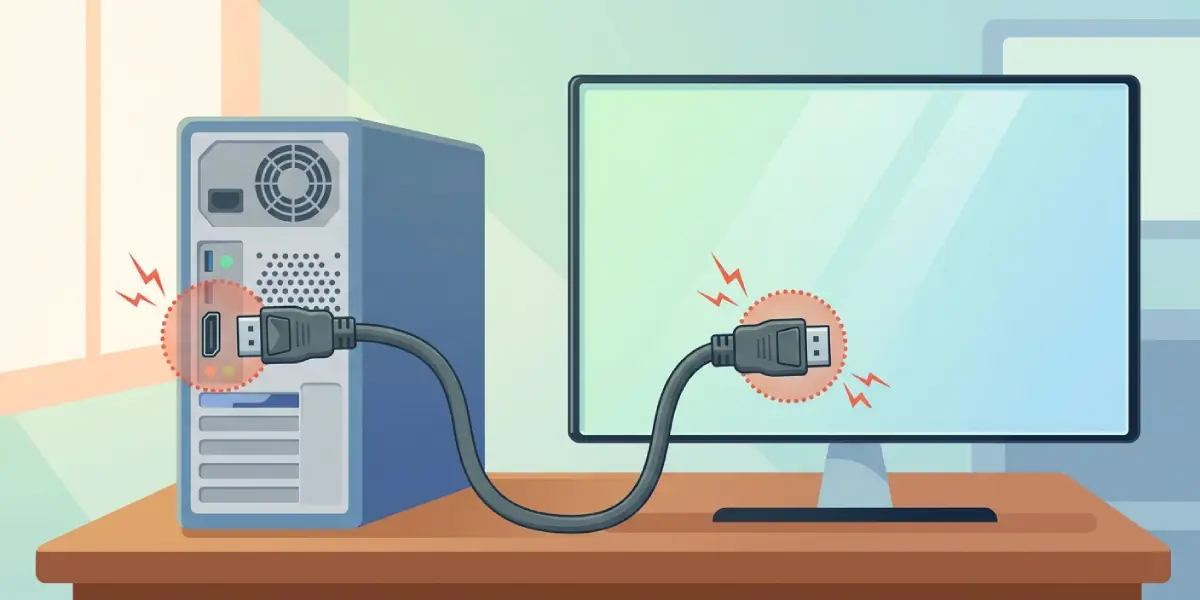
- A loose, low-quality, or aging HDMI or DisplayPort cable is dropping signal integrity.
How to Fix Screen Tearing in Games: Step-by-Step
These steps move from the quickest fix to the ones that take a little more digging. Most people solve tearing before reaching the final step.
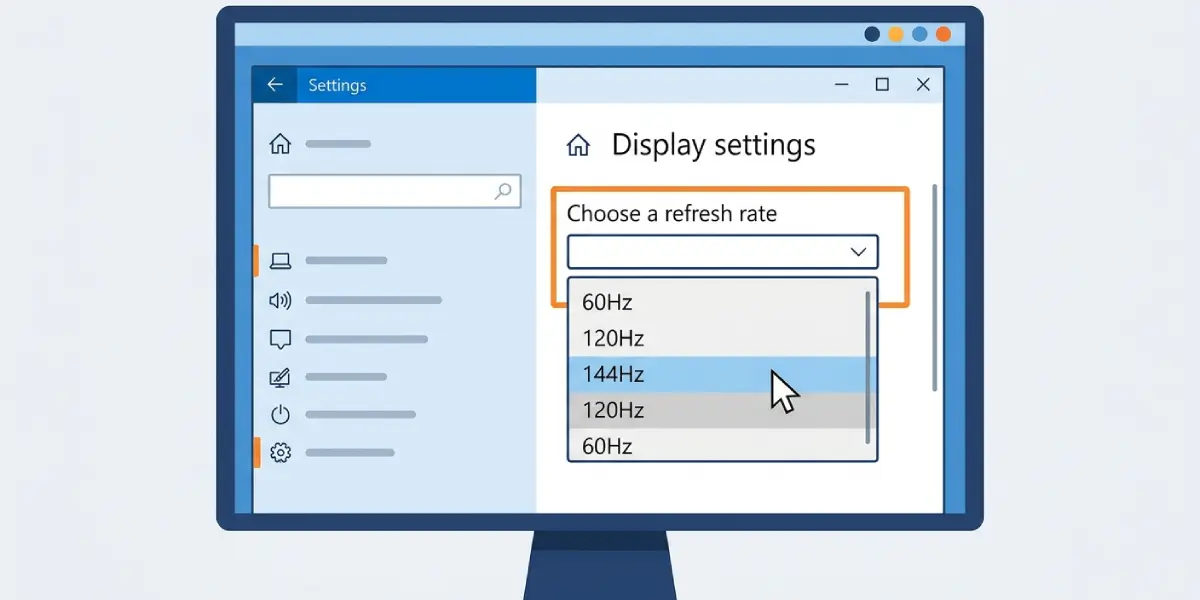
- Step 1: Confirm the monitor’s native refresh rate. On Windows, open Settings, go to System, then Display, then Advanced Display, and check the refresh rate listed. Set it to the monitor’s highest supported value if it isn’t already there.
- Step 2: Enable adaptive sync at the hardware level. On an NVIDIA card, open the NVIDIA Control Panel, go to ‘Set up G-SYNC,’ and enable it for the display. On an AMD card, open AMD Software, go to Display, and turn on Radeon FreeSync. This has to be turned on both in the driver and, in many cases, in the monitor’s own on-screen menu under a setting labeled FreeSync, G-Sync Compatible, or Adaptive-Sync.
- Step 3: Turn on V-Sync as a backup or alternative. Inside the game’s video or graphics settings menu, look for V-Sync and switch it on. This caps the frame rate to the monitor’s refresh rate, which stops tearing even without adaptive sync hardware, though it can add a small amount of input lag.
- Step 4: Set an in-game frame rate limit slightly below the monitor’s refresh rate, for example capping at 141 frames per second on a 144Hz display. Pairing a frame rate cap with G-Sync or FreeSync gives smooth, tear-free motion with less lag than V-Sync alone.
- Step 5: Update the graphics driver. Open NVIDIA App or AMD Software and check for the latest driver release, or download it directly from the manufacturer’s site. Restart the PC after installing.
- Step 6: Swap the display cable. Try a different HDMI or DisplayPort cable, and confirm it supports the bandwidth needed for the resolution and refresh rate in use, since a cable rated for a lower spec can cause intermittent tearing that looks like a sync problem.
- Step 7: Test with a single sync method active at a time. Running V-Sync and G-Sync or FreeSync together sometimes causes conflicts, so if tearing persists, disable one and test with only the other enabled to isolate the cause.
Tip: If tearing only happens in one specific game, check that game’s own graphics settings first, since many titles have V-Sync or frame rate caps that override system-wide driver settings.
Common Problems and Fixes
Tearing still appears with G-Sync or FreeSync enabled
This usually means the setting is on in the driver but not confirmed in the monitor’s on-screen menu, or the monitor is connected through a cable or port that doesn’t support adaptive sync, such as an older HDMI version. Check the monitor’s OSD settings and confirm the cable matches the port’s full capability.
V-Sync causes noticeable input lag
Standard V-Sync can add a frame or two of delay, which feels sluggish in fast-paced games. Switching to adaptive sync combined with a slight frame rate cap below the monitor’s max refresh rate removes tearing with far less lag than V-Sync alone.
Tearing happens only during fast camera movement
This is a classic sign that frames are being produced faster than the display can show them without sync active. Confirming that a sync method is actually enabled during gameplay, not just toggled in the menu, usually resolves it.
Tearing appears after a Windows or driver update
Updates sometimes reset display or driver settings to default. Revisiting the refresh rate setting in Windows and the sync options in the graphics driver control panel after any update is worth the extra minute.
Multiple monitors show tearing on only one screen
Adaptive sync settings are applied per display, so each monitor needs G-Sync or FreeSync enabled individually, and refresh rates should be checked separately for each screen in the display settings menu.
Frequently Asked Questions
What causes screen tearing in games?
Screen tearing happens when the graphics card outputs frames at a different rate than the monitor’s refresh rate, causing the display to show parts of two frames at once.
Does V-Sync completely fix screen tearing?
V-Sync fixes tearing in most cases by capping the frame rate to the monitor’s refresh rate, though it can introduce some input lag, especially in fast-paced games.
What is the difference between V-Sync and G-Sync or FreeSync?
V-Sync is a software-based cap that syncs frame output to the refresh rate, while G-Sync and FreeSync are hardware-level technologies that let the monitor’s refresh rate dynamically match the frame rate, usually with less input lag.
Can a bad cable cause screen tearing?
Yes, a damaged or underrated HDMI or DisplayPort cable can cause signal issues that look like tearing, especially at higher resolutions and refresh rates.
Should V-Sync and G-Sync be used together?
They can be combined, but in some games this causes conflicts or added lag, so testing with only one active at a time helps identify what works best for a specific setup.
Why does screen tearing only happen in certain games?
Some games have their own internal frame rate caps or V-Sync settings that override system and driver-level settings, so checking the in-game graphics menu is important.
Does a higher refresh rate monitor eliminate tearing on its own?
A higher refresh rate reduces how noticeable tearing is but does not eliminate it, since tearing can still occur whenever frame output and refresh timing fall out of sync.
Is screen tearing a sign of a failing graphics card?
Screen tearing is almost always a settings issue rather than a hardware fault, though persistent artifacts alongside tearing, such as flickering or crashes, are worth having checked separately.
Does frame rate capping help with tearing?
Yes, capping the frame rate just below the monitor’s refresh rate, especially alongside adaptive sync, reduces tearing while keeping input lag low.
Why does tearing appear after updating Windows or graphics drivers?
Updates can reset refresh rate and sync settings to their defaults, so it helps to recheck display and driver settings after any major update.
