
Quick Answer: Go to Settings > System > Sound, click your output device, expand the Volume row, and drag the Left channel or Right channel sliders to fix uneven audio. No extra software needed.
Audio that sounds louder on one side than the other is distracting — and fixing it takes less than a minute in Windows 11. Here’s the thing: most people never find the balance sliders because they’re hidden by default. This guide shows three ways to fix it, starting with the easiest.
Method 1: Adjust Audio Balance via Windows 11 Settings
This is the fastest method for most users, including those with Bluetooth headphones.
- Press Windows + I to open Settings.
- Click System in the left sidebar, then click Sound.
- Under Output, click the name of your active speaker or headphone device. If nothing shows, scroll down to Advanced and click All sound devices.
- Scroll to Output settings and click the Volume row to expand it.
- Two sliders appear — Left channel and Right channel. Drag either one to fix the balance.
- Changes apply right away. Close Settings when done.
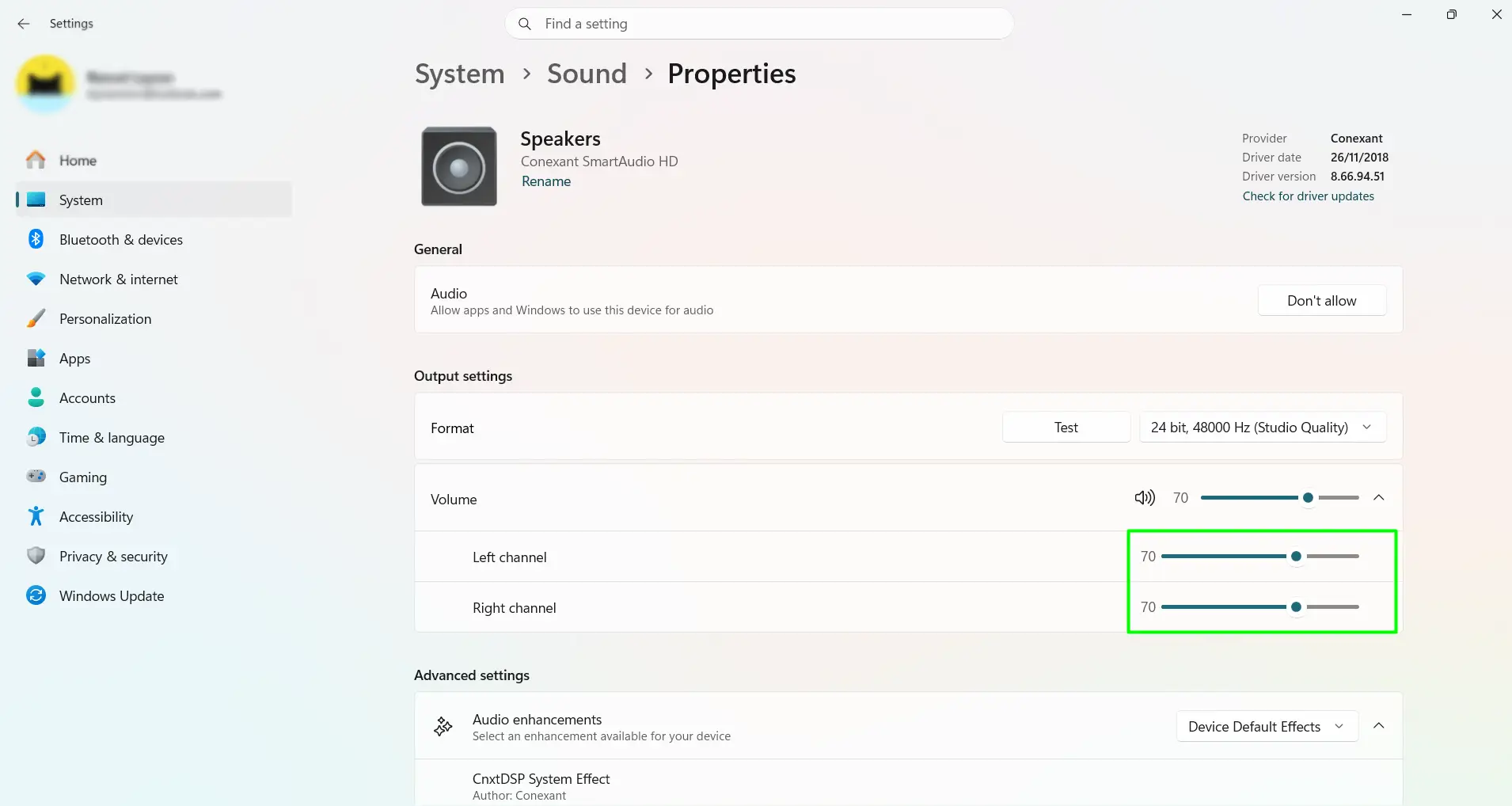
Pro Tip: If the Left and Right sliders don’t appear, click the small arrow next to the volume percentage to expand the section. That’s the most common reason people think the option is missing.
Method 2: Adjust Audio Balance via Control Panel
The Control Panel method works on both Windows 10 and 11. It’s the most reliable fallback — especially if your audio driver limits what shows up in Settings.
- Press Windows + R, type control, and press Enter.
- Set the view to Large icons or Small icons, then click Sound.
- On the Playback tab, double-click your output device.
- Click the Levels tab.
- Click the Balance button next to the volume slider.
- Adjust the L and R sliders. Both default to 100.
- Click OK on each open window to save.
Most people find that this method works even when the Settings app doesn’t show all options for a particular audio driver.
Method 3: Fix Bluetooth Balance Using the Registry
Bluetooth headphones sometimes ignore balance adjustments entirely. The culprit is usually a Windows feature called Absolute Volume, which locks left and right channels together. A quick registry edit fixes this.
Before starting: Back up the registry key first. Right-click the key folder, choose Export, and save the file somewhere accessible.
- Press Windows + R, type regedit, and press Enter. Click Yes if prompted.
- Navigate to: HKEY_LOCAL_MACHINE\SYSTEM\ControlSet001\Control\Bluetooth\Audio\AVRCP\CT
- Find DisableAbsoluteVolume on the right panel. Double-click it and set the value to 1.
- If that value doesn’t exist, right-click the empty panel and choose New > DWORD (32-bit) Value. Name it DisableAbsoluteVolume and set the value to 1.
- Click OK and close Registry Editor.
- Restart the PC, reconnect the Bluetooth device, and try adjusting the balance again.
Tips for Better Audio Balance Results
- Test with a stereo track. Mono audio sounds identical on both sides no matter where the sliders are. Always test with a stereo song or video.
- Use headphones when testing. They give the clearest left/right feedback compared to speakers.
- Settings are saved per device. Adjusting headphone balance won’t touch speaker balance, and vice versa.
- Check hardware too. If audio still sounds off after adjusting balance, try the headphones or speakers on another device to rule out a physical problem.
- Hearing difference in one ear? Go to Settings > Accessibility > Audio and turn on Mono Audio. It combines both channels equally into both ears.
- Quickest shortcut: Right-click the speaker icon in the taskbar and select Open Sound settings. It gets there faster than navigating through menus.
- Per-app balance isn’t built in. Windows balances all apps together through the same output device. For per-app control, a free tool called Equalizer APO with the Peace GUI handles it well.
- Check the app itself first. VLC and Foobar2000 have their own built-in balance or panning options. If the imbalance only happens in one app, start there before touching Windows settings.
Frequently Asked Questions
Why does audio sound louder on one side in Windows 11?
The most common reason is that the left or right channel slider was accidentally moved. Open Settings > System > Sound, click the output device, expand the Volume row, and check that both sliders are set equally. A misconfigured audio driver or Absolute Volume on Bluetooth devices can also cause it.
Where are the left and right channel sliders in Windows 11?
They’re hidden by default. Go to Settings > System > Sound, click the active output device, scroll to Output settings, and click the Volume row to expand it. The Left channel and Right channel sliders appear underneath.
Does the Control Panel balance option still work on Windows 11?
Yes, fully. Open Control Panel, click Sound, double-click the playback device, go to the Levels tab, and click Balance. It works the same as Windows 10 and is often more reliable than Settings for older or third-party audio drivers.
Why can’t Bluetooth headphone balance be adjusted in Windows 11?
Absolute Volume is usually the cause. It’s a Windows feature that prevents independent left and right channel control on Bluetooth devices. Disabling it through the registry — by setting DisableAbsoluteVolume to 1 — fixes this in most cases.
Will adjusting audio balance affect all apps at once?
Yes. The balance setting applies to the entire output device, not individual apps. Every app playing audio through that device uses the same left and right channel balance.
Can audio balance be set differently for headphones and speakers?
Yes. Windows saves balance settings separately for each output device. Headphone balance and speaker balance are completely independent of each other.
Do Windows updates reset audio balance settings?
Sometimes. Major updates that include audio driver changes can silently reset balance back to default. It’s worth double-checking the balance after any significant system update.
Is there a way to fix balance without opening Settings or Control Panel?
Not with a built-in shortcut. The fastest native path is right-clicking the speaker icon in the taskbar and selecting Open Sound settings. For quicker access going forward, Equalizer APO with Peace GUI lets you adjust balance from a small system tray icon.
Does adjusting balance affect the microphone?
No. Balance controls in Windows Sound settings only apply to output devices like speakers and headphones. Microphone levels are managed separately under the Input section or the Recording tab in Control Panel.
What is the default audio balance setting in Windows 11?
Both the left and right channels default to 100, which means equal volume on each side — a perfectly centered output.
