
Quick Answer: Go to Start > Settings > System > Sound > click your active output device > scroll to Spatial sound > select Windows Sonic for Headphones. Done — no restart needed.
Spatial sound makes audio feel like it is coming from all around — above, behind, even below. Whether gaming, watching movies, or just listening to music, enabling it takes less than a minute. Here are four ways to do it, starting with the easiest.
What Is Spatial Sound in Windows 11?
Spatial sound — sometimes called 3D audio — turns regular stereo headphones into something that mimics a full surround sound setup. Instead of hearing everything from just left and right, sounds get height and depth. Footsteps feel like they are behind. Movie audio feels like it surrounds the listener.
Windows 11 supports three formats:
- Windows Sonic for Headphones — Free, built-in, no extra apps needed. Best starting point for most people.
- Dolby Atmos for Headphones — Premium option. Requires the Dolby Access app from the Microsoft Store.
- DTS:X Ultra — Another premium pick, especially good for gaming. Requires the DTS Sound Unbound app.
For anyone just getting started, Windows Sonic is the one to pick.
Method 1: Turn On Spatial Sound Through Windows Settings
This is the most straightforward path. Works on both Windows 11 and Windows 10.
- Press Windows + I to open Settings
- Click System, then click Sound
- Under the Output section, click on the active audio device (headphones or speakers)
- Scroll down to Advanced settings and find the Spatial sound row
- Click the dropdown — it will show Off by default
- Select Windows Sonic for Headphones
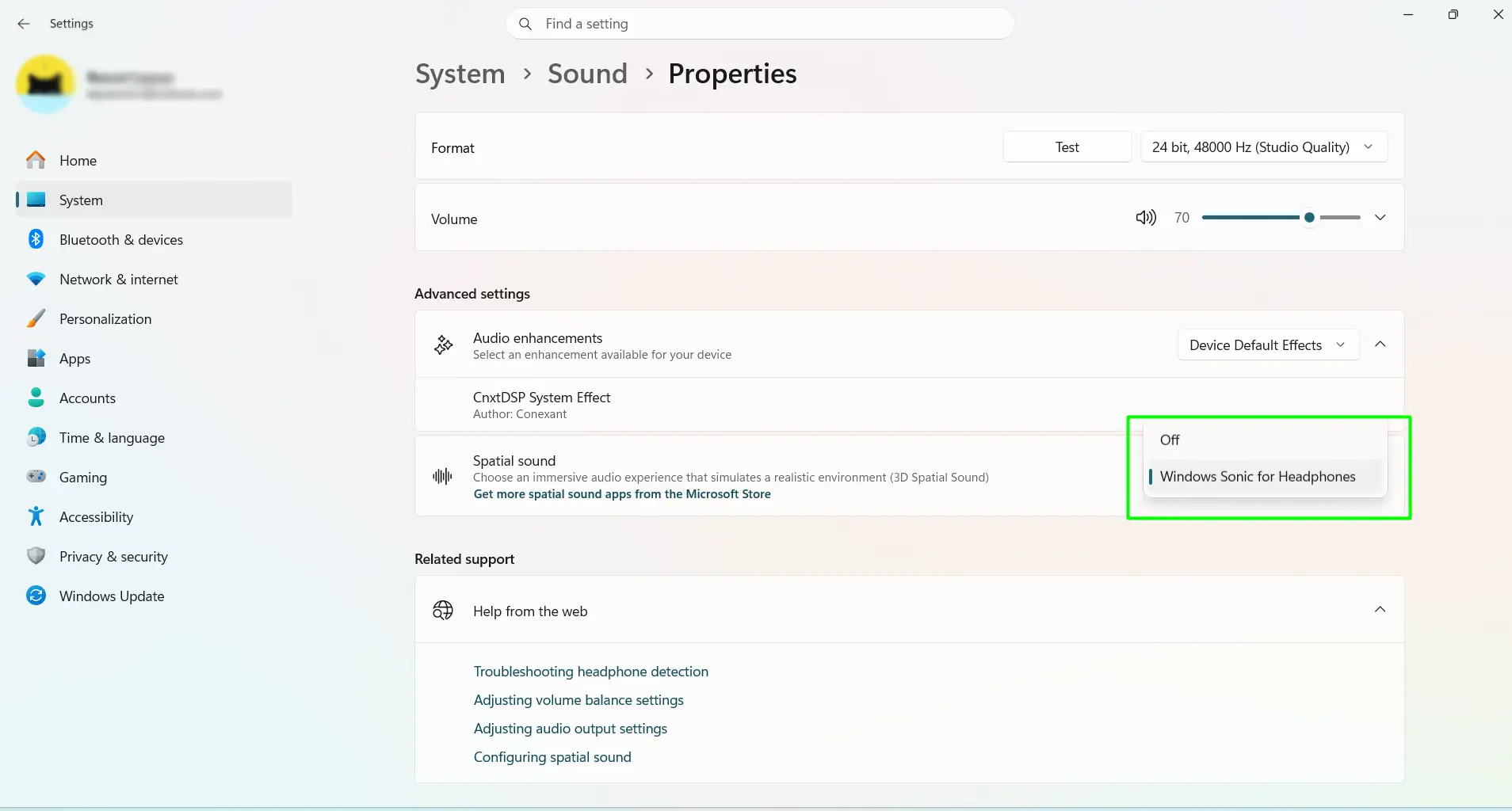
The change takes effect immediately.
Method 2: Turn On Spatial Sound From the Taskbar
Here’s the thing — this method skips most of the menu navigation and gets there faster.
- Right-click the speaker icon in the bottom-right corner of the taskbar
- Select Sound settings
- Under Output, click on the active audio device
- Scroll to Spatial sound under Advanced settings
- Click the dropdown and select Windows Sonic for Headphones
Method 3: Turn On Spatial Sound With a Keyboard Shortcut (Windows 11 Only)
The fastest method of all — one key combo and the panel opens instantly.
- Press Windows + Ctrl + V on the keyboard
- A Sound output panel will appear on screen
- At the bottom of the panel, find the Spatial Audio dropdown
- Select Windows Sonic for Headphones
This only works on Windows 11 version 22H2 or later. To turn it off, open the same panel and select Off from the dropdown.
Method 4: Turn On Spatial Sound Through the Control Panel
This is the classic route — useful if the modern Settings app is not cooperating.
- Press Windows + R to open the Run dialog
- Type mmsys.cpl and press Enter
- The Sound control panel opens — make sure the Playback tab is selected
- Right-click the active audio device and select Properties
- Click the Spatial sound tab
- Click the dropdown and select Windows Sonic for Headphones
- Click Apply, then OK
How to Turn Off Spatial Sound
Turning it off is just as easy as turning it on. Some people prefer spatial sound only for gaming and switch back to regular stereo for music.
- Right-click the speaker icon on the taskbar
- Select Sound settings
- Click the active output device under Output
- Scroll to Spatial sound under Advanced settings
- Click the dropdown and select Off
Tips for Getting the Most Out of Spatial Sound
- Use headphones, not speakers. The effect is noticeably stronger with headphones. On speakers, it can sometimes sound hollow depending on room size and placement.
- Test all three formats. Windows allows switching between Windows Sonic, Dolby Atmos, and DTS:X Ultra at any time without restarting. Try each one with a favorite game or movie to find what sounds best.
- Match the format to the activity. Most people find that DTS:X Ultra shines in competitive gaming while Dolby Atmos feels more natural for movies and TV shows.
- Each device has its own setting. Windows saves spatial sound settings per device. Headphones and speakers can each have a different setting — no need to keep switching back and forth manually.
- If the option is greyed out, check Mono Audio. Go to Settings > Accessibility > Audio and make sure Mono Audio is turned off. That single setting blocks spatial sound from being available.
- Keep audio drivers updated. The key is having a current audio driver. If spatial sound sounds distorted or keeps turning itself off, updating the driver through Device Manager usually fixes it fast.
Frequently Asked Questions
Does spatial sound actually make a difference in gaming?
Yes — and it is noticeable quickly. Spatial sound makes directional audio much more accurate, so footsteps, gunfire, and environmental cues feel like they are coming from specific directions. In competitive games especially, that directional awareness can give a real edge.
Is Windows Sonic for Headphones actually free?
Completely free. Windows Sonic is built into Windows 11 and Windows 10 with no app to install and no purchase required. Dolby Atmos and DTS:X Ultra are the paid options — both require separate apps from the Microsoft Store.
Why is the spatial sound option greyed out?
The most common reason is that Mono Audio is turned on. Go to Settings > Accessibility > Audio and switch Mono Audio off. An outdated audio driver can also cause this — updating it through Device Manager usually clears the problem.
Can spatial sound be used with Bluetooth headphones?
Sometimes. Bluetooth devices do not always support spatial sound in Windows. If the Spatial sound tab or dropdown is missing when using a Bluetooth device, try a wired connection instead — wired headphones are fully compatible.
Does turning on spatial sound affect music quality?
It can. Some listeners notice that music sounds more diffuse or less precise with spatial sound on. The key is to try it and decide based on personal preference — and remember it is easy to switch back to Off anytime.
Why does spatial sound keep turning off after restarting Windows?
This is typically an audio driver issue. Updating or reinstalling the audio driver and making sure Windows Update is fully current usually stops this from happening. Checking that no third-party audio software is overriding the settings is also worth doing.
Which is better — Dolby Atmos or DTS:X Ultra?
Here’s the thing — it depends on what the PC is used for most. Dolby Atmos tends to perform better for movies and streaming content with Atmos mixes. DTS:X Ultra is generally preferred for gaming, especially where precise positional audio matters. Both offer free trials, so testing before buying is easy.
Does spatial sound work on laptop speakers?
Yes, spatial sound can be applied to laptop speakers through the same settings. The effect is more subtle than with headphones, and results vary by laptop. It is worth trying, but headphones will always deliver a more noticeable improvement.
