
Learning how to optimize Windows for gaming performance does not require a new graphics card or a fresh install. Most of the FPS left on the table comes from background processes, outdated drivers, and power settings that were never built with gaming in mind. A handful of targeted changes can noticeably smooth out frame pacing and cut down on stutter.
Key Takeaways
- Updating GPU drivers and enabling Game Mode fixes the majority of easy performance losses.
- Switching to a high performance power plan prevents Windows from throttling the CPU mid-game.
- Trimming startup apps and background processes frees up RAM and CPU cycles for the game itself.
- Graphics settings like hardware-accelerated GPU scheduling and fullscreen optimizations can help or hurt depending on the game, so testing both states matters.
- Storage location and drive health quietly affect load times and stutter just as much as raw specs.
Step-by-Step: How to Optimize Windows for Gaming Performance
These steps are listed in the order they tend to make the biggest difference first. Working through all of them takes about twenty minutes.
- Step 1: Close unnecessary background apps and browser tabs before starting, then open Settings and check for pending Windows updates. Running the latest build avoids compatibility issues with newer game engines and graphics drivers.
- Step 2: Update the graphics driver directly from the GPU manufacturer’s own tool or website rather than relying on Windows Update, since manufacturer drivers are usually more current and include game-specific optimizations.
- Step 3: Open Settings, go to System, then Power, and switch the power plan to High Performance or, on supported laptops, Best Performance. This stops Windows from scaling the CPU down during demanding moments.
- Step 4: Turn on Game Mode under Settings, Gaming, Game Mode. This tells Windows to prioritize the active game over background tasks like driver updates and notifications.
- Step 5: In the same Gaming settings menu, review the Xbox Game Bar. Disabling background recording and overlay widgets that are not actively used reduces the resource overhead running behind the game.
- Step 6: Open Settings, System, Display, then Graphics settings and enable Hardware-Accelerated GPU Scheduling if the option is available. This can reduce input latency on newer GPUs and drivers, though the effect varies by title.
- Step 7: Still in Graphics settings, check the per-app entry for the game and confirm it is set to High Performance rather than letting Windows decide, especially on laptops with both integrated and dedicated graphics.
- Step 8: Open Task Manager, go to the Startup apps tab, and disable anything that does not need to launch automatically. Fewer background processes at boot means more available RAM and CPU headroom when a game is running.
- Step 9: Turn on Storage Sense under Settings, System, Storage, and run a disk cleanup to clear temporary files and old update caches. A cluttered drive, particularly a nearly full SSD, can slow load times and asset streaming.
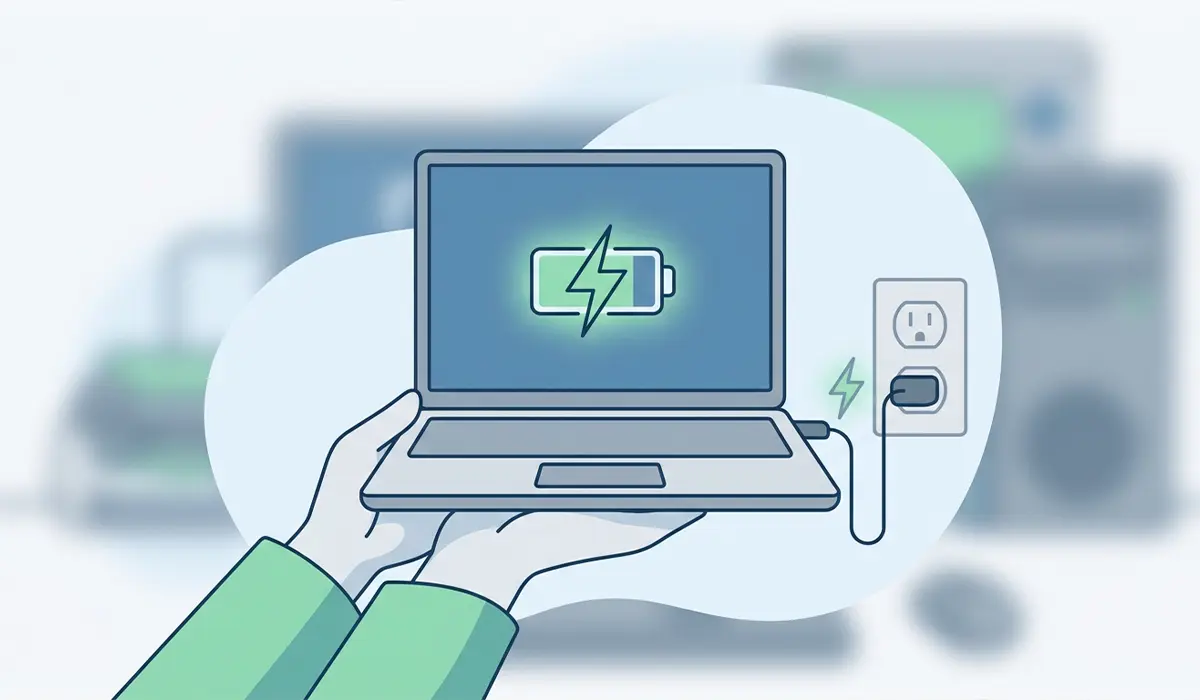
- Step 10: If a laptop is being used, plug it into power before gaming. Battery saver mode and battery-driven performance throttling are two of the most common causes of unexplained frame drops on portable systems.
Tip: test fullscreen optimizations on a per-game basis. Right-clicking the game’s executable, opening Properties, then Compatibility, and toggling ‘Disable fullscreen optimizations’ fixes stutter in some titles and causes it in others, so it is worth trying both ways.
Common Problems and Fixes
Frame rates did not improve after these changes
This usually points to a bottleneck outside of software settings, such as an aging GPU, insufficient RAM for the title being played, or a CPU that is genuinely maxed out. Checking Task Manager’s Performance tab during gameplay shows which component is pegged at or near 100 percent.
Stuttering appears only in certain games
Game-specific stutter often comes down to shader compilation on first launch, an outdated version of DirectX or Visual C++ Redistributables, or a mismatch between the in-game frame rate cap and the monitor’s refresh rate. Letting the game finish its first-launch shader compile and confirming the frame cap matches the display usually resolves it.
Game Mode does not seem to be doing anything noticeable
Game Mode’s impact is subtle on systems that already have a clean startup list and updated drivers. It is meant to prevent background interruptions rather than boost raw FPS, so pairing it with the driver and startup app steps above is what produces a noticeable result.
Performance dropped after a Windows update
Occasionally a Windows update resets power plan settings or graphics preferences back to default. Rechecking the power plan and per-app graphics settings after any major Windows update is a quick way to catch this.
Frequently Asked Questions
Does Game Mode actually improve FPS?
Game Mode mainly reduces background interruptions rather than adding raw frames per second. Its biggest benefit shows up as fewer sudden stutters rather than a higher average frame rate.
Is the High Performance power plan safe to use long-term?
Yes, on a desktop it is generally safe to leave in place. On a laptop it increases power draw and heat, so many users switch back to a balanced plan when unplugged and away from gaming.
Will disabling startup apps break anything important?
Disabling a startup app only stops it from launching automatically at boot. The app itself is not uninstalled and can still be opened manually whenever it is needed.
Should hardware-accelerated GPU scheduling always be turned on?
Not necessarily. Most systems see a small latency improvement or no change at all, but a small number of driver and game combinations perform worse with it enabled, so testing before and after is the safest approach.
Does moving a game to an SSD really matter for performance?
It matters most for load times and texture streaming rather than frame rate itself. Games installed on a hard drive can experience texture pop-in or brief stutter that an SSD largely eliminates.
Does defragmenting the drive help with gaming performance?
Only on a traditional hard drive. Solid state drives should never be defragmented in the traditional sense, since Windows already handles SSD optimization through TRIM.
Why does a laptop perform worse on battery than plugged in?
Most laptops throttle CPU and GPU clock speeds on battery power to preserve battery life, which directly reduces gaming performance. Plugging in removes that limitation.
How often should GPU drivers be updated for gaming?
Checking for a new driver around the release of a major new game, or every month or two during regular use, keeps performance and compatibility current without needing to update after every minor release.
Does closing background apps really reduce input lag?
Background apps that use CPU cycles or disk access can introduce inconsistent frame pacing, which is often perceived as input lag even when the raw input delay has not changed. Closing them tends to make frame delivery more consistent.
