
Learning how to archive old emails to a PST file keeps a mailbox fast, tidy, and under its storage limit without deleting a single message. This guide walks through the exact steps in Outlook for desktop, from setting up the archive to confirming the old messages are safely stored.
Key Takeaways
- Outlook’s built-in AutoArchive tool moves old emails into a separate PST file on the computer.
- Archived messages stay searchable and can be reopened anytime through the Archive folder.
- Setting an age filter (such as 6 or 12 months) controls exactly which emails get archived.
- The PST file can be backed up, moved, or opened on another computer running Outlook.
- Archiving is different from deleting – nothing gets removed from the account permanently.
Step-by-Step Guide to Archive Old Emails to a PST File
This is the core process, and it takes just a few minutes once the settings are in place.
- Step 1: Open Outlook and select the ‘File’ tab in the top left corner.
- Step 2: On the Info screen, click ‘Cleanup Tools’, then choose ‘Archive’ from the dropdown menu.
- Step 3: In the Archive dialog box, select ‘Archive this folder and all subfolders’.
- Step 4: Click on the mailbox or folder at the top of the list to archive everything, or pick a specific folder like Inbox or Sent Items.
- Step 5: Under ‘Archive items older than’, choose a date. Anything sent or received before that date gets moved.
- Step 6: Confirm the file path next to ‘Archive file’. Outlook suggests a default location, but a custom folder can be entered instead.
- Step 7: Click ‘OK’ to start the archive process.
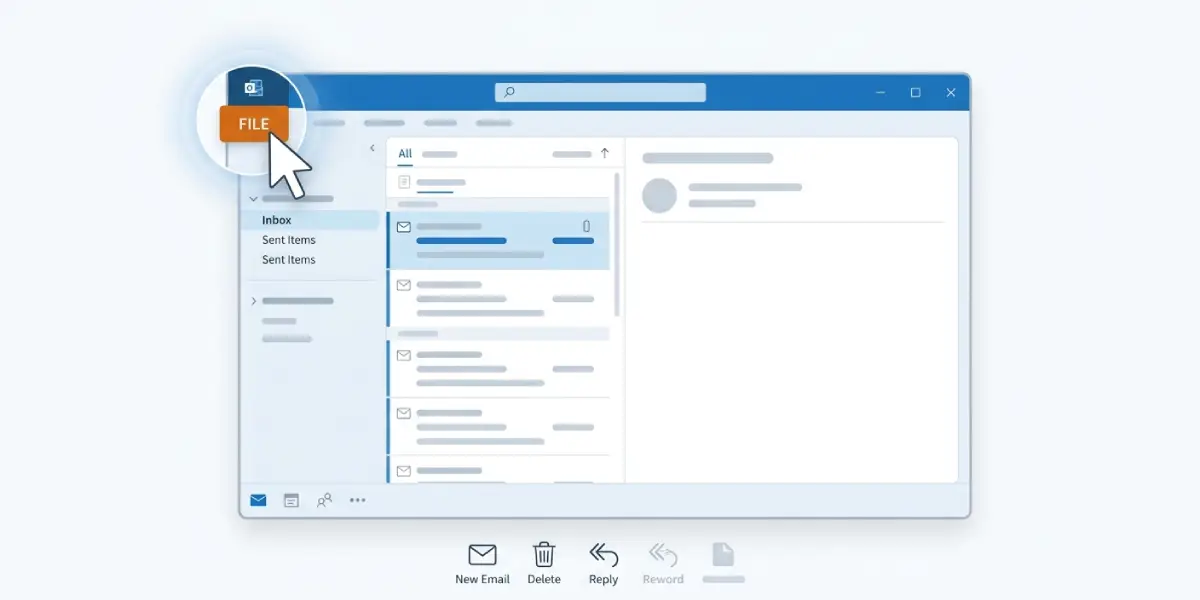
Tip: Right-click any folder in the navigation pane and choose ‘Archive This Folder’ as a shortcut instead of digging through the File menu each time.
Checking That the Archive Worked
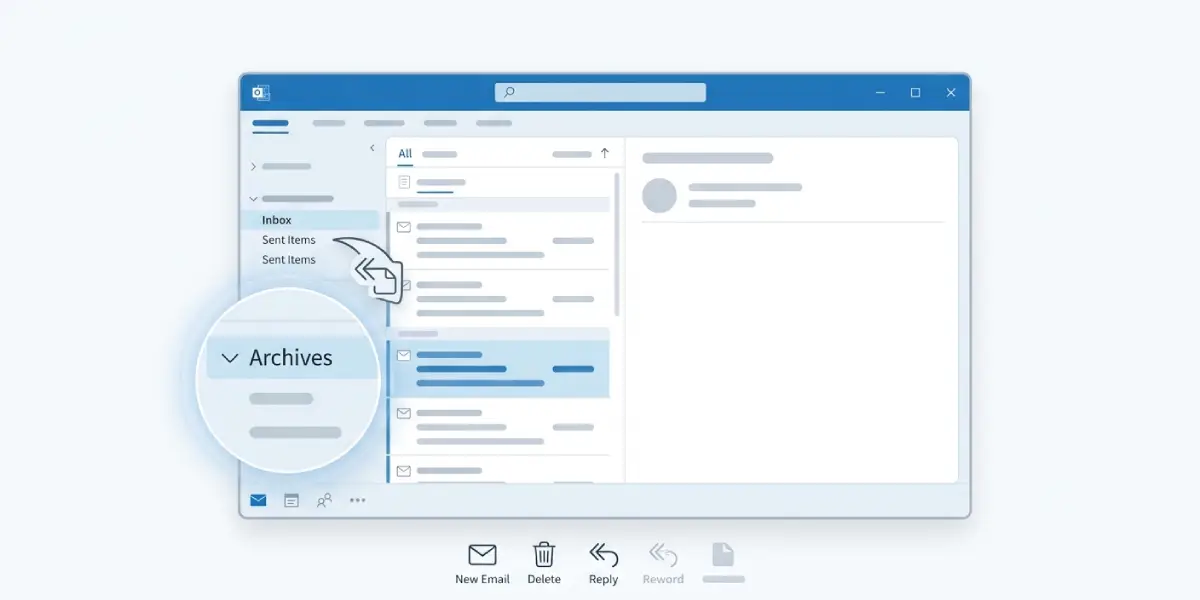
- Step 1: Look at the bottom of the navigation pane for a new ‘Archives’ or ‘Archive’ entry.
- Step 2: Expand it and confirm the older emails appear inside, organized the same way they were in the original folder.
- Step 3: Open the original folder and verify those same emails are no longer listed there, since they now live only in the archive.
Setting Up AutoArchive to Run Automatically
Most people find that a one-time archive is not enough, since new emails pile up again within weeks. Automatic archiving solves that.
- Step 1: Go to ‘File’, then ‘Options’, then select ‘Advanced’.
- Step 2: Under the ‘AutoArchive’ section, click ‘AutoArchive Settings’.
- Step 3: Check the box for ‘Run AutoArchive every’ and set a number of days.
- Step 4: Choose how old items need to be before archiving, and confirm the PST file location at the bottom.
- Step 5: Click ‘OK’ to save the schedule.
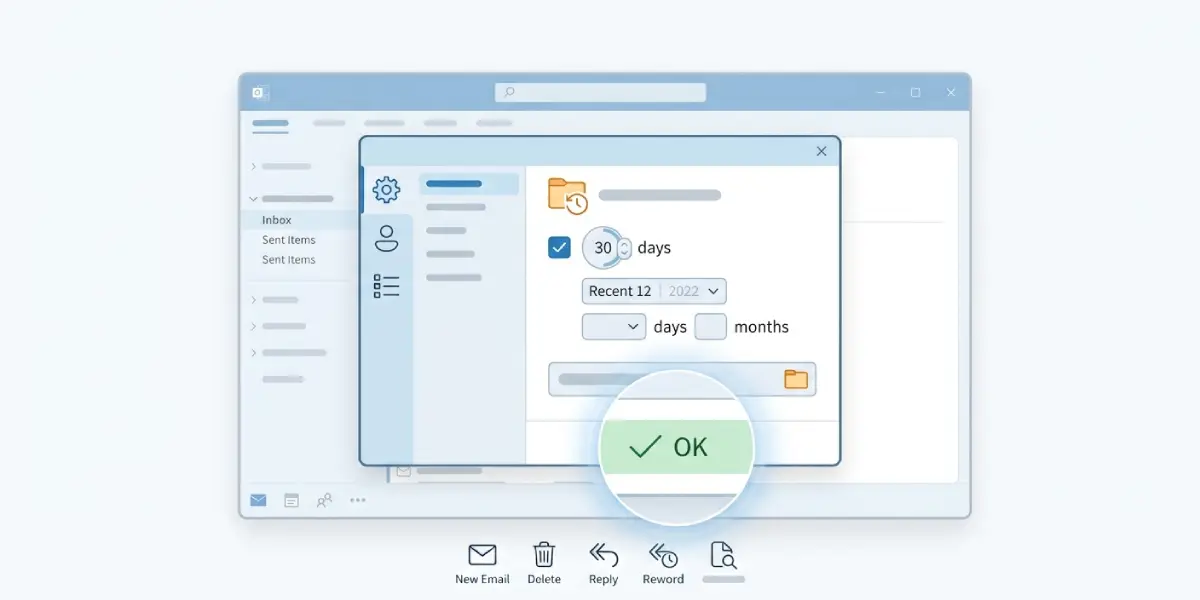
Tip: Enable ‘Show archive folder in folder list’ inside the same settings window so the archived emails stay one click away instead of buried on the hard drive.
Common Problems and Fixes
- The Archive option is greyed out: This usually happens when a folder is selected that cannot be archived, such as a shared calendar. Click on the Inbox or another mail folder first, then try again.
- No emails appear to move after archiving: Double-check the date entered under ‘Archive items older than’. If every email in the folder is more recent than that date, nothing qualifies to be moved.
- The PST file cannot be found later: Go back to ‘File’, ‘Options’, ‘Advanced’, and ‘AutoArchive Settings’ to see the exact saved file path, since the default location is sometimes buried deep in the user profile folder.
- Outlook runs slowly during the archive: Large mailboxes can take several minutes to process. Avoid closing Outlook while the progress bar in the bottom status area is still active.
- The archived PST file will not open on a different computer: Copy the entire .pst file to the new machine, then use ‘File’, ‘Open & Export’, ‘Open Outlook Data File’ and browse to it.
Frequently Asked Questions
Where does Outlook store the PST archive file by default?
Outlook typically saves it inside the user’s Documents folder under an Outlook Files subfolder, though the exact path can be confirmed in AutoArchive Settings.
Can archived emails still be searched?
Yes. The Archive folder shows up in the navigation pane and works with Outlook’s regular search bar, just like any other folder.
Does archiving delete the emails from the mail server?
No. Archiving moves messages into a local PST file on the computer, so they are removed from the live mailbox view but not deleted anywhere.
How often should AutoArchive run?
A common setting is every 14 days, archiving items older than six months, though this can be adjusted based on mailbox size and personal preference.
Can a PST archive file be moved to a new computer?
Yes. Copy the .pst file to the new device, then open it in Outlook through ‘File’, ‘Open & Export’, ‘Open Outlook Data File’.
What is the difference between archiving and exporting?
Archiving moves old emails out of the active mailbox into a separate PST file, while exporting creates a copy of selected emails without removing the originals.
Is there a size limit for a PST archive file?
Modern versions of Outlook support PST files up to 50GB, though keeping the file smaller generally improves performance.
Can archived emails be moved back into the main inbox?
Yes. Simply drag the email from the Archive folder back into the Inbox or any other folder in the mailbox.
Does archiving work the same way for shared or delegated mailboxes?
AutoArchive settings apply to the primary mailbox by default, so shared mailboxes usually need to be archived manually through the same File and Cleanup Tools steps.
