
Learning how to add a POP3 account in Outlook on the web is one of those tasks that looks intimidating until it’s actually attempted. Most people expect a maze of server settings, but the process only takes a few minutes once the right menu is found. This guide walks through every screen needed to get a POP3 mailbox syncing into Outlook on the web.
Key Takeaways
- POP3 accounts are added through the ‘Sync email’ section under Outlook on the web settings, not through the main inbox screen.
- Manual server details, including the POP3 server address and port, are required since automatic detection often fails for non-Microsoft accounts.
- Port 995 with SSL/TLS encryption is the standard secure setup for incoming POP3 mail.
- Only one POP3 account can typically be linked per Outlook.com mailbox at a time.
- New messages usually appear within a few minutes, though the very first sync can take longer depending on inbox size.
How to Add a POP3 Account in Outlook on the Web
- Step 1: Sign in to Outlook on the web at outlook.com using the Microsoft account that will host the POP3 mail.
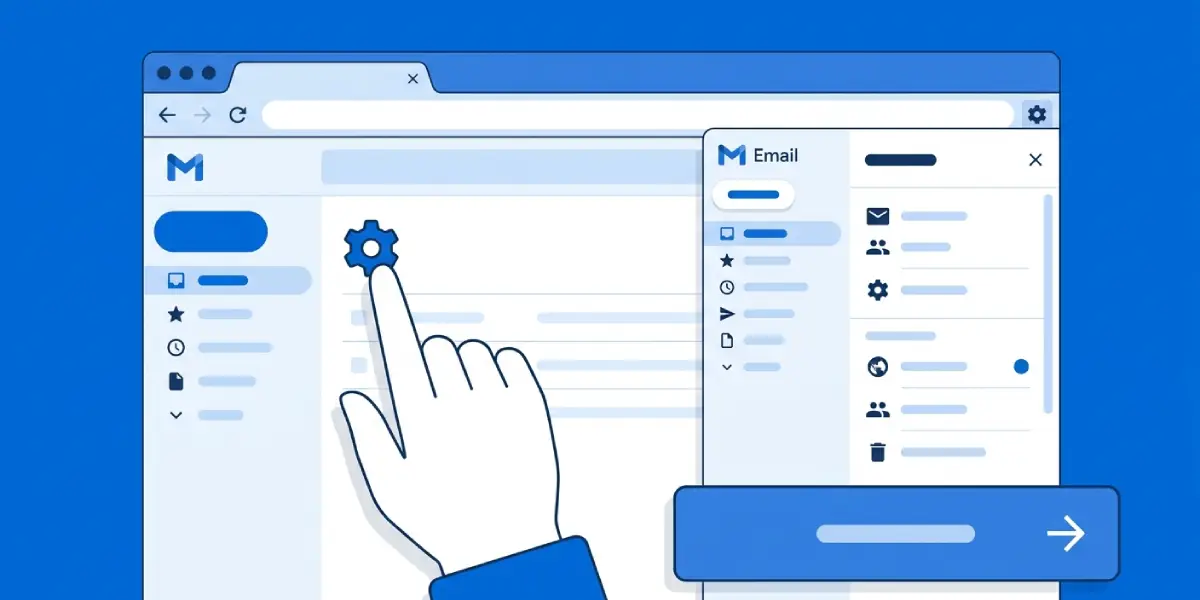
- Step 2: Select the gear icon in the top-right corner, then choose ‘View all Outlook settings’ at the bottom of the panel that opens.
- Step 3: In the Settings window, click ‘Mail’, then select ‘Sync email’ from the list on the left.
- Step 4: Under the ‘Connected accounts’ section, select ‘Other email accounts’.
- Step 5: Enter the full email address of the account being connected, then click ‘OK’.
- Step 6: When prompted, choose ‘Manually configure account settings’ instead of letting Outlook attempt an automatic setup. This gives access to the protocol options needed for POP3.
- Step 7: Select ‘POP3/SMTP’ as the account type and click ‘OK’.
- Step 8: Fill in the required fields: username, password, incoming POP3 mail server address, and the outgoing SMTP mail server address. These details come from the email provider hosting the POP3 account, not from Microsoft.
- Step 9: Set the incoming port to 995 and confirm the SSL/TLS encryption box is checked. For outgoing mail, port 587 with STARTTLS is the typical secure choice, though some providers use 465 with SSL.
- Step 10: Click ‘OK’ or ‘Save’ to finish. Outlook on the web will attempt to connect and begin pulling in existing messages.
Where to Find the Correct Server Settings
Every email provider publishes its own POP3 and SMTP server addresses, and guessing them rarely works. A hosting control panel, a provider’s help center, or a welcome email sent when the account was created are the usual places to look. Entering the wrong port or skipping the encryption checkbox is one of the most common reasons this step fails on the first try.
Tip: Copy the server address directly from the provider’s documentation instead of typing it manually. A single misplaced character in a server name is enough to block the whole connection.
What Happens After the Account Connects
Once Outlook on the web accepts the settings, it creates a dedicated folder for the new account inside the main inbox. Messages from the POP3 account land there rather than mixing into the primary inbox, which keeps things organized when multiple accounts are connected over time.
Tip: Give the initial sync a few minutes before assuming something went wrong. Large mailboxes with years of stored mail take longer to pull in than a fresh inbox.
Common Problems and Fixes
- Connection error right after clicking Save: This almost always points to an incorrect port or missing encryption setting. Double-check that the incoming port is 995 and the SSL/TLS box is selected.
- Authentication failed message: The username usually needs to be the full email address, not just the portion before the @ symbol. Passwords with recently changed characters can also cause this, so re-entering the password carefully solves it in most cases.
- Old messages not appearing: POP3 by design only pulls new mail after the account is connected, unless the provider’s server settings allow full mailbox downloads. Checking the provider’s account panel for a ‘download all mail’ or similar option can resolve this.
- Option for ‘Other email accounts’ is missing: This setting sometimes gets renamed or moved slightly during Microsoft interface updates. Searching the settings search bar for ‘sync email’ will jump straight to the right screen.
- Account connects but stops syncing later: Provider-side password changes are the most frequent cause. Removing the connected account and re-adding it with the current password restores the sync.
Frequently Asked Questions
Can more than one POP3 account be added to Outlook on the web?
Outlook on the web generally supports linking one POP3 account per Outlook.com mailbox. Additional external accounts are usually added as IMAP connections instead.
Is POP3 or IMAP better for Outlook on the web?
For this specific task, POP3 works fine, though it only downloads new messages rather than keeping folders in sync across devices. IMAP is worth considering separately if syncing across multiple devices matters.
Why does Outlook ask for manual server settings instead of connecting automatically?
Automatic detection works well for major providers but often cannot identify custom or smaller email hosts. Manual entry ensures the correct POP3 and SMTP details are used.
What port should be used for POP3 in Outlook on the web?
Port 995 with SSL/TLS encryption is the standard secure port for incoming POP3 mail.
Why is the password being rejected even though it’s correct?
Some providers require an app-specific password for POP3 access rather than the regular account password, particularly when two-factor authentication is enabled on that account.
Will old emails already in the POP3 mailbox transfer over?
Typically only new incoming mail syncs after the connection is made, since POP3 downloads messages going forward rather than the full history by default.
Can a POP3 account be removed later if it’s no longer needed?
Yes. Returning to Settings > Mail > Sync email and selecting the connected account offers the option to disconnect it at any time.
Why does the new account show in a separate folder instead of the main inbox?
Outlook on the web automatically creates a folder for each connected external account to keep messages organized and easy to locate.
Does adding a POP3 account affect the primary Outlook.com inbox settings?
No. The primary inbox and its settings remain unchanged; the POP3 account simply delivers its mail into its own designated folder.
