
A routine system update can leave a PC completely silent, and learning how to fix audio after a Windows update usually comes down to a handful of driver and service checks rather than a hardware failure. Windows updates sometimes reset default playback devices, roll back drivers, or temporarily break audio services during installation. The good news is that most of these issues can be resolved in under fifteen minutes without opening the case.
Key Takeaways
- Most post-update audio loss is caused by a driver conflict, a disabled service, or a playback device that got reset, not by failed hardware.
- Windows built-in troubleshooter should always be the first stop before touching drivers manually.
- Reinstalling or rolling back the audio driver solves the majority of stubborn cases.
- Checking the Windows Audio service and default output device takes seconds and fixes surprisingly common scenarios.
- If sound still fails after software fixes, the update may have affected BIOS or chipset audio settings, which is a separate check.
Common Causes of Audio Problems After a Windows Update
Understanding why sound breaks makes the fix process much faster. A few patterns show up again and again after major or cumulative Windows updates.
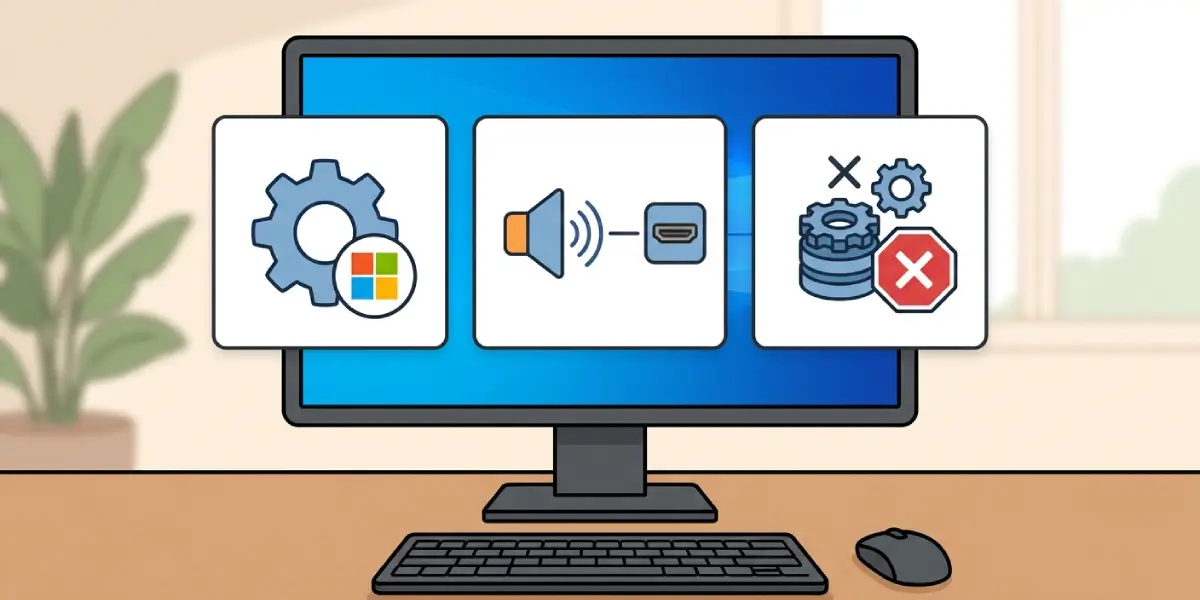
- The update installed a generic Microsoft audio driver in place of the manufacturer’s driver, which can disable certain features or mute output entirely.
- Windows reset the default playback device to a different output, such as HDMI or a virtual audio device, instead of the speakers or headphones actually in use.
- The Windows Audio or Windows Audio Endpoint Builder service failed to restart properly after the reboot that follows installation.
- An outdated or corrupted driver conflicts with new update files, a common issue on laptops with dedicated audio chips like Realtek or Conexant.
- Update-related changes to power management settings caused the audio device to be disabled to save power.
How to Fix Audio After a Windows Update
Work through these steps in order. Most people find the problem resolves within the first three or four steps, so there is rarely a need to go further.
Step-by-Step Fix
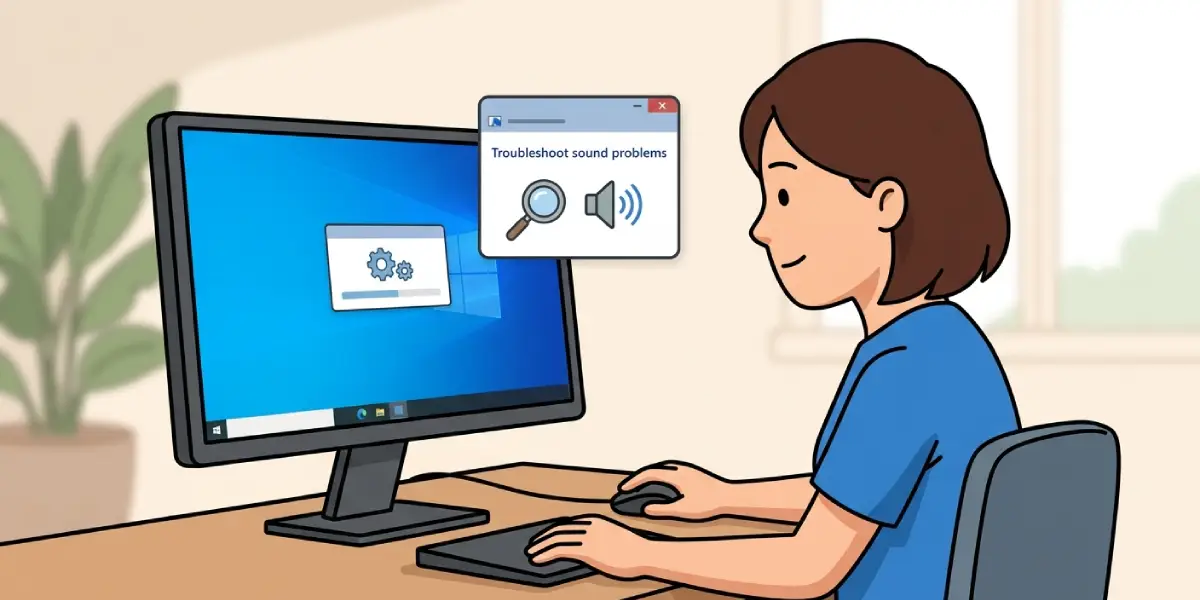
- Step 1: Run the built-in audio troubleshooter. Right-click the speaker icon in the taskbar, select ‘Troubleshoot sound problems’ (or open Settings, then System, then Sound, then Troubleshoot), and let Windows scan for the issue automatically.
- Step 2: Check the default playback device. Open Settings, go to System, then Sound, and confirm the correct speakers or headphones are selected as the output. Updates sometimes switch this to a monitor’s HDMI audio or a disconnected device by mistake.
- Step 3: Restart the Windows Audio service. Press Windows key plus R, type services.msc, and press Enter. Find ‘Windows Audio’ in the list, right-click it, and choose Restart. Do the same for ‘Windows Audio Endpoint Builder’ just below it.
- Step 4: Update or reinstall the audio driver. Open Device Manager, expand ‘Sound, video and game controllers’, right-click the audio device, and select ‘Update driver’. If that does not help, right-click again and choose ‘Uninstall device’, then restart the PC so Windows reinstalls a fresh driver automatically.
- Step 5: Roll back the driver if the problem started immediately after the update. In Device Manager, right-click the audio device, choose Properties, open the Driver tab, and select ‘Roll Back Driver’ if the option is available.
- Step 6: Download the manufacturer’s driver directly. Visit the laptop maker’s support page or, for desktops, the motherboard manufacturer’s site, and install the specific audio driver listed for that model rather than relying only on Windows Update.
- Step 7: Check for disabled audio devices. Right-click the speaker icon, select ‘Sound settings’, then ‘More sound settings’, and look under both the Playback and Recording tabs for any device marked as disabled. Right-click it and choose ‘Enable’ if needed.
- Step 8: Run Windows Update again. Occasionally a follow-up patch specifically addresses audio regressions introduced by the previous update, so checking for new updates can resolve the issue without any manual driver work.
Tip: Before reinstalling anything, note the exact audio device name shown in Device Manager. This makes it much faster to find the correct driver on the manufacturer’s site instead of guessing between similarly named chipsets.
Common Problems and Fixes
- Sound works through headphones but not speakers, or the reverse: This usually points to the wrong default device being selected rather than a driver fault. Revisit the Sound settings panel and set the correct output manually.
- Audio driver reinstalls itself as the generic Microsoft version after every restart: Windows Update is likely overwriting the manufacturer driver. Temporarily pause driver updates through ‘Advanced options’ in Windows Update, then install the correct driver again.
- No sound devices appear at all in Device Manager: This can happen if the update disabled the audio controller in the background. Check under ‘View’ in Device Manager, select ‘Show hidden devices’, and look for a grayed-out entry to re-enable.
- Sound cuts out intermittently after the update: This is often linked to power management settings turning the audio device off to save energy. Open the device’s Properties in Device Manager, go to the Power Management tab, and uncheck the option that allows Windows to turn it off to save power.
- Microphone stopped working while speakers are fine: Check the Recording tab in Sound settings for a disabled or muted microphone, and confirm microphone privacy permissions were not reset in Settings, under Privacy and security.
Frequently Asked Questions
Why did a Windows update break the audio on a working PC?
Updates sometimes replace a manufacturer’s audio driver with a generic version, reset the default output device, or interrupt an audio service during installation, any of which can cause sound to stop working.
Is it safe to roll back an audio driver after an update?
Yes, rolling back a driver through Device Manager is a safe, reversible action and is a standard troubleshooting step when audio worked fine before the update.
Should the built-in troubleshooter be used before manually reinstalling drivers?
Yes, running the troubleshooter first is recommended because it can automatically detect and fix common issues like a muted device or an incorrect default output in seconds.
Why does the speaker icon show a red X after a Windows update?
A red X on the speaker icon usually means no audio device is currently detected or enabled, often because a driver failed to load correctly after the update finished installing.
Can pausing Windows Update prevent this from happening again?
Pausing updates temporarily can help while a manufacturer driver is being reinstalled, but permanently disabling updates is not recommended since it affects security patches as well as driver updates.
Does uninstalling the audio driver delete any settings?
Uninstalling and reinstalling the driver typically resets audio enhancements and equalizer settings to default, so any custom sound profiles may need to be reconfigured afterward.
Why does only one audio channel work after the update?
A single working channel is often caused by a balance setting that got altered during the update rather than a hardware fault, and can be checked under the device’s Levels tab in Sound settings.
What if the manufacturer no longer provides drivers for an older laptop?
For older or unsupported models, the generic Windows driver combined with a service restart is usually the most reliable fix available, since no newer manufacturer driver will exist.
Could this issue be caused by a hardware problem instead of the update?
It is possible, especially if sound was already inconsistent before the update, so testing with headphones and a different audio source helps rule out a failing speaker or port.
When should a professional be consulted for this issue?
If sound remains completely absent after driver reinstalls, service restarts, and BIOS checks, a professional can test the physical audio hardware to rule out a motherboard or component failure.
