
A laptop internal microphone not working is one of the most common audio complaints during video calls, voice recordings, and online meetings. Most of the time the cause is a software or settings issue rather than a broken part, and the fix takes only a few minutes once the source is identified.
Key Takeaways
- Most microphone failures come from muted settings, wrong input devices, or outdated drivers, not hardware damage.
- Windows and macOS both have built-in microphone permission settings that quietly block apps from using the mic.
- Reinstalling or updating the audio driver solves the majority of cases that survive a basic settings check.
- Dust, debris, or a case-cover microphone hole blockage can muffle or silence the mic on older laptops.
- If the mic fails after a fall, spill, or repair, the internal microphone module or its cable may need physical repair.
Common Causes of a Laptop Internal Microphone Not Working
Before diving into fixes, it helps to understand what usually causes this problem. Most laptops route the internal microphone through a combination of software drivers, operating system permissions, and a small physical module near the webcam or keyboard. A break anywhere in that chain can silence the mic even though nothing appears visibly wrong.
Software and Permission Issues
Operating systems increasingly lock microphone access behind privacy toggles. An app update, a Windows update, or a fresh macOS install can quietly reset these permissions, leaving the mic disabled for some or all applications.
Outdated or Corrupted Drivers
Audio drivers manage the connection between the physical microphone and the software that uses it. A corrupted or outdated driver often causes the mic to show up in settings but produce no sound, or to disappear from the device list entirely.
Incorrect Input Device Selected
Laptops with multiple audio inputs, such as an internal mic plus a webcam mic or a connected headset, sometimes default to the wrong one. This is especially common right after plugging in or unplugging external accessories.
Physical Blockage or Hardware Damage
Dust buildup, a stuck privacy shutter on some webcam-integrated mic arrays, or physical damage from a drop or liquid spill can all interfere with the microphone at the hardware level.
Fixing a Laptop Internal Microphone That Is Not Working
Before You Start
Most steps below involve settings, not disassembly, so no special preparation is required for the first several fixes. If a step later requires opening the laptop, power it off, unplug the charger, remove the battery where it is user-removable, and discharge static by touching a bare metal surface before touching any internal components.
- Step 1: Check that the microphone is not muted at the hardware level. Many laptops have a physical mute key, often combined with the F-keys, that toggles a built-in LED indicator. Press it once to confirm it is not accidentally enabled.
- Step 2: Open the operating system’s privacy settings and confirm microphone access is allowed. On Windows, this is found under Settings, then Privacy and Security, then Microphone. On macOS, check System Settings, then Privacy and Security, then Microphone, and make sure the relevant apps are toggled on.
- Step 3: Set the internal microphone as the default recording device. In Windows, right-click the speaker icon in the taskbar, open Sound settings, and select the correct input under ‘Choose a device for speaking or recording.’ On macOS, go to System Settings, then Sound, then Input, and select the built-in microphone.
- Step 4: Test microphone input levels. Speak normally and watch the input level meter in the sound settings. If the bar barely moves, raise the input volume slider and test again.
- Step 5: Update or reinstall the audio driver. Open Device Manager on Windows, expand ‘Audio inputs and outputs’ or ‘Sound, video and game controllers,’ right-click the relevant audio device, and choose ‘Update driver.’ If that does not help, uninstall the device entirely and restart the laptop so Windows reinstalls it automatically.
- Step 6: Run the built-in audio troubleshooter. Windows includes an automated tool under Settings, then System, then Troubleshoot, then Other troubleshooters, that can detect and repair common microphone faults without manual digging.
- Step 7: Test the microphone in a different application. If it fails in one video conferencing app but works in the operating system’s voice recorder, the issue is app-specific permissions rather than a system-wide fault.
- Step 8: Inspect the microphone opening for dust or debris. On most laptops, the internal mic sits near the webcam or along the top bezel. Use a soft brush or a short burst of compressed air held at a slight angle to clear any visible buildup without pushing debris further in.
- Step 9: Restart the laptop fully, not just sleep or hibernate. A full restart clears audio driver states that a simple sleep cycle does not reset, and it resolves a meaningful share of stubborn mic issues on its own.
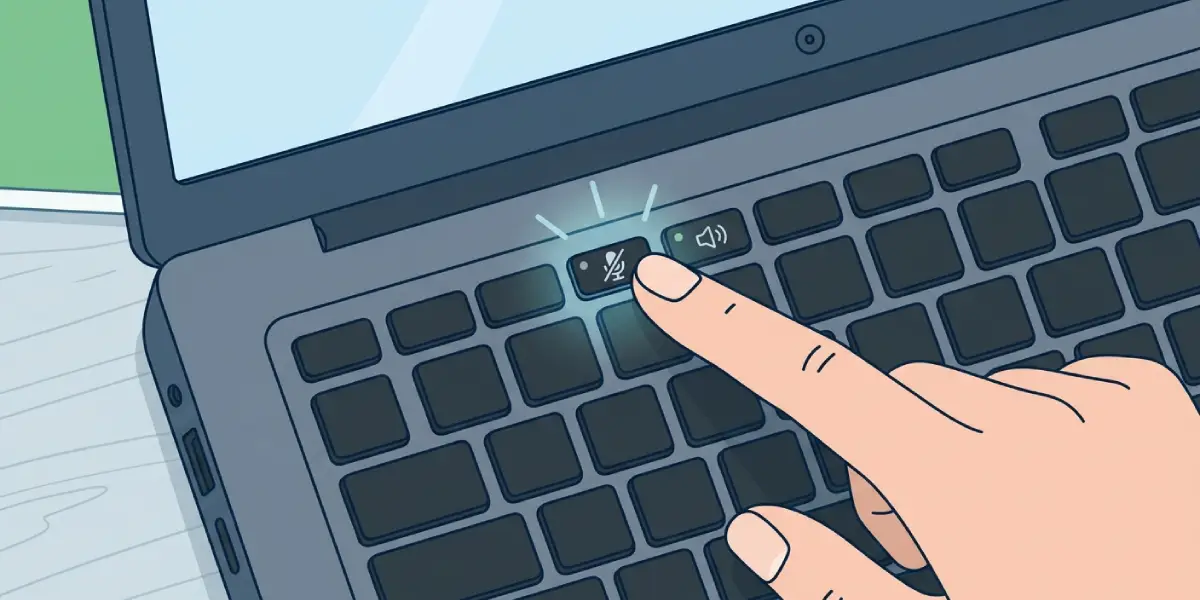
Tip: Test the microphone right after each step instead of making every change first. This makes it clear exactly which fix solved the problem, which saves time if the issue returns later.
Tools and Materials Needed
For the settings-based steps, no tools are required. For the physical cleaning step, keep these on hand:
- Compressed air or a small soft-bristle brush
- A lint-free or microfiber cloth for wiping down the bezel area
- Plastic pry tools, only if deeper inspection near the mic module becomes necessary

If the microphone still fails after all software and cleaning steps, especially following a drop, spill, or recent repair, the internal microphone module or its ribbon cable may be physically damaged. At that point, a qualified repair technician should inspect the connection, since reaching the microphone module usually means removing the keyboard or bezel, and opening the laptop can affect any remaining warranty coverage.
Common Problems and Fixes
Microphone Works in One App but Not Another
This points to an app-level permission block rather than a system fault. Check that specific application’s own privacy or device settings, since some apps maintain a separate microphone toggle outside the operating system settings.
Microphone Detected but Produces No Sound
This usually means the input volume is set too low or muted at the driver level. Revisit the sound settings and confirm the input slider is raised and not muted, then test again with the input meter visible.
Microphone Disappears from Device List Entirely
A vanished microphone entry typically signals a driver conflict or corruption. Uninstalling the audio device in Device Manager and restarting the laptop forces a clean driver reinstall that often brings it back.
Microphone Sounds Muffled or Distant
A muffled internal mic often points to dust partially covering the microphone opening, or in some laptop models, a case or skin covering the bezel near the mic array. Clearing debris or removing any obstruction usually restores normal clarity.
Microphone Still Fails After a Driver Reinstall
If the mic remains silent after a full driver reinstall and a factory-level settings check, hardware damage becomes more likely, particularly if the laptop was recently dropped, exposed to liquid, or opened for another repair.
Frequently Asked Questions
Why did my laptop microphone suddenly stop working after a Windows update?
Windows updates occasionally reset privacy permissions or overwrite audio drivers with a generic version. Checking microphone privacy settings and updating the driver afterward typically resolves this.
How can someone tell if the microphone issue is hardware or software?
If the microphone works in one application or after a driver reinstall, the issue is almost always software. If it fails across every app, every user account, and after a driver reinstall, hardware damage becomes more likely.
Can dust actually block a laptop’s internal microphone?
Yes. The microphone opening on most laptops is a very small hole near the webcam or top bezel, and dust or debris buildup over time can muffle or fully block sound from reaching it.
Does an external microphone or headset affect the internal mic settings?
Yes. Connecting an external microphone or headset often changes the default input device automatically, which can make it appear as though the internal microphone has stopped working when it has simply been deprioritized.
Is it safe to clean the microphone opening with compressed air?
Yes, when used correctly. Hold the can upright, use short bursts, and keep the nozzle at a slight angle rather than spraying directly and continuously into the opening.
Why does the microphone work in voice recorder but not in video calls?
This points to an app-specific permission or in-app audio setting rather than a system-wide fault. Checking the microphone selection inside the video calling app itself usually resolves it.
Should the audio driver be updated or fully reinstalled?
Updating is the first step to try. If updating does not resolve the issue, uninstalling the device and letting the operating system reinstall it from scratch clears deeper corruption that a simple update may not fix.
Can a laptop privacy setting silently disable the internal microphone?
Yes. Both Windows and macOS include microphone privacy controls that can be toggled off during an update, a fresh install, or accidental adjustment, without any clear notification to the user.
When should a laptop go to a professional for a microphone repair?
When the microphone fails across every app and user account, after a full driver reinstall, and especially after a physical incident like a drop or liquid exposure, a professional should inspect the internal microphone module and its cable connection.
Will opening the laptop to check the microphone void the warranty?
It can, depending on the manufacturer and whether the laptop is still under warranty. Checking the manufacturer’s warranty terms before opening the case is worthwhile if the laptop is relatively new.
