
Learning how to reset BIOS to default settings is one of the fastest ways to undo a bad overclock, clear a forgotten password, or fix strange boot behavior. Whether the goal is restoring stability or getting ready to reinstall Windows from scratch, resetting the BIOS reverts every custom setting back to the values the motherboard shipped with. The whole process usually takes less than five minutes and can be done from inside the BIOS menu or, in trickier cases, right on the motherboard itself.
Key Takeaways
- Resetting BIOS to default settings clears custom overclocks, boot order changes, and other tweaks that may be causing instability.
- Most motherboards allow this from inside the BIOS or UEFI menu using a ‘Load Setup Defaults’ or ‘Load Optimized Defaults’ option.
- When the BIOS is inaccessible – blank screen, boot loop, or a forgotten supervisor password – removing the CMOS battery or using the clear CMOS jumper resets it at the hardware level.
- A BIOS reset does not erase Windows, personal files, or installed programs. It only affects firmware-level settings.
- After a reset, it is worth checking boot order and re-enabling anything like Secure Boot or an XMP or EXPO memory profile that was previously turned on.
Before You Start
The software method below needs nothing more than access to the BIOS setup screen. The hardware method, used when the BIOS cannot be reached, involves opening the case, so a bit of prep makes it safer and smoother.
- Power off the computer completely and unplug it from the wall outlet, rather than just shutting down Windows.
- Press and hold the power button for about five seconds after unplugging to drain any residual power from the capacitors.
- Touch a bare metal part of the case, or use an anti-static wrist strap, before touching any internal components.
- Let the system cool down for a few minutes if it has been running heavily, since some components near the battery can stay warm.
- Have a small flathead or Phillips screwdriver on hand, along with the motherboard manual if it is available, since jumper locations vary between boards.
Opening a desktop case is generally low risk and rarely affects a standard warranty, but laptops are a different story. Many laptops hide the CMOS battery under multiple layers of components, and prying into a sealed ultrabook chassis can void coverage or damage ribbon cables. If a laptop will not boot into BIOS at all, it is often smarter to contact the manufacturer or a qualified repair technician rather than force it open.
How to Reset BIOS to Default Settings
There are two main ways to get this done, and which one applies depends on whether the BIOS setup screen can still be reached.
Method 1: Reset BIOS From the Setup Menu
This is the method most people will use, since it works as long as the computer can still display the BIOS or UEFI screen.
- Step 1: Restart the computer and immediately start pressing the key used to enter BIOS setup. This is commonly Delete, F2, F10, F12, or Esc, depending on the motherboard or laptop brand.
- Step 2: Once inside the BIOS or UEFI interface, look for a tab or section labeled Exit, Save & Exit, or sometimes a dedicated section on the main screen.
- Step 3: Locate the option called ‘Load Setup Defaults’, ‘Load Optimized Defaults’, ‘Reset to Default’, or similar wording. The exact phrase varies by manufacturer, but the intent is always the same.
- Step 4: Select that option and confirm the action when prompted. This restores every setting, from boot order to voltage tweaks, back to factory values.
- Step 5: Navigate to ‘Save Changes and Exit’ or press the F10 key on most boards, then confirm again to reboot the system with the restored defaults.
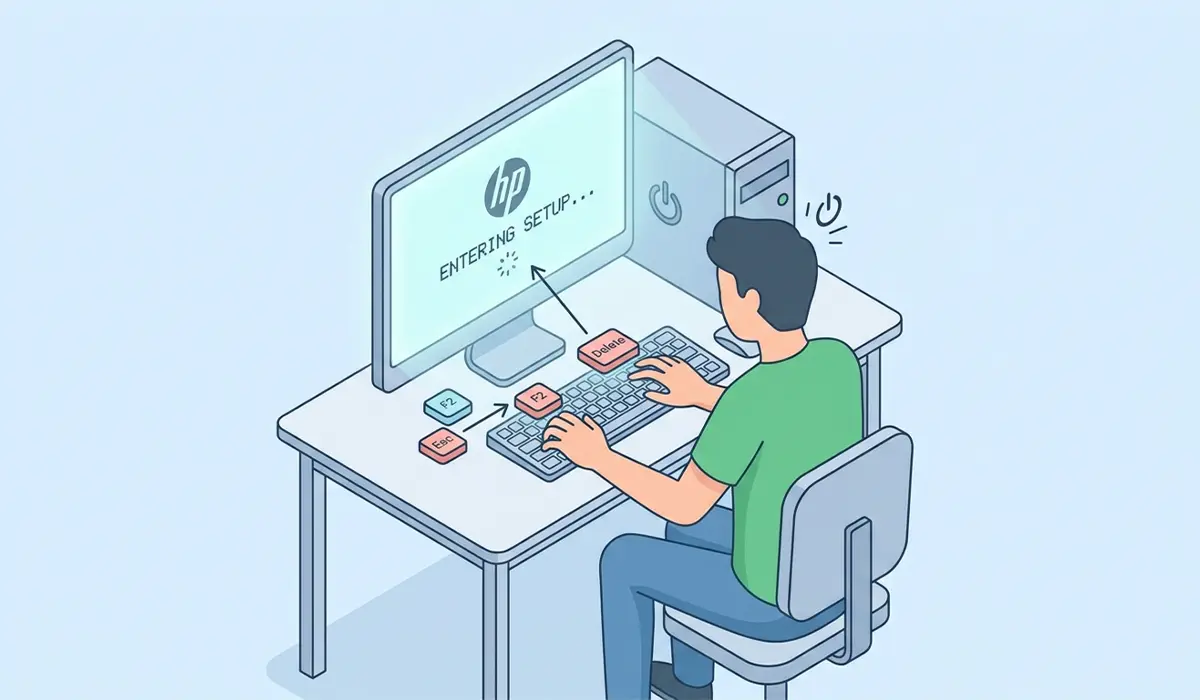
Tip: If a keyboard shortcut doesn’t seem to work on the first try, tap the entry key repeatedly right from the moment the power button is pressed rather than waiting for the manufacturer logo to appear, since some systems boot past that window in under a second.
Method 2: Reset BIOS Using the Clear CMOS Jumper or Battery
This method is for situations where the BIOS menu cannot be reached at all, such as a system that boots to a black screen, gets stuck in a loop, or is locked behind a forgotten supervisor password.
- Step 1: With the system fully powered off and unplugged, open the case following the case manufacturer’s release mechanism.
- Step 2: Locate the round, coin-shaped CMOS battery on the motherboard. It typically sits near the expansion slots or below the CPU socket.
- Step 3: Check the motherboard manual or the board itself for a small jumper labeled CLR_CMOS, CLEAR CMOS, or JBAT1 near the battery.
- Step 4: If a jumper is present, move the pin cap from the default position to the clear position, wait about ten seconds, then move it back. If no jumper exists, gently pry out the CMOS battery using a plastic tool or fingernail, wait a full minute, then reinsert it the same way it came out.
- Step 5: Close the case, reconnect the power cable, and turn the system on. It should boot straight into BIOS defaults, sometimes with a message noting that CMOS settings were reset.
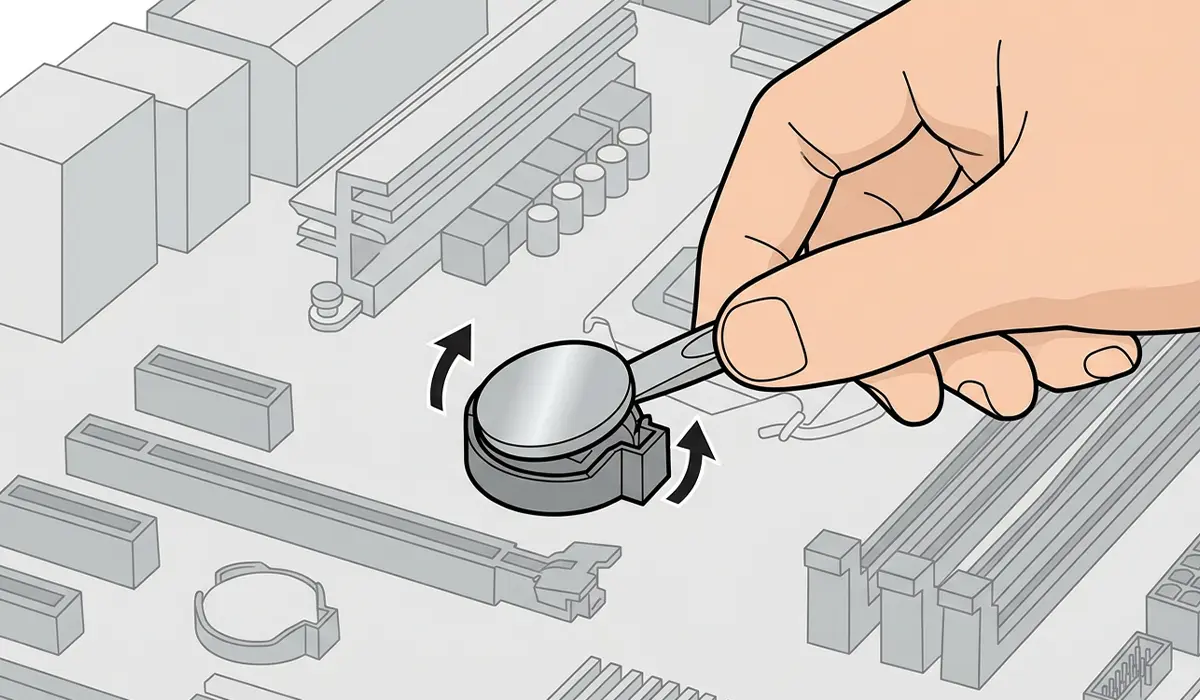
Tip: Before touching the battery, take a quick photo of its orientation with a phone camera. Coin cell batteries only fit one way, but a photo removes any guesswork when reinserting it.
Common Problems and Fixes
A BIOS reset is usually smooth, but a few predictable issues tend to show up afterward.
- System clock is wrong after the reset. This is expected after removing the CMOS battery, since it also powers the real-time clock. Simply reset the date and time in BIOS or in Windows once the system boots.
- PC won’t boot to the correct drive. Resetting defaults can change the boot order back to the factory sequence. Re-enter BIOS and set the correct drive, usually the primary SSD or NVMe drive, as the first boot device.
- Overclock or memory profile no longer applies. Any manually configured overclock, fan curve, or XMP/EXPO memory profile gets wiped along with everything else and needs to be reapplied by hand.
- Secure Boot or TPM shows as disabled. These security features often default to off after a reset. If Windows 11 compatibility depends on them, they need to be manually switched back on in the Security tab of BIOS.
- Computer still won’t display anything after a clear CMOS. This usually points to a problem unrelated to BIOS settings, such as a failed RAM module, a loose power connector, or a dead CMOS battery that needs replacing rather than just reseating.
Frequently Asked Questions
Does resetting BIOS to default settings delete files or programs?
No. A BIOS reset only affects firmware-level settings like boot order, fan curves, and overclocks. It has no effect on the operating system, installed software, or personal files.
Will resetting the BIOS fix a computer that won’t turn on at all?
Sometimes. If the cause is a bad overclock or a corrupted BIOS setting, a reset often solves it. If the computer shows no signs of power at all, the issue is more likely a hardware fault like a failed power supply, and a BIOS reset won’t help.
How long does a CMOS battery reset take effect?
The reset itself is instant once the battery or jumper connection is broken for roughly a minute. The system will simply boot with default settings the next time it powers on.
What type of battery does a motherboard use for CMOS?
Most desktop motherboards use a CR2032 coin cell battery, widely available at electronics and hardware stores.
Is it safe to reset BIOS on a laptop the same way as a desktop?
Not always. Some laptops allow a BIOS reset from the setup menu just like a desktop, but physically accessing the CMOS battery often requires removing the bottom panel and sometimes the keyboard assembly. If that level of disassembly isn’t comfortable, a repair professional is the safer route.
Does a BIOS reset remove a BIOS password?
A supervisor or setup password stored in BIOS is typically cleared by a hardware CMOS reset, since that memory is wiped along with everything else. A Windows login password is completely separate and is not affected.
Why does the date and time reset to a default value after clearing CMOS?
The CMOS battery also powers the motherboard’s real-time clock. Removing it, even briefly, resets the clock along with the rest of the BIOS settings.
Can resetting BIOS improve performance or fix slow boot times?
It can, particularly if a previous change like an aggressive overclock, an unstable memory profile, or a misconfigured boot order was causing instability or delays. For a system with no BIOS-level issues, a reset won’t create a performance gain on its own.
What is the difference between ‘Load Setup Defaults’ and ‘Load Optimized Defaults’?
Setup Defaults typically loads the most conservative, base-level settings, while Optimized Defaults applies values the manufacturer considers ideal for stable everyday use, sometimes including modest performance features already enabled. Either option works for a standard reset.
Do I need to reinstall drivers after resetting BIOS?
No. BIOS settings and Windows drivers are separate systems. Drivers remain installed and functional after a BIOS reset, though features tied to specific BIOS settings, like virtualization support, may need to be re-enabled if a program depends on them.
