
Dust builds up in tight spaces that a cloth can never reach, and learning how to clean laptop hinges and vents with a brush is one of the simplest ways to keep a machine running cool and quiet. A soft brush gets into the narrow gaps around the hinge barrel and the vent grille without scratching plastic or bending delicate fins. This guide walks through the safe way to do it, step by step.
Key Takeaways
- A soft-bristled brush, like a clean makeup brush or an anti-static brush, safely loosens dust in hinges and vents.
- Compressed air paired with brushing clears out debris far more effectively than either tool alone.
- Hinges collect a mix of dust, skin oils, and fabric lint from bags and sleeves, which can make them feel stiff or gritty.
- Vents should always be brushed in the direction of airflow, never forced against the fan blades.
- Doing this every few months prevents the buildup that leads to overheating and fan noise later on.
Before You Start
A little prep work makes this task safer and far more effective.
- Power off the laptop completely and unplug the charger. Never brush vents or hinges while the machine is running.
- Let the laptop cool down for a few minutes if it was just in use, since fans and heatsinks can stay warm after shutdown.
- Move to a well-lit area, ideally near a window or over a table that can be wiped down afterward, since dust tends to scatter.
- Touch a bare metal surface, such as a radiator or unpainted metal desk leg, to discharge any static buildup before handling the laptop.
Tools and Materials Needed
- A soft-bristled brush, such as a clean makeup brush, an anti-static brush, or a dedicated electronics cleaning brush.
- A can of compressed air.
- A microfiber or lint-free cloth.
- Cotton swabs for tight corners near the hinge.
- Isopropyl alcohol of 90 percent or higher, used sparingly and only on exterior plastic, not inside vents.
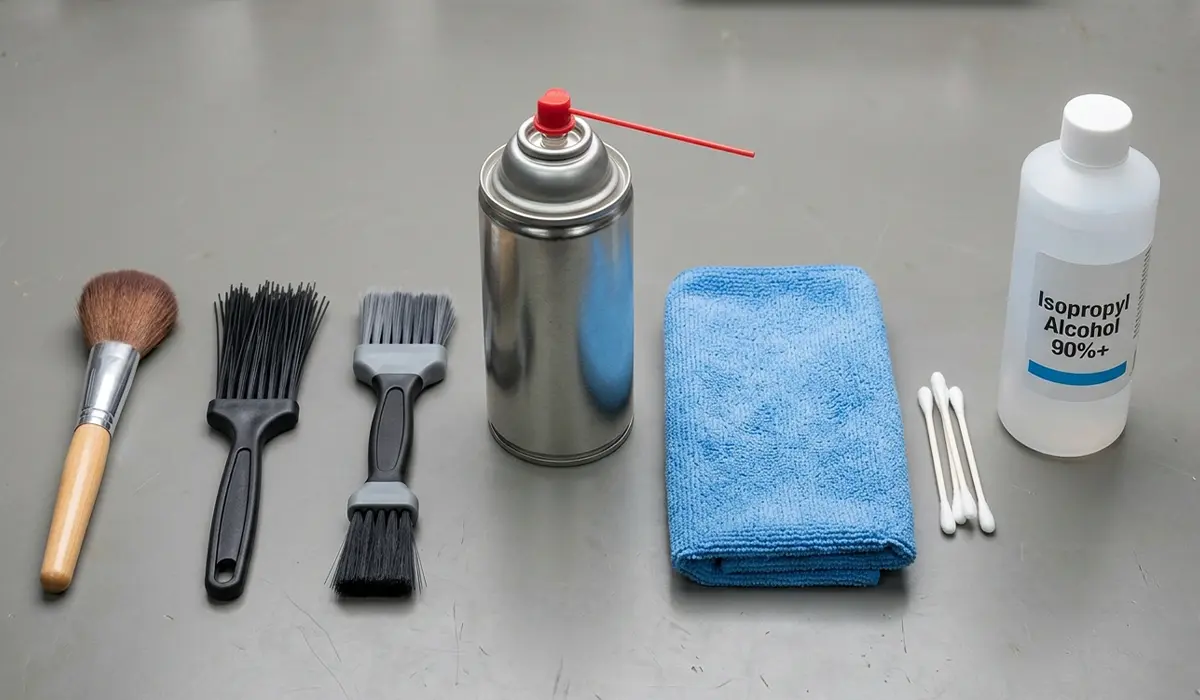
Tip: Skip anything stiff-bristled or metal, like a toothbrush with hard nylon bristles or a wire brush. Those can scratch the hinge finish or bend the thin metal fins inside a vent.
Step-by-Step: Cleaning Laptop Hinges and Vents With a Brush
- Step 1: Close the laptop lid partway, to roughly a 45-degree angle, so the hinge gap is visible but the screen is protected from direct pressure.
- Step 2: Hold the soft brush at a shallow angle and sweep it gently along the hinge barrel, working from one side to the other. This loosens dust and lint that has settled into the seam between the lid and the base.
- Step 3: Open the lid fully and brush the inner hinge area again, paying attention to the small gaps where the display bezel meets the base near each hinge cap.
- Step 4: Follow the brushing with a short burst of compressed air along the same hinge line, holding the can upright and a few inches away, to push out debris the brush stirred up but could not fully remove.
- Step 5: Turn attention to the vents, usually found along the side or back edges of the laptop and sometimes on the underside near the fan intake.
- Step 6: Brush across the vent slats in short, light strokes, following the direction the fins run rather than pushing straight into them. This clears surface dust without bending the thin metal.
- Step 7: Use compressed air on the vents next, spraying in short bursts rather than one long stream, which helps push trapped dust out instead of just packing it deeper.
- Step 8: Wipe the surrounding plastic and metal with a lightly dampened microfiber cloth, using a small amount of isopropyl alcohol if there is visible grime near the hinge covers.
- Step 9: Let everything air-dry for a few minutes before closing the lid or powering the laptop back on.

Cleaning the Underside Vents
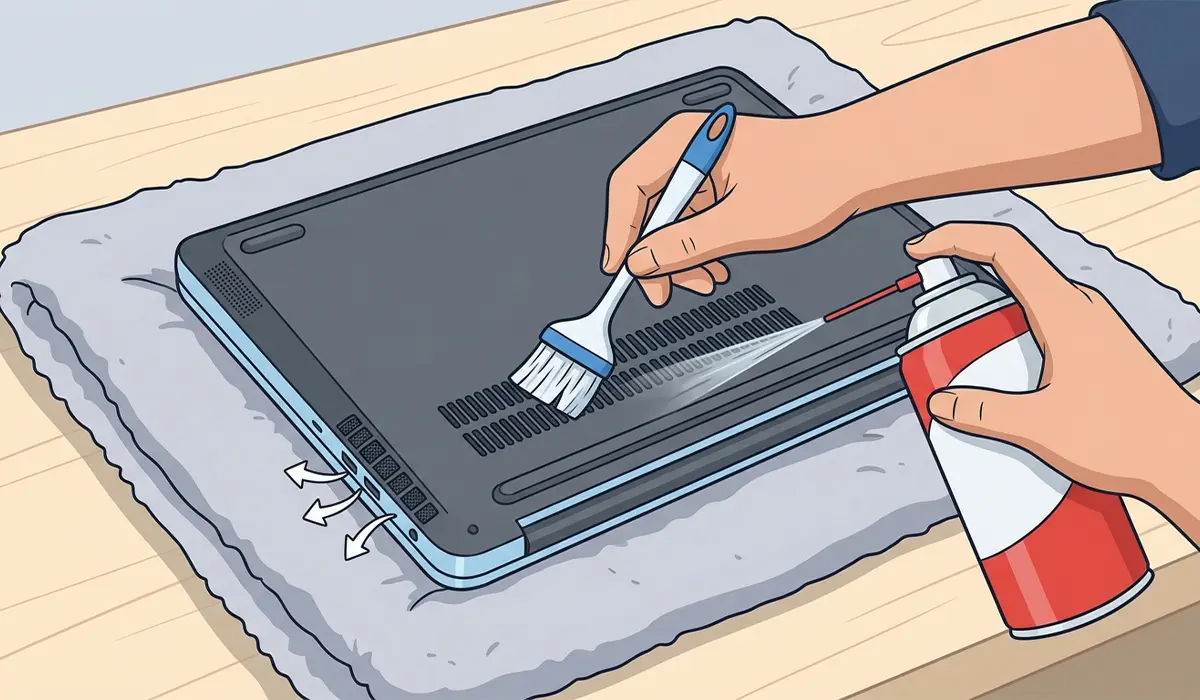
Most laptops pull cool air in through vents on the bottom panel and push warm air out through the side or rear exhaust. This works best when the laptop is flipped over on a soft towel, propped so the intake vents face upward. Brush across the mesh or slats first, then follow with compressed air held at a slight angle so the fan blades spin freely rather than getting forced in one direction, which can strain the fan motor over time.
Common Problems and Fixes
- Hinge still feels gritty after brushing: Some dust settles deep inside the hinge mechanism itself, past where a brush can reach. A cotton swab lightly dampened with isopropyl alcohol can clean the visible seam, but a hinge that grinds or feels loose likely needs a technician to inspect the internal mechanism.
- Fan noise did not improve after cleaning the vents: This often means dust has packed onto the heatsink fins themselves rather than just the outer vent grille, which usually requires opening the bottom panel for a deeper clean.
- Compressed air makes the fan spin loudly during cleaning: This is normal, but bursts should stay short. Holding the fan blades still with a toothpick through the vent while spraying prevents the fan from overspinning and generating excess voltage.
- Dust keeps reappearing quickly after cleaning: This usually points to a dusty environment or a laptop resting on carpet or bedding, which blocks the underside intake vents and pulls in more debris. Using the laptop on a hard, flat surface reduces how fast dust builds back up.
- Brush leaves loose bristles inside the vent: Cheap brushes sometimes shed. A quick follow-up pass with compressed air usually clears any stray bristles before they cause an issue.
Frequently Asked Questions
How often should laptop hinges and vents be cleaned?
Every three to four months is a reasonable schedule for most users, though laptops used in dusty environments or carried in bags with lint-heavy fabric may need attention more often.
Can a laptop be damaged by brushing the vents too hard?
Yes. Pressing too firmly can bend the thin metal fins inside the vent, which restricts airflow rather than improving it. Light, even strokes work better than heavy pressure.
Is it safe to use a vacuum cleaner instead of a brush?
Household vacuums can generate static electricity strong enough to damage internal components, so brushing combined with compressed air is the safer approach for vents and hinges.
What type of brush works best for laptop hinges?
A soft, dense-bristled brush such as an anti-static brush or a clean, unused makeup brush works well because the bristles are gentle enough to avoid scratching plastic or metal trim.
Why do laptop hinges collect so much dust and lint?
The hinge area sits close to fabric surfaces like laptop sleeves, bags, and desks, and the constant opening and closing motion naturally pulls in fibers and dust over time.
Should the laptop be off while cleaning the hinges and vents?
Yes, the laptop should always be powered off and unplugged first. Cleaning a running laptop risks pushing debris into active components or striking a spinning fan blade.
Can isopropyl alcohol be used inside the vents?
Alcohol should stay on exterior plastic and metal surfaces only. Introducing liquid into the vent opening risks it reaching internal circuitry.
Does cleaning the vents actually improve laptop temperatures?
Clearing dust from the vents and heatsink allows air to move more freely, which generally helps a laptop run cooler and lets the fans work less aggressively.
What is the best way to clean the hinge without scratching the surrounding plastic?
Holding the brush at a shallow angle and moving along the seam rather than pressing straight down helps avoid contact pressure on the surrounding finish.
Is professional cleaning ever necessary instead of doing it manually?
If the hinge grinds, feels loose, or the fan noise persists after a thorough external cleaning, a technician can open the chassis to check the internal hinge assembly and heatsink, which is worth doing rather than forcing a stiff hinge further.
