
A dirty PC case interior does more than look bad behind that glass panel – it traps heat, chokes airflow, and slowly wears down fans and other components. This guide walks through a safe, complete cleaning process that removes dust buildup without risking damage to sensitive parts.
Key Takeaways
- Power down and unplug the PC completely before opening the case, and let it cool if it has been running.
- Compressed air, a soft brush, and a microfiber cloth handle most dust removal safely.
- Never use a household vacuum directly on internal components – static discharge and suction can damage parts.
- Fans, heatsinks, dust filters, and the power supply intake are the areas that collect the most buildup.
- A thorough interior cleaning every three to six months keeps temperatures stable and extends hardware life.
Before You Start
A few quick prep steps make the cleaning process safer and prevent accidental damage to the motherboard or drives.
- Shut down the PC fully and unplug the power cable from the wall or power strip, not just from the case.
- Press the power button for a few seconds after unplugging to release any residual charge in the system.
- Touch a bare metal part of the case, or wear an anti-static wrist strap, to discharge static before touching internal parts.
- Move the PC to a well-ventilated area, ideally outdoors or near an open window, since this task kicks up a fair amount of dust.
- Gather the tools before opening the case so there is no need to touch components with unwashed or oily hands mid-task.
Tip: Lay down an old towel or cardboard under the case first. It keeps dust off the floor and makes cleanup afterward much faster.
Tools and Materials Needed
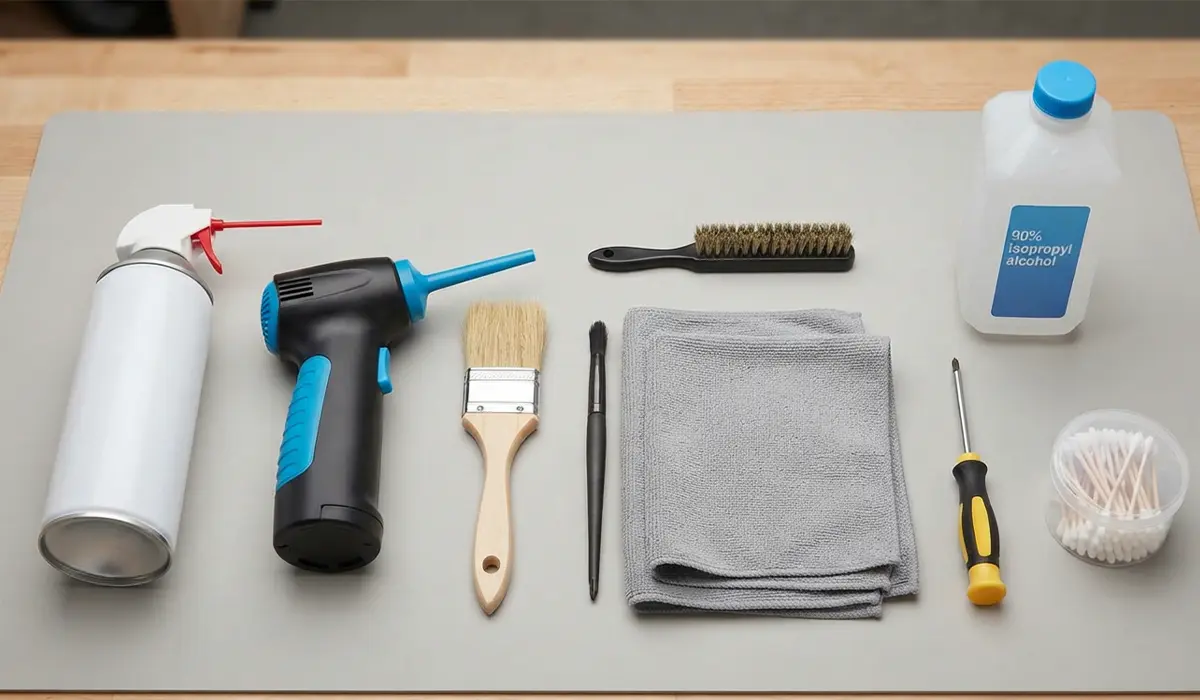
- Compressed air canister or an electric air duster (avoid ones that can generate strong static).
- A soft-bristle brush, such as an unused paintbrush or a dedicated electronics cleaning brush.
- Lint-free or microfiber cloths for wiping panels and surfaces.
- 90 percent or higher isopropyl alcohol for stubborn grime on fan blades or the case exterior.
- A Phillips screwdriver for removing side panels and dust filters.
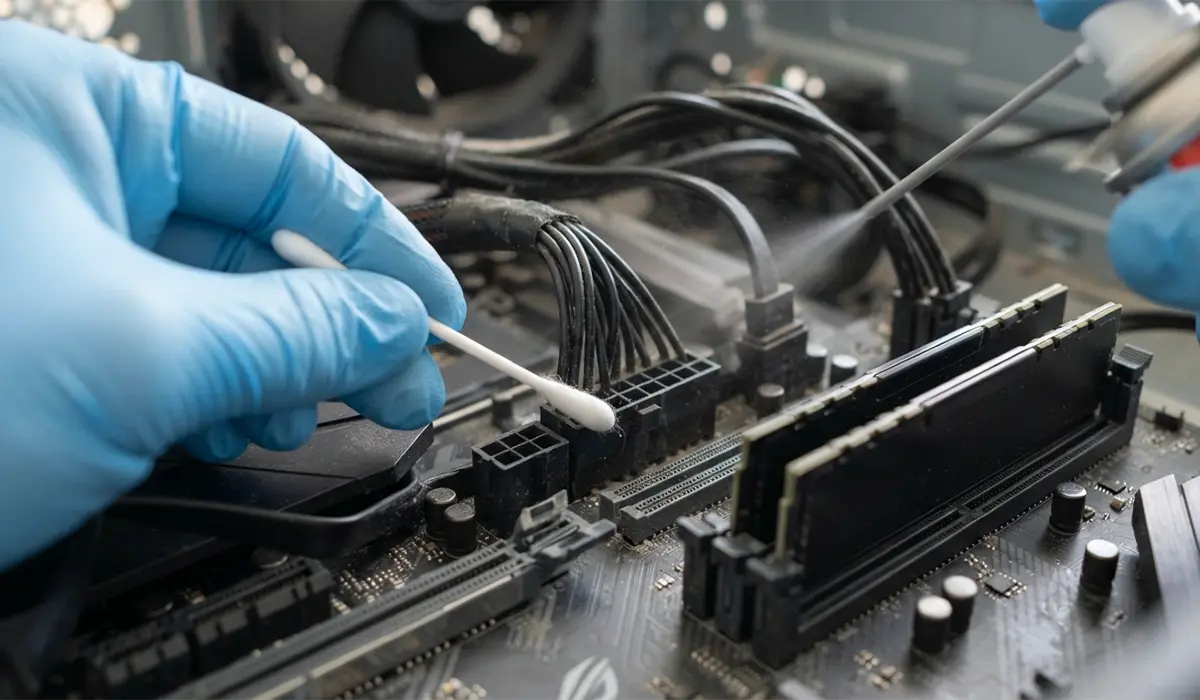
- Cotton swabs for tight corners around headers and connectors.
How to Clean a Dirty PC Case Interior: Step-by-Step Process
With the PC powered off, unplugged, and static discharged, the actual cleaning follows a logical order – top to bottom, largest debris first.
- Step 1: Remove both side panels of the case, setting screws aside in a small tray so nothing gets lost.
- Step 2: Take out any removable dust filters from the front, top, and bottom of the case and set them aside for a separate cleaning.
- Step 3: Use short bursts of compressed air to blow dust out of the case, working from the top down and always holding fans steady with a finger to keep them from spinning freely.
- Step 4: Aim compressed air into the CPU cooler fins and any GPU heatsink fins at an angle, since dust tends to pack tightly between them.
- Step 5: Use the soft brush to loosen dust that compressed air alone will not dislodge, especially around the motherboard and expansion card edges.
- Step 6: Wipe down the interior surfaces of the case, the inside of the side panels, and any glass panel with a slightly damp microfiber cloth, then dry with a second cloth.
- Step 7: Clean the power supply intake vent with compressed air from a distance, avoiding opening the power supply unit itself.
- Step 8: Rinse dust filters under lukewarm water if the manufacturer allows it, or brush them clean, and let them dry fully before reinstalling.
- Step 9: Reinstall the dust filters and side panels once everything is dry and free of loose debris.
- Step 10: Reconnect the power cable, power the system on, and confirm fans spin normally and no cables were disturbed during cleaning.
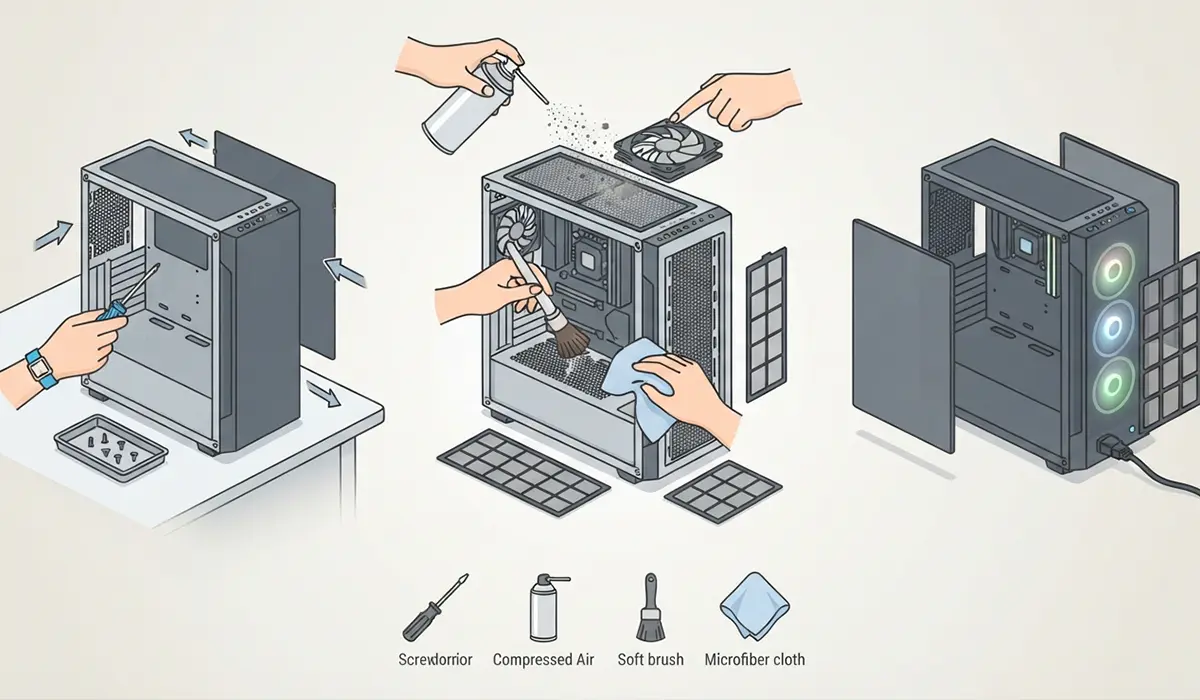
Tip: When blowing out a fan, hold the blades still with a finger. Letting compressed air spin a fan freely can generate a small electrical charge that has the potential to damage the motherboard header it is connected to.
Cleaning Cable Areas and Connectors
Dust also settles around cable headers, RAM slots, and drive bays. A dry cotton swab works well for these tight spots, and a light pass of compressed air clears out anything trapped behind cable routing channels. Avoid pressing down on RAM sticks or connectors while cleaning around them, since firm pressure can loosen a seated connection.
Common Problems and Fixes
PC does not power on after cleaning
This is almost always a loose connection, not a cleaning issue. Reopen the case and check that the 24-pin motherboard connector, CPU power cable, and drive cables are fully seated, since panels and components can shift slightly during cleaning.
Fans still sound loud or dusty after cleaning
A fan that still sounds gritty after a cleaning may have dust packed into the bearing itself rather than just the blades. A slightly damp cotton swab around the fan hub can help, but persistent noise usually points to a fan nearing the end of its lifespan.
Case still runs hot despite a clean interior
If temperatures have not improved, check that all case fans are actually spinning and oriented correctly for intake and exhaust. A clean case with poor airflow direction will still run warm, so confirming fan orientation is worth doing right after any deep clean.
Dust filters keep clogging quickly
Rooms with pets, carpet, or nearby construction generate more airborne dust, which shortens the time between cleanings. In these environments, checking and tapping out filters every four to six weeks, with a full interior clean every two to three months, keeps buildup from getting ahead of the schedule.
Frequently Asked Questions
How often should a PC case interior be cleaned?
Most systems benefit from a full interior cleaning every three to six months. Homes with pets, carpet, or dusty environments often need it closer to every two to three months.
Can a vacuum cleaner be used to clean the inside of a PC?
A standard household vacuum should not be used directly on internal components. It can generate static electricity and its suction can be strong enough to damage fan bearings or dislodge small parts.
Is it safe to clean a PC case while it is still plugged in?
No. The system should be fully powered down and unplugged from the wall before any cleaning begins, both for safety and to protect the components from static discharge.
What is the best way to clean dust filters?
Most filters can be brushed clean or rinsed under lukewarm water if the manufacturer allows it. They need to be completely dry before going back into the case to avoid trapping moisture near the fans.
Why does compressed air need to be used in short bursts?
Long, continuous bursts can cause the propellant in some canisters to release moisture along with the air. Short bursts also give better control over where the dust goes instead of just pushing it deeper into tight spaces.
Is isopropyl alcohol safe to use inside a PC case?
90 percent or higher isopropyl alcohol is safe on hardened surfaces like fan blades, plastic shrouds, and the case exterior. It should be applied to a cloth or swab rather than sprayed directly onto components.
Does cleaning the case interior actually lower temperatures?
Yes. Dust buildup on heatsinks and fans acts as an insulating layer that traps heat and restricts airflow. Removing it typically brings temperatures back down closer to what the hardware was designed to run at.
Should thermal paste be reapplied during a routine case cleaning?
Not as part of a standard dust cleaning. Thermal paste only needs replacing every few years or when temperatures rise noticeably, which is a separate task from clearing dust out of the case.
Can compressed air damage a PC if used incorrectly?
Yes, if fans are allowed to spin freely from the airflow or if the can is tilted and sprays liquid propellant onto components. Holding fans still and keeping the can upright avoids both risks.
