
Losing emails to a setting nobody remembers turning on is frustrating, and the fix to stop AutoArchive from deleting your emails in Outlook takes only a few minutes once the right menu is found. This guide walks through exactly where that setting hides and how to correct it for good.
Key Takeaways
- AutoArchive does not usually delete regular mail – it is the Deleted Items and Junk Email folders that get set to ‘permanently delete’ by default.
- The fix lives in two places: the global AutoArchive settings and the per-folder AutoArchive properties.
- Switching folders from ‘Permanently delete old items’ to ‘Move old items to’ keeps everything safe in an archive file instead.
- AutoArchive can also be turned off entirely if archiving is not needed at all.
- Checking folder-level settings is the step most people skip, and it is usually the actual cause of missing mail.
Step-by-Step Guide to Stop AutoArchive From Deleting Your Emails in Outlook
Part 1: Check the Global AutoArchive Settings
- Step 1: Open Outlook and select ‘File’ in the top left corner, then choose ‘Options’.
- Step 2: In the Outlook Options window, click ‘Advanced’ from the left-hand menu.
- Step 3: Scroll down to the ‘AutoArchive’ section and click the ‘AutoArchive Settings’ button.
- Step 4: To stop AutoArchive from running altogether, uncheck the box labeled ‘Run AutoArchive every [x] days’. This pauses the feature completely, so nothing gets moved or removed on a schedule.
- Step 5: If AutoArchive should stay active for organizing older mail, leave that box checked but make sure ‘Permanently delete old items’ is unchecked. This box, when ticked, is often the real culprit behind vanished emails.
- Step 6: Confirm ‘Move old items to’ is selected instead, with a valid archive file path showing underneath. Click ‘Apply these settings to all folders now’ if every folder should match this behavior, then select ‘OK’.
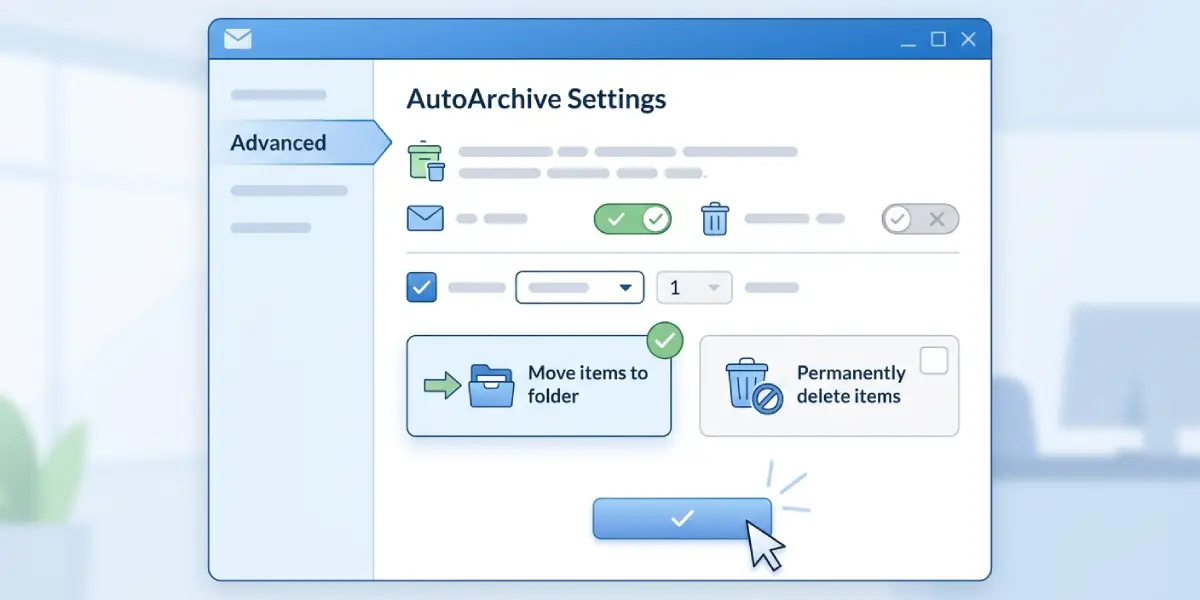
Tip: The ‘Apply these settings to all folders now’ button is easy to miss, but it saves time by fixing every folder in one click instead of visiting each one individually.
Part 2: Check Individual Folder Settings
- Step 7: In the folder pane on the left, right-click the ‘Deleted Items’ folder and choose ‘Properties’.
- Step 8: Select the ‘AutoArchive’ tab at the top of the Properties window.
- Step 9: Choose ‘Archive this folder using these settings’ if a custom setting is needed for this folder, then select ‘Move old items to’ rather than ‘Permanently delete old items’.
- Step 10: Click ‘OK’ to save, and repeat the same check for the ‘Junk Email’ folder, since both folders default to permanent deletion in many Outlook installations.
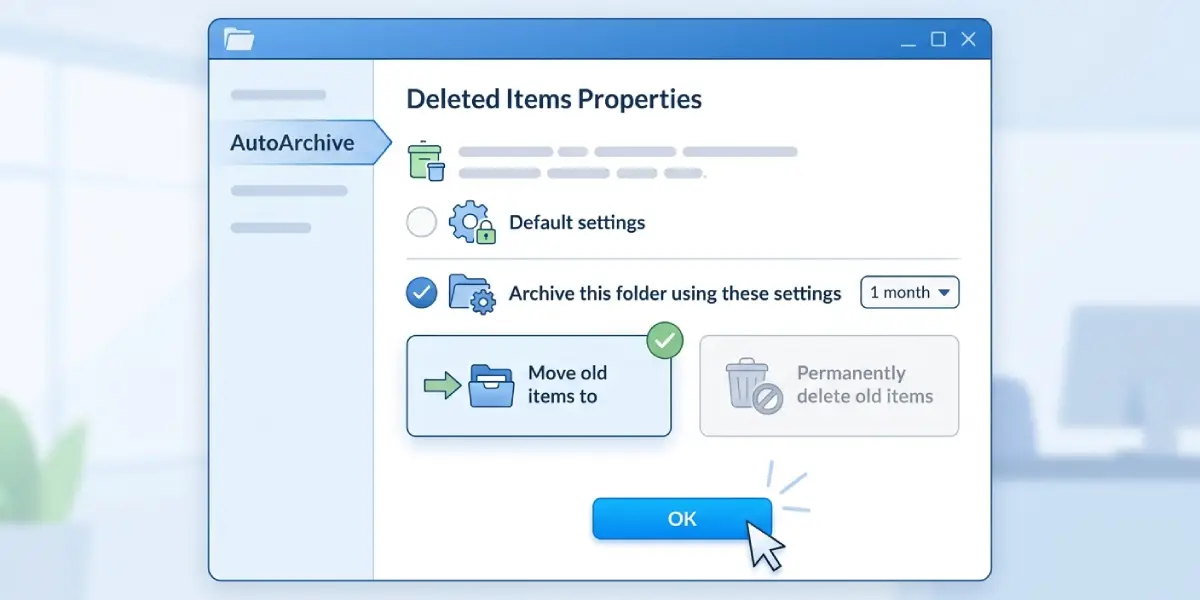
Tip: Folders inherit settings differently depending on how Outlook was set up initially, so it is worth spot-checking a couple of frequently used folders even after applying global settings.
Common Problems and Fixes
- Emails still disappear after changing the global settings. This usually means a folder has its own custom AutoArchive setting overriding the global one. Right-click that folder, open Properties, and check the AutoArchive tab directly.
- The AutoArchive Settings button appears grayed out. This can happen when an administrator has applied a policy through Group Policy or Microsoft 365 admin settings. Reaching out to an IT administrator is the fastest way to resolve this.
- Archived emails cannot be found after switching from delete to move. Look for an Archive folder in the folder pane, or check the file path listed in AutoArchive Settings, since older configurations sometimes point to a hidden .pst location.
- Settings revert after closing Outlook. This points to a corrupted profile or a sync issue with a Microsoft 365 policy. Repairing the Outlook profile through Control Panel usually resolves it.
- Shared or delegated mailboxes keep deleting items despite changes. Personal AutoArchive settings do not carry over to shared mailboxes automatically, so the folder-level check needs to be repeated inside that shared mailbox specifically.
Frequently Asked Questions
Does turning off AutoArchive delete anything already archived?
No. Disabling AutoArchive only stops future runs. Anything already moved into an archive file stays exactly where it is.
Why does Deleted Items get permanently erased by default?
Outlook treats the Deleted Items and Junk Email folders differently from other folders, defaulting them to permanent deletion after the aging period unless that setting is manually changed.
How long does Outlook wait before AutoArchive runs on old emails?
The default aging period is usually set to a number of days defined in the AutoArchive Settings window, and it can be adjusted there to a longer or shorter window as needed.
Can AutoArchive be stopped for just one folder instead of the whole mailbox?
Yes. Right-clicking that folder, opening Properties, and adjusting the AutoArchive tab allows a single folder to use different settings from the rest of the mailbox.
What happens to emails once they are moved instead of deleted?
They get relocated to an archive .pst file or archive mailbox, and they remain searchable and fully accessible from within Outlook.
Is there a way to recover emails already deleted by AutoArchive?
If Deleted Items had been set to permanently delete, recovery depends on whether ‘Recover Deleted Items’ is still available on the mail server, which is typically time-limited.
Does this fix apply the same way in the Outlook desktop app and Outlook on the web?
AutoArchive is a desktop-only feature, so this fix applies specifically to the Outlook desktop application rather than the web version.
Will changing these settings affect shared or delegated mailboxes automatically?
No, each mailbox needs its AutoArchive settings checked and adjusted separately, since personal account changes do not extend to shared mailboxes.
Can a Microsoft 365 admin policy override these personal settings?
Yes, some organizations lock AutoArchive behavior through policy, which can prevent changes from sticking until an administrator adjusts or removes that policy.
