
Outlook error 0x80040115 shows up right when sending or receiving mail matters most, usually with a message saying the server can’t be contacted right now. The good news is that this error is almost always fixable in under ten minutes once the right steps are followed in order.
Key Takeaways
- Error 0x80040115 typically means Outlook lost its connection to the mail server, often due to a network hiccup or corrupted DNS cache.
- Flushing the DNS cache resolves this error for most users on the first try.
- Faulty add-ins, an oversized PST or OST file, and a damaged Outlook profile are the next most common culprits.
- Switching from Cached Exchange Mode to Online Mode can help isolate whether the problem is local or server-side.
- Working through the fixes in sequence, rather than jumping around, saves time and avoids unnecessary troubleshooting.
How to Fix Outlook Error 0x80040115
Before making any changes, confirm the internet connection is stable and that there’s more than 1 GB of free space on the C: drive. Outlook needs both a working connection and enough local storage to sync mail properly, and skipping this check is one of the most common reasons people get stuck later in the process.
METHOD 1: Flush the DNS Cache
- Step 1: Press the Windows key + X and select Windows PowerShell or Command Prompt.
- Step 2: Type ipconfig /flushdns and press Enter.
- Step 3: Wait for the confirmation message, then close the window.
- Step 4: Restart Outlook and try sending or receiving mail again.
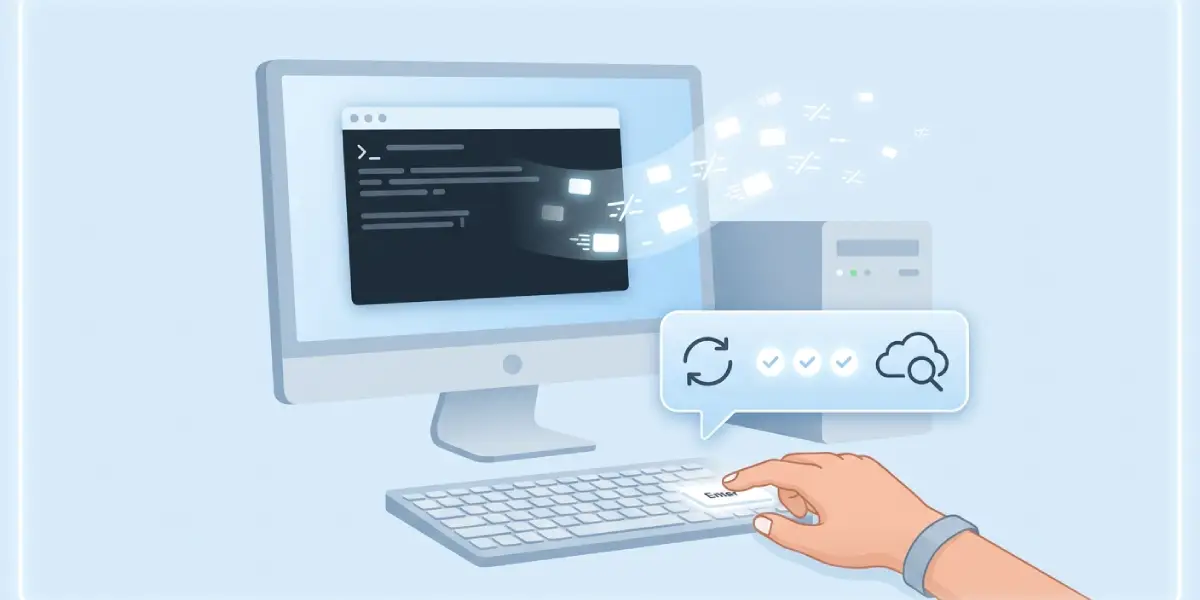
Tip: A corrupted DNS cache is behind a large share of 0x80040115 cases, so this step alone often clears the error without needing to touch any other settings.
METHOD 2: Test in Safe Mode to Rule Out Add-ins
- Step 5: Press the Windows key + R to open the Run dialog.
- Step 6: Type outlook /safe and press Enter.
- Step 7: Choose a profile if prompted, then check whether the send/receive error still appears.
If Outlook behaves normally in safe mode, an add-in is the likely trigger, and the next step deals with that directly.
METHOD 3: Disable Faulty Add-ins
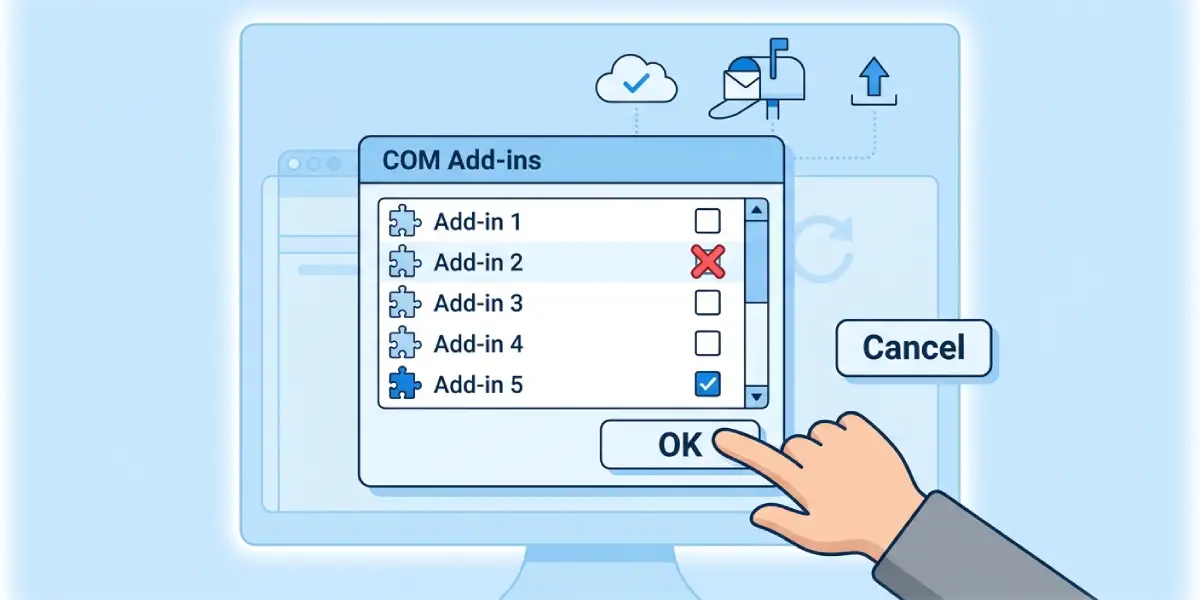
- Step 8: Go to File, then Options, then Add-ins.
- Step 9: Select COM Add-ins in the Manage dropdown and click Go.
- Step 10: Uncheck all listed add-ins, click OK, then restart Outlook normally.
- Step 11: Re-enable add-ins one at a time to find the one causing the conflict, testing send/receive after each.
METHOD 4: Switch Off Cached Exchange Mode
- Step 12: Go to File, then Account Settings, then Account Settings again.
- Step 13: Select the account and click Change.
- Step 14: Uncheck Use Cached Exchange Mode, click Next, then restart Outlook.
This puts Outlook in Online Mode, which pulls data directly from the server instead of a local cache file. A bloated or damaged cache file is a frequent cause of this error, and this step bypasses it entirely.
METHOD 5: Check the Size and Health of the PST or OST File
- Step 15: Locate the data file, typically in C:\Users\[username]\AppData\Local\Microsoft\Outlook.
- Step 16: Note the file size. Older PST files that approach 20 GB or more are far more prone to sync errors.
- Step 17: Run the Inbox Repair Tool (scanpst.exe), usually found in C:\Program Files\Microsoft Office\root\Office16, to scan and repair the file.
- Step 18: Restart Outlook once the repair completes and test send/receive.
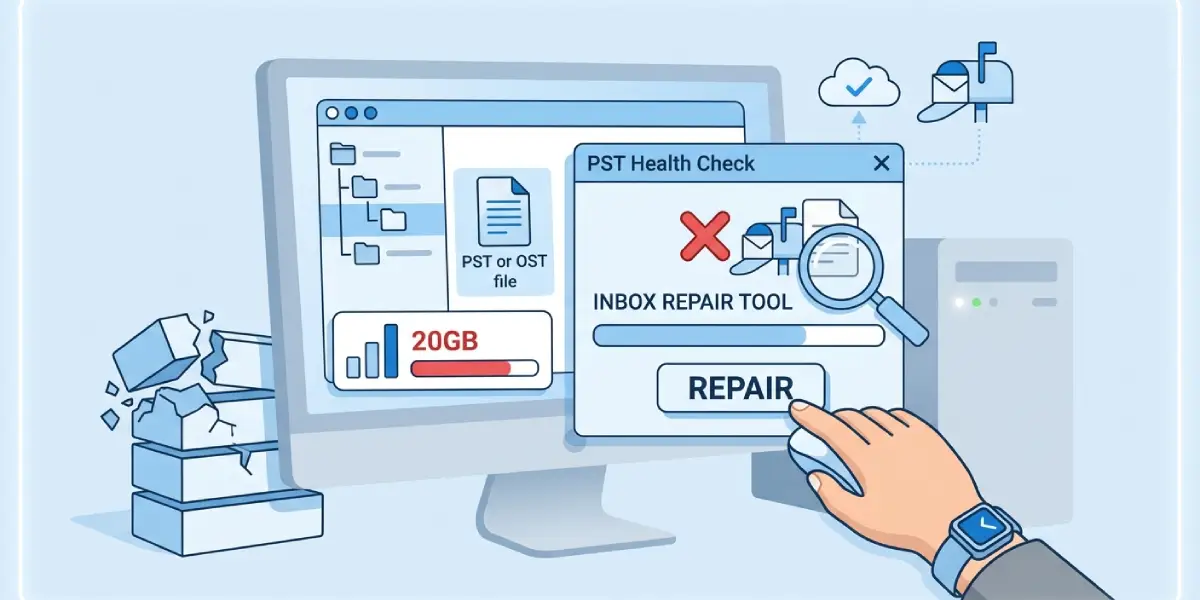
Tip: Archiving old emails into a separate PST file keeps the primary data file lean, which reduces the odds of this error returning down the line.
METHOD 6: Recreate the Outlook Profile
- Step 19: Open Control Panel and select Mail.
- Step 20: Click Show Profiles, then Add to create a new profile.
- Step 21: Follow the prompts to set up the account under the new profile.
- Step 22: Set the new profile as default and open Outlook to confirm the error is gone.
A damaged profile rarely announces itself clearly, but when nothing else resolves the error, rebuilding the profile from scratch usually does the trick.
Common Problems and Fixes
- The error returns after a DNS flush: A router or firewall may be blocking the connection. Restart the router and check firewall settings for the Outlook executable.
- Safe mode doesn’t fix it, but disabling add-ins doesn’t either: Move on to checking the PST/OST file size and running the Inbox Repair Tool, since the issue is likely data-file corruption rather than an add-in.
- Scanpst.exe can’t find or open the data file: Confirm the exact file path in Account Settings under the Data Files tab, since the file location can vary between Outlook versions.
- Creating a new profile doesn’t stop the error: The issue is probably server-side. Check Outlook Web App to confirm whether the mailbox is reachable there.
- The error only happens on one device: This points to a local issue with that machine’s cache, add-ins, or profile rather than a mailbox or server problem.
Frequently Asked Questions
What does Outlook error 0x80040115 actually mean?
It means Outlook was unable to establish or maintain a connection to the mail server while sending or receiving items, often described in the error message as being unable to contact the server.
Does flushing the DNS cache fix this error every time?
Not every time, but it resolves the majority of cases since a stale or corrupted DNS cache is one of the most frequent triggers.
Can a bad internet connection cause this error?
Yes. An unstable or interrupted connection prevents Outlook from completing its handshake with the mail server, which triggers this exact error.
Is it safe to disable all add-ins at once?
Yes, disabling add-ins does not delete them or affect email data. They can be re-enabled individually once the faulty one is identified.
How large can a PST file get before it causes problems?
Performance issues and sync errors become more likely as a PST file grows past several gigabytes, particularly on older Outlook versions with lower size limits.
What is the Inbox Repair Tool and where is it found?
Scanpst.exe is Microsoft’s built-in tool for scanning and repairing corrupted PST and OST files, typically located in the Office installation folder under Program Files.
Will switching to Online Mode delete any local email data?
No. Switching off Cached Exchange Mode changes how Outlook retrieves data but does not delete mailbox contents stored on the server.
Should the DNS flush or the add-in check be tried first?
Flushing DNS first makes sense since it takes seconds and resolves the error more often, saving time before moving to more involved steps.
Does creating a new Outlook profile affect existing emails?
Existing server-based mail, such as Exchange or Microsoft 365 accounts, remains intact and re-downloads under the new profile without data loss.
