
Learning how to clean install GPU drivers using DDU is one of the most reliable ways to fix graphics glitches, crashes, and leftover driver conflicts that a normal reinstall cannot touch. Display Driver Uninstaller, better known as DDU, wipes out every trace of an old NVIDIA, AMD, or Intel driver before a fresh one goes on. This guide walks through the entire process from downloading the tool to confirming a clean, stable install.
Key Takeaways
- DDU removes hidden driver files, registry entries, and leftover services that a standard uninstall leaves behind.
- Running DDU from Safe Mode gives the cleanest possible result since Windows is not actively using the graphics driver.
- A clean install with DDU is most useful after a driver update causes crashes, black screens, stuttering, or when switching between GPU brands.
- The whole process typically takes fifteen to twenty five minutes including the fresh driver download.
- Always download a new driver package before starting, since DDU temporarily disables the display driver entirely.
Before You Start
A little prep work makes this process go smoothly and avoids getting stuck without a working display driver mid-task.
- Download the latest GPU driver for the exact card in use, either the full package or the driver-only version, and save it somewhere easy to find, like the desktop.
- Download DDU itself from its official developer page and extract the folder before rebooting into Safe Mode.
- Close any open programs and save any work, since the process involves at least one restart.
- Make note of any custom driver settings, color profiles, or fan curve software configurations, since those may reset after the clean install.
Tip: Keep the extracted DDU folder and the new driver installer on the desktop rather than in a temporary downloads folder, since some browsers clear that folder automatically and DDU access becomes harder once Safe Mode is active.
How to Clean Install GPU Drivers Using DDU Step by Step
Booting Into Safe Mode
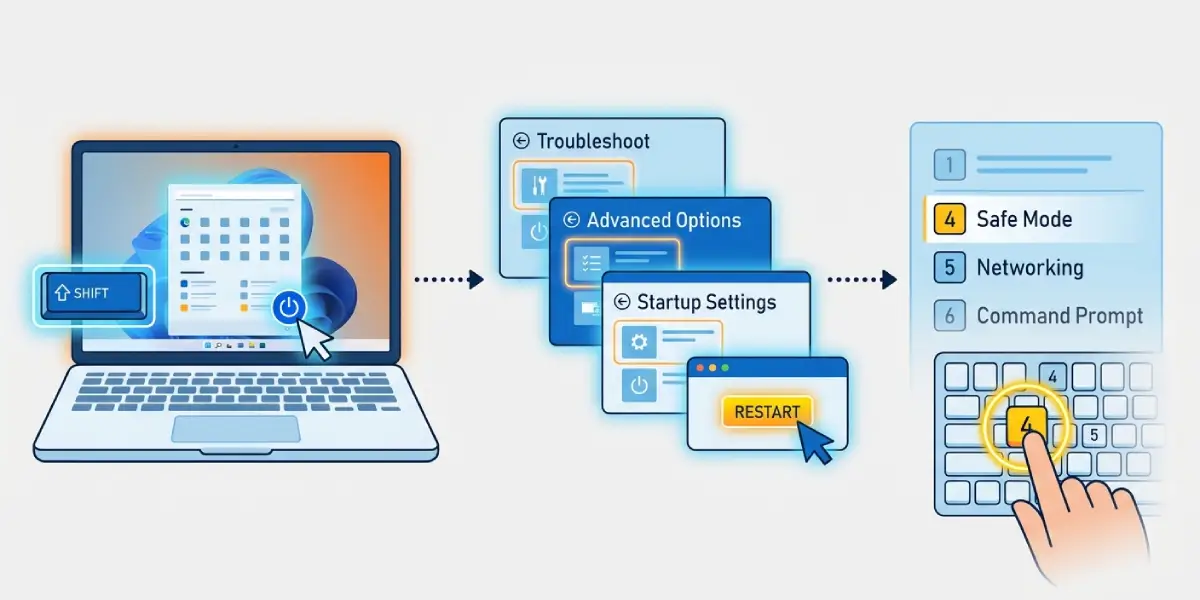
- Step 1: Open the Start menu, click the power icon, hold Shift, and select Restart. This opens the Windows recovery menu instead of a normal boot.
- Step 2: Navigate to Troubleshoot, then Advanced Options, then Startup Settings, and click Restart again.
- Step 3: When the list of options appears, press the number key for Safe Mode. Safe Mode with Networking also works if internet access is needed afterward, though it is not required for DDU itself.
Running DDU
- Step 4: Once in Safe Mode, open the extracted DDU folder and run the application as an administrator.
- Step 5: On the right side of the DDU window, select the GPU manufacturer, NVIDIA, AMD, or Intel, matching the installed card.
- Step 6: Click ‘Clean and restart’ from the main options. DDU will remove all driver files, registry entries, and related services, then automatically reboot the PC.
Installing the Fresh Driver
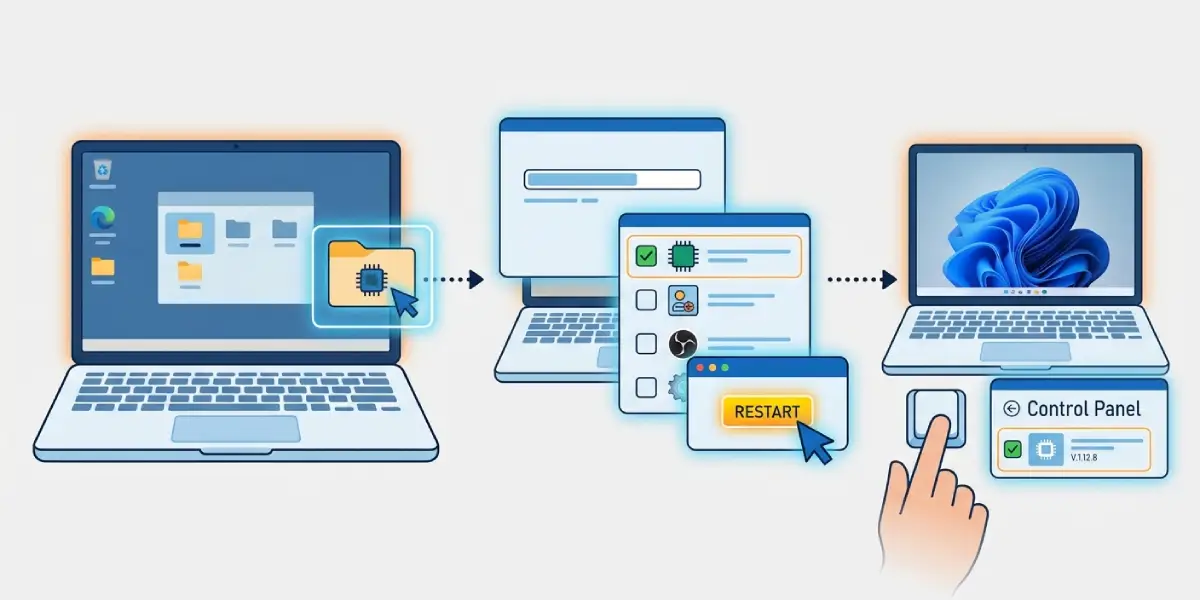
- Step 7: After the reboot, Windows starts normally without a dedicated graphics driver installed, so the display may look larger or lower resolution than usual. This is expected.
- Step 8: Locate the driver installer saved earlier and run it. Choose a clean or custom installation if the installer offers that option, and skip any bundled extra software that is not needed.
- Step 9: Let the installer finish completely, then restart the computer one more time to let the new driver load fully.
- Step 10: Confirm the driver version in Device Manager or the GPU manufacturer’s control panel to verify the new install is active and no old files are still referenced.
Tip: Avoid installing a driver straight from Windows Update right after a DDU clean, since it sometimes installs an older generic version instead of the current release from the manufacturer.
Common Problems and Fixes
- Black screen after rebooting from DDU: This usually means the new driver has not been installed yet. Boot back into Safe Mode, confirm the driver installer runs without errors, and reboot normally afterward.
- DDU will not detect the GPU: Confirm Safe Mode is active and that DDU is running as administrator. Restarting the DDU tool itself often resolves detection issues.
- Driver installer fails to open after DDU: Some antivirus tools flag freshly cleaned systems. Temporarily disabling third-party antivirus during installation, then re-enabling it afterward, usually fixes this.
- Old control panel software still appears: DDU removes driver files but not always separate companion apps. Reinstalling the manufacturer’s control software separately clears this up.
- Performance issues persist after the clean install: Check that the correct driver version matches the exact GPU model and Windows build, since mismatched or beta drivers can cause the same symptoms DDU was meant to fix.
Frequently Asked Questions
What does DDU actually remove that a normal uninstall does not?
DDU clears out driver files, registry keys, and leftover services tied to the graphics driver that Windows’ built-in uninstaller typically skips, which is what makes it effective against stubborn driver conflicts.
Is it safe to run DDU without Safe Mode?
DDU can run in normal Windows mode, but Safe Mode gives a more thorough clean since the display driver is not actively in use, reducing the chance of leftover files.
How often should a clean install with DDU be done?
There is no set schedule. It is most useful after a problematic driver update, when switching GPU brands, or when troubleshooting persistent display issues, rather than as routine maintenance.
Will DDU delete personal files or game saves?
No. DDU only targets graphics driver files, related registry entries, and driver services. It does not touch personal files, installed programs, or game data.
Can DDU be used for both NVIDIA and AMD drivers?
Yes. DDU supports NVIDIA, AMD, and Intel graphics drivers, and the manufacturer is selected directly within the tool before running the clean.
What happens if the wrong driver is installed after using DDU?
The system may show display errors, missing features, or poor performance. Running DDU again and installing the correct driver for the exact GPU model resolves this.
Does a DDU clean install fix random crashes and stuttering?
In many cases, yes, since corrupted or conflicting driver files are a common cause of crashes and stutter. If issues continue after a clean install, the cause may be unrelated to the driver itself.
Is an internet connection required during the process?
Not during the DDU cleanup itself, but the new driver installer needs to already be downloaded beforehand, since Safe Mode without networking has no internet access.
Does clean installing with DDU void any warranty?
No. DDU is a software tool that only affects driver files and does not involve opening the computer or the graphics card, so it has no effect on hardware warranty.
What should be done if DDU itself will not open?
Confirm the file was extracted before running it rather than launched from inside a zip folder, and try running it as administrator. If it still will not open, redownloading the tool from its official source usually resolves it.
