
A slow, stuttering PC is not always a RAM or CPU problem. Sometimes the fix page file settings on a Windows machine need attention, since a poorly sized or misplaced page file can quietly drag down performance even on a fast system.
Key Takeaways
- The page file (virtual memory) acts as overflow storage when physical RAM runs low.
- Letting Windows manage the page file automatically works well for most modern systems.
- Manual sizing helps on low-RAM systems, systems with limited SSD space, or when troubleshooting memory-related errors.
- The page file should generally sit on the fastest available drive, ideally the one with Windows installed.
- Incorrect sizing can cause slowdowns, application crashes, or ‘out of memory’ errors even when RAM usage looks normal.
Before You Start
This is a settings change rather than a hardware task, but a little prep avoids headaches later.
- Sign in with an administrator account, since virtual memory settings are locked behind admin permissions.
- Close any open programs and save work, because the system will need a restart afterward.
- Consider creating a system restore point first. It only takes a minute and gives an easy way back if a setting needs to be undone.
How to Fix Page File Settings for Better Performance
These steps work the same way across recent versions of Windows, with only minor differences in menu wording.
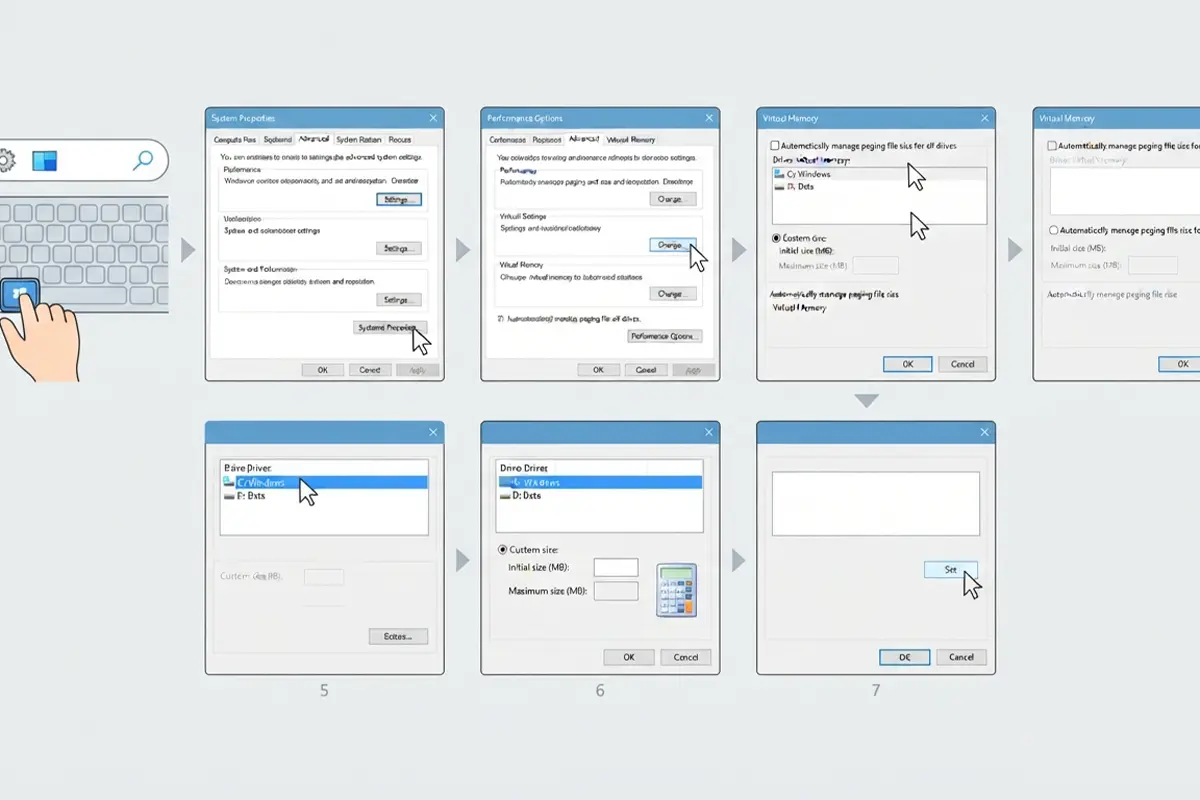
- Step 1: Press the Windows key, type ‘advanced system settings’, and open ‘View advanced system settings’ from the results.
- Step 2: In the System Properties window, stay on the Advanced tab and click ‘Settings’ under the Performance section.
- Step 3: In the Performance Options window, switch to the Advanced tab, then click ‘Change’ under Virtual Memory.
- Step 4: Uncheck the box labeled ‘Automatically manage paging file size for all drives’.
- Step 5: Select the drive where Windows is installed (usually the C drive) from the list.
- Step 6: Choose ‘Custom size’ and enter values in megabytes for Initial size and Maximum size.
- Step 7: Click ‘Set’, then ‘OK’ to close each window, and restart the computer when prompted.
Tip: If unsure what to enter, choosing ‘System managed size’ instead of custom values is a safer middle ground. It still lets Windows adjust the file, just without spreading it across every drive.
Recommended Page File Sizing
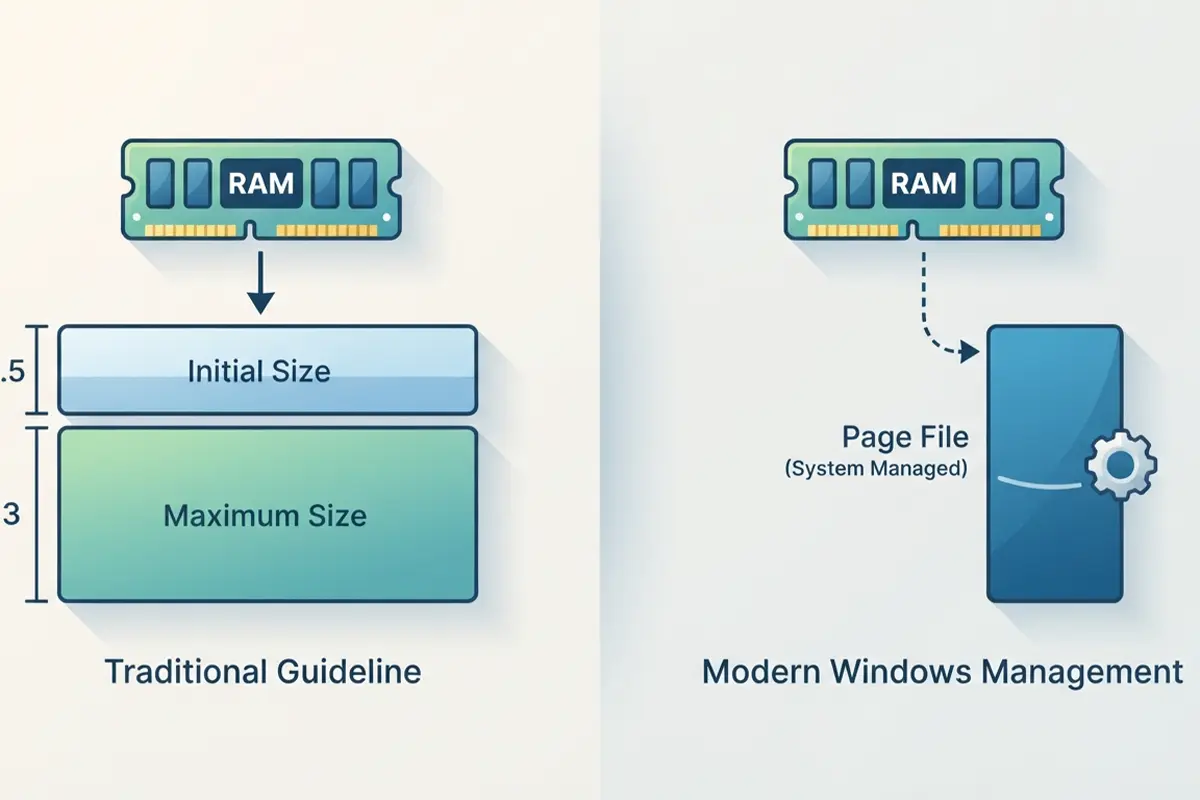
Many technicians still follow the traditional guideline of setting the initial size to about one and a half times the amount of installed RAM, with the maximum size around three times RAM. This convention comes from older systems with limited memory, and it still works as a reasonable starting point today. On a system with a generous amount of RAM and a fast SSD, letting Windows manage the file automatically usually produces results that are just as good, with far less guesswork involved.
Choosing the Right Drive
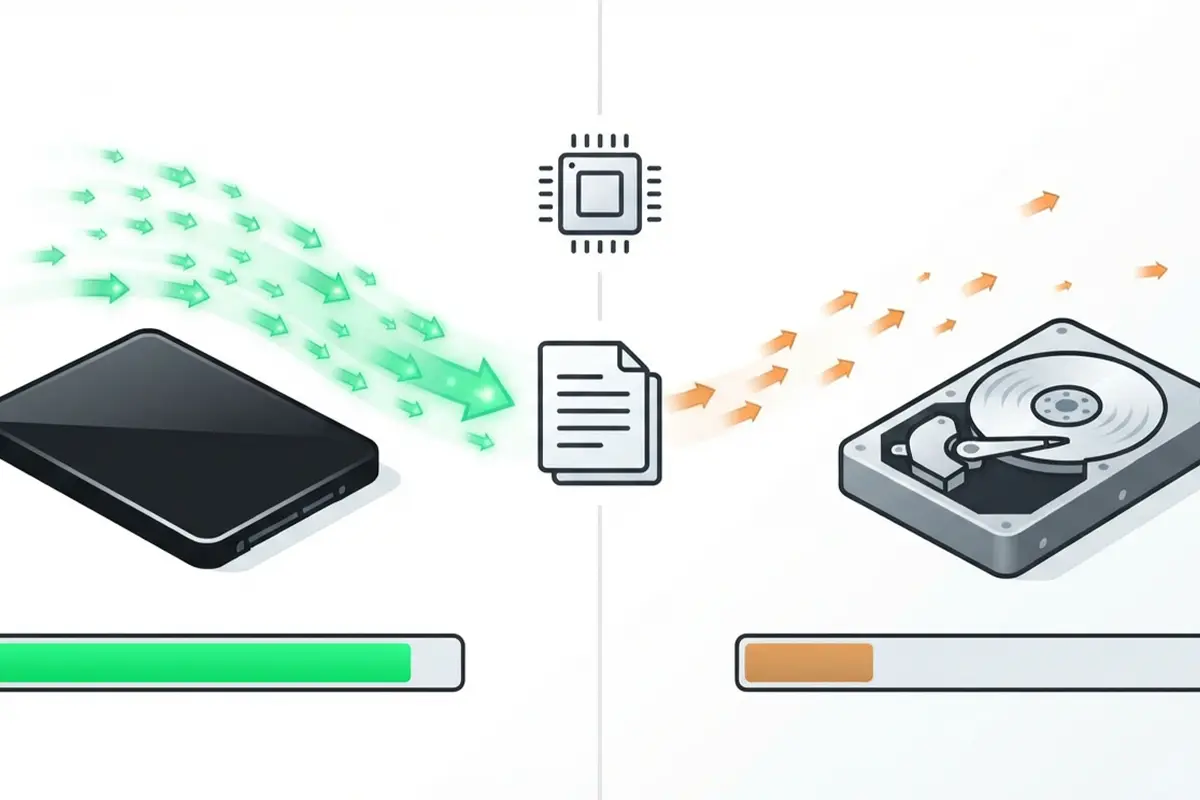
The page file performs best on the fastest drive in the system, which for most builds means the primary SSD holding the Windows installation. Placing it on a slower secondary hard drive can actually make performance worse, since every read and write to virtual memory then depends on that drive’s speed. On a system with only one drive, this decision is already made. On a system with both an SSD and a mechanical hard drive, the SSD should almost always host the page file.
Common Problems and Fixes
- Page file changes will not save: This usually means the account lacks administrator rights, or another program is holding a lock on the setting. Confirm admin access and restart before trying again.
- Low disk space after setting a large maximum size: A fixed maximum reserves that space whether it is used or not. Lowering the maximum value, or switching back to system managed size, frees that space immediately.
- ‘Your system is low on virtual memory’ warning still appears: This points to either a page file that is too small for current workloads or a drive that is nearly full. Increasing the initial and maximum size, or freeing up drive space, typically resolves it.
- Blue screen errors referencing PAGE_FAULT or memory management: This can be a sign of failing RAM rather than a page file issue. Running the built-in Windows Memory Diagnostic tool helps rule that out before adjusting virtual memory further.
- Performance did not noticeably improve after the change: On systems with ample RAM, the page file rarely gets used heavily, so resizing it will not fix bottlenecks caused by a slow drive, an overloaded startup list, or background processes.
Frequently Asked Questions
What is a page file used for?
The page file is a reserved area on a drive that Windows uses as overflow memory when physical RAM is fully in use. It lets the system keep running instead of crashing when demand temporarily exceeds available RAM.
Does disabling the page file speed up a PC?
Not usually. Disabling it entirely can actually cause instability or crashes in memory-intensive programs, since there is no overflow space left once RAM fills up. It is rarely worth the risk, even on systems with large amounts of RAM.
Should the page file be on an SSD or a hard drive?
An SSD, whenever one is available. SSDs handle the frequent small reads and writes involved in virtual memory far better than mechanical hard drives, which reduces the performance hit compared to using RAM directly.
Is it better to let Windows manage the page file automatically?
For most everyday systems, yes. Automatic management adjusts the size dynamically based on usage, and it removes the need to guess at the right numbers. Manual sizing is more useful for troubleshooting or for systems with unusual memory demands.
How much RAM does a system need to skip using a page file?
There is no fixed amount that makes a page file unnecessary. Even systems with large amounts of RAM can hit memory limits during heavy multitasking or with memory-hungry applications, so keeping a page file enabled is the safer approach regardless of installed RAM.
Can moving the page file to a different drive cause problems?
It can, if that drive is slower or has limited free space. Moving the page file off the boot drive is sometimes done to save SSD space, but it should only go to another fast drive with room to spare.
Why does the page file size keep changing on its own?
This happens when ‘Automatically manage paging file size’ is enabled. Windows continually adjusts the file based on current memory usage, which is normal behavior rather than a sign of a problem.
What happens if the maximum page file size is set too low?
Programs may crash, freeze, or display out of memory errors once RAM and the page file are both exhausted. Raising the maximum size, or freeing drive space, usually resolves this.
Does a page file wear out an SSD faster?
Modern SSDs are built to handle the read and write patterns of a page file without meaningful impact on lifespan. This was a bigger concern with early SSD models, but it is not a significant issue with current drives.
