
DLL missing or not found errors show up right when a program tries to open, usually with a small pop-up claiming a file like msvcp140.dll or api-ms-win-core.dll cannot be located. The good news is that this error almost never means the whole system is broken. It usually points to one missing, corrupted, or misplaced file, and there are several reliable ways to track it down and fix it without reinstalling Windows.
Key Takeaways
- DLL errors are almost always tied to one program or one missing shared library, not the entire operating system.
- Reinstalling the affected program fixes the majority of DLL missing or not found errors.
- System File Checker and DISM repair corrupted Windows files that DLLs depend on.
- Outdated Visual C++ Redistributables and .NET Framework components are common hidden causes.
- Downloading a DLL file from a random website is risky and should be avoided.
Common Causes of DLL Missing or Not Found Errors
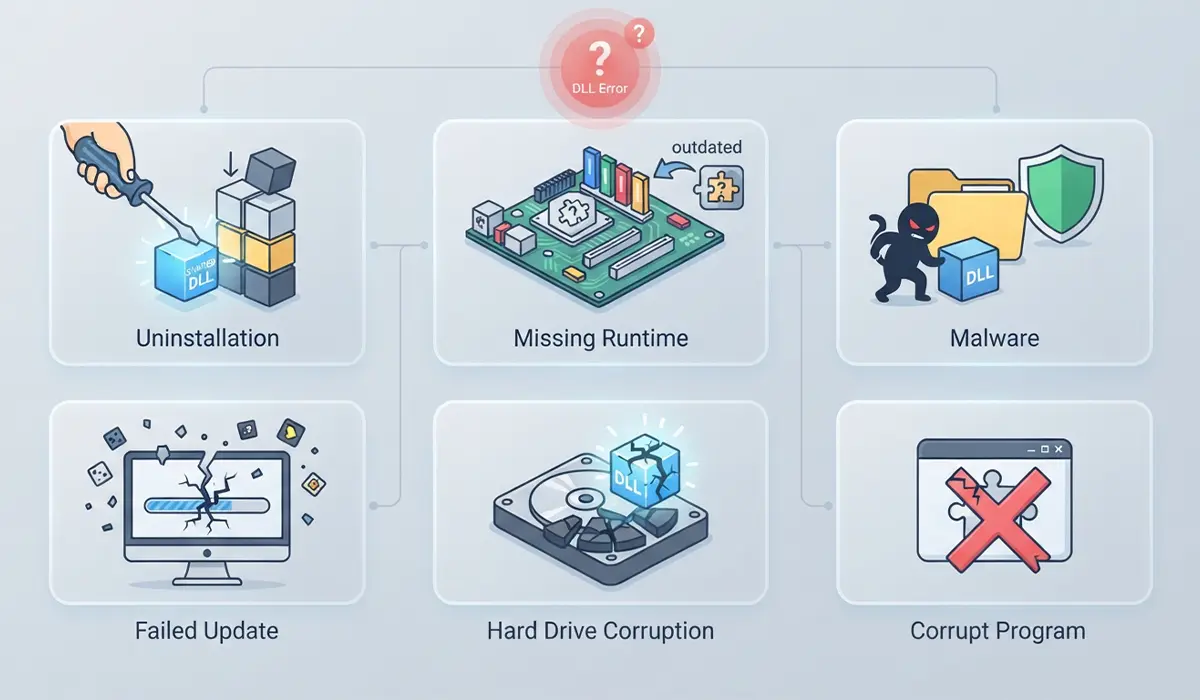
Before jumping into fixes, it helps to understand why this error happens in the first place. Most cases trace back to one of the following:
- A program was uninstalled incorrectly and took a shared DLL file with it.
- A required runtime component, such as the Visual C++ Redistributable or .NET Framework, is missing or outdated.
- Malware or an aggressive antivirus scan quarantined or deleted a legitimate system file by mistake.
- A Windows Update failed partway through and left system files in an inconsistent state.
- A hard drive or SSD is developing bad sectors, corrupting files that were previously fine.
- The program itself is corrupted or was copied incompletely during installation.
Tip: Note the exact file name in the error message before doing anything else. Searching for that specific DLL name alongside the program that triggered it narrows down the fix considerably.
How to Fix DLL Missing or Not Found Errors
Work through these steps in order. Most people resolve the error in the first two or three steps without needing to go further.
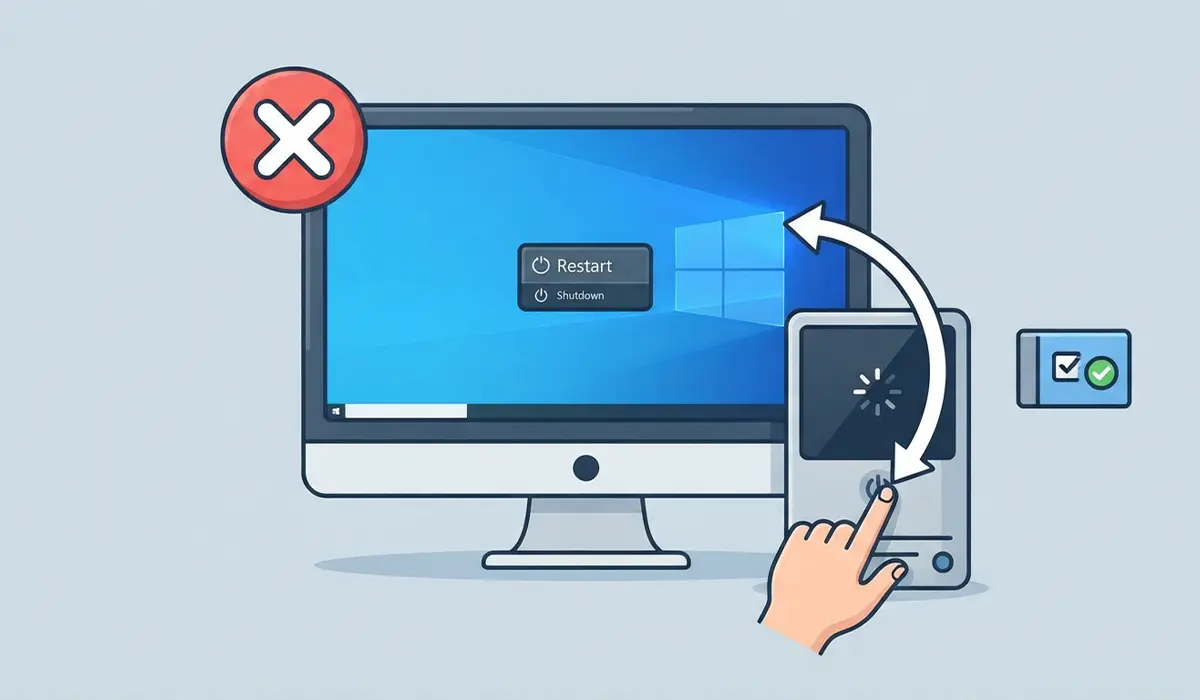
- Step 1: Restart the computer first. A partial update or a stuck background process can sometimes cause a false DLL error, and a simple restart clears temporary memory conflicts that mimic a missing file.
- Step 2: Reinstall the program that triggered the error. Uninstall it fully through Settings, then Apps, then Installed Apps, restart the computer, and install a fresh copy from the official source. This restores any DLL files that were deleted or corrupted during a previous install.
- Step 3: Run System File Checker. Open Command Prompt as an administrator and type sfc /scannow, then press Enter. This scans protected system files and automatically replaces any that are missing or damaged.
- Step 4: Run a DISM repair if System File Checker reports errors it cannot fix. In the same administrator Command Prompt, type DISM /Online /Cleanup-Image /RestoreHealth and let it finish, since this repairs the underlying Windows image that SFC pulls its replacement files from.
- Step 5: Update or reinstall the Visual C++ Redistributables. Many DLL errors involving files like msvcp140.dll or vcruntime140.dll come from a missing or outdated redistributable package, and installing the latest version from Microsoft’s official site usually resolves them.
- Step 6: Check for pending Windows Updates. Open Settings, then Windows Update, and install anything listed, since Microsoft regularly patches shared system libraries that programs depend on.
- Step 7: Run a full antivirus scan. If a security program quarantined a legitimate DLL by mistake, the scan results or quarantine history will usually show it, and it can be restored from there.
- Step 8: Use System Restore if the error started right after a recent change. Rolling back to a restore point from before the issue began can undo whatever update, install, or setting caused the file to go missing.
Tip: Avoid downloading a single DLL file from a third-party website to replace the missing one. These files are a common source of malware, and a mismatched version can cause more problems than the original error.
Common Problems and Fixes
- The error keeps returning after reinstalling the program: This usually means a shared DLL is still damaged elsewhere on the system. Run sfc /scannow followed by the DISM repair command, then reinstall the program again.
- System File Checker reports it found errors but cannot fix them: Run the DISM RestoreHealth command first, then run sfc /scannow a second time, since DISM refreshes the source files that SFC relies on.
- The DLL error only happens when starting Windows: This often points to a startup program or driver referencing a missing file. Check Task Manager’s Startup tab and disable any recently added entries tied to the affected program.
- A game or app still won’t launch after every fix above: Verify the game or app’s files through its own launcher if it has one, since many platforms include a built-in file integrity check that catches issues manual repairs miss.
- DISM fails with a source files error: This can happen when the local Windows image is too damaged to repair itself. Running the DISM command with a Windows installation media as the source, using the /Source flag, gives it a clean set of files to pull from.
Frequently Asked Questions
What does a DLL missing or not found error actually mean?
It means a program tried to load a shared code library it needs to run, and Windows could not find that file in the expected location. The program itself is usually fine, but one supporting file is missing, moved, or corrupted.
Is a DLL missing or not found error dangerous?
On its own, it is not dangerous. It simply prevents the affected program from opening correctly. It only becomes a bigger concern if the missing file was deleted by malware, which a full antivirus scan can rule out.
Can a DLL error affect more than one program?
Yes, if the missing file is a shared library used by multiple applications, such as a Visual C++ runtime file. That is why reinstalling the redistributable packages often fixes several unrelated programs at once.
Is it safe to download a missing DLL file from the internet?
It is not recommended. Standalone DLL download sites are a common source of malware, and even a legitimate-looking file can be the wrong version for the program, causing new errors instead of fixing the original one.
Why did this error appear after a Windows Update?
Updates occasionally replace or restructure system files, and if an update was interrupted or failed partway through, some files can end up missing or mismatched. Running System File Checker and DISM usually resolves errors that appear right after an update.
Does reinstalling Windows fix DLL errors permanently?
A full reinstall does resolve almost any DLL error, since it replaces every system file, but it is a last resort. The vast majority of cases are fixed with a program reinstall or a system file repair long before a full Windows reinstall becomes necessary.
Why does the error mention a DLL for a program that was never installed?
Some DLL files are shared across many different applications, so an error can reference a runtime component rather than the actual program name. This is common with Visual C++ and .NET Framework files, which dozens of unrelated programs rely on.
Can outdated drivers cause DLL missing errors?
Yes, in some cases a driver-related DLL can be affected by an outdated or corrupted driver, particularly with graphics or audio hardware. Updating the driver through Device Manager or the manufacturer’s own software can resolve errors tied to that specific hardware.
How long does it take to fix a DLL missing or not found error?
Most fixes take a few minutes, especially a program reinstall or a Windows Update check. A full System File Checker and DISM repair can take longer, sometimes twenty minutes or more, since both scans work through the entire system file set.
Should a professional handle a persistent DLL error?
If the steps above do not resolve it and System File Checker or DISM keep reporting unrepairable errors, that can indicate deeper corruption or failing storage hardware. At that point, having a technician check the drive’s health is a reasonable next step before attempting a full reinstall.
