
POST test explained simply: every time a PC powers on, the motherboard firmware runs a Power-On Self-Test to confirm that the processor, memory, graphics, and other core parts respond before Windows starts loading. Knowing what happens when a PC powers on makes beeps, blank screens, and stalled boots much easier to decode.
Key Takeaways
- POST stands for Power-On Self-Test, a quick hardware check run by the BIOS or UEFI firmware at every startup.
- The test moves in a set order: power, processor, memory, graphics, then storage and peripherals, before handing control to the operating system.
- A failure is reported through beeps, debug LEDs, or a code display, depending on the motherboard.
- Where the startup stops usually points straight to the failing part, so the stopping point is the most useful clue.
What Happens When a PC Powers On: The POST Sequence
Think of POST as a pilot’s pre-flight checklist. Nothing leaves the gate until the essentials are confirmed. The exact details vary by motherboard brand and firmware version, but the general order is the same on desktops and laptops.
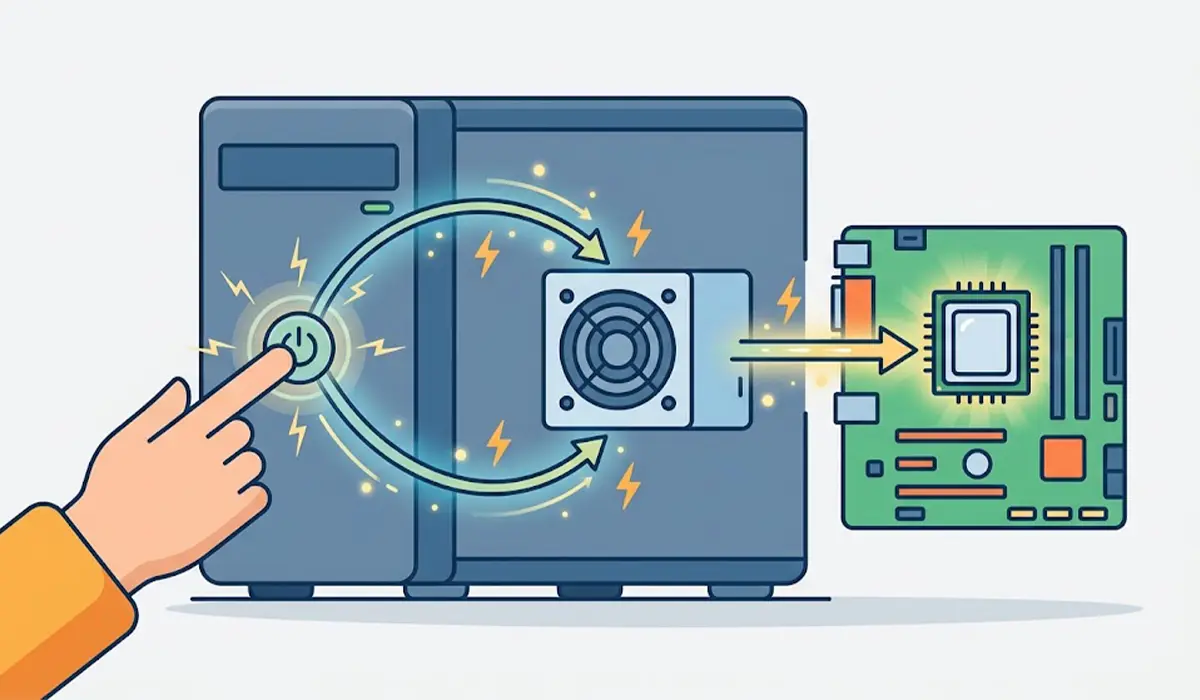
- Step 1: Power is delivered. Pressing the power button signals the motherboard, which tells the power supply to start. Once the voltages are stable, the power supply sends a power-good signal, and the processor is held in reset until that signal arrives.
- Step 2: The processor starts the firmware. After reset, the CPU begins running the BIOS or UEFI code stored on a chip on the motherboard. This is the moment POST officially begins.
- Step 3: Core hardware is checked. The firmware confirms that the processor and chipset respond and sets up the basic system controllers it needs to continue.
- Step 4: Memory is initialized. The installed RAM is detected and configured. Many modern boards also run memory training at this stage, which is why the first startup after installing new RAM or changing memory settings can take longer than usual.
- Step 5: Graphics are initialized. The graphics card or the integrated graphics is brought online. This is usually when the screen first lights up and the motherboard logo appears.
- Step 6: Storage and peripherals are detected. The firmware looks for connected drives, the keyboard, and other devices such as USB controllers.
- Step 7: The result is reported. When everything checks out, the system moves on, and on many boards with a speaker a single short beep confirms a pass. When something fails, the board signals the problem with a beep pattern, a lit debug LED, or an error code.
- Step 8: Control is handed to the operating system. The firmware reads the boot order, finds the boot drive, and loads the bootloader, which then starts Windows.
Tip: Whichever stage the startup stalls at is the best diagnostic clue. A system that never shows a logo points toward power, CPU, memory, or graphics. A system that shows the logo but fails afterward points more toward storage or boot settings.
POST vs BIOS vs UEFI
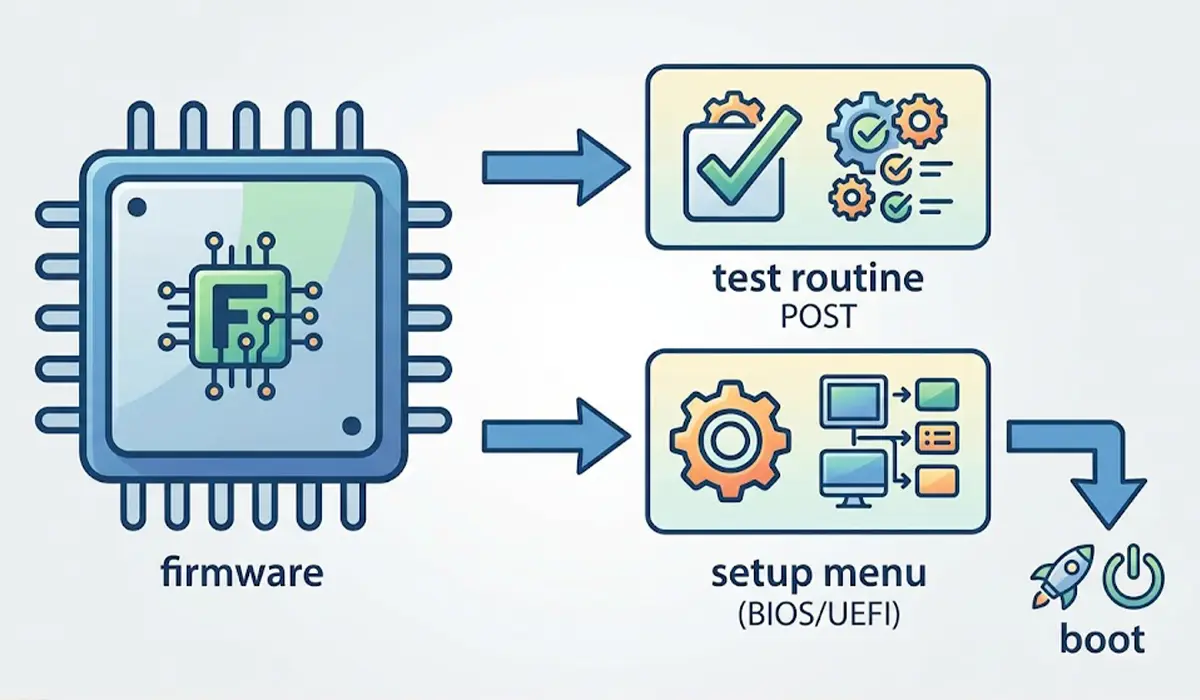
These terms get mixed up constantly. POST is the test routine itself. BIOS and UEFI are the firmware that runs the test and also provides the setup menu where boot order and hardware settings are changed. In short, the firmware is the program, and POST is one of the first jobs it performs.
How to Read Beep Codes, Debug LEDs, and Error Codes
Motherboards use different methods to report a POST failure, and no single table fits every board.
Beep Codes
Boards with a built-in speaker or a connected case speaker report problems with beep patterns. The meaning of a given pattern depends on the firmware maker and the motherboard manufacturer, so the motherboard manual is the only reliable reference. Many current boards have no speaker at all, so silence does not always mean a pass.
Debug LEDs and Code Displays
Many desktop motherboards include small status lights, commonly labeled for the CPU, memory (DRAM), graphics (VGA), and boot device. The light that stays on marks the stage where startup stopped. Some boards use a two-character display instead, and the manual translates each code.
Laptops
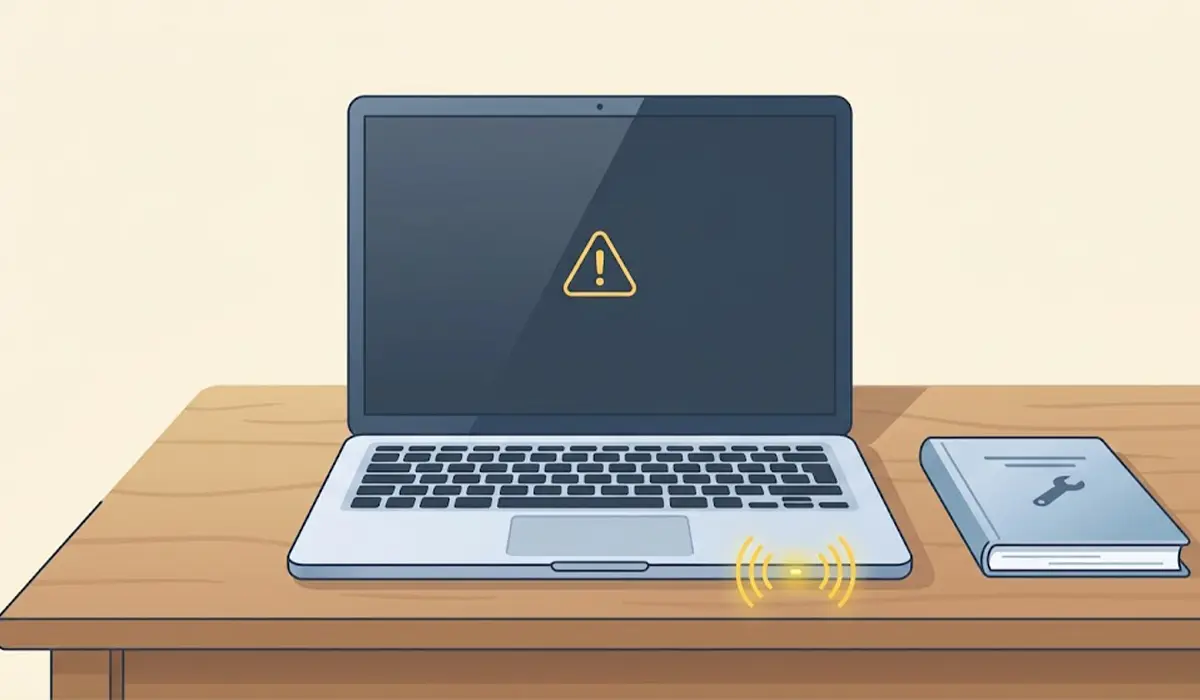
Laptops run the same test but rarely have beeps or debug LEDs. Many report failures through blinking power or keyboard lights, or through a built-in diagnostic screen. The manufacturer’s service documentation lists the patterns for each model line.
Before You Start Troubleshooting a POST Failure
Some fixes below involve opening the case, so a little preparation keeps the hardware safe.
- Shut the PC down, switch off the power supply, and unplug the power cable. On a laptop, disconnect the charger and remove the battery where it is designed to be removed.
- Touch bare metal on the case or use an anti-static strap to discharge static before handling components.
- Keep a Phillips screwdriver and the motherboard manual nearby.
- Opening a device may affect its warranty, so check the terms first. If a repair involves a soldered part, a sealed laptop chassis, or anything that feels risky, stop and let a qualified technician handle it.
Common Problems and Fixes
The PC Powers On but Nothing Appears on the Screen
Confirm that the monitor cable is plugged into the graphics card output and not the motherboard port, then reseat the graphics card. If the board has debug LEDs, check whether the VGA light stays lit.
Repeating Beeps at Startup
Look up the pattern in the motherboard manual. Memory is a frequent culprit, so reseat each RAM stick firmly until both side clips lock, and test with one stick at a time.
The Memory or CPU Debug LED Stays On
Reseat the RAM and check that the CPU power cable is fully connected to the motherboard. After new RAM is installed, allow extra time on the first startup, since memory training can make the screen stay black for a while.
The PC Passes POST but Does Not Boot Windows
This points to the boot stage and not the hardware test. Enter the firmware setup and confirm that the correct drive is first in the boot order and that the drive is detected.
The PC Restarts in a Loop Before Reaching the Logo
Disconnect extra USB devices and added drives, then try again with only the essentials attached. If the loop continues, clear the firmware settings using the method in the motherboard manual.
Tip: Change one thing at a time. Swapping several parts at once makes it impossible to tell which change solved the problem.
Frequently Asked Questions
What does POST stand for?
POST stands for Power-On Self-Test. It is the startup check the BIOS or UEFI firmware runs to confirm that essential hardware responds.
How long does the POST test take?
On most systems it finishes in a few seconds. It can take longer after a hardware change, especially new RAM, because the board may run memory training on the first startup.
Is POST the same as the BIOS?
No. The BIOS or UEFI is the firmware stored on the motherboard, and POST is one of the first routines that firmware runs when the PC powers on.
What does one beep at startup mean?
On many boards with a speaker, a single short beep means the test passed. The meaning is not universal, so the motherboard manual is the right reference, and many modern boards have no speaker at all.
What happens if a PC fails the POST test?
Startup stops at the failing stage, and the board signals the problem through beeps, a debug LED, or an error code. The PC does not continue to Windows until the issue is resolved.
Can a PC run POST without a monitor connected?
The test itself runs without a display, but the screen is how most messages are shown. Beep codes and debug LEDs still work without a monitor.
Can the POST test be skipped or sped up?
POST cannot be removed entirely. Many UEFI setups include a Fast Boot option that shortens some checks, which can reduce startup time.
Do laptops run a POST test too?
Yes. Laptops run the same kind of self-test, but they usually report problems through blinking indicator lights or a built-in diagnostic screen instead of beeps or debug LEDs.
