
Seeing a no bootable device found error the moment a PC or laptop powers on is unsettling, but it rarely means the machine is dead. Most cases trace back to a loose cable, a boot order change, or a drive that has stopped responding, and each of those has a straightforward fix.
Key Takeaways
- The no bootable device found error almost always points to a connection, boot order, or drive detection problem rather than a destroyed motherboard.
- Checking the BIOS or UEFI boot menu first tells whether the drive is even being detected.
- Reseating data and power cables solves this error more often than people expect.
- A drive that never appears in the firmware setup usually points to failing hardware or a loose connection, not corrupted software.
- Rebuilding the boot files with Windows installation media can restore booting without touching personal files.
Common Causes of the No Bootable Device Found Error
This error shows up when the system firmware finishes its power-on checks and cannot find a drive with valid boot information. A few situations create that exact scenario.
Loose or Failing Connections
Desktop SATA and power cables shift over time, especially after moving the case or working inside it. A data cable that is even slightly unseated can make a healthy drive invisible to the system.
Incorrect Boot Order
A BIOS update, a new drive installation, or a change made during troubleshooting can shift the boot priority away from the drive that actually holds the operating system.
Corrupted or Missing Boot Files
A sudden power loss, a failed update, or an aggressive malware removal can damage the small set of files Windows uses to start up, even while the rest of the drive stays intact.
Drive Failure or Disconnection
Solid state and mechanical drives both wear out. When a drive begins failing, it may still spin up or power on but stop responding to the firmware’s request for boot data.
Storage Mode Mismatch
Switching the SATA controller mode between AHCI and RAID in the firmware, without adjusting Windows to match, can make an otherwise fine drive unreadable at boot.
Before You Start
Power the machine down fully and unplug it from the wall before opening a desktop case or a laptop’s rear panel. Let any recently run hardware cool down for a few minutes. Touch a bare metal part of the case, or use an anti-static wrist strap, before handling internal components. For laptops, disconnect the battery where it is removable before touching any internal cables.
Tools and materials that help with this fix:
- A Phillips screwdriver sized for the case or laptop panel screws.
- A USB flash drive of at least 8GB, plus access to another working computer to create bootable installation media.
- The system’s original power and data cables, or spare SATA cables if a replacement is suspected.
If the drive makes repeated clicking or grinding sounds, stop the physical troubleshooting steps below and treat it as a likely drive failure. Continuing to power it on repeatedly can make data recovery harder, and a data recovery professional is the safer next move at that point. Opening a laptop’s chassis may also affect its manufacturer warranty, so check that before removing any panels.
Step-by-Step Fix for No Bootable Device Found Error
Check the Firmware for Drive Detection
- Step 1: Restart the computer and press the key shown on screen to enter BIOS or UEFI setup, commonly Delete, F2, or F10 depending on the manufacturer.
- Step 2: Open the storage or boot information page and check whether the main drive appears in the list at all.
- Step 3: If the drive is missing entirely, exit setup, power down, and move to the cable and connection checks further down before assuming the drive has failed.
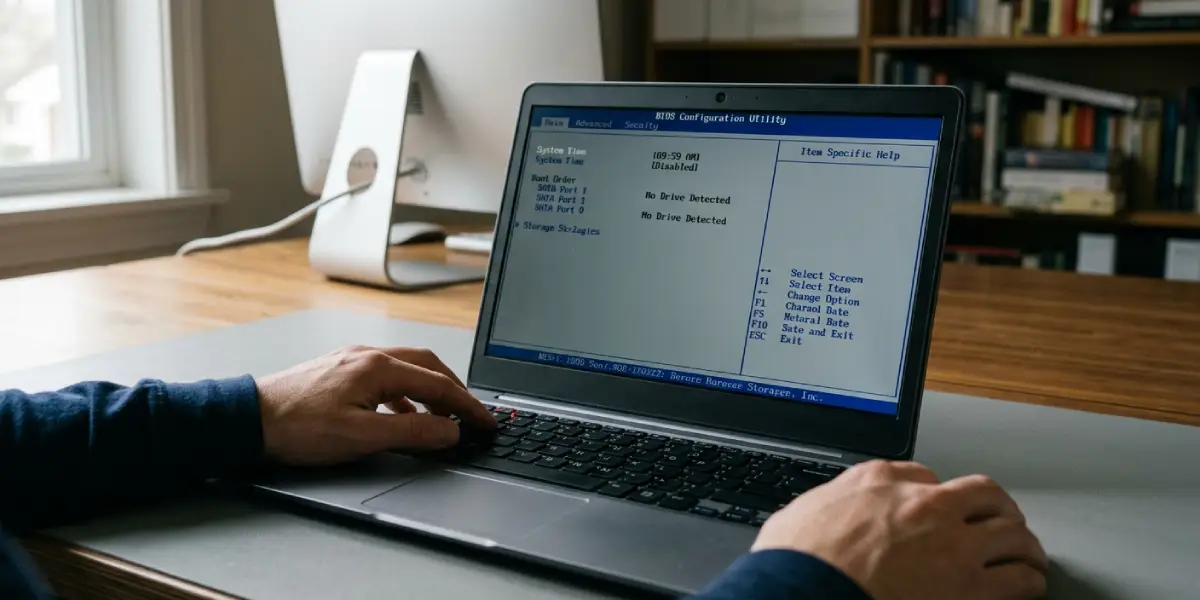
Tip: Note the exact drive model shown in the firmware before making any changes, since that confirms whether the system sees the drive correctly later on.
Fix the Boot Order
- Step 4: While still in BIOS or UEFI setup, navigate to the Boot menu or Boot Priority section.
- Step 5: Confirm the correct drive is set as the first boot option, moving it above any USB drives or network boot entries.
- Step 6: Save changes and exit, usually with the F10 key, then let the system restart on its own.
Reseat Cables and Connections
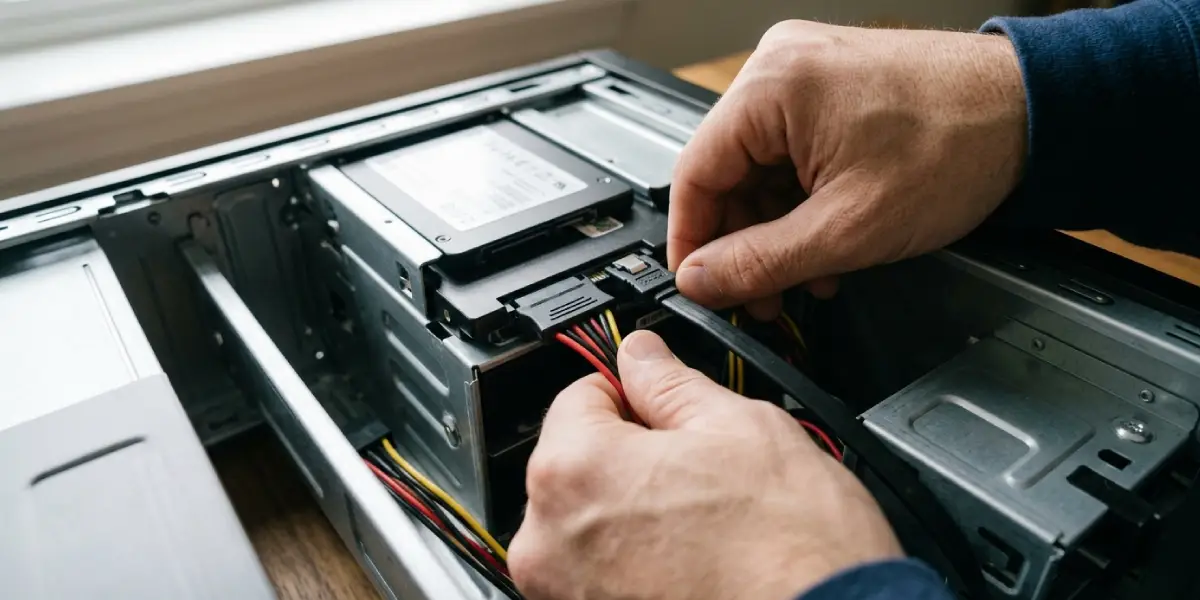
- Step 7: With the system powered off and unplugged, open the case and locate the SATA data cable and the power cable running to the main drive.
- Step 8: Disconnect and firmly reconnect both ends of each cable, making sure they click or seat fully into place.
- Step 9: For laptops, this step usually means reseating the internal drive connector itself rather than separate cables, so consult the laptop’s service manual for the exact location.
- Step 10: Close the case, reconnect power, and restart to see whether the drive is now detected.
Check the SATA Mode Setting
- Step 11: Return to BIOS or UEFI setup and locate the SATA configuration setting, often listed under Advanced or Storage settings.
- Step 12: Confirm the mode matches what was in place when Windows was originally installed, typically AHCI on most modern systems.
- Step 13: Avoid switching this setting without a specific reason, since an unmatched change can itself trigger the no bootable device found error.
Rebuild the Boot Files with Installation Media
- Step 14: On a working computer, create a bootable USB drive using the official Windows Media Creation Tool.
- Step 15: Insert the USB drive into the affected system, boot from it through the firmware’s one-time boot menu, and choose Repair Your Computer rather than Install.
- Step 16: Select Troubleshoot, then Advanced Options, then Command Prompt.
- Step 17: Run bootrec /fixmbr, followed by bootrec /fixboot, then bootrec /rebuildbcd, pressing enter after each command and allowing it to complete.
- Step 18: Remove the USB drive and restart the system normally to check whether it boots.
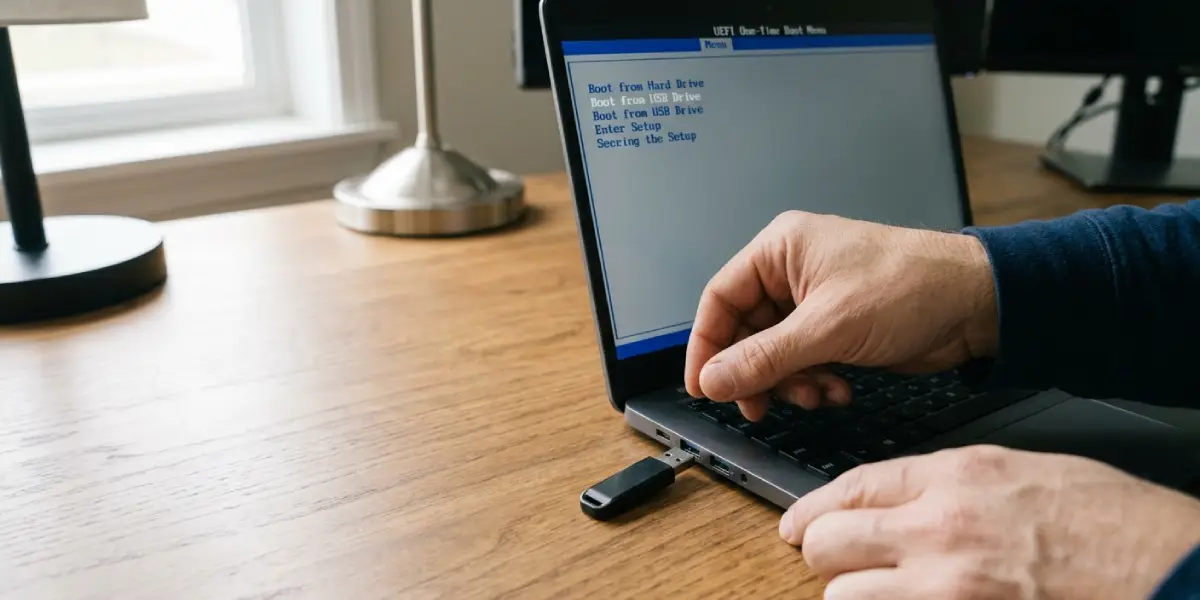
Tip: Running these repair commands does not erase personal files or installed programs, since they only rebuild the small set of files the system uses to locate and start Windows.
Common Problems and Fixes
Some situations need a slightly different approach than the standard steps above.
Drive Still Not Detected After Reseating Cables
Try a different SATA port on the motherboard and a different cable if one is available. If the drive still fails to appear, it points toward a genuine drive failure rather than a connection issue.
Boot Repair Commands Complete but the Error Returns
This often means the drive’s partition table itself has damage beyond what the standard repair commands address, or the drive is developing bad sectors. Running a manufacturer diagnostic tool for that specific drive brand can confirm its health.
Error Appears Only After a Windows Update
Some updates change firmware boot settings or install a new boot manager entry. Re-entering BIOS or UEFI setup and confirming the boot order still points to the correct drive typically resolves this.
External Drive or USB Device Is Being Booted Instead
A connected USB drive, memory card, or external hard drive can outrank the internal drive in boot order. Removing external storage devices before powering on often clears the error immediately.
Frequently Asked Questions
Does the no bootable device found error mean the hard drive is dead?
Not always. It often points to a loose cable, an incorrect boot order, or damaged boot files rather than physical drive failure, though a failing drive is one possible cause.
Will fixing this error delete personal files?
The boot repair commands described above do not remove personal files or programs. They only rebuild the system files needed to locate and start the operating system.
Why does this error appear right after installing a new drive?
A newly added drive can shift the boot priority in the firmware, or the original drive’s cable may have been bumped during installation. Checking the boot order and cable seating usually resolves it.
Can a BIOS or UEFI update cause this error?
Yes. Firmware updates sometimes reset boot order settings or storage mode configurations to their defaults, which can cause the system to lose track of the correct boot drive.
Is it safe to run bootrec commands without backing up data first?
These commands only rewrite boot related files and do not touch personal data, but backing up important files whenever a drive is behaving unpredictably is still a reasonable precaution.
What is the difference between this error and a ‘no operating system found’ message?
Both point to a similar underlying issue, though wording varies by motherboard manufacturer. Both typically respond to the same boot order, cable, and boot file troubleshooting steps.
Can a loose RAM stick cause this specific error?
Loose memory usually produces different symptoms, such as failure to power on or repeated beep codes, rather than this particular boot device message, though reseating RAM during other troubleshooting rarely hurts.
Should the SATA mode be changed to fix this error?
Only if it was changed unintentionally. Switching SATA mode without a specific reason can itself cause this exact error on a system that was previously working normally.
How long does rebuilding boot files usually take?
The repair commands themselves typically finish within a few minutes, though creating the bootable installation media beforehand can take longer depending on internet speed.
What should be done if none of these steps fix the error?
If the drive is not detected in firmware at all after trying different cables and ports, or if boot repair fails to resolve the issue, a professional data recovery or repair service is the safer next step.
