
This guide shows how to fix a microphone that is not working in Windows 11, whether the problem shows up in a video call, a voice recording, or a game chat. The cause is usually a muted input, a blocked privacy setting, or a driver hiccup. All steps work on Home, Pro, and Enterprise editions, although a work or school PC may block some privacy toggles.
Key Takeaways
- Start at Settings > System > Sound to confirm the right microphone is selected and the input volume is up.
- Check Settings > Privacy & security > Microphone, because blocked access is the most common hidden cause.
- Run the Recording Audio troubleshooter at Settings > System > Troubleshoot > Other troubleshooters for an automatic check.
- Use Device Manager to enable, update, or reinstall the microphone driver as a last step.
How to Fix a Microphone That Is Not Working in Windows 11
The methods below go from the quickest check to the deepest fix. Most people find that Method 1 solves the problem within a couple of minutes.
Method 1: Use the Settings App
- Check the physical connection first. Push the microphone plug or USB cable in fully, and switch off any mute button on a headset or a laptop key that shows a microphone icon.
- Press Windows + I to open Settings.
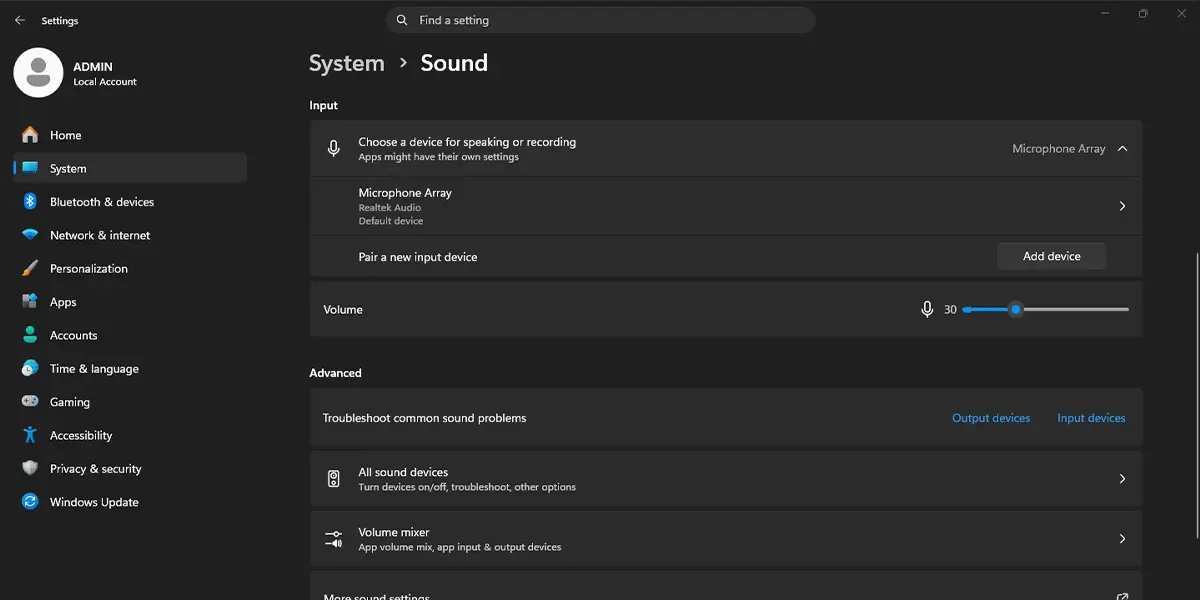
- Go to Settings > System > Sound.
- Scroll down to the Input section and select the microphone you want to use. If several devices are listed, pick the one that matches the headset or webcam in use.
- Click the microphone name to open its properties page.
- Drag the Input volume slider toward the right so the level is not close to zero.
- Click Start test under the microphone test area and speak normally. The level bar should move as soon as sound is picked up.
- Go to Settings > Privacy & security > Microphone.
- Turn on Microphone access.
- Turn on Let apps access your microphone.
- Scroll through the app list and switch on the toggle next to the app that needs the microphone.
- Turn on Let desktop apps access your microphone if the app is a traditional desktop program rather than a Store app.
Tip: A laptop on battery power or a shared family computer often has privacy access turned off for new apps, so a freshly installed calling app may need its toggle switched on by hand.
Method 2: Run the Recording Audio Troubleshooter
- Press Windows + I to open Settings.
- Go to Settings > System > Troubleshoot > Other troubleshooters.
- Find Recording Audio in the list and click Run.
- Select the microphone that is not working when prompted, then click Next.
- Follow the on-screen suggestions and apply any fix that Windows offers.
The troubleshooter checks for disabled devices, low volume, and common driver conflicts. A message that a fix was applied means the microphone should work again, so test it once more in the app.
Method 3: Use Device Manager
Updating or reinstalling a driver may ask for administrator permission, so sign in with an administrator account on a work PC or a shared computer.
- Right-click the Start button and click Device Manager.
- Expand Audio inputs and outputs.
- Right-click the microphone entry. If Enable device appears, click it, because the device was switched off.
- If the device is already enabled, right-click it again and click Update driver.
- Click Search automatically for drivers and let Windows finish.
- If the microphone still stays silent, right-click it and click Uninstall device.
- Restart the PC. Windows reinstalls the microphone driver automatically during startup.
Tip: A microphone that vanishes from the list after the restart usually points to a loose USB connection or a faulty cable, so try a different port.
How to Undo or Reverse This Change
Settings changes can be reversed by returning to the same page and switching the toggle or slider back. If a newly updated driver caused new trouble, open Device Manager, right-click the microphone, click Properties, open the Driver tab, and click Roll Back Driver when that button is available.
Common Problems and Fixes
The microphone is not listed under Input
Unplug the device, wait a few seconds, and plug it in again, ideally into a different port. If it still does not appear, use Method 3 to check Device Manager for a disabled entry or a missing driver.
The Microphone access toggle is greyed out
This usually means the PC is managed by work or school, and an administrator controls the setting. On a personal computer, restarting the PC and signing in with an administrator account often makes the toggle available again.
The microphone works in the Settings test but not in an app
The app may be using a different input device. Open the app’s own audio settings and choose the same microphone that was tested in Windows. Also confirm that the app has its toggle switched on under Settings > Privacy & security > Microphone.
The microphone stops working after a restart
Open Settings > System > Sound again and confirm the correct microphone is still selected under Input. If the problem keeps returning, update the driver through Device Manager as shown in Method 3.
Frequently Asked Questions
Why is my microphone not working in Windows 11?
The usual causes are a muted or low input volume, blocked microphone access under privacy settings, the wrong input device being selected, or a missing or outdated driver.
Does fixing the microphone need administrator rights?
Changing sound and privacy settings does not need administrator rights on a personal PC. Updating, uninstalling, or reinstalling a driver in Device Manager may ask for administrator permission.
Do these steps work on Windows 11 Home?
Yes. Every method in this guide is available on Windows 11 Home, Pro, and Enterprise. Only privacy toggles on a work or school managed PC may be locked.
Does the microphone fix need a restart?
Settings changes apply right away. A restart is only needed after uninstalling a driver in Device Manager so Windows can reinstall it.
How can the microphone be tested without installing anything?
Go to Settings > System > Sound, click the microphone, and click Start test. The level bar moves while speaking if the microphone is working.
Why does the microphone work in one app but not another?
Each app can use its own input device and has its own privacy toggle. Choose the correct microphone in the app’s audio settings and switch on the app’s toggle under Settings > Privacy & security > Microphone.
How can a quiet microphone be made louder?
Go to Settings > System > Sound, click the microphone, and drag the Input volume slider toward the right. Run the test again to check the new level.
Why did the microphone stop working after a Windows update?
An update can replace a working audio driver with a different one. Updating the driver in Device Manager, or using Roll Back Driver on the Driver tab, often restores normal behavior.
