
The POST test explained in simple terms is the diagnostic checkup a computer runs every single time the power button gets pressed, before the operating system ever loads. This quick sequence checks the essential hardware, and understanding it makes troubleshooting a dead or misbehaving PC far less mysterious.
Key Takeaways
- POST stands for Power-On Self-Test, and it runs automatically between pressing the power button and the operating system loading.
- It checks core hardware like the CPU, RAM, GPU, and motherboard before handing control to the bootloader.
- A successful POST is usually silent or gives a single short beep, along with normal fan spin and lit indicators.
- A failed POST shows up as beep codes, blank screens, or blinking debug LEDs, and each pattern points to a specific component.
- Most POST failures trace back to loose connections, a bad RAM seat, or a stick of memory or a GPU that needs reseating.
What Happens During the POST Test
When the power button gets pressed, the power supply sends voltage to the motherboard, and the firmware (UEFI or the older BIOS) takes over immediately. This firmware runs a short internal program that checks whether the basic hardware needed to boot is present and functioning. Nothing about the operating system matters yet at this stage; the motherboard is essentially asking each critical component to check in.
The Order of Checks
Most systems follow a similar sequence, though the exact order can vary slightly between motherboard makers.
- Step 1: The power supply delivers stable voltage, and the motherboard confirms it is receiving power correctly.
- Step 2: The CPU initializes and begins executing the firmware’s startup instructions.
- Step 3: The system checks for installed RAM and verifies it can be read and written to.
- Step 4: The firmware checks for a graphics output device, whether that is a dedicated GPU or the CPU’s integrated graphics.
- Step 5: Storage devices, keyboard, and other peripherals get detected and initialized.
- Step 6: If everything checks out, control passes to the bootloader, which then hands things off to the operating system.
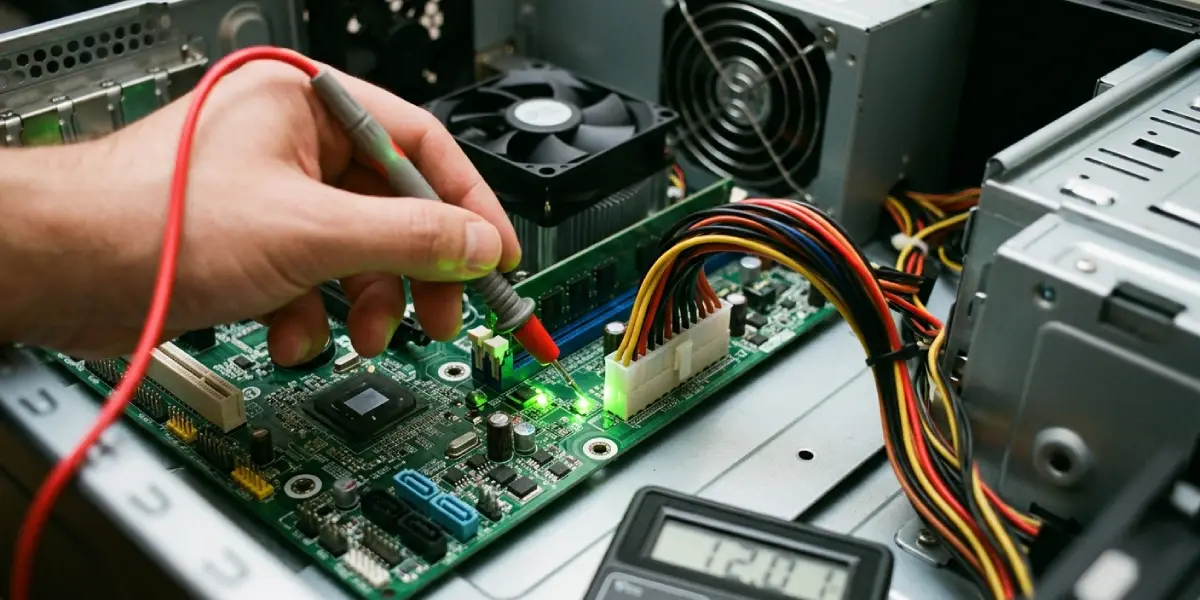
Tip: A quick way to picture this is like a pilot’s pre-flight checklist. Every system gets a fast once-over before the plane, or in this case the PC, is cleared for takeoff.
How to Tell If POST Passed or Failed
A healthy POST is often invisible. Fans spin up, drive lights blink briefly, the monitor shows a manufacturer logo, and the system moves on to loading Windows or another OS within a few seconds. Many boards give a single short beep to confirm success, though some modern systems skip audible beeps entirely and rely on onboard debug LED displays instead.
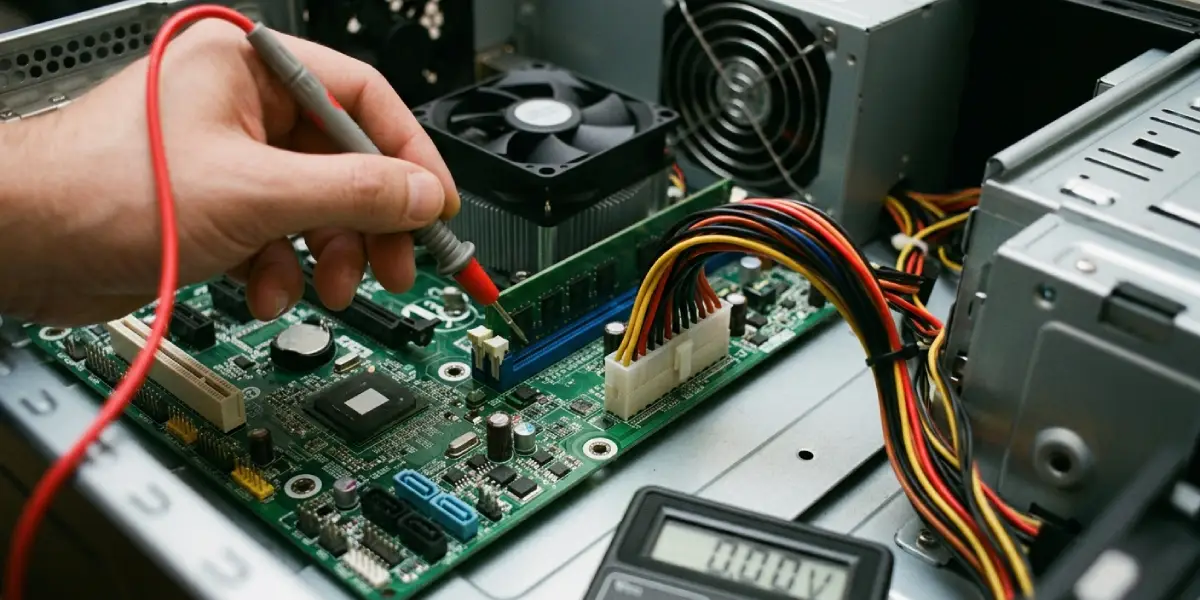
A failed POST looks and sounds different. The system might power on but display nothing on the monitor, the fans might spin without anything else happening, or a repeating pattern of beeps might sound from the motherboard speaker. Many current motherboards also include small debug LEDs labeled for CPU, DRAM, VGA, and BOOT, which light up to show exactly where the process stalled.
Reading Beep Codes
Beep codes vary by motherboard manufacturer, since each firmware vendor (such as AMI or Award/Phoenix) uses its own patterns. A single short beep almost always means a normal, successful POST. Longer sequences, such as repeating long beeps or a mix of long and short beeps, typically point to a memory or graphics problem. The safest approach is checking the exact motherboard or laptop manual, since a three-beep code on one board can mean something different on another.
Common Problems and Fixes
These are the situations that come up most often when a system fails to complete its POST test.
- No display, no beeps, fans spin: This usually points to RAM. Power down, unplug the system, and reseat each memory stick firmly until the clips click into place. Testing with a single stick in different slots helps isolate a faulty module.
- Repeating beep code with no video: This often signals a GPU or RAM seating issue. Reseat the graphics card fully in its slot and confirm the power connectors are pushed in completely.
- Debug LED stuck on CPU: This can mean a CPU seating problem, bent pins on the socket, or a firmware that needs updating for a newer processor. This is a case where stopping and consulting a professional or the motherboard maker’s support page is a reasonable move, since bent socket pins are delicate.
- System powers on, then shuts off almost immediately: This is frequently a power supply or overheating protection response. Checking that all power connectors are seated and that the CPU cooler is mounted correctly is the first move.
- POST completes but system won’t boot into the OS: This is different from a POST failure; it usually means the storage drive isn’t detected properly, the boot order needs adjusting in the firmware settings, or the drive itself has failed.
Frequently Asked Questions
What does POST stand for?
POST stands for Power-On Self-Test, the automatic hardware check that runs every time a computer is powered on.
How long does the POST test usually take?
On most modern systems, POST completes in just a few seconds. Systems with more installed RAM or additional storage devices may take a bit longer, since each device needs to be detected individually.
Why does the screen stay black during POST?
A black screen during POST usually means the system hasn’t reached the graphics initialization stage yet, or it has failed at an earlier stage like RAM detection. It can also mean the monitor cable is connected to the wrong output, especially on systems with both integrated and dedicated graphics.
Is it normal for a PC to beep once during startup?
Yes, a single short beep is the standard signal on many motherboards that POST completed successfully. It simply means the initial hardware check passed before the operating system started loading.
What is the difference between POST and BIOS?
BIOS (or UEFI on newer systems) is the firmware itself, the software stored on the motherboard. POST is one specific process that this firmware runs during startup. The firmware also handles other jobs, like providing the settings menu accessed before the OS loads.
Can a failed POST damage the computer?
A failed POST by itself doesn’t cause damage; it’s simply the system reporting that something isn’t ready or connected properly. The underlying cause, such as a loose component, is what would need attention rather than the failed test.
Why does a new RAM upgrade sometimes cause POST to fail?
New memory modules can fail POST if they aren’t fully seated, if they’re mismatched with existing sticks, or if the motherboard’s firmware needs a memory compatibility update. Reseating the modules and checking the motherboard’s supported memory list usually resolves it.
Does every motherboard use beep codes?
Not anymore. Many newer motherboards rely on onboard debug LEDs or a small numeric display instead of, or in addition to, audible beep codes, since these give a more precise readout of where the process stopped.
What should be checked first when POST fails after building a new PC?
Reseating the RAM and GPU, confirming all power cables are connected including the CPU’s separate power connector, and checking that standoffs aren’t causing a short against the motherboard are the most common fixes for a fresh build that won’t POST.
