
Learning how to install an AIO liquid cooler is one of the most rewarding upgrades a PC builder can tackle, since it directly improves thermal performance and often quiets down a noisy system in the process. This guide walks through every stage of the process, from prepping the case to filling in the final BIOS check, so the pump ends up seated correctly and the radiator has the airflow it needs to actually do its job.
Key Takeaways
- Mount the radiator first and decide on fan orientation before touching the CPU socket.
- Clean off any factory thermal paste and apply a fresh, pea-sized amount before seating the pump block.
- Route tubing so it has slack and isn’t kinked or stretched tight across components.
- Connect the pump header to the CPU_FAN or AIO_PUMP header on the motherboard, not a case fan header.
- Confirm proper mounting pressure and check temperatures in BIOS or with monitoring software before closing the case.
Before You Start: Tools and Safety Prep
A little preparation before installing an AIO liquid cooler saves a lot of frustration later. Power down the PC completely and unplug it from the wall, then hold the power button for a few seconds to drain any residual charge. Ground out static electricity by touching a bare metal part of the case or using an anti-static wrist strap, since a small static discharge can damage sensitive motherboard components.
Gather these items before starting:
- The AIO cooler kit, including the radiator, pump block, tubing, and included mounting bracket
- A screwdriver that matches the mounting screws, usually a Phillips head
- Thermal paste, unless the pump block already has a pre-applied pad
- Isopropyl alcohol at 90 percent concentration or higher and a lint-free cloth for cleaning old paste off the CPU
- The case’s fan and radiator mounting points, with enough clearance confirmed ahead of time
If the case is unusually cramped or the radiator doesn’t appear to physically fit in any mounting location, it’s worth measuring twice before drilling into anything or forcing a fit. Opening the case and modifying components can affect the warranty on both the case and the cooler, so check the fine print if that matters.
Step-by-Step: How to Install an AIO Liquid Cooler
Preparing the Case and Choosing Radiator Placement
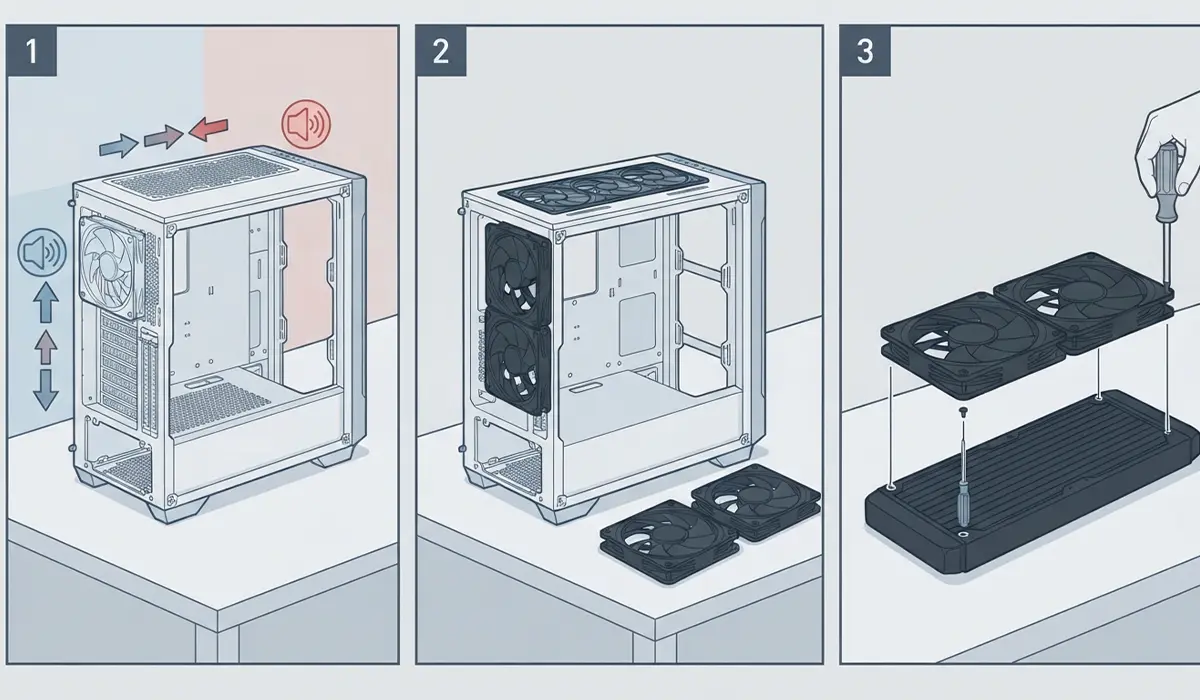
- Step 1: Decide where the radiator will sit. Most mid-tower cases support a front or top mount, and the choice affects airflow direction more than people expect. A front mount pulls cool air in and pushes warm air out the back, while a top mount usually exhausts heat straight up and out.
- Step 2: Remove any existing fans or filler panels from that mounting location so there’s a clear, flat surface for the radiator to sit against.
- Step 3: Attach the fans to the radiator first, before mounting either into the case. This is far easier to do on a workbench or table than with the radiator already bolted in place.
Preparing the CPU Socket
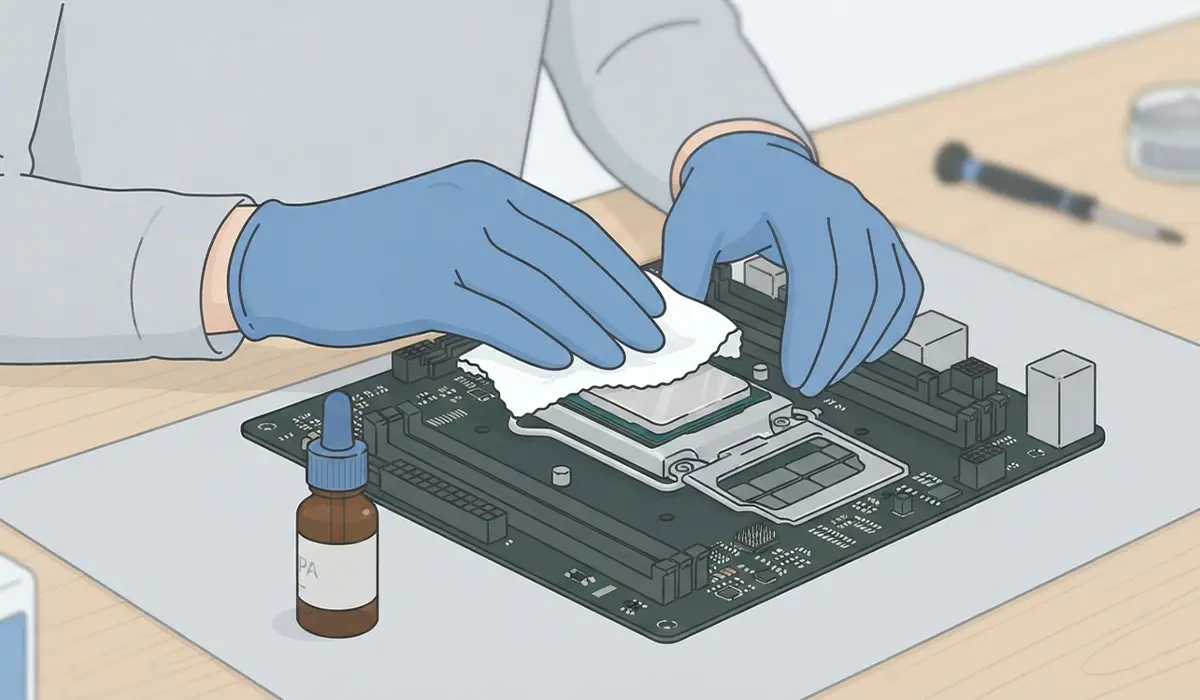
- Step 4: Remove the stock cooler if one is installed, then clean off any old thermal paste from the CPU surface using isopropyl alcohol and a lint-free cloth. The surface should look clean and streak-free before moving on.
- Step 5: Install the cooler’s mounting bracket onto the motherboard according to the included instructions. AIO brackets vary by manufacturer and by socket type, so this is the point where following the manual closely actually matters more than general know-how.
Applying Thermal Paste and Mounting the Pump
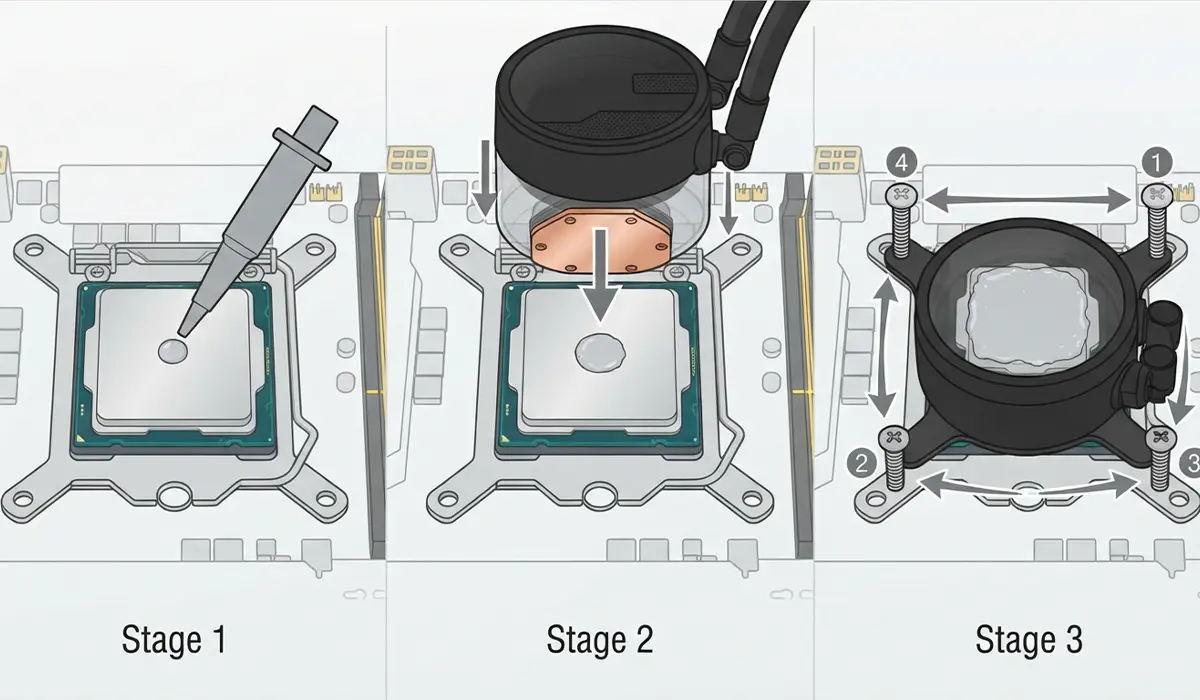
- Step 6: Apply a pea-sized dot of thermal paste to the center of the CPU. There’s no need to spread it manually, since the pressure from mounting the pump block will spread it evenly across the surface.
- Step 7: Lower the pump block straight down onto the CPU without sliding it side to side, then secure it using the mounting screws in a crisscross pattern. This pattern applies even pressure across the block instead of tilting it to one side.
- Tip: Tighten the mounting screws gradually and evenly rather than fully tightening one side first. This keeps the pump block flat against the CPU and avoids uneven thermal contact.
Mounting the Radiator and Routing Tubing
- Step 8: With the pump seated, position the radiator and fan assembly into the case and secure it with the provided screws.
- Step 9: Route the tubing so it has a gentle bend rather than a sharp kink, and make sure it isn’t stretched tight or rubbing against sharp case edges. Tubing that’s too taut can strain the pump block’s connection over time.
- Step 10: Connect the fan cables to a fan hub or motherboard header, and connect the pump’s cable to the header labeled CPU_FAN, CPU_OPT, or AIO_PUMP on the motherboard. Using a standard case fan header instead can cause the pump to run at a fixed low speed or trigger a boot warning.
Final Checks
- Step 11: Double-check every cable connection, then close up the case and reconnect power.
- Step 12: Boot into BIOS and confirm the CPU fan or pump RPM reading shows an active value rather than zero. A zero reading usually points to a loose header connection rather than a failed pump.
- Tip: After the first boot, monitor CPU temperatures under a light load using the motherboard’s hardware monitor or a third-party utility. Temperatures that climb steadily rather than leveling off usually mean the pump block isn’t seated flush against the CPU.
Common Problems and Fixes
PC Won’t Boot After Installing the Cooler
This is almost always related to power connections rather than the cooling itself. Reopen the case and confirm the CPU power cable is fully seated in the motherboard, since it’s easy to accidentally disturb it while working around the socket.
Pump Header Shows Zero RPM in BIOS
Check that the pump cable is plugged into the correct header rather than a case fan header, and confirm the connector is pushed in all the way. A half-seated connector often looks connected but doesn’t make full contact.
High Idle Temperatures After Installation
This usually points to uneven mounting pressure or paste applied too thin or too thick. Removing the pump block, cleaning both surfaces, and reapplying a fresh pea-sized dot of paste resolves most cases.
Radiator Fans Spinning But Airflow Feels Weak
Check the fan orientation arrows on the fan housing to confirm air is being pushed through the radiator in the intended direction. Fans mounted backward will still spin but won’t move air effectively through the fins.
Tubing Rubbing Against Cables or Case Panel
Reroute the tubing with a wider bend radius and use cable ties to hold it away from sharp edges or moving parts like a side panel hinge.
Frequently Asked Questions
Do I need to remove the motherboard to install an AIO cooler?
Not usually. Most AIO brackets mount from the front of the board, though some CPU sockets on certain motherboards may require a backplate that’s easier to access with the board out of the case.
Can I reuse the stock backplate instead of the one included with the AIO?
It depends on the socket. Many modern boards ship with a backplate already installed that’s compatible with third-party coolers, but always check the cooler’s manual to confirm compatibility before skipping the included bracket.
Which way should the radiator fans face?
That depends on whether the radiator is mounted as intake or exhaust. Check the airflow arrows printed on the fan frame and match them to the intended direction for that mounting location.
Does it matter if the pump is mounted above or below the radiator?
Most modern AIO pumps are designed to handle any orientation, but check the manufacturer’s guidance since a small number of models recommend keeping the pump at or below radiator height to reduce air bubble noise.
How much thermal paste should be used?
A single pea-sized dot in the center of the CPU is enough for most pump block sizes. The mounting pressure spreads it evenly, so more isn’t better and can actually create a thicker, less efficient layer.
Why is the pump making a gurgling sound after installation?
This is typically air bubbles in the liquid loop settling after the cooler was moved or installed. It usually quiets down within the first day or two of normal use.
Can an AIO liquid cooler leak?
Leaks are rare with modern sealed AIO units, but it’s worth doing a visual check of all tubing connections after the first boot and periodically afterward.
Is it normal for CPU temperatures to be higher right after installation?
A slightly elevated reading in the first few minutes can happen while thermal paste settles and the pump reaches steady operation. If temperatures stay high after a proper burn-in period, recheck the mounting pressure.
Do I need to replace the thermal paste that comes pre-applied on the pump block?
No, if the pump block arrives with a factory-applied pad or paste layer, it can be used as-is for the first installation. Only reapply fresh paste if the pump is removed and remounted later.
