
A webcam not working in video calls is one of the most frustrating tech problems, especially right before a meeting starts. The good news is that most causes are simple software conflicts or permission issues rather than a broken camera, and nearly all of them can be fixed in a few minutes without any tools.
Key Takeaways
- Most webcam failures come from blocked privacy permissions, outdated drivers, or another app already using the camera.
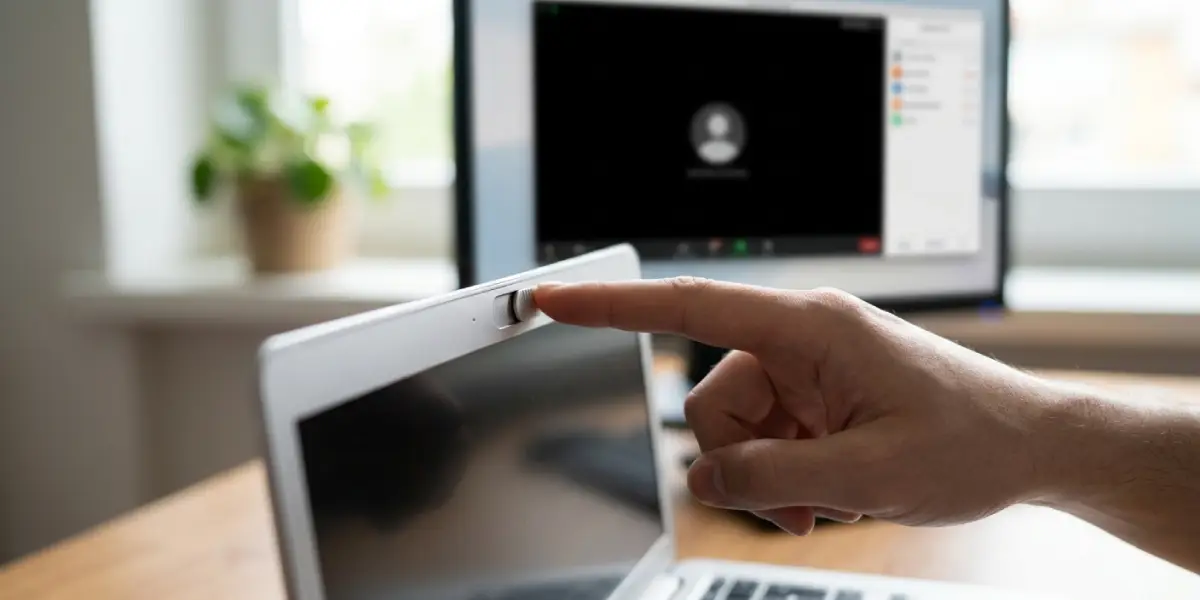
- A physical privacy shutter left closed is a surprisingly common and easy-to-miss cause.
- Restarting the device and closing conflicting apps solves the problem more often than people expect.
- Driver updates through Device Manager fix most persistent detection issues.
- External webcams often fail due to a loose USB connection or a port that cannot supply enough power.
Common Causes of a Webcam Not Working in Video Calls
Before jumping into fixes, it helps to understand what usually causes this problem. Video calls rely on several layers working together: the physical camera, the driver that lets the operating system talk to it, the app permissions that allow software to access it, and the video call platform itself. A break at any one of these layers can make the webcam appear dead, even though the hardware is perfectly fine.
Privacy and App Permissions
Operating systems now ask for explicit permission before any app can use the camera. If that permission was denied at some point, either by accident or during a privacy cleanup, the camera will show as unavailable even though it is working correctly.
Another App Is Already Using the Camera
Most webcams can only stream to one application at a time. Leaving a video call app or a photo booth style program running in the background is a common reason a second app cannot access the feed.

Outdated or Corrupted Drivers
Drivers are the translation layer between the camera hardware and the operating system. A driver that has become corrupted, or one that has not been updated after a system update, can cause the camera to disappear from the device list entirely.
Physical Obstructions
Many laptops now include a sliding privacy shutter over the built-in camera. It sounds obvious, but a shutter left closed is one of the most frequently overlooked reasons a webcam appears to be broken.
Loose or Faulty USB Connections
External webcams depend entirely on a stable USB connection. A loose cable, a damaged port, or a USB hub that cannot deliver enough power can all cause intermittent or total camera failure.
How to Fix a Webcam Not Working in Video Calls
Work through these steps in order. Each one addresses a different layer of the problem, starting with the fastest and most common fixes.
- Step 1: Check for a physical privacy shutter or lens cover on the laptop or external webcam and make sure it is fully open.
- Step 2: Close every other application that might be using the camera, including other video call software, camera apps, and browser tabs with an active video feed.
- Step 3: Open the operating system’s privacy or camera settings and confirm that both system-wide camera access and access for the specific video call app are turned on.
- Step 4: Restart the computer. This clears temporary conflicts between the driver and any app that may still be holding the camera in an unusable state.
- Step 5: Open Device Manager (on Windows) or the equivalent hardware list on macOS, and check whether the camera appears under ‘Cameras’ or ‘Imaging Devices’ without a warning icon.
- Step 6: If a warning icon appears, right-click the camera entry and choose to update the driver. If an updated driver is not found automatically, uninstall the device and restart the computer so the system reinstalls it fresh.
- Step 7: For an external webcam, unplug it, inspect the USB connector for debris or damage, and plug it directly into a port on the computer rather than through a hub or dock.
- Step 8: Temporarily disable antivirus or firewall software that includes webcam protection features, then retest the camera. Some security suites block camera access by default for unrecognized apps.
- Step 9: Test the camera in a different application, such as the built-in camera app on the operating system, to confirm whether the hardware itself is functioning outside the video call platform.
- Step 10: Update the video call application itself, since an outdated version can lose compatibility with current camera drivers after a system update.
Tip: If the camera works fine in the built-in camera app but not in the video call platform, the issue is almost always a permission or app-specific setting rather than a hardware fault.
Common Problems and Fixes
Webcam Shows a Black Screen but Is Detected
This usually points to a permission that is enabled at the system level but blocked at the app level, or a driver that has loaded incorrectly. Toggling the camera permission off and back on for that specific app often resolves it.
Camera Works in One App but Not Another
Check that app’s individual camera settings, since most video call platforms let a user select which camera device to use, and it may be pointed at the wrong one if multiple cameras are connected.
Webcam Disappears After a Windows Update
System updates sometimes reset driver assignments. Reinstalling the camera driver through Device Manager typically brings it back without needing any other changes.
External Webcam Keeps Disconnecting Mid-Call
This is often a power delivery issue from an unpowered USB hub. Connecting the webcam directly to a computer port, or to a powered hub, usually stops the disconnections.
Video Feed Is Extremely Dark or Low Quality
Check the room lighting first, since most webcams struggle in low light. If lighting is not the issue, look in the video call app’s video settings for an exposure or brightness adjustment.
Frequently Asked Questions
Why is a webcam not working in video calls but working in other apps?
This almost always means the video call app has not been granted camera permission, or it is set to use a different camera device than the one intended.
Why does a laptop camera show as ‘in use by another app’ when nothing else is open?
A background process, such as a video call app that minimized instead of fully closing, may still be holding the camera. Checking the task manager or activity monitor and ending any related processes usually clears this.
Does reinstalling a webcam driver delete any settings?
No. Reinstalling a driver only affects how the operating system communicates with the hardware. Personal settings within video call apps remain untouched.
Can antivirus software block a webcam?
Yes. Many antivirus and security suites include webcam protection that blocks access from apps it does not recognize as trusted. Checking the security software’s camera or privacy settings can confirm this.
Why does an external webcam work on one USB port but not another?
Some USB ports, especially on hubs or older docks, cannot supply consistent power or bandwidth. Connecting directly to a computer’s own USB port is the most reliable option.
Is a black or dark video feed a sign of a broken webcam?
Not usually. A dark feed is more often caused by low ambient lighting or an exposure setting in the video call app rather than a hardware failure.
Why does a webcam stop working after a system update?
Updates can occasionally reset driver assignments or permission settings. Reinstalling the driver and rechecking camera permissions typically fixes this.
How can someone tell if a webcam is a hardware or software problem?
Testing the camera in the operating system’s built-in camera app is the quickest way to check. If it works there but not in the video call platform, the issue is software, not hardware.
When should a webcam be replaced instead of repaired?
If an external webcam still fails after testing on multiple ports and computers, or a built-in camera does not appear in any app after a full driver reinstall, hardware failure becomes likely and replacement is the practical option.
