
Learning how to connect multiple monitors to a laptop turns one small screen into a real multi-display workstation, whether the goal is extra room for spreadsheets or a wider canvas for creative work. Most modern laptops can drive at least one or two external monitors once the right ports, cables, and display settings are in place. This guide covers the exact steps to get multiple monitors running smoothly, plus fixes for the connection issues that trip people up most often.
Key Takeaways
- Most laptops can support two external monitors natively, and some with dedicated graphics or Thunderbolt can push three or more.
- The available ports (HDMI, DisplayPort, USB-C, or Thunderbolt) determine which cables or adapters are needed.
- A USB-C dock, hub, or DisplayLink adapter is the easiest way to add extra displays when built-in ports run out.
- Display settings need to be set to Extend rather than Duplicate for a true multi-monitor workspace.
- Updated graphics drivers prevent most flickering, resolution, and detection problems.
Before You Start
Setting up multiple monitors is not a repair task, but a little prep saves a lot of frustration later. Close any unsaved work before rearranging cables, and give the laptop a few minutes if it has been running hot, since some ports sit close to internal components that get warm during heavy use.
- Confirm how many video output ports the laptop actually has (HDMI, USB-C, Thunderbolt, or Mini DisplayPort).
- Gather the right cables or adapters for the monitors being connected – HDMI-to-HDMI, USB-C-to-HDMI, or DisplayPort as needed.
- Have a USB-C hub, docking station, or DisplayLink adapter on hand if there are more monitors than ports.
- Make sure the laptop is plugged into power, since driving multiple external displays draws noticeably more power than running the built-in screen alone.
Steps to Connect Multiple Monitors to a Laptop
The process is largely the same across Windows and Mac laptops, with small differences in where the display settings live. Follow these steps in order for the smoothest setup.
- Step 1: Check how many external displays the laptop’s graphics hardware supports. Laptops with integrated graphics often max out at two external monitors, while those with dedicated GPUs or Thunderbolt ports can usually handle more.
- Step 2: Identify the available ports on the laptop. Common options include HDMI, DisplayPort, Mini DisplayPort, and USB-C with DisplayPort Alt Mode or Thunderbolt support.
- Step 3: Choose a connection method. Plug monitors directly into matching ports when there are enough of them, or use a single USB-C dock or hub to fan out multiple displays from one port.
- Step 4: Update the graphics driver before connecting anything new. An outdated driver is one of the most common reasons a second or third monitor fails to show up correctly.
- Step 5: Connect the monitors one at a time, starting with the one plugged directly into the laptop, followed by any connected through a dock or hub.
- Step 6: Open display settings (Settings > System > Display on Windows, or System Settings > Displays on Mac) and select Detect to make sure every monitor is recognized.
- Step 7: Set the display mode to Extend so each monitor shows a separate part of the desktop, rather than Duplicate, which mirrors the same image on every screen.
- Step 8: Drag the monitor icons in the display settings to match their real-world position on the desk, then adjust resolution, refresh rate, and orientation for each one individually.

Tip: When a laptop is short on native ports, a single well-rated USB-C dock is usually more reliable than juggling several separate adapters, since it reduces the number of connection points that can fail.
Choosing the Right Connection Method
Direct Cable Connections
Direct connections work best when the laptop has enough native video ports for every monitor. This method is the most stable, since it avoids any extra hardware translating the signal in between.
Docking Stations and USB-C Hubs
A docking station or hub is the practical choice for laptops with only one or two USB-C ports, since it can split a single connection into several video outputs along with additional USB and networking ports. Look for a dock rated to handle the number and resolution of monitors being connected, since underpowered hubs can bottleneck refresh rate or cause dropped signals.
DisplayLink Adapters
DisplayLink technology uses software to send video over a standard USB connection, which is useful on laptops that lack enough native display outputs. It is a solid workaround, though it typically caps out at lower refresh rates than a direct DisplayPort or HDMI connection.
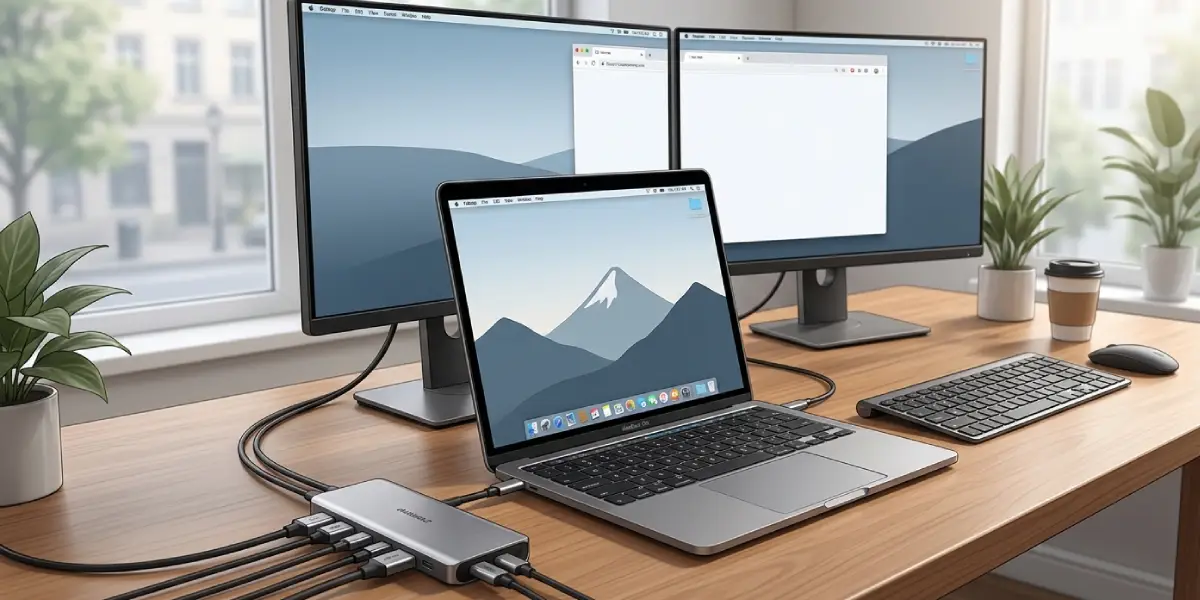
Tip: For laptops using Thunderbolt, daisy-chaining compatible monitors from one Thunderbolt port to the next can add displays without needing a dock at all, as long as the monitors themselves support daisy-chaining.
Common Problems and Fixes
One Monitor Is Not Detected
This usually points to a loose cable, a faulty port, or a driver that has not registered the new hardware. Reseat every cable, try a different port on the laptop or dock, and run Detect again from the display settings.
Monitors Show a Duplicate Image Instead of Extending
This happens when the display mode is still set to Duplicate. Switching it to Extend in the display settings resolves this immediately and gives each monitor its own portion of the desktop.
Flickering or Black Screen After Connecting
Flickering is often caused by an outdated graphics driver or a cable that cannot reliably carry the chosen resolution and refresh rate. Updating the driver and trying a shorter or higher-quality cable usually clears it up.
Laptop Only Supports One External Display Despite Having More Ports
Some laptops share video bandwidth between ports, or the integrated graphics chip simply cannot drive more than one external screen. Checking the laptop manufacturer’s specifications confirms the real limit before assuming a hardware fault.
Lag or Low Refresh Rate Through a USB-C Hub
Basic hubs can struggle to push multiple high-resolution signals at once. Lowering the resolution or refresh rate on one monitor, or switching to a dock built specifically for multi-monitor use, typically fixes this.
Taskbar or Menu Bar Behaving Oddly Across Screens
This is a settings issue rather than a hardware fault. On Windows, taskbar behavior for each display can be adjusted under Settings > Personalization > Taskbar, and on Mac, each display gets its own menu bar automatically once extended mode is active.
Frequently Asked Questions
How many monitors can a laptop support?
Most laptops with integrated graphics support one or two external monitors, while laptops with dedicated graphics or multiple Thunderbolt ports can often support three or more.
Do I need a docking station to connect multiple monitors?
Not always. A docking station is only necessary when the laptop does not have enough native video ports for every monitor being connected.
Can I use HDMI and USB-C at the same time?
Yes, as long as the laptop has both port types available and the graphics hardware supports the total number of displays being connected.
Why does the laptop only detect one external monitor?
This is usually a graphics hardware limit, an outdated driver, or a cable and port issue. Checking the laptop’s official specifications clarifies whether it is a hardware limit or a fixable connection problem.
What is DisplayLink and when is it needed?
DisplayLink is a technology that sends video over USB instead of a dedicated video port, and it is useful for adding extra monitors to laptops that have run out of native display outputs.
Does connecting multiple monitors slow down laptop performance?
Driving several monitors adds load to the graphics hardware and battery, but for everyday tasks like browsing or office work, the impact is usually minor on laptops with reasonably current hardware.
Can a laptop run three monitors at once?
Many laptops with a dedicated GPU or Thunderbolt support can run three monitors, especially when a compatible docking station is used to distribute the connections.
Why is the external monitor resolution blurry?
Blurry text or images usually mean the resolution has not been set to the monitor’s native resolution in the display settings, or the cable in use cannot support that resolution.
Do all laptops support Thunderbolt daisy chaining?
No, daisy chaining requires both a Thunderbolt-equipped laptop and monitors that specifically support Thunderbolt daisy-chaining, so checking both specifications beforehand is worthwhile.
Can Mac and Windows laptops both use multiple monitors the same way?
The core process is similar on both, though the display settings menus are located in different places and some port types, such as Thunderbolt, are more consistently supported across Mac laptops.
