
A freshly installed SSD not detected after installation is one of the most common headaches in a PC build or upgrade, and it almost always comes down to a handful of predictable causes. Before assuming the drive itself is defective, working through a short checklist of connections, BIOS settings, and driver issues resolves the problem in most cases.
Key Takeaways
- Most detection failures trace back to a loose cable, an unselected boot controller mode, or a drive that has not been initialized in Windows.
- NVMe drives can fail to show up if installed in the wrong M.2 slot or if the slot is disabled in BIOS.
- SATA drives depend on both a data cable and a power connection being fully seated.
- A brand-new drive will not appear in File Explorer until it has been initialized and formatted in Disk Management.
- If BIOS itself does not see the drive, the issue is almost always physical or firmware-related, not a Windows problem.
Common Causes of an SSD Not Being Detected
Several issues tend to show up again and again with this exact problem, and narrowing down which one applies makes the fix much faster.
Loose or Faulty Cable Connections
SATA SSDs rely on two separate connections: a data cable to the motherboard and a power cable from the power supply. A cable that looks seated but is not fully clicked in is one of the most frequent culprits.
Incorrect M.2 Slot or Missing Standoff
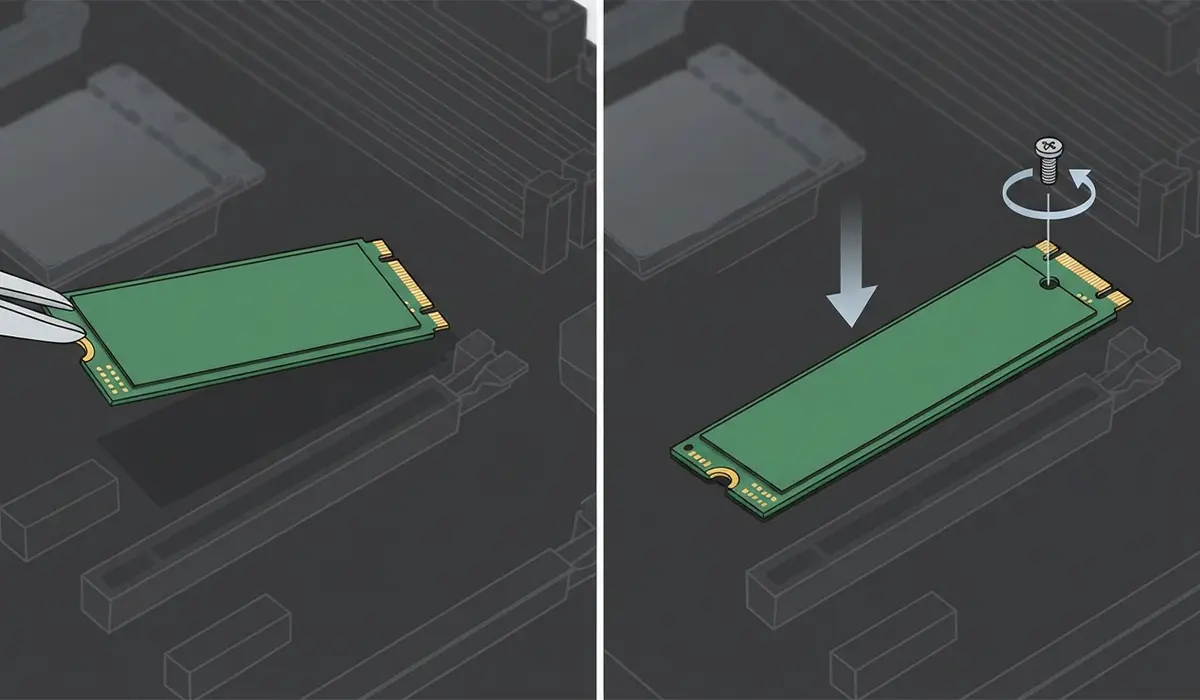
Motherboards often share bandwidth between M.2 slots and SATA ports, meaning a drive installed in one slot can disable another. An NVMe drive that is not screwed down evenly can also lose contact with the connector under normal case vibration.
BIOS Storage Mode Mismatch
If the motherboard’s storage controller is set to a mode the drive does not expect, or if the specific M.2 slot has been manually disabled in BIOS, the drive will not show up at all, even before Windows loads.
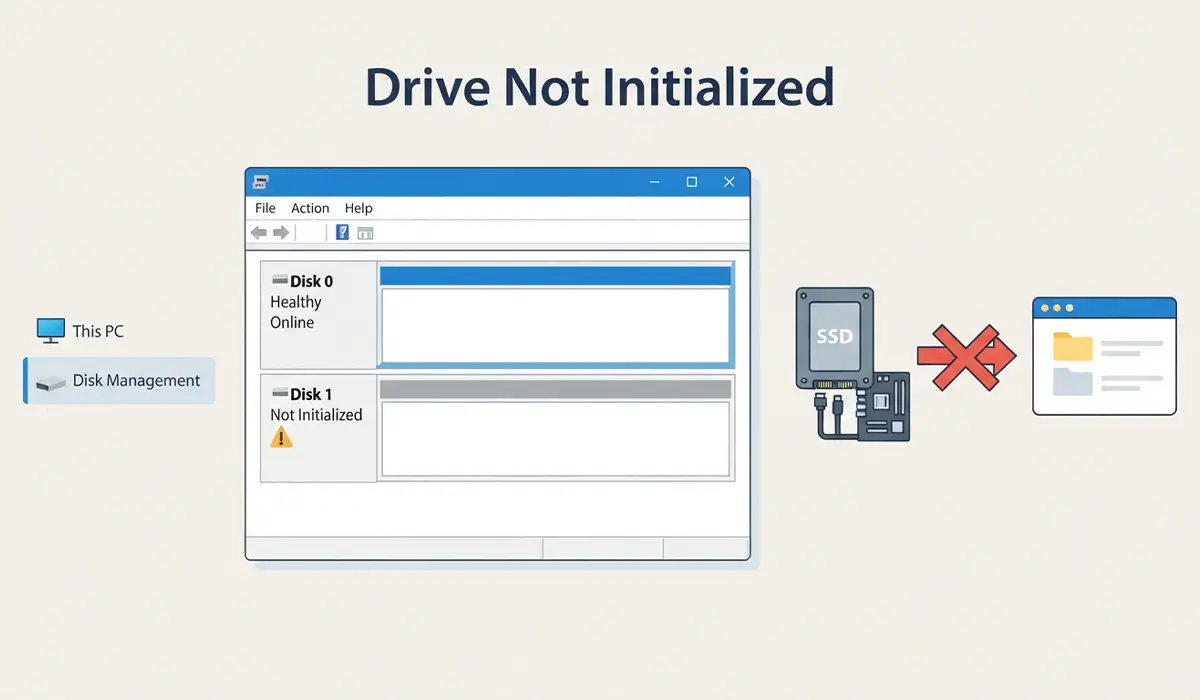
Drive Not Initialized in Windows
A brand-new SSD has no partition table yet. BIOS may detect it just fine, but it will stay invisible in File Explorer until it is initialized and given a file system through Disk Management.
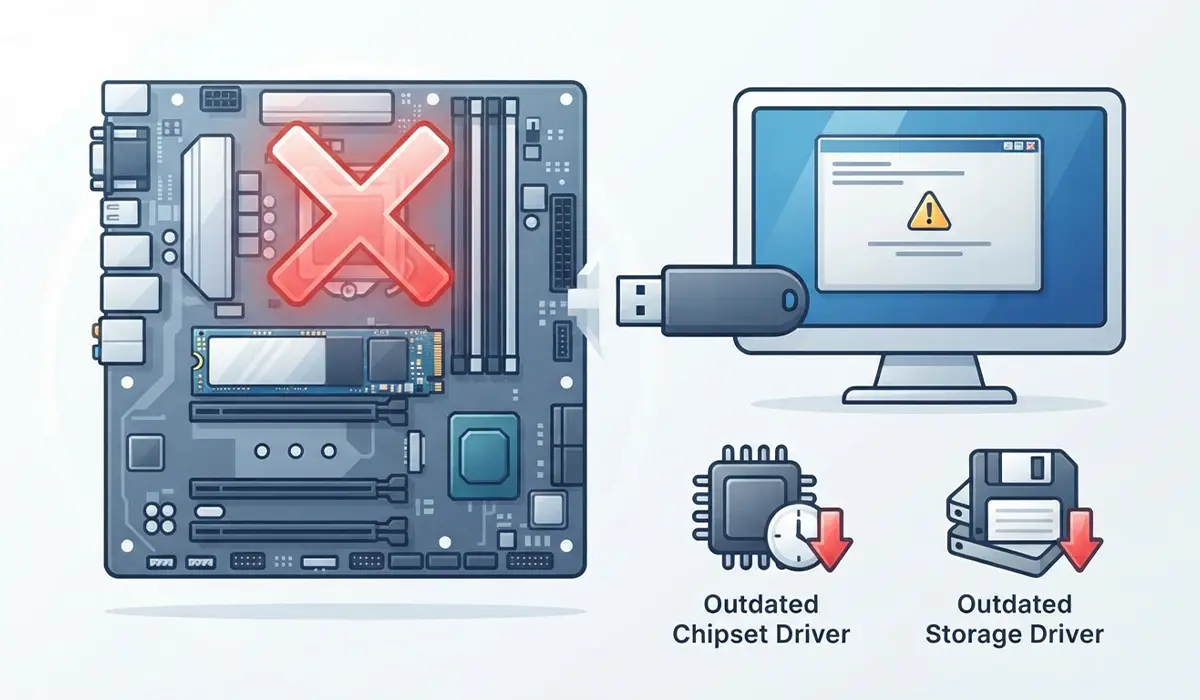
Outdated Chipset or Storage Drivers
Older motherboard firmware or missing chipset drivers can prevent Windows from recognizing certain newer NVMe controllers correctly.
Before You Start
Power down the PC completely and unplug it from the wall before touching any internal cables or the drive itself. Discharge static electricity by touching a bare metal part of the case, or use an anti-static wrist strap if one is available. Let the system sit for a minute if it was just running, since some components stay warm.
Tools and materials needed: a Phillips head screwdriver, the SSD in question, its mounting screw if it is an M.2 drive, and a spare SATA cable if testing a SATA connection. Opening a desktop case is generally low-risk and does not usually affect a build’s warranty, but opening a laptop chassis can void the manufacturer’s warranty on some models, so check the manufacturer’s policy first if the laptop is still under coverage.
How to Fix an SSD Not Detected After Installation
- Step 1: Reseat all physical connections. For a SATA drive, unplug and firmly reconnect both the data cable and the power cable at the drive and at the motherboard or power supply end. For an NVMe drive, remove the mounting screw, lift the drive out, and reinsert it at a consistent angle before screwing it back down evenly.
- Step 2: Try a different SATA port and cable, or a different M.2 slot if the motherboard has more than one. This rules out a damaged cable or a faulty port on the motherboard itself.
- Step 3: Check the drive in BIOS before checking Windows. Restart the PC, enter BIOS setup, and look in the storage or boot section for the drive’s model name. If it appears here but not in Windows, the issue is on the software side. If it does not appear here at all, the issue is physical or firmware-related.
- Step 4: Confirm the correct storage controller mode is selected in BIOS, typically AHCI for SATA drives or NVMe for M.2 drives, and make sure the specific M.2 slot has not been manually disabled in the storage configuration menu.
- Step 5: Update the motherboard’s BIOS and chipset drivers to the latest version available from the manufacturer’s support page, since older firmware sometimes lacks proper support for newer drive controllers.
- Step 6: If BIOS sees the drive but Windows does not show it in File Explorer, open Disk Management by right-clicking the Start button and selecting it from the menu. Look for the new drive listed as ‘Unallocated.’
- Step 7: Right-click the unallocated space, choose ‘Initialize Disk,’ select GPT as the partition style for modern systems, then right-click again and choose ‘New Simple Volume’ to format it and assign a drive letter.
- Step 8: If none of the above resolves it, test the SSD in a different computer or an external USB enclosure. If it still does not appear anywhere, the drive itself is likely defective and should be handled under its warranty.
Tip: Write down which BIOS settings were changed before applying a fix, since reverting an unrelated setting later can save time if a new problem shows up.
Common Problems and Fixes
Drive Shows in BIOS but Not in Disk Management
This usually means Windows Storage services need a refresh. Open Disk Management, select ‘Action’ from the menu bar, then ‘Rescan Disks.’ If it still does not appear, unplug and reconnect the drive once more with the system powered off.
Drive Disappears After a Few Minutes of Use
An intermittent connection, rather than a missing one, often points to a marginal cable or a connector that is not fully seated. Swapping the cable and reseating the drive typically resolves this.
System Won’t Boot After Installing a Second SSD
Some motherboards default to booting from whichever drive was detected last. Enter BIOS and manually set the correct boot drive in the boot order menu.
NVMe Drive Detected but Running Much Slower Than Expected
This can happen if the drive was accidentally installed in a slot that shares bandwidth with SATA ports, dropping it to a slower PCIe lane configuration. Check the motherboard manual for the M.2 slot layout and move the drive to a dedicated slot if needed.
Frequently Asked Questions
Why does a new SSD show up in BIOS but not in File Explorer?
A brand-new drive has no partition or file system yet, so Windows treats it as unallocated space until it is initialized and formatted through Disk Management.
Do all M.2 SSDs use the same slot?
No. M.2 slots vary by motherboard, and some support both SATA and NVMe drives while others only support one type. Checking the motherboard manual before installation avoids compatibility surprises.
Can a loose screw really stop an SSD from being detected?
Yes. An unsecured M.2 drive can shift slightly out of full contact with its connector, especially after the case is moved or bumped, which causes intermittent or complete detection failure.
Is AHCI or NVMe mode correct for a SATA SSD?
AHCI is the correct mode for SATA SSDs. NVMe mode applies specifically to compatible M.2 NVMe drives and is a separate setting in most BIOS menus.
Will updating BIOS erase any data on other drives?
No. A BIOS or chipset driver update does not affect data stored on any installed drive, though it is still good practice to have important files backed up before any firmware change.
Why does the SSD work in a different computer but not the main PC?
This points to a problem specific to that system, such as a BIOS setting, a bad port, or a faulty cable, rather than the drive itself.
What partition style should be chosen when initializing a new SSD?
GPT is the standard choice for modern systems running current versions of Windows, since it supports larger drives and works with UEFI boot mode.
Can a power supply cause an SSD to not be detected?
Yes, in the case of SATA drives, an insufficient or failing power connection to the drive prevents it from powering on at all, which shows up as a complete detection failure.
Should a professional be called in if none of these steps work?
If the drive fails to appear in BIOS across multiple ports, slots, and even a different system, and reseating and firmware updates have not helped, it is reasonable to treat the drive as defective and pursue a warranty replacement or professional diagnosis rather than continuing to troubleshoot.
Does installing a second SSD ever affect an existing drive’s performance?
On some motherboards, populating certain M.2 slots reduces the number of available lanes to SATA ports or other M.2 slots, which can lower performance on an existing drive. Checking the motherboard’s slot layout diagram prevents this.
