
Learning how to repair a Windows installation without reinstalling can save hours of setup time, lost settings, and missing apps. Most boot errors, random crashes, and failed updates trace back to damaged system files, a corrupted component store, or a broken update, and Windows includes built-in tools that handle all three. The repairs below run from the least invasive to the most thorough, so personal files and installed programs stay in place.
Key Takeaways
- Start with the System File Checker (SFC), then the DISM tool, because these two fix the majority of corrupted system file problems.
- A disk check, System Restore, or removing a recent update can solve problems caused by drive errors or a bad update.
- An in-place upgrade repair install refreshes every Windows file while keeping personal files and apps.
- When Windows will not start, the Windows Recovery Environment offers Startup Repair, offline SFC, and boot file repair.
- A backup before any repair is the single best protection against surprises.
Before You Start
This is a software repair, so no disassembly is needed. A few minutes of preparation still make the process much safer.
- Copy important files to an external drive or cloud storage. Repairs rarely delete data, but a failing drive can change that quickly.
- Plug a laptop into mains power so the battery cannot run out in the middle of a repair.
- Locate the BitLocker recovery key if drive encryption is enabled, since recovery tools may ask for it.
- Sign in with an administrator account.
- Keep a USB flash drive with at least 8 GB of space and access to a second working PC handy. These are only needed if Windows cannot start or if a repair install is required.
If the drive makes clicking sounds or reports health warnings, stop and focus on recovering data first, because repair tools put extra strain on a dying drive.
How to Repair a Windows Installation Without Reinstalling: Step-by-Step
Repairs When Windows Still Starts
Work through these in order. Each step is more thorough than the one before it, so there is no need to continue once the problem is gone.
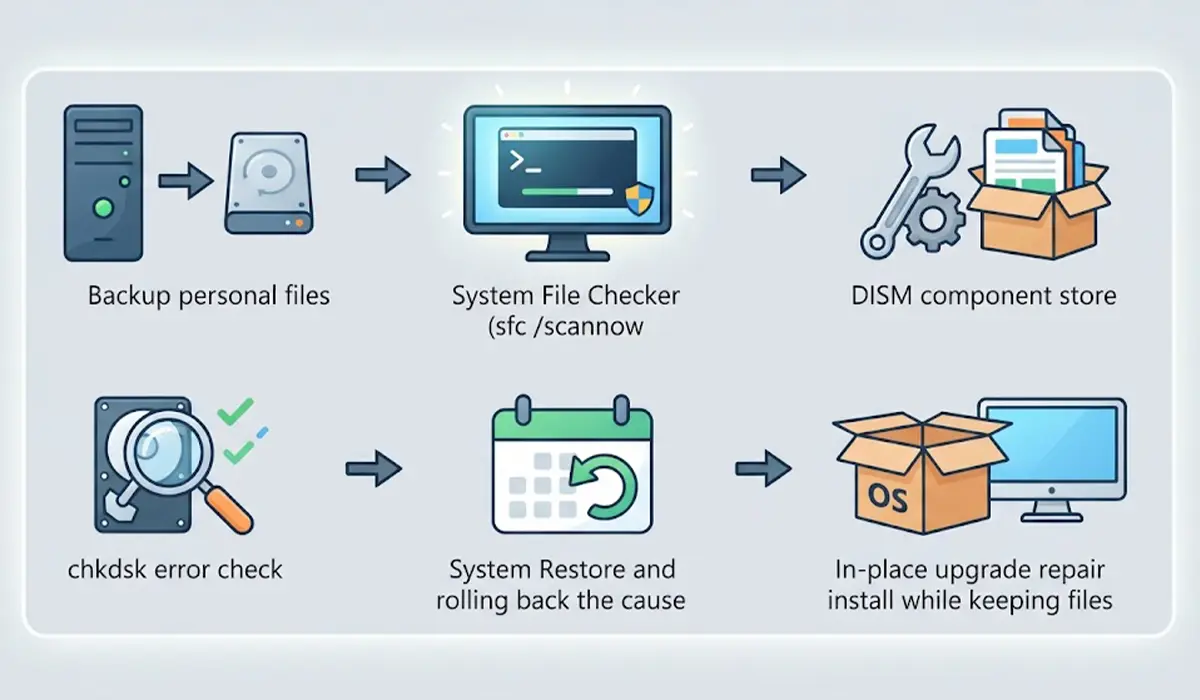
- Step 1: Back up personal files. Copy documents, photos, and browser data to a separate drive before running any repair.
- Step 2: Run System File Checker. Right-click the Start button and choose Terminal (Admin) or Command Prompt (Admin). Type sfc /scannow and press Enter. The scan can take a while, so leave the window open until it reports a result. Windows will say it found no integrity violations, that it repaired files, or that it found damaged files it could not fix.
- Step 3: Repair the component store with DISM. In the same elevated window, type DISM /Online /Cleanup-Image /RestoreHealth and press Enter. The progress bar may appear to pause for several minutes, which is normal. Restart the PC afterward and run sfc /scannow again so SFC can use the freshly repaired store.
- Step 4: Check the drive for errors. In an elevated window, type chkdsk C: /f and press Enter. Windows will offer to schedule the scan for the next restart. Press Y, restart, and let the scan finish before signing in.
- Step 5: Roll back the cause. If the trouble began after an update or a new driver, open the Start menu, search for Create a restore point, choose System Restore, and pick a restore point from before the problem. To remove a bad update instead, open Settings, go to Windows Update, then Update history, and choose Uninstall updates. On Windows 10, the same list lives under Update and Security in Settings.
- Step 6: Run an in-place upgrade repair install. Download the official Windows ISO from Microsoft that matches the installed version, edition, and language. Right-click the ISO and choose Mount, open the new drive in File Explorer, and run setup.exe. When prompted, choose the option to keep personal files and apps, then follow the prompts. Setup replaces every system file with a clean copy, which fixes damage that SFC and DISM cannot reach.
Tip: Check the edition and version under Settings, System, About before downloading the ISO. A mismatch is the most common reason the keep-files option is unavailable.
On recent Windows 11 builds, Settings, System, Recovery also lists a Fix problems using Windows Update option with a Reinstall now button. It performs a similar repair without a manual ISO download.
Repairs When Windows Will Not Start
This path uses the Windows Recovery Environment, often called WinRE, and works even when the desktop never loads.
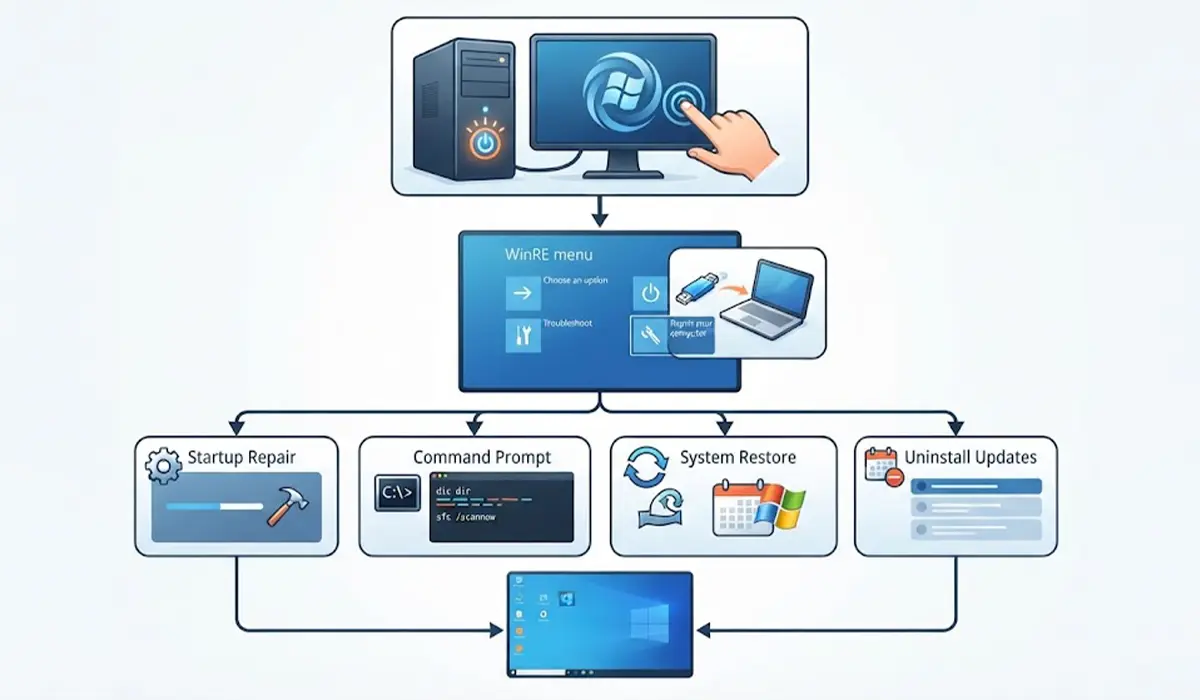
- Step 1: Open the recovery menu. Turn the PC on and force it off as soon as the Windows logo appears. After two or three interrupted starts, Windows should open the recovery screen on its own. Another route is to boot from a Windows installation USB and choose Repair your computer.
- Step 2: Try Startup Repair. Choose Troubleshoot, then Advanced options, then Startup Repair. Windows scans for boot problems and attempts fixes automatically.
- Step 3: Run SFC offline. From Advanced options, open Command Prompt. Drive letters often differ inside WinRE, so type dir C: and confirm that a Windows folder is listed, trying other letters if it is not. Then run sfc /scannow /offbootdir=C:\ /offwindir=C:\Windows using the correct letter.
- Step 4: Rebuild the boot files. In the same Command Prompt, run bootrec /scanos and then bootrec /rebuildbcd. Accept the Windows entry if it is found and restart.
- Step 5: Use the other recovery tools. Advanced options also includes System Restore and Uninstall Updates, which can undo a change that stopped Windows from booting.
Tip: Take a quick photo of any error code shown on screen. Codes such as INACCESSIBLE_BOOT_DEVICE or a missing operating system message point directly toward boot file or storage problems.
Common Problems and Fixes
SFC Reports Files It Could Not Repair
Run the DISM RestoreHealth command from Step 3, restart, and run SFC again. The component store that SFC relies on is often the real source of the damage.
DISM Fails or Cannot Find Source Files
This usually means Windows Update could not supply clean files. Mounting a Windows ISO of the exact same version and pointing DISM at its install image as the repair source solves most cases. A stable internet connection and a paused VPN also help.
Keep Personal Files and Apps Is Greyed Out
The ISO probably differs from the installed edition, language, or version, or setup.exe was started from outside a running Windows session. Download a matching ISO and launch setup.exe from within Windows.
Setup Stalls or Fails Partway Through
Unplug unneeded USB devices, temporarily disable third-party antivirus software, confirm that the system drive has plenty of free space, and run the disk check from Step 4 before trying again.
Access Is Denied When Running bootrec /fixboot
This is a known quirk on UEFI systems. Running bcdboot C:\Windows from the recovery Command Prompt, with the correct drive letter, recreates the boot files and often succeeds where bootrec does not.
Blue Screens Continue After Every Repair
Persistent crashes can point to a faulty driver, failing memory, or a failing drive instead of damaged Windows files. Running Windows Memory Diagnostic and checking drive health are sensible next steps before considering a clean installation.
Frequently Asked Questions
Can Windows be repaired without losing files?
Yes. SFC, DISM, CHKDSK, Startup Repair, and an in-place upgrade repair install all leave personal files untouched. A backup is still recommended in case a drive fails during the process.
What is the difference between SFC and DISM?
SFC checks protected system files and replaces damaged ones using a local cache. DISM repairs that cache, called the component store. Running DISM first and SFC afterward gives the best results.
What is an in-place upgrade repair install?
It is a repair method that runs Windows setup from inside the current installation and reinstalls all system files while keeping personal files, apps, and most settings in place.
Does a repair install remove installed programs?
Not when the keep personal files and apps option is selected. Programs, files, and settings normally carry over, though it is wise to keep installers or license keys for important software on hand.
How long does it take to repair Windows without reinstalling?
SFC and DISM often take a few minutes up to half an hour, depending on drive speed and the level of damage. A repair install usually takes longer, similar to a major Windows update.
How can Windows be repaired if it will not boot?
Open the Windows Recovery Environment by interrupting startup a few times or by booting from a Windows installation USB. From there, Startup Repair, offline SFC, boot file repair, System Restore, and Uninstall Updates are all available.
Is Reset This PC the same as repairing Windows?
No. Reset This PC reinstalls Windows and removes installed apps, even when files are kept. The methods in this guide repair the existing installation instead.
What causes Windows system files to become corrupted?
Common causes include interrupted updates, sudden power loss, failing storage drives, malware, and faulty drivers. Shutting down properly and keeping Windows updated reduces the risk.
When is a clean install the better choice?
If every repair fails, the system keeps crashing, or malware has deeply infected the installation, a clean install is the safer option. Back up files first and make sure the drive itself is healthy.
