
A USB-C to HDMI adapter not working usually points to a handshake problem between the port, the cable, and the display, not a dead adapter. Before assuming the worst, a handful of quick checks can isolate the real cause in a few minutes.
Key Takeaways
- Most failures come from the USB-C port not supporting DisplayPort Alt Mode, not from a faulty adapter.
- Cable orientation and cable quality matter more than most people expect with USB-C.
- Display input source and resolution settings cause a large share of ‘no signal’ complaints.
- Outdated graphics drivers or a stuck display detection process can block video output entirely.
- Testing the adapter on a second device quickly confirms whether the adapter itself is the problem.
Common Causes of a USB-C to HDMI Adapter Not Working
Several issues tend to overlap, which is why the same adapter can work perfectly on one laptop and fail on another.
- The USB-C port used is a data-only port and does not support DisplayPort Alt Mode or Thunderbolt video output.
- The HDMI cable, TV, or monitor input is not fully seated or is set to the wrong source.
- The adapter or cable has a manufacturing fault or worn connector.
- Graphics drivers are outdated or the display was not detected properly after connecting.
- The external display resolution or refresh rate is set beyond what the connection can handle.
Step-by-Step Fixes
Check the Basics First
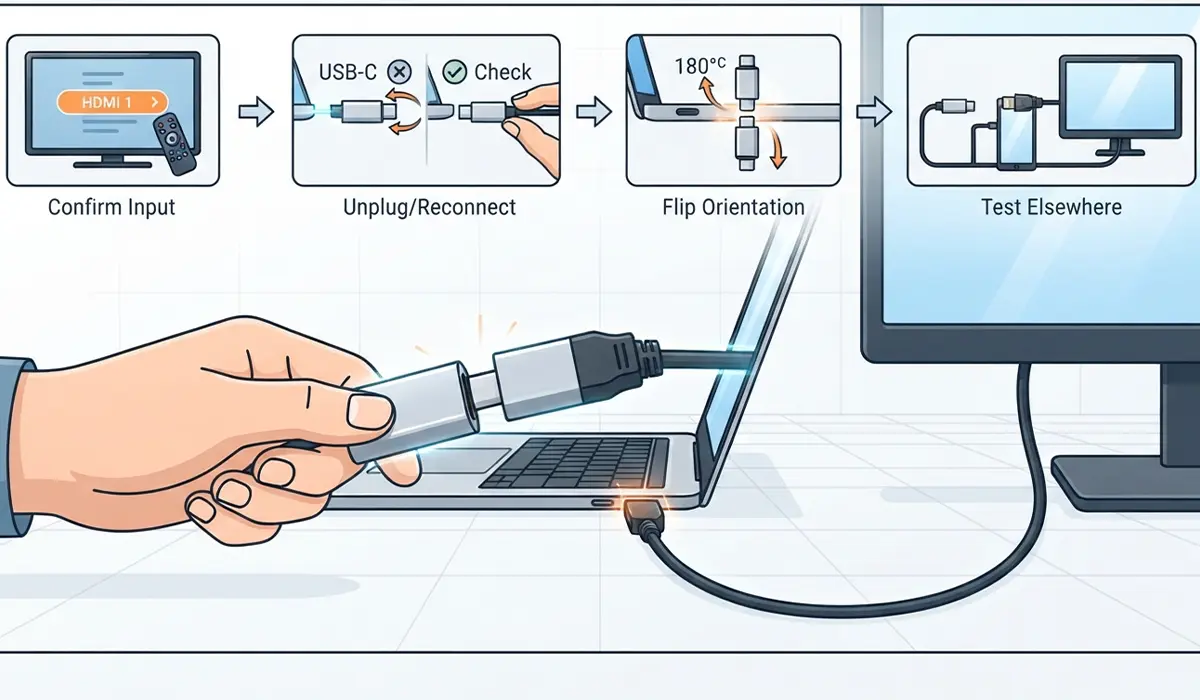
- Step 1: Confirm the monitor or TV is set to the correct HDMI input channel, not a different port.
- Step 2: Unplug the adapter from the USB-C port, wait a few seconds, then reconnect it firmly. Loose contact is a frequent culprit.
- Step 3: Try flipping the USB-C connector orientation if the port allows manual insertion in more than one way, since a worn port can sometimes only make contact in one direction.
- Step 4: Test the same adapter and cable on a different laptop, phone, or monitor. If it works elsewhere, the original device or port is the issue, not the adapter.
Confirm the USB-C Port Supports Video Output
Not every USB-C port carries a video signal. Many laptops include one or two ports wired only for charging and data transfer, while only a specific port supports DisplayPort Alt Mode or Thunderbolt.
- Step 5: Check the laptop or device manual, or the manufacturer’s support page, to identify which USB-C port is labeled for video or Thunderbolt output.
- Step 6: Try the adapter in each available USB-C port on the device, since some machines only route display signal through one specific port.
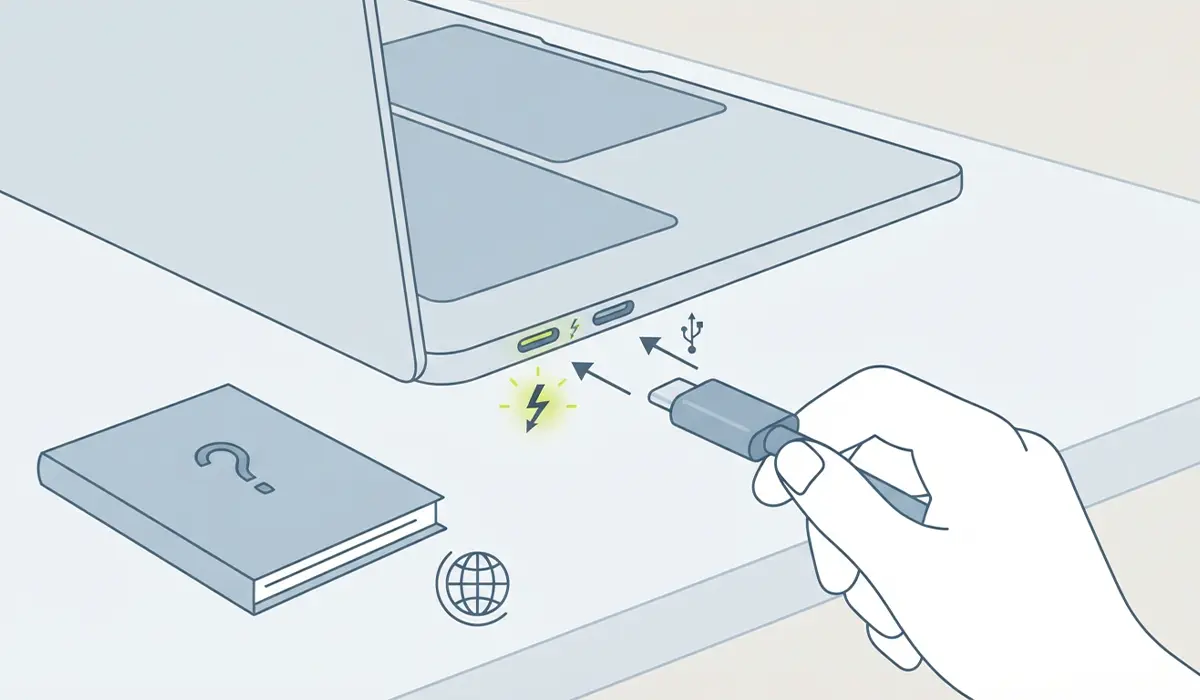
Tip: A port that charges a phone or transfers files but never outputs video is almost always a data-only port. That is normal design, not a fault.
Update Graphics Drivers and Refresh the Display
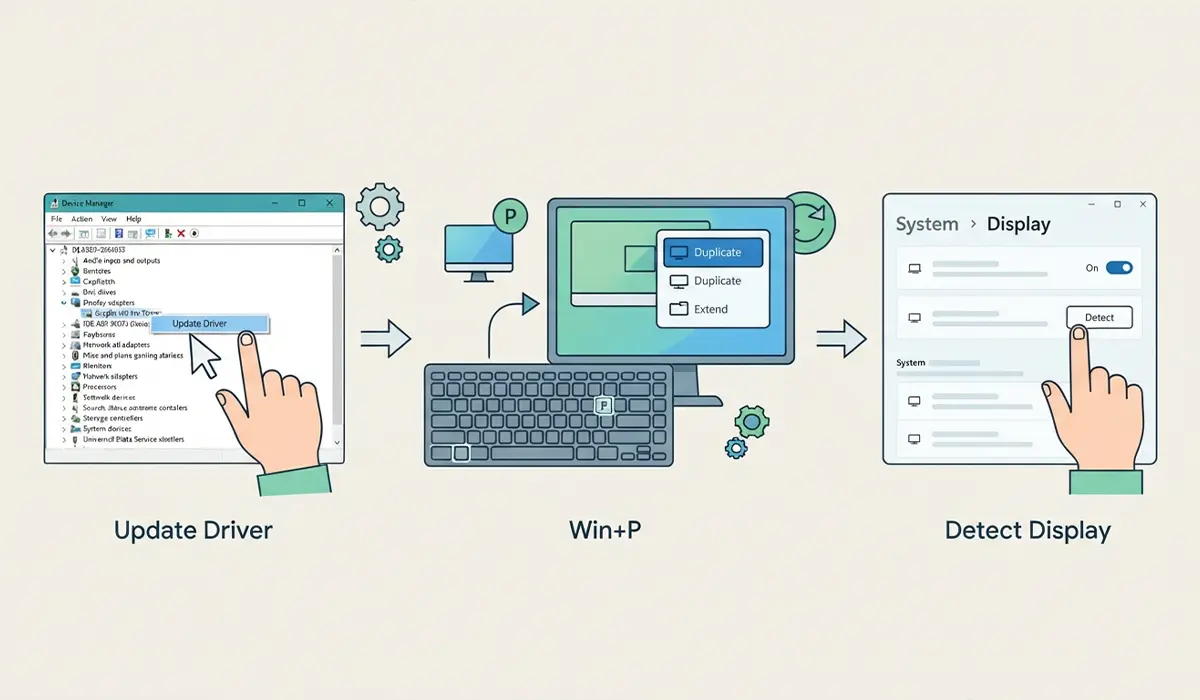
- Step 7: Open Device Manager, expand Display adapters, right-click the graphics card, and select Update driver, then choose to search automatically.
- Step 8: On Windows, press Windows key + P to open the display projection menu and select Duplicate or Extend to force the system to re-detect the external display.
- Step 9: If nothing appears, go to Settings, System, Display, and click Detect to manually force Windows to search for a connected screen.
Test With a Different Cable or Adapter
- Step 10: Swap in a different HDMI cable if one is available, since a damaged HDMI cable produces the same symptoms as a bad adapter.
- Step 11: If a second USB-C to HDMI adapter is on hand, test it in the same port and cable setup to narrow down whether the original adapter has failed.
Tip: Cheap, uncertified USB-C cables and adapters are a common weak point. Look for one that explicitly lists DisplayPort Alt Mode support rather than a generic charging-only adapter.
Common Problems and Fixes
- Adapter is detected in Device Manager but no image appears: This usually means a resolution mismatch. Lower the display resolution in Settings, System, Display to a standard option like 1920×1080 and see if the picture returns.
- Display flickers or drops connection intermittently: This points to a loose connection or a cable that cannot reliably handle the bandwidth. Reseat the adapter and try a shorter, higher-quality cable.
- Audio plays but no video shows up: Some adapters split audio and video handling differently. Confirm the adapter is rated for both, and check that the correct display is selected as the default in sound and display settings.
- Works on battery power but not when charging, or vice versa: On some laptops, high power draw during charging can affect USB-C bandwidth allocation. Try disconnecting the charger briefly to see if the display then connects.
Frequently Asked Questions
Why does a USB-C to HDMI adapter work on one laptop but not another?
Not all USB-C ports support video output. A laptop with a data-only USB-C port will never display video through that port, regardless of the adapter used.
How can someone tell if a USB-C port supports video?
Checking the laptop’s official specifications or manual for terms like DisplayPort Alt Mode or Thunderbolt next to a specific USB-C port is the most reliable way to confirm video support.
Does the USB-C to HDMI adapter need its own power source?
Most basic adapters draw power directly from the USB-C port and need no separate power. Multiport docks or hubs with extra features sometimes require external power to function fully.
Can a USB-C hub cause a HDMI adapter to stop working?
Yes. Connecting the adapter through a hub instead of directly into the laptop can introduce bandwidth or driver conflicts. Plugging the adapter straight into the USB-C port isolates whether the hub is the problem.
Why does the screen show ‘no signal’ even though the adapter lights up?
A lit adapter confirms it is receiving power, not that video is being transmitted. This is often a driver detection issue or an incorrect input source on the display.
Is it normal for a USB-C to HDMI adapter to get warm?
Mild warmth during use is normal, especially with higher resolutions or longer sessions. Excessive heat, a burning smell, or visible damage means the adapter should be unplugged and replaced.
Can outdated Windows updates cause this issue?
Yes. Display and USB drivers are often bundled with Windows updates. Running Windows Update alongside a manual graphics driver update covers most compatibility gaps.
Does the HDMI cable length matter?
Longer or lower-quality HDMI cables can struggle at higher resolutions and refresh rates. Switching to a shorter, well-shielded cable often resolves intermittent dropouts.
Should the adapter be tested on a different operating system?
If a Mac and Windows machine are both available, testing on each helps determine whether the issue is hardware-based or tied to a specific operating system’s driver handling.
When should someone consider the adapter defective and replace it?
If the adapter fails on multiple devices, multiple cables, and multiple displays after all troubleshooting steps, and a different adapter works fine in the same setup, the original adapter is very likely defective.
