
Stuttering in games on Windows usually shows up as sudden freezes, frame drops, or jerky motion even on hardware that should handle the title with ease. The good news is that most causes trace back to a handful of software and hardware issues that can be fixed without buying new parts.
Key Takeaways
- Outdated or corrupt graphics drivers are the most common cause of stuttering and should be checked first.
- Background apps, overlays, and Windows updates competing for CPU and RAM often cause random hitching.
- Overheating components throttle performance and produce stutter that gets worse the longer a session runs.
- A near-full or aging storage drive can cause texture pop-in and momentary freezes during gameplay.
- Matching in-game settings to the actual hardware, including refresh rate and V-Sync, smooths out frame delivery.
Common Causes of Game Stuttering on Windows
Before jumping into fixes, it helps to understand what is actually happening behind the scenes. Stuttering is rarely one single problem; it is usually the result of one part of the system briefly failing to keep pace with the rest.
- Outdated, corrupted, or mismatched graphics drivers.
- Background processes, browser tabs, or overlay software consuming CPU and memory.
- Thermal throttling from dust buildup, dried-out thermal paste, or blocked airflow.
- A storage drive that is too full or too slow to stream game assets smoothly.
- Windows power settings that do not allow the CPU or GPU to run at full performance.
- Mismatched V-Sync, frame rate cap, or monitor refresh rate settings.
- Outdated Windows build or an outdated version of the game itself.
How to Fix Stuttering in Games on Windows Step by Step
The steps below are arranged in the order most technicians would try them, starting with the fix that resolves the largest share of cases.
Update Graphics Drivers
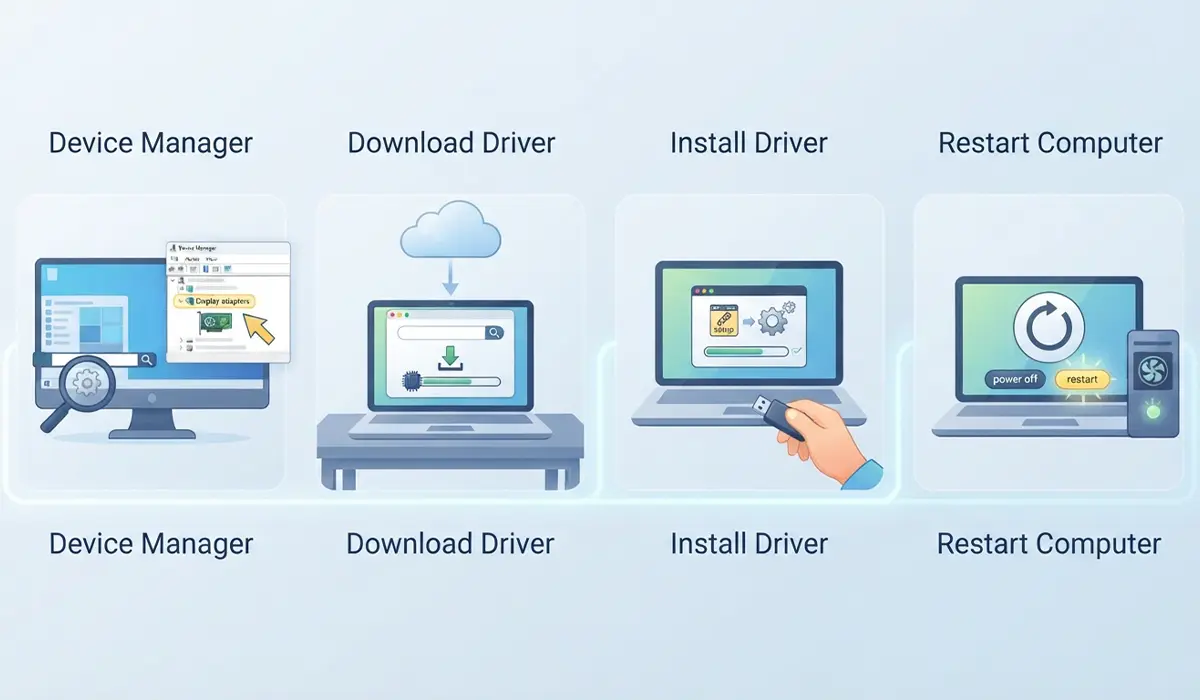
- Step 1: Open the Start menu, search for ‘Device Manager’, and expand the ‘Display adapters’ section to confirm which GPU is installed.
- Step 2: Visit the graphics card manufacturer’s official driver download page and search by the exact model listed in Device Manager.
- Step 3: Download and run the latest driver package, choosing the clean install or fresh install option if the installer offers one.
- Step 4: Restart the computer after installation completes, even if the installer does not prompt for it.
Tip: If stuttering started right after a driver update, rolling back to the previous driver version in Device Manager often resolves it faster than waiting for another update.
Close Background Programs and Overlays
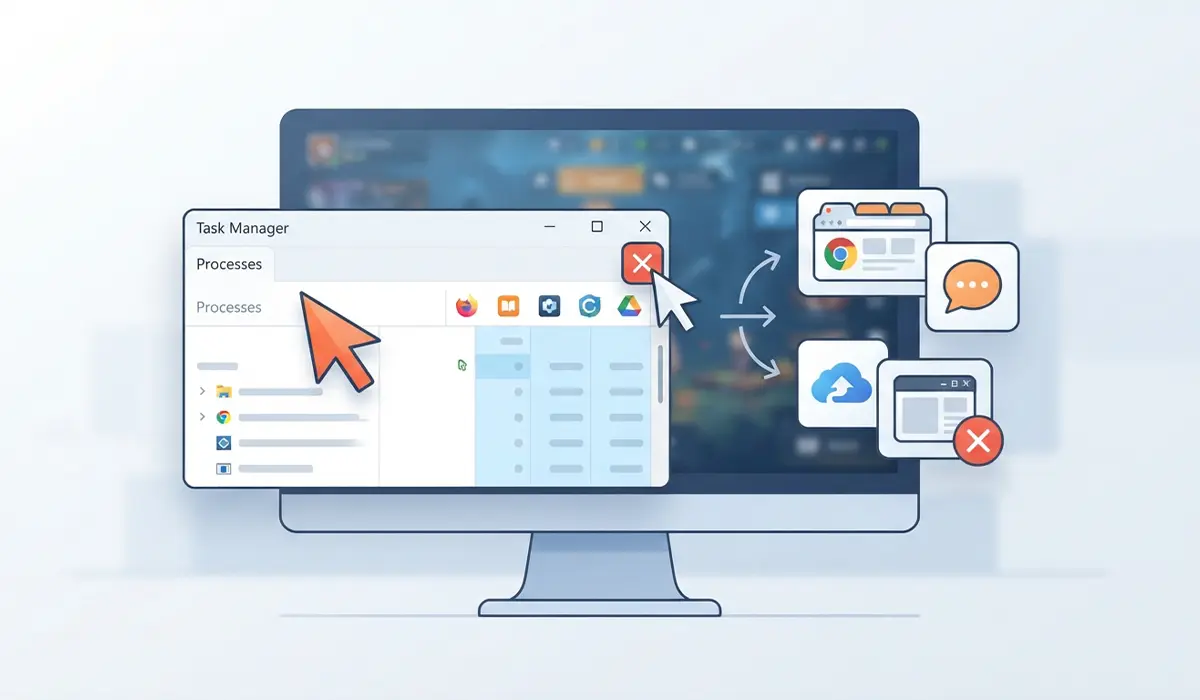
- Step 1: Open Task Manager and sort the Processes tab by CPU or Memory usage to spot anything unexpected running.
- Step 2: Close browser windows, chat apps, and cloud sync tools that are not needed during gameplay.
- Step 3: Disable in-game overlays from launchers and recording software one at a time to identify which one, if any, is causing the stutter.
- Step 4: Turn off Windows background app permissions for programs that do not need to run continuously.
Adjust Windows Power Settings
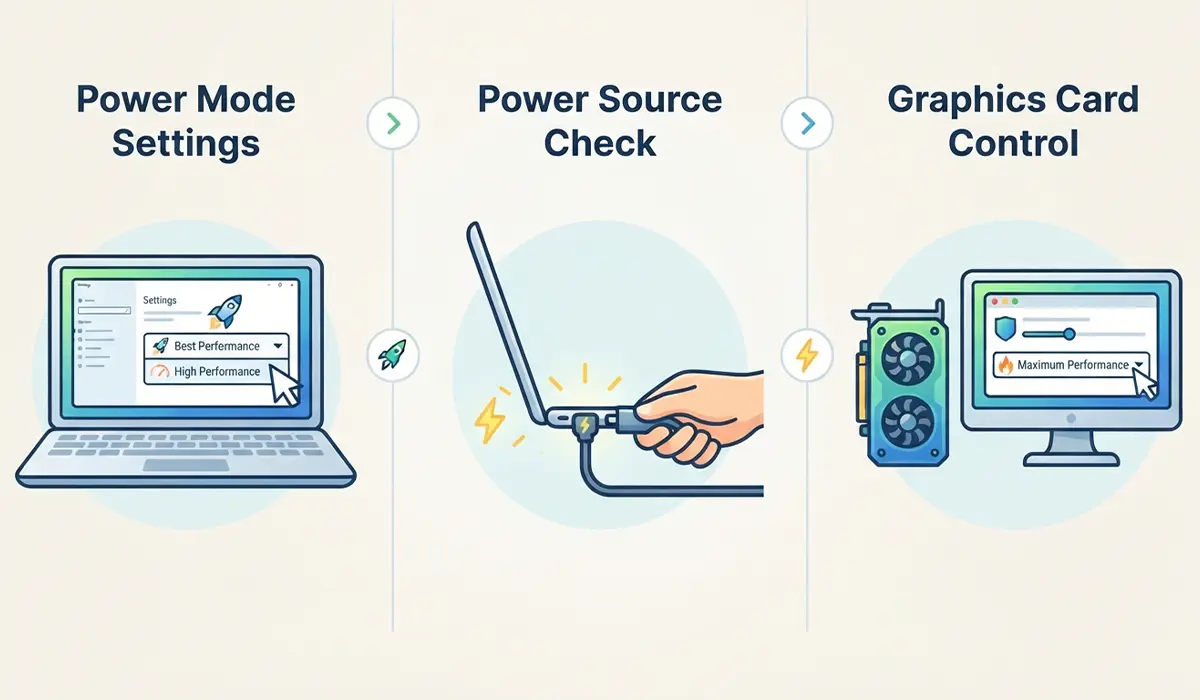
- Step 1: Open Settings, go to ‘System’, then ‘Power’, and select the ‘Best Performance’ or ‘High Performance’ power plan.
- Step 2: For laptops, confirm the machine is plugged in, since most systems throttle performance on battery power.
- Step 3: Open the graphics card control panel and set the preferred power mode to maximum performance for the game in question.
Check Temperatures and Cooling
- Step 1: Use a reputable hardware monitoring tool to watch CPU and GPU temperatures during a gaming session.
- Step 2: If temperatures climb steadily and performance drops as they rise, power down and unplug the system, then clean dust from fans, heatsinks, and intake vents with compressed air.
- Step 3: Confirm all case and CPU fans are spinning and that airflow is not blocked by cables or nearby objects.
- Step 4: If temperatures remain high after cleaning on a desktop, reapplying thermal paste on the CPU may be needed; this involves opening the case, so let the system cool fully first and consider a professional service if unfamiliar with the process.
Tip: Consistent stutter that worsens only after twenty or thirty minutes of play is a strong sign of a heat-related issue rather than a software one.
Optimize In-Game and Display Settings
- Step 1: Match the game’s refresh rate setting to the actual monitor refresh rate found in Windows display settings.
- Step 2: Test toggling V-Sync on and off, since a mismatch between frame rate and V-Sync can cause visible stutter.
- Step 3: Lower demanding settings such as shadows, texture quality, or ray tracing one at a time to see which change restores smooth frame delivery.
- Step 4: Enable a frame rate cap slightly below the monitor’s maximum refresh rate to reduce sudden frame time spikes.
Check Storage Space and Drive Health
- Step 1: Open File Explorer and confirm the drive holding the game has at least ten to fifteen percent free space.
- Step 2: Move the game to a faster drive, such as an SSD, if it is currently installed on a traditional hard drive.
- Step 3: Run a quick drive health check through the manufacturer’s utility or Windows’ built-in tools to rule out a failing drive.
Update Windows and the Game
- Step 1: Open Settings, go to ‘Windows Update’, and install any pending updates.
- Step 2: Check the game launcher or storefront for available patches, since many stuttering issues are fixed in post-release updates.
- Step 3: Verify the integrity of game files through the launcher if the option is available, which can repair corrupted assets causing hitches.
Common Problems and Fixes
Some stuttering issues persist even after the general steps above. These are the situations that come up most often once the basics have already been tried.
- Stuttering only in one specific game: check that game’s individual settings and verify its files through the launcher, since the issue is likely tied to that title rather than the whole system.
- Stutter appeared right after a Windows update: roll back the update through ‘Windows Update’ history and check for a fresh graphics driver release that addresses compatibility.
- Smooth performance in the menu but stutter only during gameplay: this points toward a CPU or storage bottleneck rather than the graphics card, so revisit background processes and drive speed first.
- Temperatures look normal but stutter continues: the bottleneck is more likely software-related, so focus on background processes, driver version, and in-game settings rather than cooling.
- Stutter returns after a short break from gaming: this often points to background Windows maintenance tasks, such as scheduled scans or updates, running during play sessions.
Frequently Asked Questions
What causes random stuttering in PC games?
Random stuttering is most often caused by outdated graphics drivers, background programs competing for system resources, or brief thermal throttling as components heat up during play.
Does updating the graphics driver really fix stuttering?
Yes, in a large share of cases. Driver updates address bugs, improve game compatibility, and fix memory handling issues that directly cause stutter and frame drops.
Why does a game stutter even with high frames per second?
High average frame rates can hide inconsistent frame times. A game can report a strong average while still producing brief spikes that feel like stutter, often caused by background tasks or storage delays.
Can overheating cause stuttering even if the PC does not shut down?
Yes. Components can throttle their speed to manage heat long before reaching a shutdown temperature, and that throttling shows up as stutter rather than a crash.
Should V-Sync be turned on or off to reduce stuttering?
There is no universal answer; it depends on the monitor and game. Testing both settings, along with a frame rate cap, usually reveals which combination produces the smoothest result on a specific setup.
Does a full hard drive cause game stuttering?
Yes, a drive that is nearly full can slow down file access and cause brief freezes, particularly during texture loading or when the game writes temporary data.
Is it necessary to reinstall Windows to fix persistent stuttering?
Rarely. Persistent stuttering is almost always solvable through driver updates, background process management, cooling checks, and storage cleanup before a reinstall becomes necessary.
Can a laptop’s power plan cause stuttering?
Yes. Many laptops default to a balanced or power-saving plan that limits CPU and GPU speed, which can introduce stutter in demanding games.
How can background apps be identified as the cause of stuttering?
Task Manager’s Processes tab, sorted by CPU or memory usage, shows which applications are active during a game session and highlights anything using resources unexpectedly.
Why does stuttering get worse the longer a gaming session lasts?
This pattern usually points to heat buildup, since components slow themselves down as they warm up over time to avoid damage, which produces steadily worsening stutter.
