
A USB device disconnecting during use is one of the most frustrating everyday PC problems, especially when it happens mid-task with a mouse, keyboard, external drive, or webcam. The good news is that this issue almost always traces back to a small number of causes, and most of them can be fixed without any special tools.
Key Takeaways
- USB power management settings are the single most common cause of random disconnects.
- Outdated or corrupted USB controller drivers can make a device drop out even when the cable and port are fine.
- A worn cable, loose port, or an overloaded USB hub causes physical connection drops that look like a software problem.
- Windows’ Selective Suspend feature is designed to save power but often disconnects devices that need a steady connection.
- Testing the device on a different port or PC quickly narrows down whether the fault is the device, the port, or the system.
Common Causes of a USB Device Disconnecting During Use
Before jumping into fixes, it helps to understand why this happens in the first place. Most disconnects come down to one of these root causes.
Power Management Cutting the Connection
Windows can turn off USB ports to save power when it thinks a device is idle. This works well for a printer that sits untouched for hours, but it can misfire on devices that send data in short bursts, like a mouse or a flash drive during a slow file transfer.
Driver Issues
A USB controller driver that is outdated, corrupted, or conflicting with a recent Windows update is a frequent culprit. This is more likely if the disconnects started right after a system update.
Physical Connection Problems
A frayed cable, a port with worn contacts, or dust packed inside the port can cause an intermittent connection that looks exactly like a driver problem. This is easy to overlook because the device usually still works most of the time.
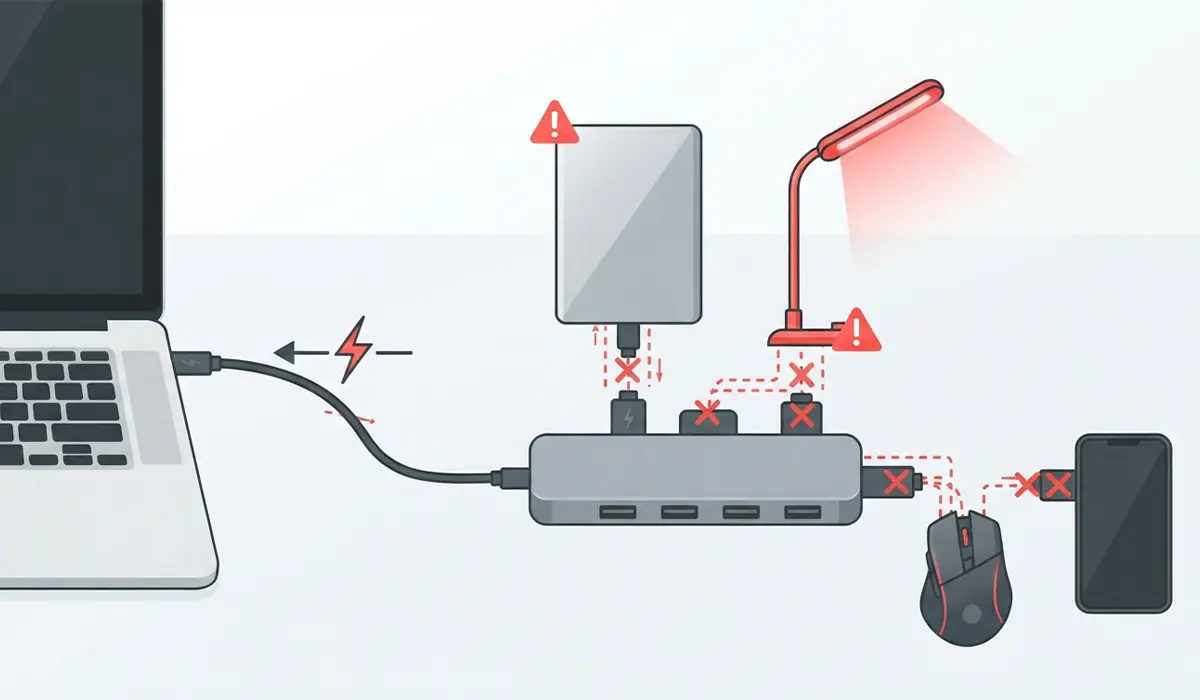
Insufficient Power Through a Hub
Plugging several power-hungry devices into one unpowered USB hub can starve all of them of the current they need, causing one or more to drop out randomly, especially external hard drives.
USB Selective Suspend
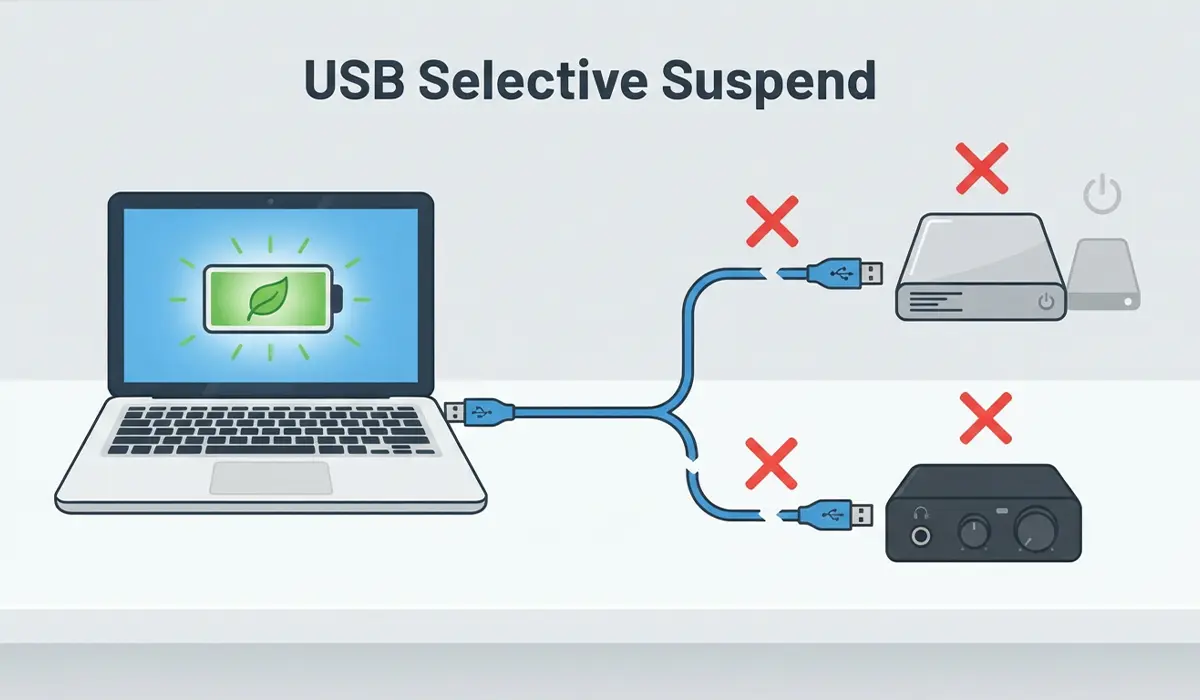
This setting lets Windows suspend individual USB devices independently to save battery life on laptops. It is helpful for standby time but is a known cause of dropped connections on external drives and some audio devices.
How to Fix a USB Device That Keeps Disconnecting
Work through these steps in order. Most people resolve the issue within the first two or three steps.
Step-by-Step Fix
- Step 1: Test the device in a different USB port, ideally one built directly into the motherboard or laptop chassis rather than a front-panel header or hub. If the disconnects stop, the original port or hub is the problem.
- Step 2: Try a different cable if the device uses a detachable one. A cable that looks fine can still have a broken wire inside that only makes contact intermittently.
- Step 3: Open Device Manager, expand ‘Universal Serial Bus controllers’, right-click each ‘USB Root Hub’ entry, open Properties, go to the Power Management tab, and uncheck ‘Allow the computer to turn off this device to save power’.
- Step 4: For laptops, open Control Panel, go to Power Options, select the active plan, click ‘Change plan settings’, then ‘Change advanced power settings’, and set ‘USB selective suspend setting’ to Disabled for both battery and plugged in.
- Step 5: Update the chipset and USB controller drivers through Windows Update or the motherboard or laptop manufacturer’s support page. Avoid third-party driver update tools, since they sometimes install mismatched drivers.
- Step 6: If the drivers were updated recently and the problem started afterward, uninstall the USB controller in Device Manager and restart the PC so Windows reinstalls a fresh copy of the driver.
- Step 7: If the device is connected through a hub, plug it directly into the PC instead. If it must stay on a hub, switch to a powered hub that has its own AC adapter.
- Step 8: Check the port and connector for visible dust or debris and clear it gently with a can of compressed air, since a blocked port can prevent a solid connection even when the cable looks properly seated.
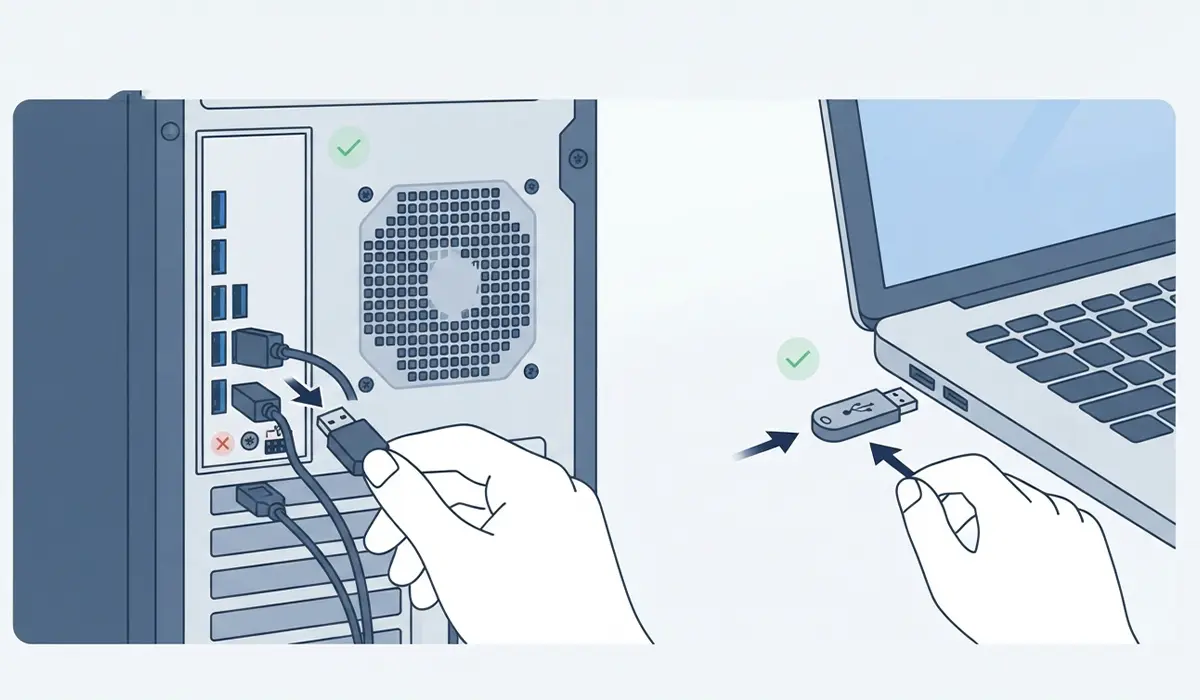
Tip: If the disconnects only happen with one specific device across multiple ports and PCs, the device itself is the most likely point of failure, not the computer.
Common Problems and Fixes
Device Still Disconnects After Disabling Power Management
This usually means the fault is not power related. Move on to testing a different cable and port, and check whether the same device disconnects on a second computer to confirm whether the device itself is failing.
External Hard Drive Disconnects Only During Large Transfers
Large, sustained transfers demand steady power and bandwidth. This points toward an underpowered hub or a USB port that cannot supply enough current, so connecting the drive directly to a rear motherboard port is worth trying first.
USB Device Works on One Port but Not Another
This is a strong sign of a hardware fault in the port itself rather than a driver or software issue, since a driver problem would typically affect all ports the same way.
Reinstalling the Driver Did Not Help
If the controller driver has been reinstalled and the problem continues, check whether a recent Windows update introduced the issue and, where the option exists, roll back that specific update to see if the behavior returns to normal.
Frequently Asked Questions
Why does my USB device disconnect and reconnect randomly?
This is most often caused by USB power management settings turning the port off during brief idle moments, though a failing cable or an outdated driver can produce the same symptom.
Does USB selective suspend cause disconnects?
Yes, this setting can suspend individual devices to save power, and some external drives and audio devices do not resume cleanly, which shows up as a random disconnect.
Can a bad USB cable cause intermittent disconnects?
Yes, a cable with a partially broken wire can maintain a connection under normal conditions but drop out under movement or vibration, so testing with a known-good cable is an important early step.
Why does my USB device disconnect only when transferring large files?
This pattern typically points to a power or bandwidth limitation, especially when the device is connected through an unpowered hub rather than directly to the computer.
Should I use a USB hub or connect directly to the computer?
Connecting directly to a port on the motherboard or laptop chassis is more reliable for power-hungry devices, since a hub, especially an unpowered one, splits available current among every connected device.
Will updating USB drivers fix random disconnects?
It often does, particularly if the disconnects began after a recent Windows update or if Device Manager shows a warning icon next to a USB controller.
Can dust inside a USB port cause disconnects?
Yes, dust or debris can prevent the connector pins from making full contact, which can look identical to a driver or power management issue until the port is cleaned.
Is it safe to disable USB selective suspend permanently?
Yes, this is a safe setting to disable. It may slightly reduce battery life on a laptop, but it will not damage any hardware.
Why does only one USB device disconnect while others work fine?
This usually points to a fault with that specific device or its cable rather than a system-wide issue, since a driver or power problem would typically affect multiple devices at once.
When should a professional be consulted for USB disconnect issues?
If every troubleshooting step above has been tried and the disconnects continue across multiple devices, cables, and ports, the motherboard’s USB controller itself may be failing and a qualified technician should inspect it.
