
Knowing how to safely uninstall software completely means more than clicking ‘Remove’ and moving on. Most programs leave behind folders, registry entries, and background processes that quietly take up space and sometimes cause conflicts with new installs. This guide walks through the full removal process, from the standard Windows method to the manual cleanup steps that actually finish the job.
Key Takeaways
- Start with the built-in Windows uninstaller before touching any files manually.
- Leftover folders, shortcuts, and registry entries are the main reason programs never truly disappear.
- A dedicated uninstaller tool can catch what Windows leaves behind, but it should never replace basic caution.
- Editing the registry carries real risk, so back up first and only remove entries tied to the exact program.
- A restart after uninstalling clears out locked files and refreshes any Startup entries the program left active.
Before You Start
A little prep work prevents most of the headaches that come with a messy uninstall. This applies whether the program is a small utility or something more deeply integrated into the system.
- Close the program completely, including any background processes running in the system tray.
- Create a System Restore point so any unexpected change can be undone in a few clicks.
- Sign in with an administrator account, since some uninstallers refuse to run without those permissions.
- Back up any files, projects, or settings tied to the program if they matter and are not stored elsewhere.
Tip: Programs tied to hardware drivers, security software, or system utilities are worth researching individually before removal, since some require a specific uninstall order to avoid conflicts.
Step-by-Step Guide to Uninstalling Software Completely
Using Windows Settings to Remove the Program
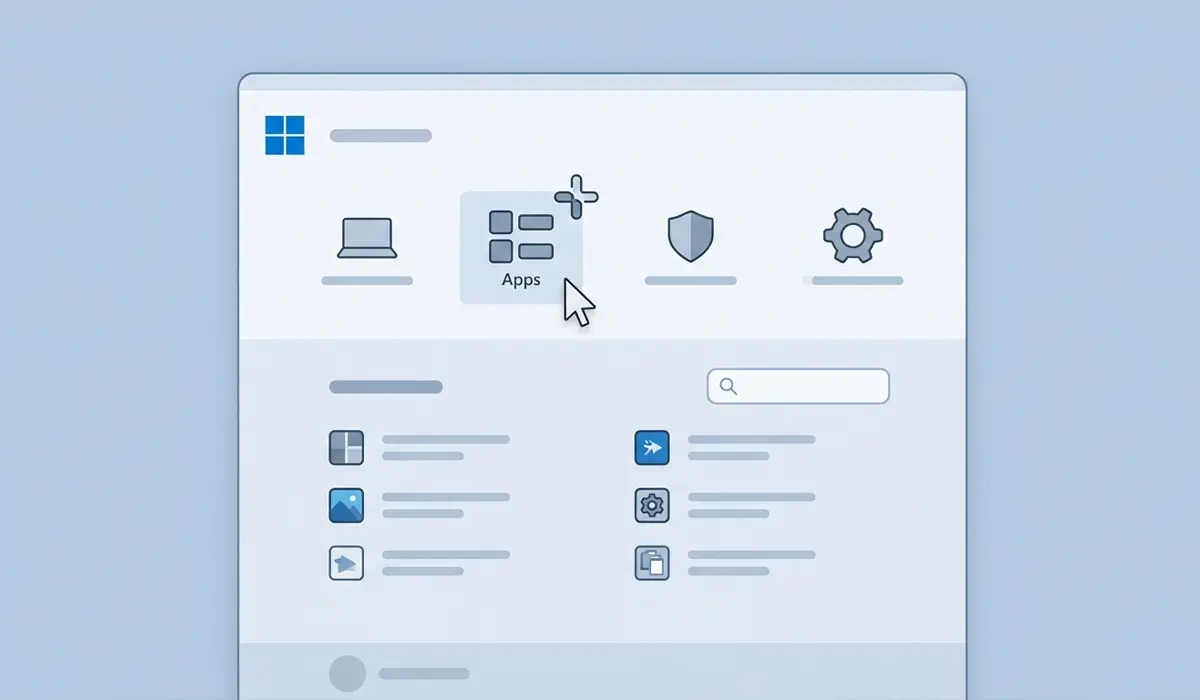
- Step 1: Open Settings and go to Apps, then Installed Apps (or Apps and Features on older versions of Windows).
- Step 2: Find the program in the list, either by scrolling or typing its name into the search box at the top.
- Step 3: Select the three-dot menu next to the program and choose Uninstall, then confirm the action if prompted.
- Step 4: Follow any on-screen prompts from the program’s own uninstall wizard, since many software titles run their own removal process after the initial confirmation.
- Step 5: Restart the computer once the uninstall finishes. This clears out any files that were locked in memory during removal.
Checking for Leftover Files and Folders
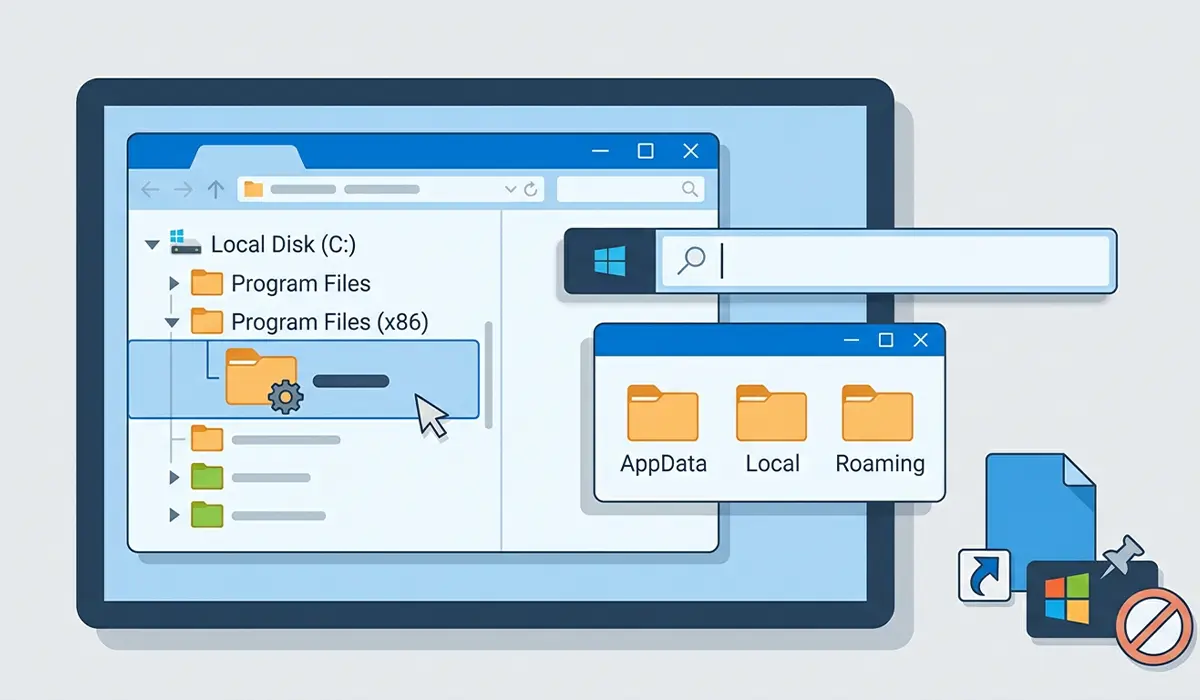
- Step 6: Open File Explorer and check the Program Files and Program Files (x86) folders for a leftover folder bearing the program’s name.
- Step 7: Check the AppData folder, found by typing %appdata% into the File Explorer address bar, along with %localappdata% and %programdata%, since many programs store settings and cache files in these locations.
- Step 8: Delete any leftover folders confirmed to belong to the removed program. Anything unfamiliar or shared with other software is safer left alone.
- Step 9: Remove any desktop shortcuts, Start Menu entries, or taskbar pins that survived the uninstall.
Cleaning the Windows Registry Safely
- Step 10: Press Windows key plus R, type regedit, and press Enter to open the Registry Editor.
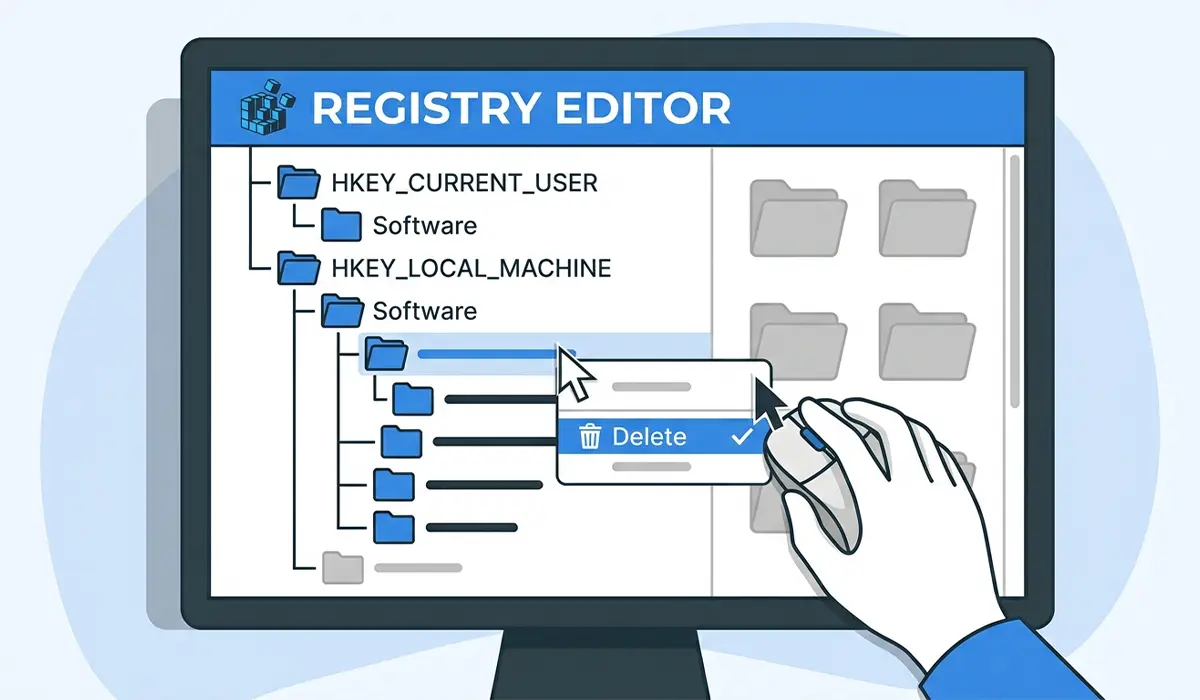
- Step 11: Use Find (Ctrl+F) to search for the program’s name within keys under HKEY_CURRENT_USER\Software and HKEY_LOCAL_MACHINE\Software.
- Step 12: Right-click and delete only the keys that clearly match the program by name and publisher. Skip anything ambiguous or shared with unrelated software.
- Step 13: Close the Registry Editor and restart the computer to apply the changes.
Tip: Manual registry cleanup is optional for most everyday programs. It matters more for software that was reinstalled repeatedly or that left behind conflicting settings from a previous version.
Using a Dedicated Uninstaller Tool
- Step 14: Install a well-known, actively maintained uninstaller utility built specifically for scanning leftover files and registry entries after standard removal.
- Step 15: Run the tool’s scan feature after uninstalling a program through Windows Settings, rather than using it as a replacement for the built-in uninstaller.
- Step 16: Review the scan results before deleting anything, since some tools flag shared components used by other installed programs.
- Step 17: Apply the cleanup, then restart the computer to confirm nothing related to the program is still running.
Common Problems and Fixes
The Program Will Not Uninstall or the Uninstaller Hangs
This usually happens when a background process tied to the program is still running. Open Task Manager, end any related processes, and try the uninstall again. If it still fails, download the software publisher’s official removal tool, since many major vendors provide one specifically for stuck installs.
The Program Disappeared from the List but Files Remain
An interrupted uninstall or a forced removal through Task Manager can leave the program’s folder structure intact even though it no longer shows in Apps and Features. Manually check Program Files, AppData, and the Start Menu folders, then delete what remains once it is confirmed to belong to that program.
Shortcuts or Icons Still Appear After Uninstalling
Leftover shortcuts on the desktop or in the Start Menu are cosmetic and safe to delete directly. Right-click each one and select Delete, since removing a shortcut never affects the actual program files.
A Reinstalled Version of the Program Behaves Strangely
This is often caused by leftover configuration files or registry entries from the previous installation. Uninstall the program again, manually clear its AppData folder and related registry keys, then reinstall it fresh.
The Computer Feels Unstable After Manual Registry Cleanup
If a wrong registry key was deleted, use the System Restore point created earlier to roll the system back to before the cleanup. This is exactly why creating that restore point at the start of the process matters.
Frequently Asked Questions
Is it necessary to clean the registry after every uninstall?
No. Most everyday programs uninstall cleanly enough through Windows Settings alone. Registry cleanup matters more for software that was reinstalled multiple times or left behind conflicting settings.
Can deleting the wrong registry key damage the system?
Yes, which is why only keys clearly matching the program’s name and publisher should be removed, and why a System Restore point should always be created first.
Do third-party uninstaller tools work better than Windows Settings?
They are useful as a follow-up scan for leftover files and registry entries, but the built-in Windows uninstaller should always be used first to trigger the program’s own removal process.
Why does a program still appear in Apps and Features after being deleted manually?
Windows Settings reads from registry entries, not just the file system. Deleting program files without removing the matching registry key leaves a leftover listing behind.
Is it safe to delete anything found in the AppData folder?
Only folders clearly named after the uninstalled program should be deleted. Shared or unfamiliar folders may belong to other software or system components.
What should happen if an uninstaller freezes partway through?
End the process through Task Manager, restart the computer, and try again. If it keeps freezing, the software publisher’s official removal tool usually resolves it.
Does uninstalling a program remove its Startup entry automatically?
Usually, yes. If a Startup entry still appears afterward, it can be disabled manually through Task Manager’s Startup Apps tab.
Is a restart really necessary after uninstalling software?
Yes, in most cases. A restart clears out files that were locked in memory during the uninstall and finalizes any changes the process made to the registry.
Can uninstalling one program accidentally affect another?
It can, if the two programs share a common component or runtime library. This is why shared or ambiguous files and registry keys should be left alone during manual cleanup.
Is there a risk to warranty or system stability from manual cleanup?
Manual file and registry cleanup does not affect hardware warranty, but it does carry a small risk of system instability if unrelated files are removed. Sticking closely to files and keys tied to the specific program keeps that risk minimal.
