
Audio only coming from one speaker is one of the most common sound complaints on both desktops and laptops, and it almost always traces back to a setting, a cable, or a driver rather than a dead speaker. This guide walks through the exact causes and the fixes in order, starting with the quickest checks first. Most people can solve this in under ten minutes without opening the device at all.
Key Takeaways
- Lopsided audio balance settings are the single most common cause and take seconds to fix.
- Loose or partially inserted cables cause one-sided sound on both wired speakers and headphones.
- Outdated or corrupted audio drivers can shift sound entirely to one channel.
- Testing with a second pair of headphones or speakers quickly rules hardware in or out.
- A failing internal laptop speaker is possible but should be the last thing checked, not the first.
Common Causes of Audio Coming From Only One Speaker
Before jumping into fixes, it helps to understand what typically causes this. The list below is ordered roughly from most to least likely.
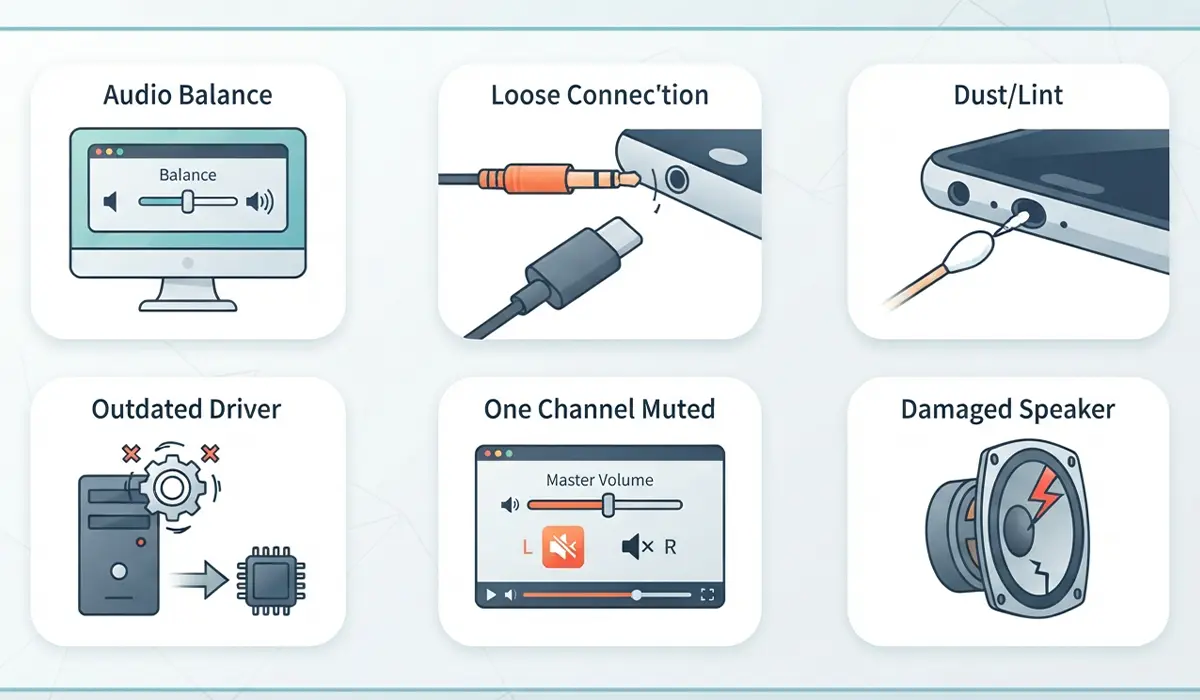
- The left/right balance slider in sound settings has drifted away from center.
- A 3.5mm cable, USB connector, or Bluetooth pairing is loose or partially seated.
- Dust or lint has built up inside a headphone jack or speaker port.
- The audio driver is outdated, corrupted, or was recently updated with a bug.
- One channel is muted at the app or system level rather than the whole device.
- The physical speaker itself has a damaged cone, connector, or amplifier component.
Before You Start
Most of the steps below involve software settings, but a couple involve inspecting a physical port. For those, power the device off or at least close any running audio, and let the device cool down if it has been running heavy tasks. If a port needs a closer look, a small flashlight and a can of compressed air are the only tools needed. Skip anything involving liquids near a port, since even a tiny amount of moisture can damage the contacts inside.
How to Fix Audio Only Coming From One Speaker
Work through these steps in order. Each one rules out a specific cause, so stopping as soon as sound returns to both sides saves time.
Step-by-Step Fixes
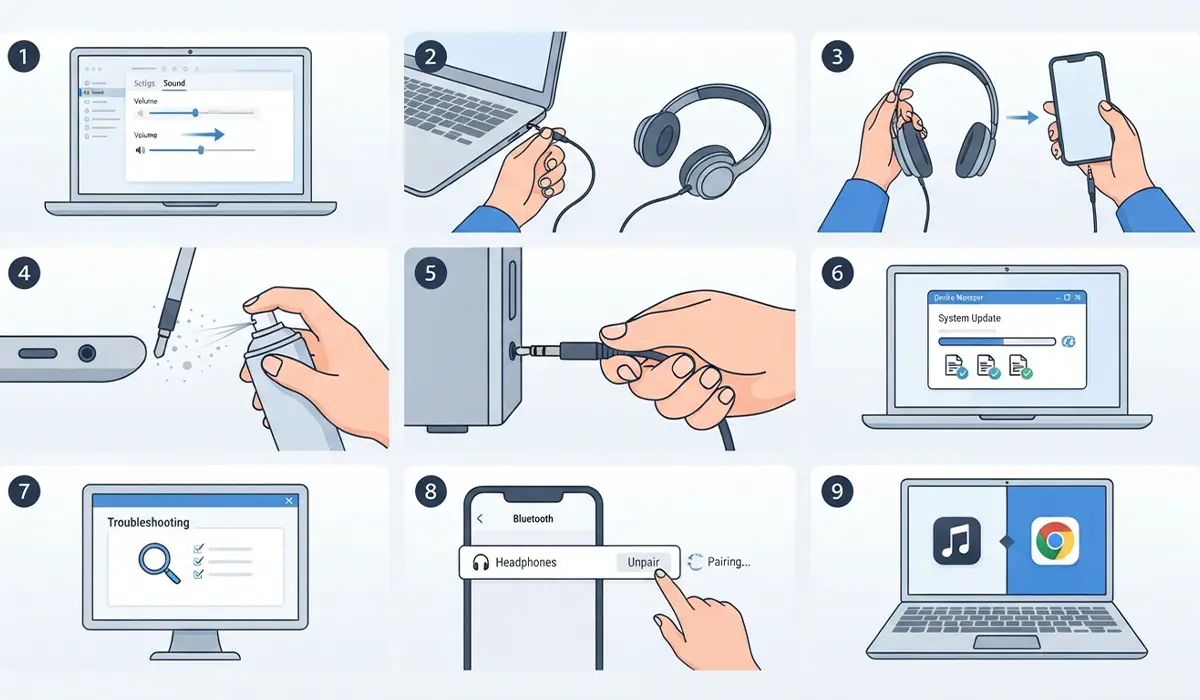
- Step 1: Open the sound settings panel (Settings > System > Sound on Windows, or System Settings > Sound on macOS) and check the left/right balance slider. If it sits anywhere other than dead center, drag it back and test audio again.
- Step 2: Swap in a different pair of headphones or a different set of speakers using the same port or connection. If the new hardware plays correctly on both sides, the original headphones or speakers are the problem, not the computer.
- Step 3: Test the same headphones or speakers on a different device, such as a phone. If the one-sided issue follows the hardware, it confirms a physical fault in the headphones or speaker cable rather than the computer.
- Step 4: Inspect the audio jack or port for lint, dust, or bent pins using a flashlight. Clear debris gently with a few short bursts of compressed air held at a slight angle, never inserting anything solid into the port.
- Step 5: Reseat the connection fully. A cable that looks plugged in can still be a millimeter short of a full seat, and that alone is enough to lose one channel.
- Step 6: Update the audio driver through Device Manager on Windows or by checking for macOS system updates. An outdated or glitchy driver can misroute channels even when the hardware is fine.
- Step 7: Run the built-in audio troubleshooter (Settings > System > Sound > Troubleshoot on Windows) to catch muted channels or misconfigured default devices automatically.
- Step 8: For Bluetooth speakers or headphones, unpair and re-pair the device completely. A stale Bluetooth profile occasionally locks in a one-sided audio glitch that a fresh pairing clears.
- Step 9: If it is a laptop’s built-in speaker, play audio through only one app at a time and check whether the imbalance happens system-wide or only in specific software, which points to an app setting rather than hardware.
Tip: Testing with a mono audio test tone, easily found through a quick search, makes it much easier to hear whether the issue is a true hardware fault or just a balance setting, since a properly centered system should play a mono tone evenly on both sides.
Common Problems and Fixes
Balance is centered but sound is still one-sided
Check for a separate balance or panning control inside the specific app being used, such as a media player or game, since app-level settings can override the system balance.
Sound works fine with headphones but not with speakers
This usually points to the speaker cable or the speaker’s own connector rather than the computer’s audio output. Test the speakers on another source to confirm before assuming a computer-side problem.
Audio returns to one side after every restart
A driver is likely resetting an incorrect default on boot. Reinstalling the driver completely, rather than just updating it, usually clears this for good.
One Bluetooth earbud plays audio and the other stays silent
This is typically a pairing or battery sync issue between the two earbuds rather than a computer problem. Placing both earbuds back in their case for a full reset often resolves it.
External speaker still silent after a driver update and cable check
At this point a failed amplifier or blown speaker component inside that unit is the most likely explanation, and replacement is usually more practical than a repair attempt.
Frequently Asked Questions
Why is audio only coming out of one speaker on my laptop?
The most common reasons are a shifted balance setting, an outdated audio driver, or a loose connection if external speakers or headphones are involved. Working through balance settings first solves the majority of cases.
How do I fix uneven speaker balance on Windows?
Open Settings, go to System, then Sound, select the device, and look for the balance or levels option. Adjust the slider so both left and right channels are set equally, usually at the center point.
Why does one earbud or headphone side stop working suddenly?
This is often caused by a loose connection at the plug, a damaged cable near the connector, or a pairing glitch on wireless models. Testing the same earbuds on another device quickly confirms whether the fault is in the hardware.
Can a driver update cause one-sided audio?
Yes. A corrupted or buggy audio driver can misroute audio channels even though the physical hardware works perfectly. Reinstalling the driver rather than just updating it often fixes this.
Is one-sided audio always a sign of a broken speaker?
No. Hardware failure is actually one of the less common causes. Software settings, loose cables, and driver issues account for most cases, so those should be ruled out first.
How can I tell if the problem is the speaker or the computer?
Test a different pair of speakers or headphones on the same computer, and test the original speakers or headphones on a different device. Whichever side the problem follows points to the actual source of the fault.
Does cleaning the headphone jack actually help?
It can, especially if lint or dust is preventing a full connection inside the port. A few short bursts of compressed air held at an angle is usually enough to clear it safely.
Why does sound work in one app but not another?
Some applications have their own internal balance or audio channel settings that override the system-wide configuration. Checking the audio settings inside the specific app is worth doing if the system settings look correct.
Can Bluetooth cause one-sided audio specifically?
Yes, particularly with true wireless earbuds, where each ear connects somewhat independently. Unpairing and re-pairing the device, or resetting both earbuds in their charging case, typically resolves this.
When should a speaker be replaced instead of repaired?
If every software and connection fix has been tried and the same speaker or side remains silent, especially after confirming the fault follows the hardware across multiple devices, replacement is usually the more practical option than attempting an internal repair.
