
Knowing how to check motherboard model and version comes in handy when shopping for a BIOS update, a RAM upgrade, or a replacement part. Most people never need to open their PC to find this information, since Windows already has a few built-in tools that reveal it in seconds.
Key Takeaways
- The fastest method uses the System Information tool built into Windows.
- Command Prompt and PowerShell can pull the same details without any extra software.
- Third-party tools show more advanced specs, including chipset and BIOS version.
- Physically checking the board is a last resort and only needed in rare cases.
- The motherboard model determines which BIOS updates, drivers, and RAM types are compatible.
Before You Start
Most of the steps below are done entirely through software, so no tools or disassembly are needed. Only the final method, which involves physically inspecting the board, requires opening the case. If that route is necessary, power down the PC completely, unplug it from the wall, and touch a bare metal part of the case or use an anti-static wrist strap before touching any internal components. Opening a laptop or prebuilt desktop may void its warranty, so check the warranty terms first if the device is still covered.
How to Check Motherboard Model and Version
Method 1: Use System Information
This is the quickest way to check motherboard model and version, and it works on every modern version of Windows.
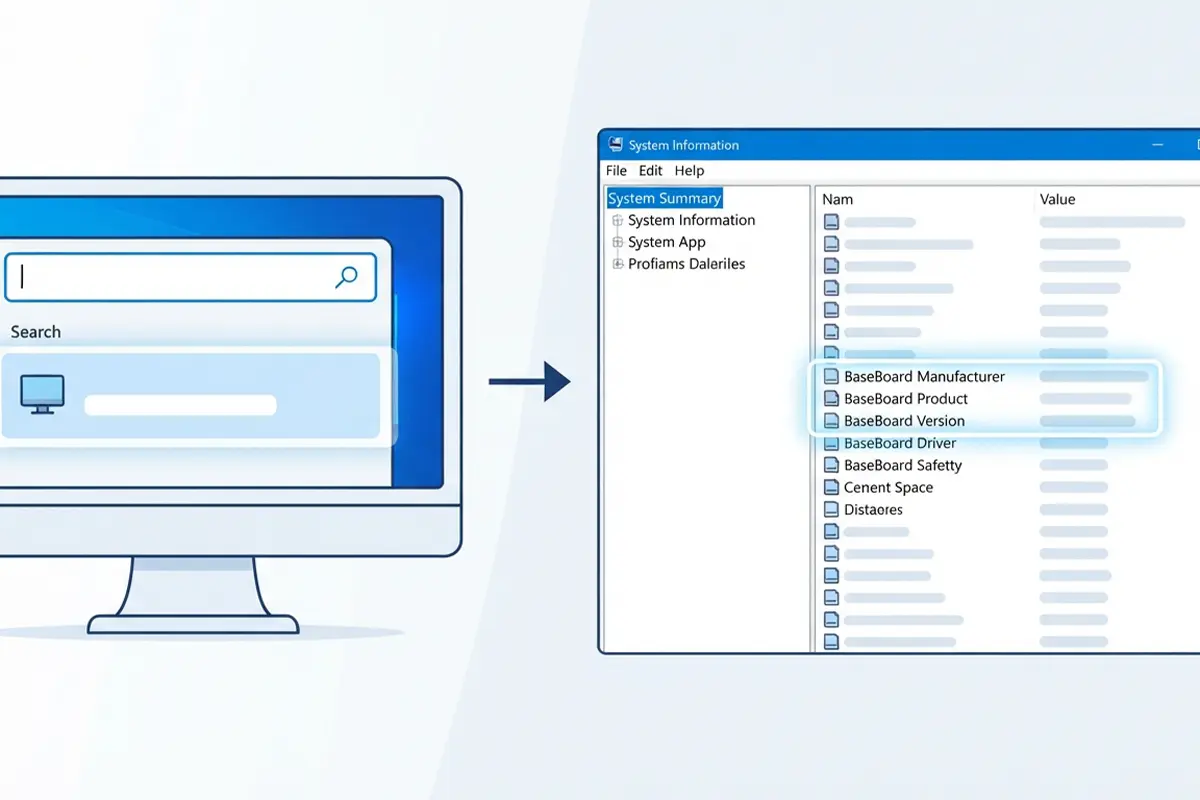
- Step 1: Press the Windows key, type ‘System Information’, and open the app from the search results.
- Step 2: In the left panel, click ‘System Summary’ if it is not already selected.
- Step 3: Look for ‘BaseBoard Manufacturer’, ‘BaseBoard Product’, and ‘BaseBoard Version’ in the right-hand list. These three fields together identify the motherboard maker, model, and revision.
Tip: If the BaseBoard fields show ‘To be filled by O.E.M.’ or something similarly vague, the manufacturer likely used a generic BIOS label. In that case, Method 2 or Method 4 usually returns cleaner results.
Method 2: Use Command Prompt
Command Prompt pulls the same underlying data as System Information but displays it faster for anyone comfortable typing a command.
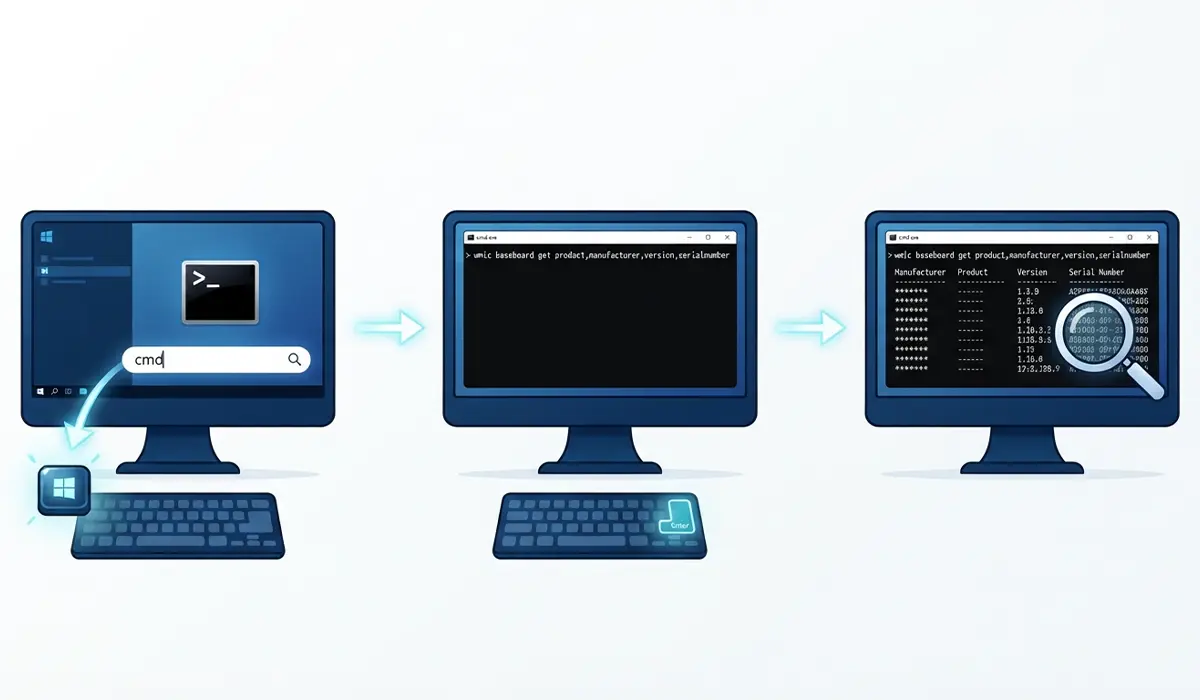
- Step 1: Press the Windows key, type ‘cmd’, and open Command Prompt.
- Step 2: Type wmic baseboard get product,manufacturer,version,serialnumber and press Enter.
- Step 3: Read the results. The output lists the manufacturer, the product name (this is the model), the version string, and the serial number in separate columns.
This method works well for anyone scripting a system inventory or troubleshooting several machines at once, since the output can be copied directly into a spreadsheet or support ticket.
Method 3: Use PowerShell
PowerShell offers a more modern alternative for users who prefer it over the classic command line.
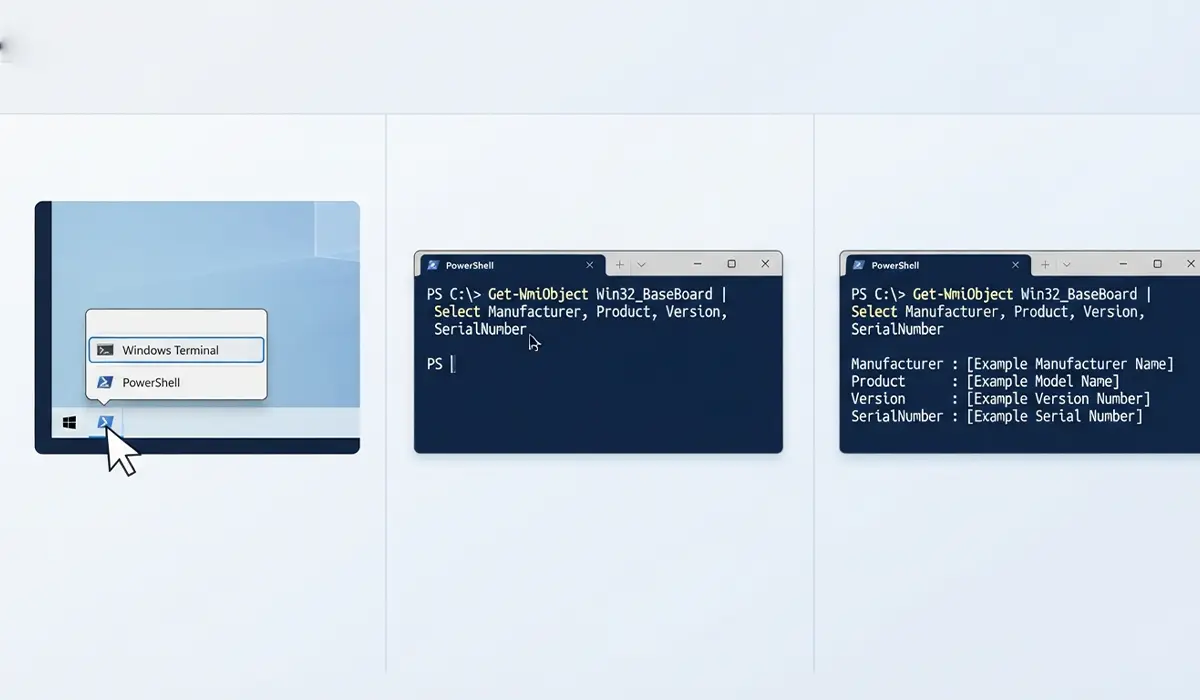
- Step 1: Right-click the Start button and select ‘Windows Terminal’ or ‘PowerShell’.
- Step 2: Type Get-WmiObject Win32_BaseBoard | Select Manufacturer, Product, Version, SerialNumber and press Enter.
- Step 3: Review the returned values, which match the manufacturer, model, and version shown in the other methods.
Method 4: Use a Third-Party Diagnostic Tool
Free hardware information utilities often reveal more detail than Windows does on its own, including the chipset, socket type, and current BIOS version. These tools scan the board’s firmware directly and display it in an easy-to-read summary screen, usually under a tab labeled ‘Motherboard’ or ‘Mainboard’. This route works especially well for anyone who also wants to confirm the installed BIOS version before attempting a firmware update, since flashing the wrong file can leave a board unable to boot.
Tip: Cross-check the model number pulled from any of these tools against the manufacturer’s official support page before downloading a BIOS update. A single wrong digit in the model number can lead to installing firmware meant for a completely different board.
Method 5: Check the BIOS or UEFI Setup Screen
- Step 1: Restart the computer and press the key shown on the boot screen (commonly Delete, F2, or F10) to enter BIOS or UEFI setup.
- Step 2: Look at the main or ‘Overview’ screen, where most manufacturers display the board model and current BIOS version near the top.
- Step 3: Exit without saving changes once the information has been noted.
Method 6: Physically Inspect the Motherboard
This method is rarely necessary, but it works when the PC will not boot at all and no software methods are available. The model number and revision are almost always printed directly on the board itself, often near the RAM slots or the PCIe connectors.
- Step 1: Power down the PC, unplug it, and press the power button once more to release any remaining charge.
- Step 2: Open the case following the manufacturer’s access panel instructions, and ground against bare metal before touching anything inside.
- Step 3: Use a flashlight to locate the printed model number and revision, which is typically silkscreened onto the board or printed on a small sticker.
Common Problems and Fixes
The BaseBoard fields show generic placeholder text
This happens on many prebuilt desktops and laptops where the manufacturer did not fill in standard BIOS fields. Switching to a third-party diagnostic tool or checking the physical board usually resolves this.
Command Prompt returns no output or an error
This can happen if the wmic command is mistyped or if the wmic feature has been deprecated on a newer Windows build. Trying the PowerShell method instead almost always solves it.
The model number does not match anything on the manufacturer’s website
Many boards have several revisions of the same base model, such as an added letter or number at the end. Checking the ‘Version’ field alongside the model number, not just the model alone, usually clears up the confusion.
A laptop shows a motherboard name that does not match the laptop brand
Many laptop manufacturers use motherboards built by a separate original design manufacturer, so the board name and laptop brand can differ. In that case, the laptop’s own model number, not the motherboard name, is what matters for driver and support purposes.
Frequently Asked Questions
Why would someone need to check their motherboard model and version?
The model and version determine which BIOS updates, drivers, and replacement parts are compatible with the board, which matters most when upgrading RAM, troubleshooting a hardware issue, or contacting support.
Does checking the motherboard model require opening the PC?
No. Software tools built into Windows, along with the BIOS setup screen, reveal this information without ever opening the case.
What is the difference between motherboard model and motherboard version?
The model identifies the specific board design, while the version (sometimes called a revision) indicates a minor hardware change made after the original release, which can affect compatibility with certain BIOS files.
Can this method be used on a laptop?
Yes. System Information, Command Prompt, and PowerShell all work the same way on laptops, though the motherboard brand shown may differ from the laptop’s own brand.
Why does the motherboard name not match the PC manufacturer’s name?
Many laptop and prebuilt desktop manufacturers use motherboards designed and built by a separate company, so the internal board name can differ from the outward brand.
Is it safe to run the wmic command in Command Prompt?
Yes, this command only retrieves information and does not change any system settings, so there is no risk involved in running it.
What should be done with the motherboard model once it is found?
Searching the exact model and version on the manufacturer’s official support page brings up the correct BIOS updates, drivers, and technical specifications for that board.
Why is the BIOS version important alongside the model number?
BIOS updates are built for specific board revisions, so installing a mismatched update can cause boot failures. Confirming both the model and current BIOS version before updating helps avoid this.
Do third-party diagnostic tools work on all versions of Windows?
Most reputable hardware information tools support all currently maintained versions of Windows, though it is worth confirming compatibility on the tool’s official download page before installing it.
What if none of the software methods reveal the motherboard information?
This is uncommon, but physically inspecting the printed model number on the board itself, following proper anti-static precautions, will always show the accurate model and revision.
