
USB port power delivery issues show up as devices that charge slowly, disconnect randomly, or refuse to power on at all when plugged in. Most of the time, the fix does not require replacing the port or the motherboard – it comes down to power management settings, drivers, or a cable that is not up to the job. This guide walks through the real causes and the fixes that resolve them in order of likelihood.
Key Takeaways
- Windows power management settings often shut down USB ports to save battery, which mimics a hardware failure.
- A worn or underrated cable is one of the most common reasons a device gets recognized but will not charge properly.
- Outdated or corrupted USB controller drivers cause intermittent power delivery, especially after a Windows update.
- USB-C ports have their own power negotiation process, so a bad adapter or non-compliant cable can limit wattage even when the port itself is fine.
- Most fixes take under ten minutes and do not require opening the case or laptop chassis.
Common Causes of USB Port Power Delivery Issues
Before jumping into fixes, it helps to understand what is actually happening. A USB port delivering inconsistent or no power usually traces back to one of these areas.
Power Management Settings Cutting Power to Save Energy
Windows includes a setting that lets the operating system turn off USB ports when they are not actively being used, mainly to extend battery life on laptops. This setting is convenient for saving power, but it often mistakes a charging phone or peripheral for an idle device and cuts power mid-session.
Cables That Cannot Handle the Load
Not every USB cable is built the same. A cable designed for data transfer only may carry a lower current than one rated for charging, and a cable with worn or frayed internals can lose conductivity over time. This is one of the most overlooked causes, since the cable often looks fine on the outside while the wiring inside has degraded.
Outdated or Corrupted USB Controller Drivers
The USB controller driver manages how power is negotiated and delivered to every connected device. When this driver is outdated, corrupted, or conflicting with a recent Windows update, ports can behave unpredictably – working for some devices and not others, or working intermittently.
USB-C Power Delivery Negotiation Failures
USB-C ports that support Power Delivery (PD) go through a handshake process with the connected device to agree on voltage and current. If the cable, adapter, or device does not fully support this negotiation, the port may default to a lower power mode or refuse to charge at all, even though the port hardware is working correctly.
Physical Port Damage or Debris
Bent pins, loose port housings, and built-up lint or dust can all interrupt the physical connection needed for stable power delivery. This is more common on ports that see daily use, like a laptop’s primary charging port.
Insufficient Power Budget on Hubs or Docks
Unpowered USB hubs and docks split whatever power budget the host port provides. Plugging in several power-hungry devices at once can exceed that budget, causing one or more devices to drop power or fail to charge.
Before You Start
Most of these fixes are software-based and need no special tools. For the physical inspection step later in this guide, keep a few basics nearby:
- Compressed air or a soft brush for clearing debris from the port.
- A flashlight to check for bent pins or damage inside the port.
- A known-good, rated USB cable to rule out cable failure.
Power down the device before inspecting a port directly, and avoid inserting anything metal into the port to clean it, since this risks bending internal contacts. If a port shows visible damage, melted plastic, or a burning smell, stop and have it inspected by a professional rather than continuing to use it.
How to Fix USB Port Power Delivery Issues
Fix 1: Disable USB Selective Suspend
- Step 1: Open the Start menu and search for ‘Edit power plan’, then select ‘Change advanced power settings’.
- Step 2: Scroll to ‘USB settings’ and expand ‘USB selective suspend setting’.
- Step 3: Set both ‘On battery’ and ‘Plugged in’ options to ‘Disabled’.
- Step 4: Click ‘Apply’, then ‘OK’, and restart the computer to let the change take effect.
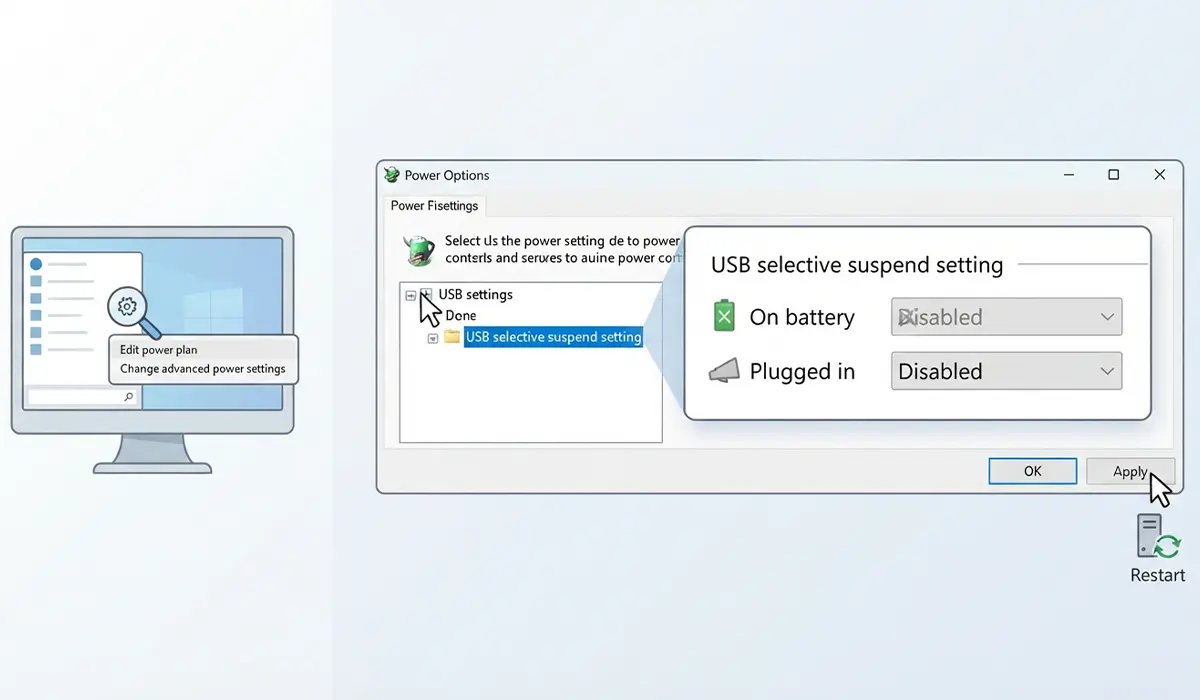
Tip: This setting is one of the most common culprits for ports that randomly stop delivering power on laptops, since it is enabled by default to save battery.
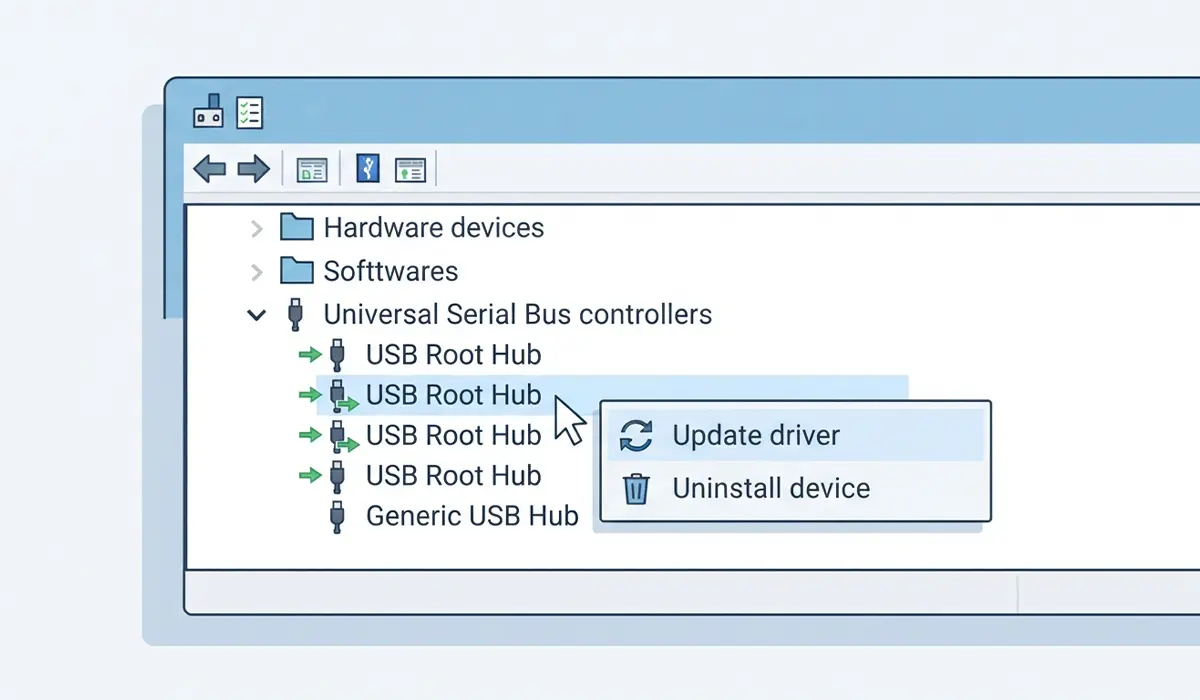
Fix 2: Update or Reinstall the USB Controller Driver
- Step 1: Right-click the Start button and open ‘Device Manager’.
- Step 2: Expand ‘Universal Serial Bus controllers’.
- Step 3: Right-click each ‘USB Root Hub’ and ‘Generic USB Hub’ entry, then select ‘Update driver’ and choose the automatic search option.
- Step 4: If updating does not help, right-click the same entries and choose ‘Uninstall device’, then restart the computer so Windows reinstalls the drivers fresh.
Fix 3: Test With a Different, Rated Cable
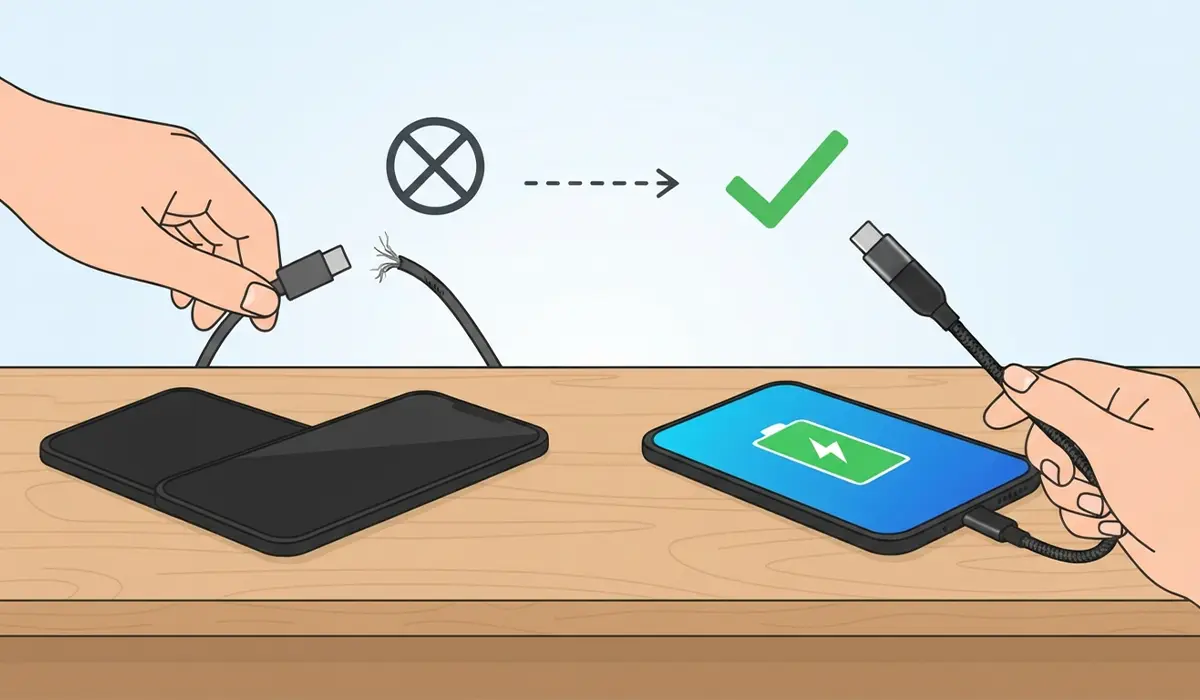
- Step 1: Swap in a cable known to support charging, ideally one that came with the device or a well-known replacement.
- Step 2: Plug the device into the same port and observe whether power delivery is stable.
- Step 3: If the new cable resolves the issue, retire the old one, since a cable that fails intermittently rarely improves over time.
Fix 4: Check for USB-C Power Delivery Compatibility
- Step 1: Confirm that both the cable and the power adapter are rated for USB Power Delivery, not just USB-C connector shape.
- Step 2: Try the device with the original charger or adapter it shipped with, if available.
- Step 3: If the device charges normally with its original adapter but not with a third-party one, the issue is compatibility rather than the port itself.
Tip: A USB-C cable that only supports data transfer will still fit and appear to connect, which is why so many people assume the port is at fault when the cable is actually the limiting factor.
Fix 5: Inspect the Port for Debris or Damage
- Step 1: Power down the device and unplug it from any power source.
- Step 2: Use a flashlight to look inside the port for bent pins, lint, or dust buildup.
- Step 3: Clear any debris gently with compressed air or a soft, dry brush, without inserting anything rigid into the port.
- Step 4: Reconnect the device and test power delivery again.
Fix 6: Reduce the Load on Hubs and Docks
- Step 1: Disconnect other devices from the hub or dock and test the affected device on its own.
- Step 2: If it powers correctly alone, the shared power budget was likely the issue.
- Step 3: Where possible, switch to a powered hub that has its own external power supply instead of drawing everything from the host port.
Common Problems and Fixes
- Device charges only when the laptop is on, not in sleep mode: This is normal for most laptops unless the device explicitly supports charging in sleep, which is usually a separate BIOS or manufacturer setting.
- Port works for data but not for charging: This points to a cable or adapter that lacks power delivery support rather than a port failure, since data and power lines are separate within the connector.
- Issue appears only after a Windows update: Roll back the USB controller driver through Device Manager’s ‘Roll Back Driver’ option if it is available, since some updates introduce temporary driver conflicts.
- Power delivery works on one port but not an identical port nearby: This usually indicates a physical fault in that specific port rather than a system-wide setting, and may need professional repair if cleaning does not help.
Frequently Asked Questions
Why does my USB port stop charging my phone randomly?
This is most often caused by the USB selective suspend setting in Windows, which powers down idle-looking ports to save battery. Disabling it in the advanced power plan settings usually resolves the issue.
Can a bad cable cause power delivery issues even if data transfer still works?
Yes. USB cables carry separate wires for data and power, so a cable can transfer data normally while its power wiring has degraded or was never rated for higher current in the first place.
Does USB-C always support fast charging?
No. The USB-C connector shape does not guarantee Power Delivery support. Both the cable and the adapter need to be explicitly rated for USB PD to deliver higher wattage.
Is it safe to clean a USB port with compressed air?
Yes, compressed air is one of the safer methods for clearing dust and lint from a port, as long as the device is powered off first and the air is used in short bursts rather than one continuous blast.
Why does a USB hub cause power delivery problems?
Unpowered hubs split the power budget of the single host port among every connected device. Plugging in multiple power-hungry devices at once can exceed that budget and cause one or more of them to lose power.
Should USB selective suspend be disabled for desktops too?
It can be, though the setting matters less on a desktop since there is no battery to preserve. Disabling it is still a safe troubleshooting step if a desktop’s USB ports are behaving inconsistently.
Can outdated drivers really cause power issues, not just connection problems?
Yes. The USB controller driver manages both data and power negotiation, so a corrupted or outdated driver can cause a port to fail at delivering consistent power even while detecting the device is present.
Why does my laptop charge slowly through USB-C but fine through the original charger?
This typically means the USB-C source, whether it is a computer port or a third-party adapter, is not negotiating the full Power Delivery wattage the device needs, often due to cable or adapter limitations rather than a fault in the laptop.
How do I know if a USB port is physically damaged versus a software issue?
If the problem is isolated to one specific port while others on the same device work normally, and cleaning or a different cable does not help, that points toward physical damage rather than a driver or settings issue.
When should a USB port be repaired professionally instead of troubleshooted at home?
If a port shows visible damage, loose housing, bent pins that cannot be safely straightened, or any sign of burning, it is time to stop troubleshooting and have it inspected or repaired by a professional.
