
Knowing how to clean install Windows 11 step by step is the most dependable way to clear out slow performance, stubborn errors, and leftover software. A clean install erases the target drive and puts down a fresh copy of Windows, so the PC starts from a known good state. All it takes is a USB drive, a solid backup, and a little patience.
Key Takeaways
- A clean install wipes the selected drive, so a full backup of personal files comes first.
- The official Media Creation Tool from Microsoft builds the bootable USB installer.
- Choosing Custom install and deleting the old partitions gives the truly fresh start.
- A PC that was already activated usually reactivates on its own once it connects to the internet.
- Windows Update and the manufacturer drivers should be installed right after setup finishes.
Before You Start
A little preparation prevents nearly every problem people run into during a reinstall. Think of it like moving house: it goes smoothly when the boxes are packed before the truck arrives.
Check the Basics
- Back up documents, photos, browser bookmarks, and anything else worth keeping to an external drive or cloud storage. Everything on the target drive will be erased.
- Confirm the PC meets the Windows 11 requirements: a 64-bit processor, 4 GB of RAM or more, 64 GB of storage or more, UEFI firmware with Secure Boot capability, and TPM 2.0.
- Plug a laptop into its charger for the entire process. A battery dying mid-install can corrupt the setup.
- Write down license keys for any paid software that needs one to be reactivated later.
Tools and Materials
- A USB flash drive with at least 8 GB of capacity that holds nothing important, because it will be erased.
- A working PC with internet access to download the installer. This can be the same PC being reinstalled.
- A second USB drive or another PC for network and storage drivers, in case the new installation cannot find the Wi-Fi adapter or drive.
Tip: Download the Wi-Fi, Ethernet, and chipset drivers from the PC or laptop manufacturer’s support page before wiping anything. A fresh Windows install without a network driver can be a frustrating dead end.
One honest caution: if the PC holds data that exists nowhere else and cannot be backed up, a data recovery professional should look at it before anything gets wiped. Deleting partitions cannot be undone.
How to Clean Install Windows 11 Step by Step
Create the Windows 11 Installation USB
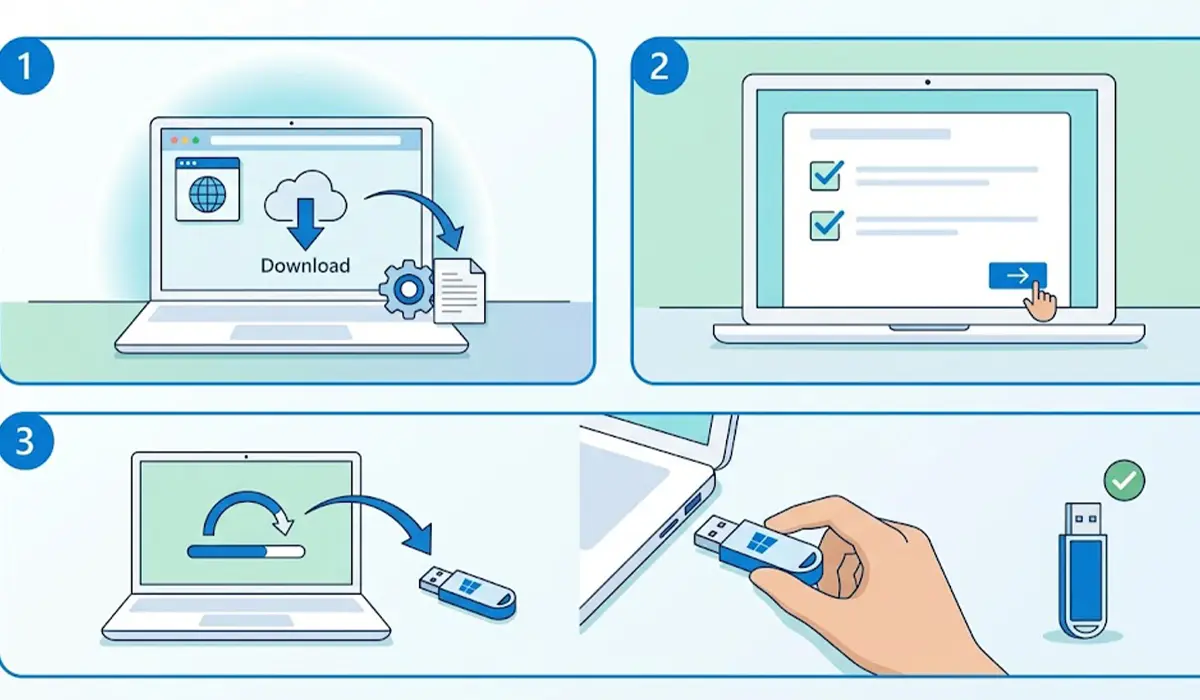
- Step 1: Open the official Microsoft Windows 11 download page on a working PC and download the Media Creation Tool. Using only the official source avoids tampered installers.
- Step 2: Run the tool, accept the license terms, and confirm the language and edition. Leave the recommended options selected unless a different language is needed.
- Step 3: Choose the USB flash drive option, select the correct drive from the list, and let the tool download Windows 11 and write it to the drive. Wait until the tool reports that the USB drive is ready.
Boot the PC From the USB Drive
- Step 4: Plug the USB drive into the PC being reinstalled and restart it. While the manufacturer logo appears, tap the boot menu key. This is commonly F12, F10, F9, Esc, or F2 depending on the brand, and the startup screen often lists the right key.
- Step 5: Pick the USB drive from the boot menu. If both a regular and a UEFI entry for the drive appear, the UEFI entry is the right one.
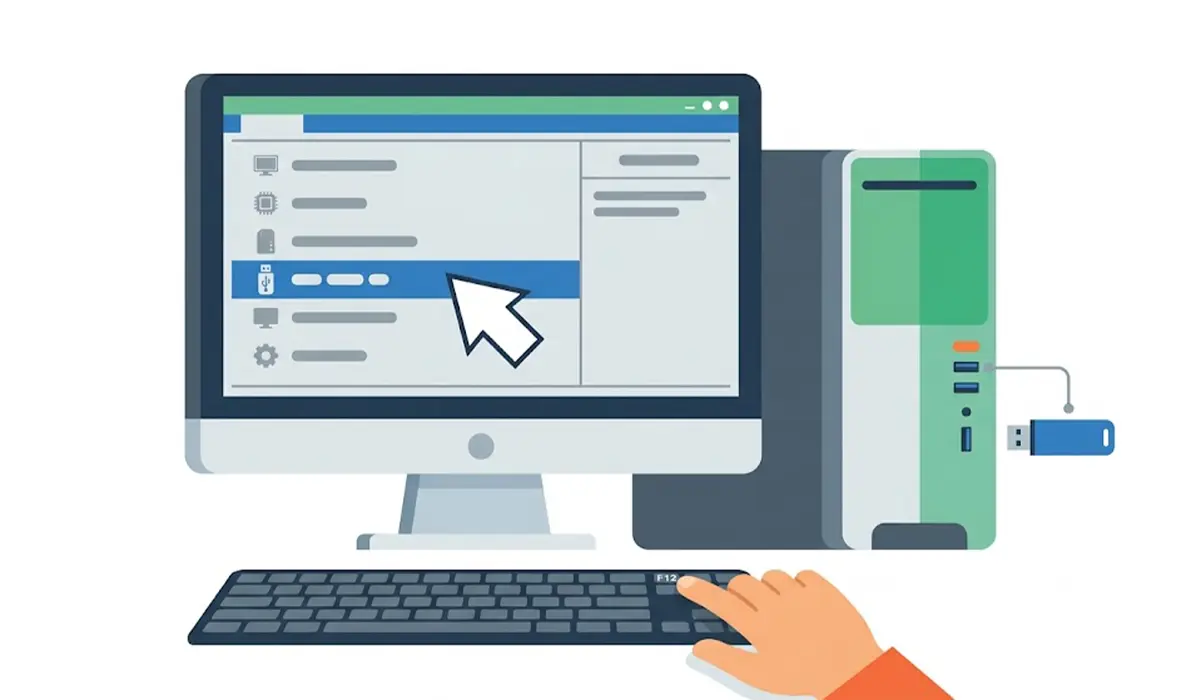
Tip: If Windows still boots and the boot key is hard to catch, open Settings, go to System, then Recovery, select Restart now next to Advanced startup, and choose Use a device to boot from the USB drive.
Run Windows 11 Setup
- Step 6: On the first setup screen, confirm the language, time and currency format, and keyboard layout, then select Next followed by Install now.
- Step 7: When asked for a product key, enter one if available. A PC that already ran an activated copy of Windows can use the option stating there is no product key, and it should reactivate automatically once online.
- Step 8: If prompted to pick an edition, choose the same one that was installed before, such as Home or Pro, so the existing digital license matches.
- Step 9: Accept the license terms and select Next.
- Step 10: Choose Custom: Install Windows only (advanced). The upgrade option keeps old files and settings, which defeats the purpose of a clean install.
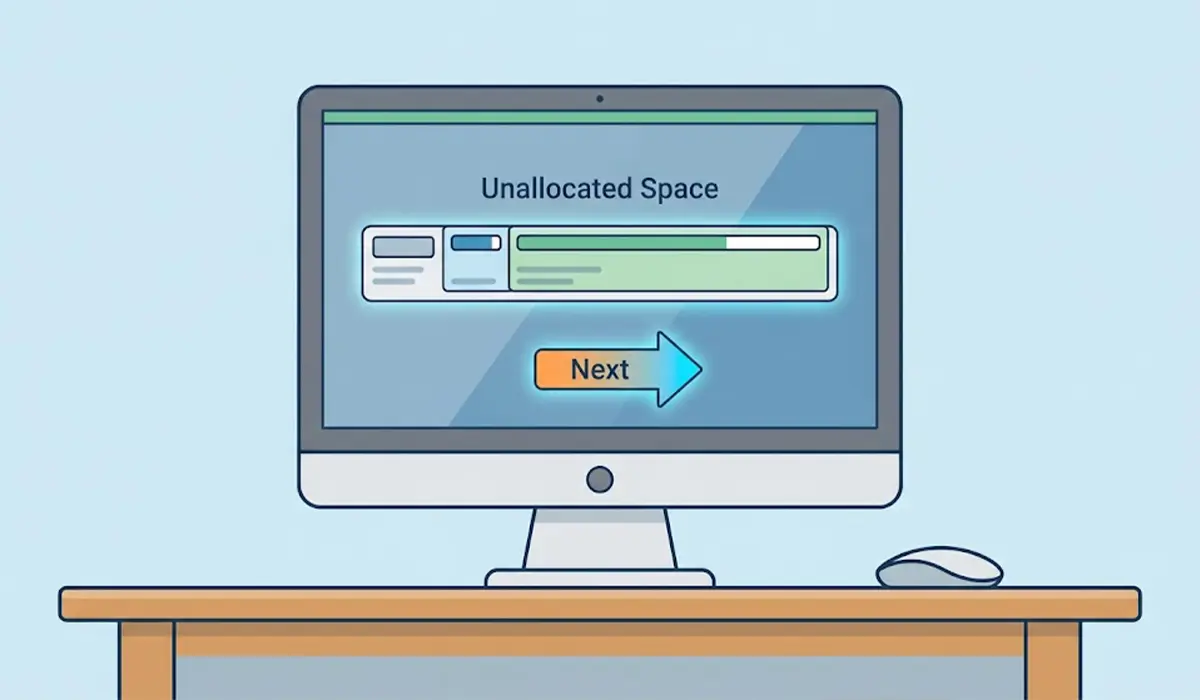
- Step 11: On the drive selection screen, identify the drive that holds the old Windows installation, usually Drive 0. Select each partition on that drive and choose Delete until only a single block of Unallocated Space remains. Double-check the drive size first, because deleting partitions on the wrong drive erases that data.
- Step 12: Select the Unallocated Space and choose Next. Windows creates the needed partitions on its own and starts copying files.
- Step 13: Let the PC restart as many times as it needs. If the setup screen appears again after a restart, unplug the USB drive and restart so the PC boots from the internal drive.
Finish the Initial Setup
- Step 14: Work through the setup screens: choose the region and keyboard layout, connect to a network, name the device if asked, and sign in with a Microsoft account or follow the prompts for the available account options.
- Step 15: Review the privacy settings screen and switch off anything unwanted, then continue to the desktop.
Update, Activate, and Restore
- Step 16: Open Settings, go to Windows Update, and select Check for updates. Repeat until no more updates appear, since some arrive only after earlier ones install.
- Step 17: In Windows Update, open Advanced options, then Optional updates, and install any driver updates offered. Then install the chipset, graphics, and audio drivers from the manufacturer’s support page if they are missing.
- Step 18: Open Settings, go to System, then Activation, and confirm that Windows shows as activated.
- Step 19: Copy the backed-up files back to the PC, then reinstall apps one at a time, downloading each from its official source.
Common Problems and Fixes
The USB Drive Does Not Show Up in the Boot Menu
Try a different USB port, preferably one directly on the PC rather than a hub. If the drive still does not appear, re-create it with the Media Creation Tool. Also check the firmware settings to make sure USB boot is enabled and that the drive is listed in the boot order.
The Message ‘This PC Can Not Run Windows 11’ Appears
This usually points to TPM or Secure Boot being turned off in the firmware. Enter the UEFI settings and enable TPM 2.0, which may be labeled fTPM or PTT depending on the processor, and turn on Secure Boot. If the hardware has no TPM 2.0 or an unsupported processor, it does not meet the official requirements.
No Drives Appear on the Installation Screen
Some systems need a storage driver before Windows can see the drive. Copy the correct storage driver from the manufacturer’s support page to a second USB drive, select Load driver on the drive selection screen, and browse to it. Some PCs also hide drives when the storage mode is set to an uncommon option in the firmware, so check that setting as well.
Setup Keeps Returning to the Install Screen After a Restart
The PC is booting from the USB drive again. Unplug the USB drive when the first restart begins, or move the internal drive to the top of the boot order in the firmware.
No Wi-Fi or Internet After Installation
The network driver is missing. Download it on another PC, copy it to a USB drive, and install it. A wired Ethernet connection often works right away and can then pull the Wi-Fi driver through Windows Update.
Windows Shows as Not Activated
Connect to the internet and wait a few minutes. If the message stays, open Settings, go to System, then Activation, and run the Troubleshoot option. Signing in with the same Microsoft account used before often restores the digital license. Choosing a different edition than the one previously installed is a common cause of activation failure.
Frequently Asked Questions
Does a clean install of Windows 11 delete everything?
Yes, the drive selected during setup is wiped, including files, apps, and settings. Back up everything important beforehand.
Do I need a product key to clean install Windows 11?
Not usually. A PC that was already running an activated copy of Windows has a digital license tied to its hardware, and it typically reactivates automatically after connecting to the internet.
What size USB drive is needed to clean install Windows 11?
A USB flash drive with at least 8 GB of capacity is needed to hold the installation files. Anything already on the drive will be erased when the installer is created.
Is a clean install better than using Reset this PC?
A clean install from USB gives full control over partitions and removes manufacturer extras and old partitions. Reset this PC is faster and easier, but it works from the existing system and recovery data rather than from a fresh installer.
How long does a clean install of Windows 11 take?
The time varies with the speed of the storage drive and the PC. Systems with solid-state drives generally finish faster, and updates and driver installs after setup add extra time.
Can Windows 11 be clean installed without a USB drive?
Yes. Reset this PC with the Remove everything and cloud download options can reinstall Windows without a USB drive, though it does not offer the same control over partitions as a USB installation.
Will a clean install remove viruses?
It removes most malware on the wiped drive, but infected files in a backup can bring problems back. Scan backed-up files before restoring them to the fresh installation.
What should be installed first after a clean install?
Run Windows Update first, then install the network, chipset, and graphics drivers from the manufacturer. After that, confirm activation and restore files and apps.
