
Learning how to replace a laptop cooling fan is one of the most useful repair skills a laptop owner can pick up, especially once the machine starts sounding louder, running hotter, or shutting down under load. A worn-out or seized fan can no longer move enough air across the heatsink, and that puts the entire system at risk. This guide walks through the full process from diagnosis to reassembly, using only common tools and safe techniques.
Key Takeaways
- A failing cooling fan usually shows up as loud grinding noise, rising temperatures, or random shutdowns under load.
- Replacing the fan means fully powering down the laptop, disconnecting the battery, and removing the bottom panel to reach the heatsink assembly.
- The fan connects to the motherboard through a small connector and is usually held in place with two to four screws.
- Fresh thermal paste on the CPU and GPU is worth applying while the heatsink is already exposed.
- Matching the exact fan model and connector type matters more than matching the brand name.
Before You Start
Physical repairs like this carry some real risk to the motherboard and connectors if rushed, so a short prep routine goes a long way. Shut the laptop down completely rather than just putting it to sleep, then unplug the charger. Flip the laptop over, remove the bottom panel, and disconnect the internal battery connector before touching anything else. This cuts all power to the board and protects against a short circuit while a screwdriver is near sensitive components.
Ground out static electricity before handling any internal part. Touching a bare metal section of the laptop chassis or the power supply casing works fine, though an anti-static wrist strap is the more reliable option for anyone doing this kind of work regularly. Let the laptop sit for a few minutes if it was recently in use, since the heatsink and fan housing can still be warm enough to cause discomfort.
Opening the case will likely affect the manufacturer’s warranty on most consumer laptops, so it’s worth checking coverage status first. If the laptop is still under warranty, or if the design uses unusual proprietary screws, soldered components, or a sealed chassis, sending it to a certified repair technician is the safer route.
Tools and Materials Needed
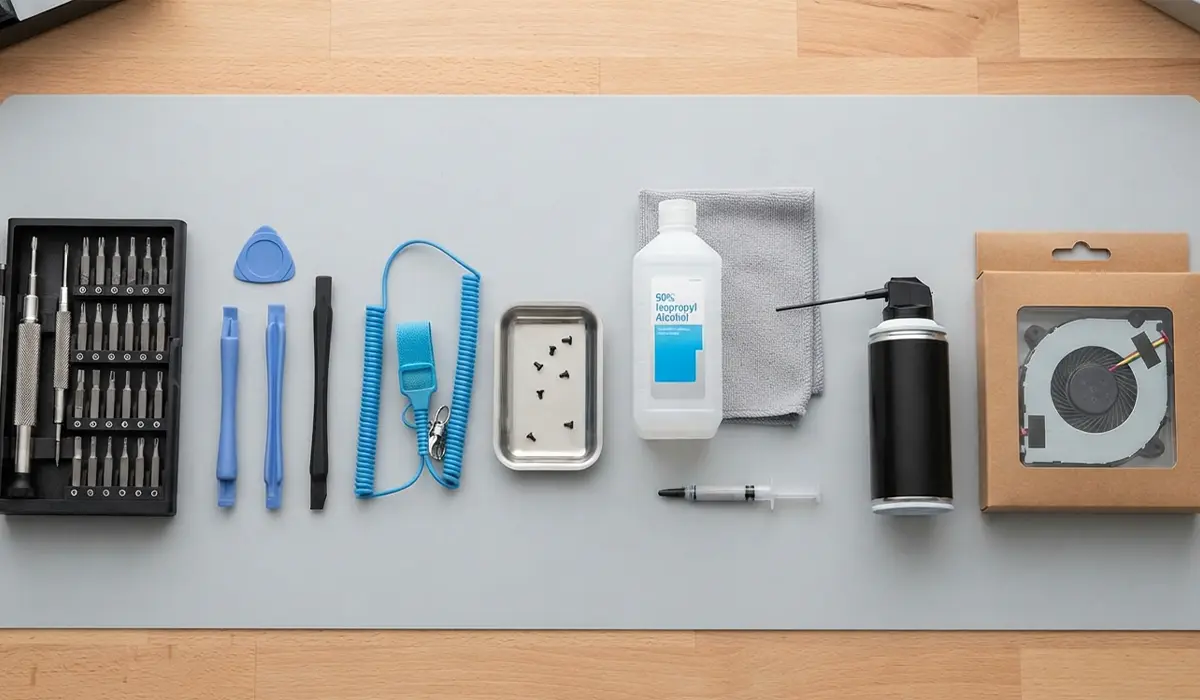
- A precision screwdriver set with small Phillips and Torx bits
- Plastic pry tools or an opening spudger
- An anti-static wrist strap, or bare metal to ground against
- Compressed air or a soft brush for dust removal
- 90 percent or higher isopropyl alcohol and a lint-free cloth
- Fresh thermal paste rated for CPU and GPU use
- A small container or tray to keep screws organized by location
- The replacement fan, matched to the laptop’s exact model number
How to Replace a Laptop Cooling Fan Step by Step
Once the laptop is powered down, unplugged, and the battery is disconnected, the actual fan swap is a fairly linear process. Working slowly and keeping track of screw locations prevents most of the common mistakes.
- Step 1: Remove the bottom panel screws and set them aside in a labeled tray, since laptops often use several screw lengths in different spots.
- Step 2: Gently pry the bottom panel loose using a plastic tool, working around the edges rather than forcing one corner.
- Step 3: Locate the internal battery connector on the motherboard and unplug it carefully by pulling on the connector itself, not the wire.
- Step 4: Identify the fan and heatsink assembly, usually covered by a metal shroud connected to copper heat pipes running to the CPU and, on many laptops, the GPU.
- Step 5: Remove the screws securing the heatsink assembly, following the loosening order printed near the screws if the manufacturer included one.
- Step 6: Lift the heatsink assembly away from the CPU and GPU dies once all screws are loose, and set it aside on a clean surface.
- Step 7: Disconnect the fan’s small wire connector from the motherboard, noting its orientation before pulling it free.
- Step 8: Remove the screws holding the fan itself to the heatsink bracket, then lift the old fan out.
- Step 9: Clean any dust buildup from the heatsink fins and fan housing area using compressed air or a soft brush before installing the new part.
- Step 10: Wipe the old thermal paste off the CPU and GPU using isopropyl alcohol and a lint-free cloth, then apply a fresh, thin layer of new paste.
- Step 11: Position the new fan in the same orientation as the old one and secure it with its mounting screws.
- Step 12: Reconnect the fan’s wire connector to the motherboard, making sure it clicks or seats fully into place.
- Step 13: Reseat the heatsink assembly over the CPU and GPU, then tighten the screws gradually in a diagonal or crisscross pattern rather than fully tightening one screw at a time.
- Step 14: Reconnect the internal battery connector, replace the bottom panel, and reinstall all the original screws.
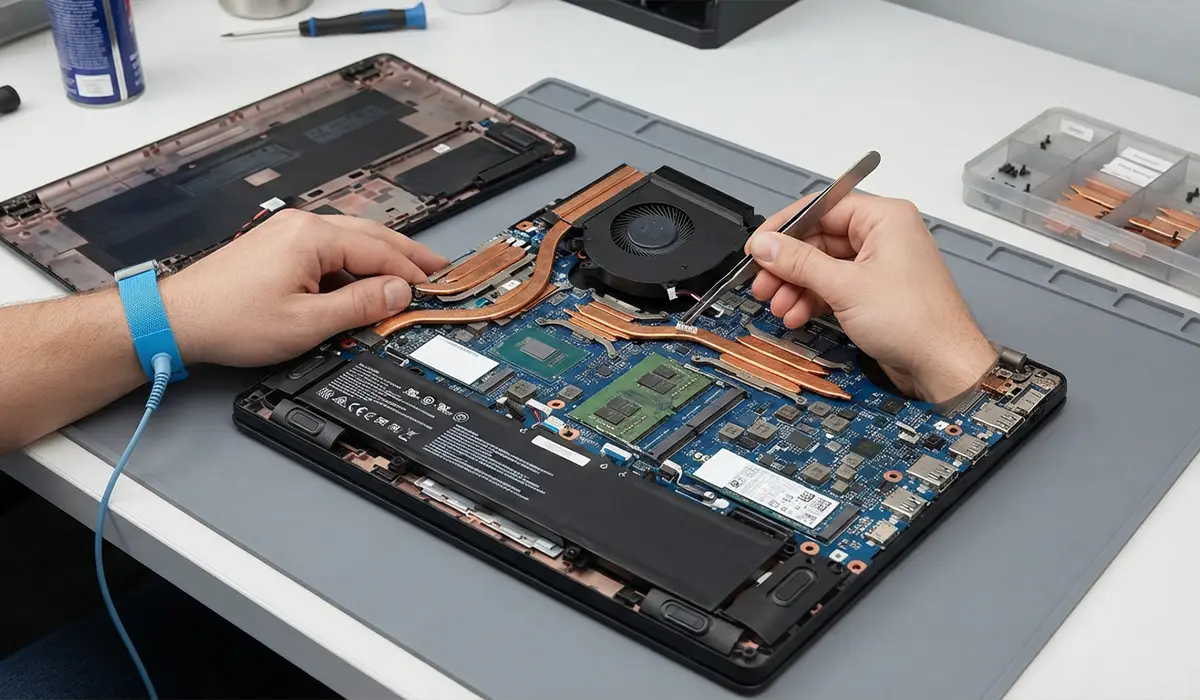
Tip: Take a photo of the internal layout before disconnecting anything. It only takes a few seconds and removes any guesswork about where each cable and screw belongs during reassembly.
Testing the New Fan
Power the laptop on right after reassembly and listen closely for the fan spinning up. Most laptops run the fan briefly during boot as part of a self-check, which is a good early sign. Running a demanding task, such as a video export or a game, for ten to fifteen minutes afterward helps confirm that the fan responds correctly as temperatures climb rather than staying silent or running at a constant low speed.
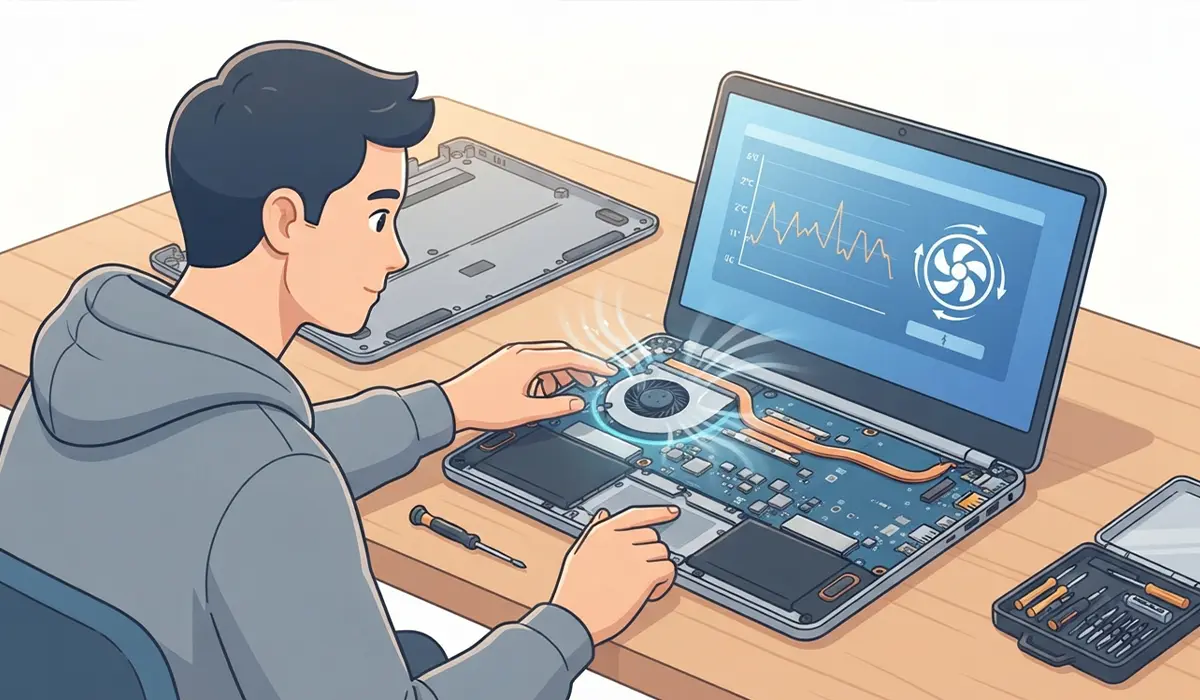
Checking temperatures with the system’s built-in diagnostics or a reputable hardware monitoring utility gives a clearer picture than judging by feel alone. A fan that ramps up smoothly under load and brings temperatures back down within a reasonable range indicates a successful installation.
Common Problems and Fixes
The Fan Does Not Spin After Replacement
This usually points to a connector that did not seat fully. Power down, disconnect the battery again, and check that the fan cable is pushed completely into its motherboard socket.
The Laptop Will Not Power On
A loose internal battery connector or a stray screw touching the motherboard are the most frequent causes. Recheck every connector and confirm no screws were left resting on exposed circuitry.
Temperatures Are Still High After the Swap
This often comes down to thermal paste that was applied too thick, too thin, or unevenly. Reseating the heatsink with a fresh, thin, even layer of paste typically resolves it.
The Fan Runs Louder or Rattles
An incorrect fan model, a fan blade catching on the shroud, or a loose mounting screw are the usual culprits. Confirm the replacement part number matches the original exactly and that all mounting screws are snug.
The Laptop Shuts Down Under Load Even With the New Fan
If shutdowns continue, the heatsink may not be sitting flush against the CPU, or a heat pipe connection point wasn’t cleaned and repasted properly. Reopening the assembly to check the contact surfaces is worth the extra time.
Frequently Asked Questions
How do I know if my laptop’s cooling fan needs replacing?
Common signs include a grinding or rattling noise, a fan that no longer spins at all, rising surface and internal temperatures, and unexpected shutdowns during demanding tasks.
Can I clean a noisy fan instead of replacing it?
Cleaning out dust and lint with compressed air often quiets a noisy fan and can restore normal airflow. Replacement becomes necessary when the noise comes from worn bearings or a cracked blade rather than dust buildup.
Is it safe to replace a laptop fan without professional help?
Many laptops allow reasonably straightforward access to the fan through a bottom panel, making this a manageable task for someone comfortable with small screws and careful handling. Sealed or heavily proprietary designs are better left to a professional.
Do I need to replace the thermal paste when replacing the fan?
Since the heatsink has to come off to access the fan, this is the ideal opportunity to replace old, dried-out thermal paste with a fresh application.
What type of fan should I buy as a replacement?
The safest choice is a fan that matches the exact model number of the original part, since fan size, connector type, and mounting pattern vary even between laptops from the same product line.
Will replacing the fan void my laptop’s warranty?
Opening the case on most consumer laptops can affect warranty coverage, so checking the manufacturer’s policy before starting is worth doing if the laptop is still relatively new.
How long does it take to replace a laptop cooling fan?
Most replacements take under an hour once the correct tools and replacement part are on hand, though laptops with more complex disassembly can take longer.
What happens if I run the laptop without a cooling fan?
Running a laptop without a functioning fan risks overheating the CPU and GPU, which can trigger thermal throttling, unexpected shutdowns, or long-term hardware damage.
Why does my laptop fan run constantly even after replacement?
A fan that never slows down often points to dust still trapped in the heatsink fins, a fan speed setting that needs adjusting, or a background application keeping the processor busy.
Can a bad fan damage other laptop components?
Sustained high temperatures from a failing fan can shorten the lifespan of the CPU, GPU, and battery, so addressing a failing fan quickly helps protect the rest of the system.
