
Setting up a cPanel/webmail account in the Outlook mobile app takes just a few minutes once the correct mail server settings are on hand. This guide walks through the exact steps for both iPhone and Android, from opening the app to sending that first test email.
Key Takeaways
- Outlook mobile does not auto-detect most cPanel/webmail accounts, so manual IMAP setup is usually required.
- The mail server settings (IMAP and SMTP hostnames, ports) come from the cPanel ‘Email Accounts’ section, not from Outlook itself.
- Using SSL/TLS on ports 993 (IMAP) and 465 or 587 (SMTP) is the standard, secure configuration for most hosting providers.
- The full email address must be used as the username, not just the part before the ‘@’ symbol.
- A failed connection almost always points back to one incorrect setting, usually the server name or port.
Step-by-Step Guide to Adding a cPanel/Webmail Account in Outlook Mobile
Before Starting: Gather the Mail Server Details
Log in to cPanel first and open ‘Email Accounts.’ Next to the account in question, select ‘Connect Devices’ (or ‘Set Up Mail Client’). This screen lists the exact incoming (IMAP) and outgoing (SMTP) server names, ports, and encryption type for that hosting account. Copy these down before opening Outlook, since typing them from memory later is where most setup mistakes happen.
Adding the Account in the Outlook App
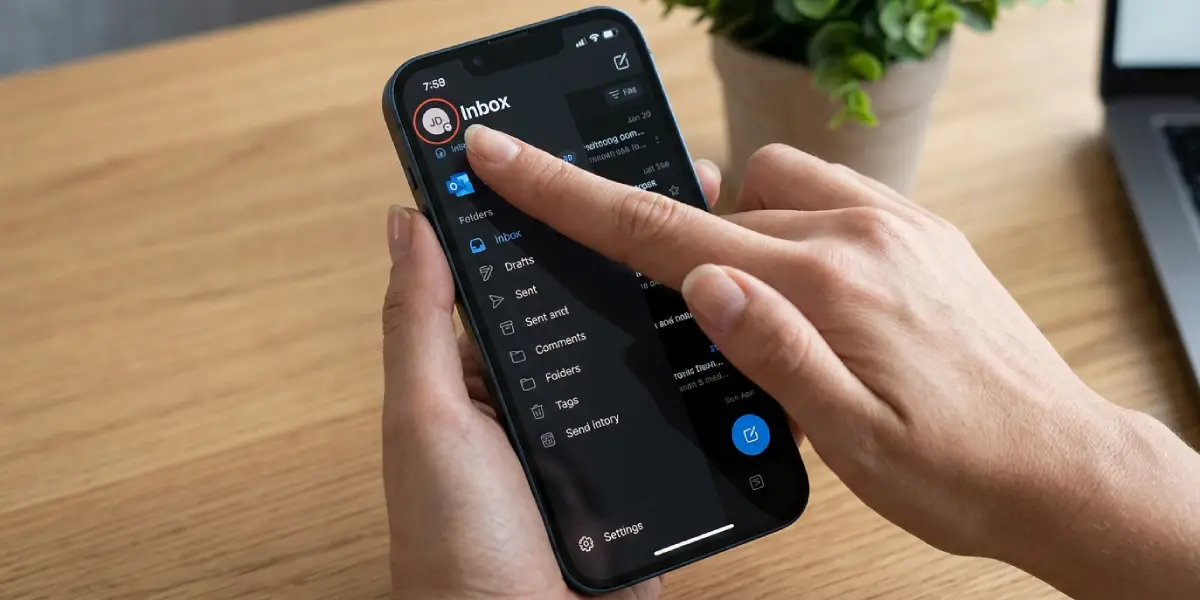
- Step 1: Open the Outlook app on the phone and tap the profile icon or the Menu icon in the top-left corner.
- Step 2: Tap the Settings gear icon, usually found in the bottom-left area of the menu panel.
- Step 3: Scroll down and tap ‘Add Account,’ then select ‘Add Email Account.’
- Step 4: Enter the full cPanel/webmail email address (for example, name@yourdomain.com) and tap ‘Continue.’
- Step 5: Outlook will try to auto-detect the account type. Since most cPanel/webmail accounts are not directly supported by auto-configuration, tap ‘Advanced Setup’ or ‘Configure Manually’ when prompted.
- Step 6: Choose ‘IMAP’ as the account type, since this keeps email synced across devices instead of downloading and removing messages from the server.
- Step 7: Enter the incoming mail server details from cPanel: the IMAP hostname (often mail.yourdomain.com), port 993, and SSL/TLS encryption.
- Step 8: Enter the outgoing mail server details: the SMTP hostname (also usually mail.yourdomain.com), port 465 or 587, and SSL/TLS encryption.
- Step 9: Enter the username, which must be the complete email address, and the account password created in cPanel.
- Step 10: Tap ‘Sign In’ or ‘Next.’ Outlook will test the connection, and once verified, the inbox for that cPanel/webmail account will start loading.
Tip: If cPanel offers both ‘SSL/TLS’ and ‘non-SSL’ server addresses, always pick the SSL/TLS version. It uses different ports but keeps the connection encrypted, which most hosting providers now require for mail apps to connect at all.
Confirming the Account Works
Once the inbox appears, send a quick test email to another address and check that it arrives. Also send a message from a different account to the new cPanel/webmail address to confirm incoming mail is syncing correctly. This two-way check catches most configuration issues early, before they turn into missed emails later.
Common Problems and Fixes
- ‘Cannot verify server identity’ or similar SSL warning: This usually means the hostname entered does not match the domain’s SSL certificate. Try replacing the custom domain in the server name with the hosting provider’s own mail server name, which cPanel’s ‘Connect Devices’ page also lists as an alternative.
- Outlook rejects the password repeatedly: Double-check for extra spaces copied along with the password, and confirm caps lock is not affecting entry. If the password was recently changed in cPanel, that new password is the one Outlook needs.
- Emails send but never receive, or receive but never send: This points to one server (IMAP or SMTP) being set up correctly while the other has a wrong port or hostname. Re-check both settings against the cPanel mail client configuration page.
- Account setup hangs on ‘Checking settings’: A weak or unstable internet connection is often the cause. Switching from mobile data to Wi-Fi, or the reverse, usually resolves it.
- Outlook only offers ‘Exchange’ or ‘Office 365’ as options: Look for a smaller ‘Other’ or ‘IMAP’ option further down the account type list, since Outlook mobile sometimes prioritizes Microsoft account types above manual IMAP setup.
Frequently Asked Questions
Does Outlook mobile support cPanel/webmail accounts?
Yes. Outlook mobile supports any standard IMAP or POP email account, which includes cPanel/webmail accounts hosted through most shared hosting providers.
Where can the IMAP and SMTP settings for a cPanel account be found?
Inside cPanel, under ‘Email Accounts,’ select ‘Connect Devices’ next to the relevant email address. This page lists the exact incoming and outgoing server names and ports.
Should IMAP or POP be selected when adding the account?
IMAP is the better choice for most users, since it keeps email synced across the phone, webmail, and any other connected device rather than downloading messages to a single device.
What port numbers are used for a cPanel/webmail account in Outlook?
Port 993 is standard for IMAP with SSL, and port 465 or 587 is standard for SMTP with SSL/TLS, though the exact port can vary slightly by hosting provider.
Why does Outlook mobile ask for manual setup instead of finding the account automatically?
Outlook’s auto-detection is built mainly for Microsoft 365, Outlook.com, and a handful of major providers. Most cPanel/webmail accounts fall outside that list, so manual IMAP setup is the normal path.
Is the username the full email address or just the part before the @ symbol?
The full email address should always be entered as the username. Entering only the prefix is one of the most common reasons the connection fails.
Can more than one cPanel/webmail account be added to the same Outlook app?
Yes. Once the first account is set up, the same ‘Add Account’ steps can be repeated from the Settings menu to add additional cPanel/webmail accounts.
What should be done if the connection still fails after entering the correct settings?
Confirm with the hosting provider that IMAP access is enabled for the account, since some hosts disable it by default, and check that no firewall or VPN on the phone is blocking the mail ports.
Does adding a cPanel/webmail account in Outlook mobile affect access through webmail or other apps?
No. Adding the account in Outlook mobile only creates another way to access the same inbox. Webmail and any other connected mail app will continue working exactly as before.
