
The Outlook cannot expand the folder error usually appears when a mailbox folder becomes corrupted, over-synced, or too large for Outlook to load properly. This guide walks through the exact steps needed to get folders expanding normally again, without wasting time on unrelated settings.
Key Takeaways
- The error typically points to a corrupted OST file, a sync conflict, or a folder that has grown too large.
- Rebuilding or resetting the OST file resolves this issue in most cases.
- Running Outlook in Safe Mode helps confirm whether an add-in is causing the problem.
- Server-side folder repair may be needed for shared or delegated mailboxes.
- Most fixes take under fifteen minutes and do not require reinstalling Outlook.
How to Fix the Outlook Cannot Expand The Folder Error
Work through these steps in order. Most users find the problem resolved by Step 3, but the later steps are there for stubborn cases involving shared mailboxes or larger organizations.
Step-by-Step Guide
- Step 1: Close Outlook completely, including any background processes. Open Task Manager, check the Processes tab, and end any Outlook.exe task still running before moving on.
- Step 2: Restart Outlook and try expanding the folder again. Sometimes the error is a one-time glitch tied to a slow network connection or a temporary sync hiccup, and a simple restart clears it.
- Step 3: If the error persists, run the Inbox Repair Tool (SCANPST.EXE). This tool is usually located in a path similar to C:\Program Files\Microsoft Office\root\Office16\SCANPST.EXE. Select the OST file for the affected account, click Start, and allow the scan to complete.
- Step 4: Once the scan finishes and repairs any errors found, reopen Outlook and check whether the folder expands normally. This step alone fixes the majority of cases tied to a damaged data file.
- Step 5: If the folder still will not expand, close Outlook and rename the existing OST file (adding .old to the end works fine). Outlook rebuilds a fresh OST automatically the next time it opens, syncing folders from the server again.
- Step 6: Launch Outlook in Safe Mode by holding Ctrl while clicking the Outlook icon. If the folder expands correctly in Safe Mode, a third-party add-in is the likely culprit, so disable add-ins one at a time through File, Options, Add-ins.
- Step 7: For a shared or delegated mailbox that will not expand, ask the mailbox owner or an administrator to check folder permissions on the server side, since insufficient permissions can produce this exact error.
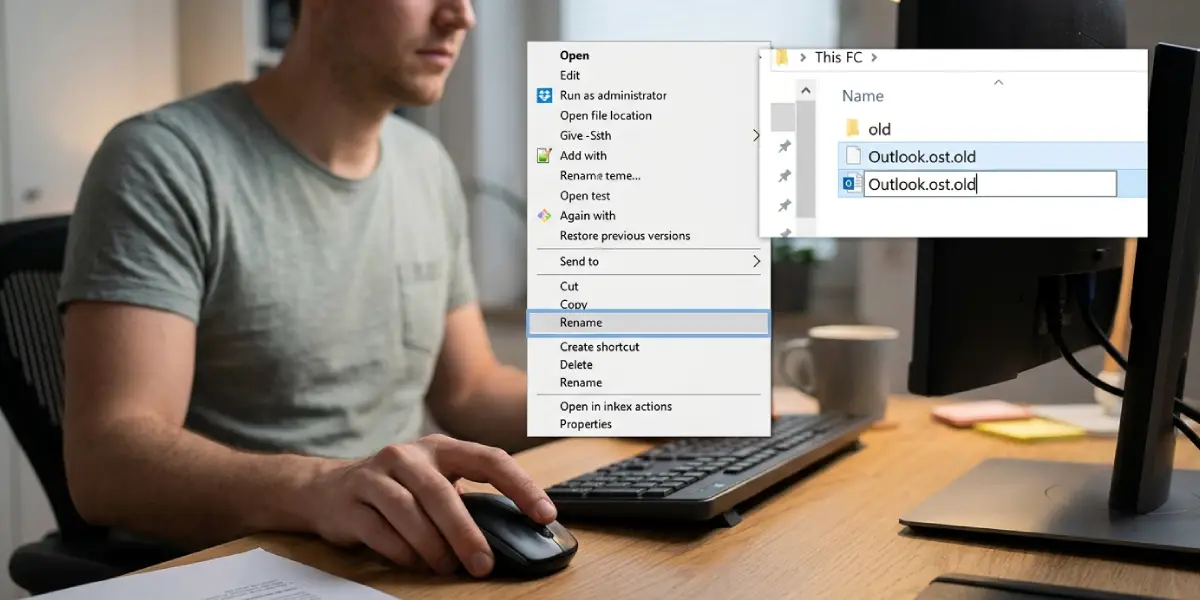
Tip: Before renaming or deleting any OST file, confirm that Outlook is fully closed and that no sync is mid-process, otherwise the rebuild can stall or duplicate items once the new file starts downloading.
When the Folder Belongs to a Shared Mailbox
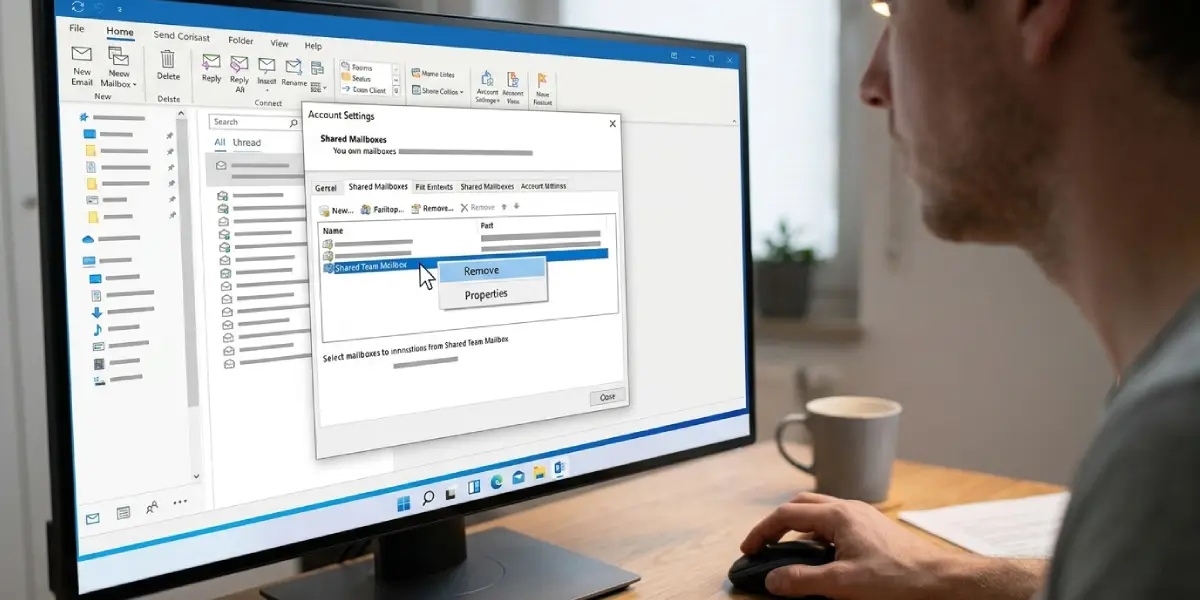
Shared mailboxes behave a little differently because the folder structure lives on the server rather than locally. Removing the shared mailbox from the profile and re-adding it often resolves an expand error that a local repair cannot touch.
Common Problems and Fixes
- The error reappears right after rebuilding the OST file. This usually means the mailbox is still syncing a large amount of data. Give Outlook time to finish the initial sync before testing the folder again.
- SCANPST.EXE cannot find the OST file. The file path differs between Office versions, so search Windows directly for SCANPST.EXE instead of relying on a fixed folder location.
- Safe Mode does not fix the error. This points away from add-ins and back toward a data file or server-side issue, so return to the OST repair and rebuild steps.
- The folder expands on one device but not another. This is often a local profile issue rather than a server problem. Creating a new Outlook profile on the affected device usually clears it.
- Renaming the OST file does not trigger a rebuild. Confirm Outlook was fully closed, including background tasks, since a lingering process can lock the file and block the rebuild.
Frequently Asked Questions
What causes the Outlook cannot expand the folder error?
It is most often caused by a corrupted or oversized OST file, an interrupted sync, or in some cases a conflicting add-in interfering with how folders load.
Is it safe to delete the OST file?
Yes, since the OST file is only a local copy of the mailbox. Outlook rebuilds it automatically from the server, though renaming rather than deleting it first is a safer habit in case a rollback is needed.
How long does rebuilding the OST file take?
This depends on mailbox size and connection speed. Smaller mailboxes rebuild within a few minutes, while larger ones with years of email can take longer.
Does the Inbox Repair Tool delete any emails?
No, SCANPST.EXE repairs structural errors in the data file without removing messages, though a backup copy is created automatically before repairs begin.
Why does the error only happen on one folder and not others?
A single problematic folder can develop its own corruption or sync conflict even when the rest of the mailbox works fine, which is why targeted repair steps often resolve it without affecting anything else.
Can an antivirus program cause this error?
Occasionally, yes. Security software that scans PST or OST files in real time can lock them mid-sync, so checking whether the antivirus excludes Outlook data files is worth doing if the error keeps returning.
Will creating a new Outlook profile fix the error?
In many cases, yes, especially when the issue is isolated to one device. A new profile forces Outlook to rebuild the connection and folder structure from scratch.
Does this error affect Outlook on the web too?
Generally no, since Outlook on the web pulls folders directly from the server without relying on a local OST file, which is why it can serve as a useful test to confirm the issue is local.
Should IT support be contacted for a shared mailbox issue?
Yes, if permissions or server-side folder settings are suspected, since those changes usually require administrator access rather than something fixable from a single desktop.
