
Knowing how to reduce GPU temperatures while gaming is one of the most useful skills a PC owner can pick up, especially once frame rates start dipping mid-session. High GPU temps do not just sound alarming – they quietly throttle performance and shorten the lifespan of the card. The good news is that most causes are simple to diagnose and even simpler to fix.
Key Takeaways
- Dust buildup and poor case airflow are the two most common reasons GPU temperatures climb during gaming.
- A clean case, properly oriented fans, and a sensible fan curve solve the majority of overheating cases.
- Reapplying thermal paste helps older cards, but it is not usually the first fix to try.
- Undervolting can lower temperatures noticeably without sacrificing much performance.
- Room temperature and case placement matter more than most gamers realize.
Common Causes of High GPU Temperatures
Before jumping into fixes, it helps to understand what actually drives GPU temperatures up in the first place. Most of the time, it comes down to a handful of repeat offenders.
Dust and Debris Buildup
Dust settles on the heatsink fins and fan blades over months of use, acting like a blanket that traps heat instead of releasing it. This is by far the most common cause of rising temperatures on cards that used to run cool.
Poor Case Airflow
A case with too few fans, fans facing the wrong direction, or cable clutter blocking the path of air will trap warm air right around the GPU. The card ends up breathing its own hot exhaust instead of pulling in fresh air.
Aging or Dried-Out Thermal Paste
Thermal paste degrades over a few years, losing its ability to transfer heat from the GPU die to the heatsink. This shows up as a slow, steady rise in idle and load temperatures over time.
Aggressive Factory Fan Curves
Some cards ship with conservative fan curves that prioritize quiet operation over cooling, letting temperatures climb higher than necessary before the fans ramp up.
High Ambient Room Temperature
A GPU sitting in a warm room or an enclosed desk cabinet has less cool air available to pull in, which raises the baseline temperature before gaming even starts.
How to Reduce GPU Temperatures While Gaming: Step-by-Step Fixes
These fixes are listed in the order most technicians would try them, starting with the fastest and least invasive.
Before You Start
For any step involving opening the case or touching internal components, power down the PC completely and unplug it from the wall. Let the system sit for a few minutes so the GPU and heatsink cool to room temperature before handling them. Touch a bare metal part of the case or use an anti-static wrist strap to discharge static before making contact with any components.
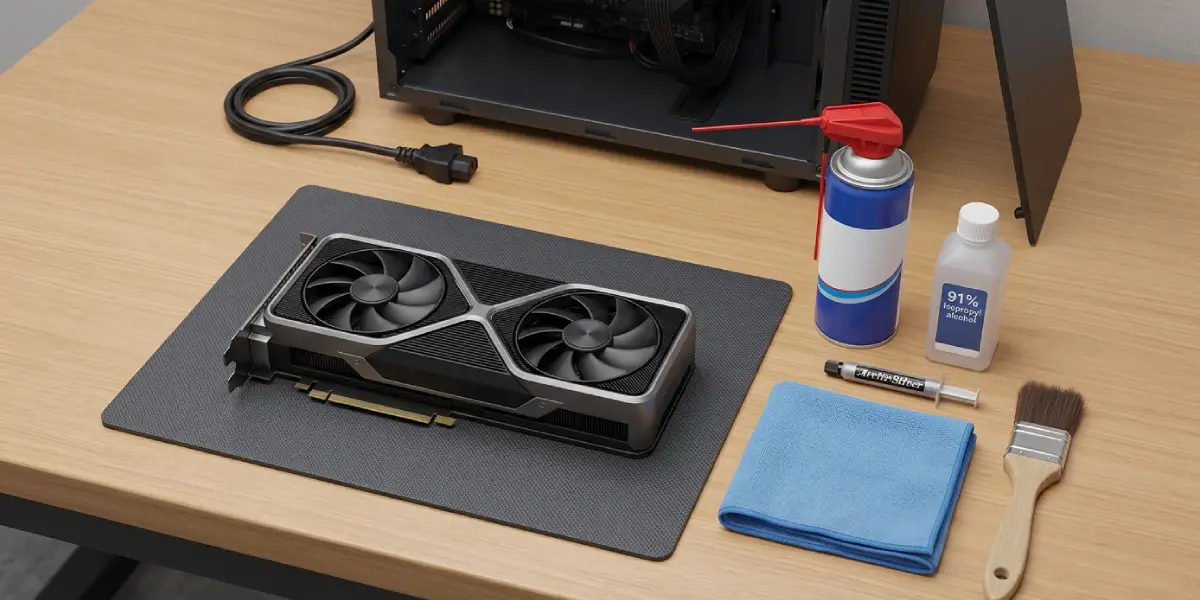
Tools and materials that come in handy: compressed air or a small soft-bristle brush, a microfiber cloth, 90 percent or higher isopropyl alcohol, and fresh thermal paste if a repaste is planned. Opening a case is generally safe and rarely affects warranty, but removing the GPU cooler shroud can void some manufacturer warranties, so check the card’s warranty terms first.
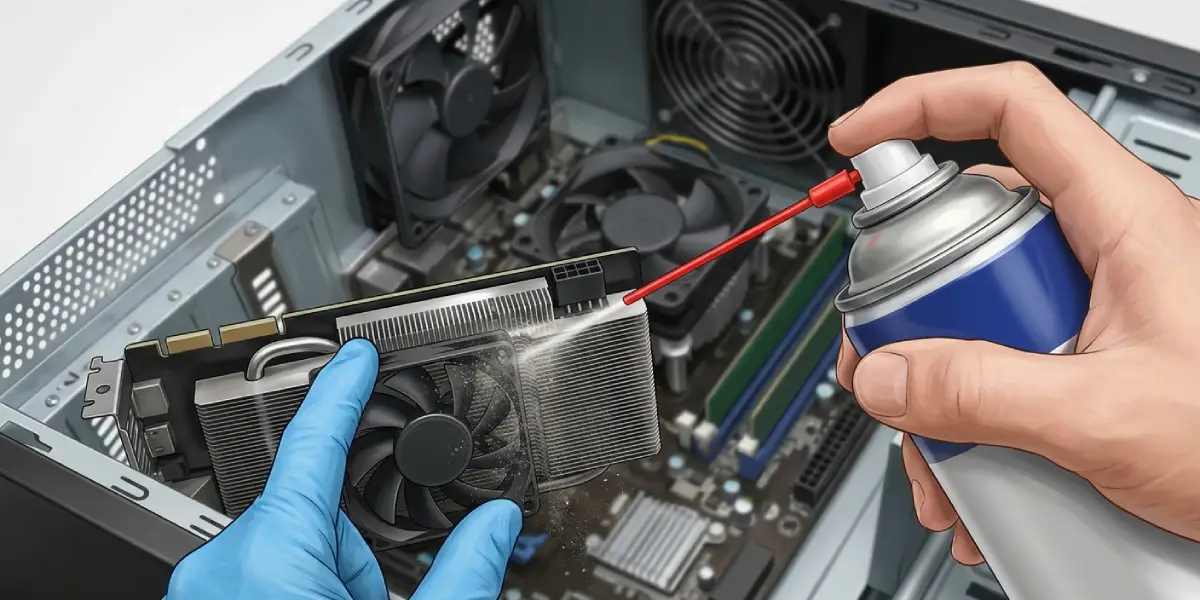
- Step 1: Open the case and inspect the GPU heatsink and case fans for visible dust buildup. Use compressed air in short bursts to blow dust out of the fins, holding the fan blades still with a finger to prevent them from spinning too fast and damaging the bearing.
- Step 2: Check the direction of all case fans. Intake fans at the front or bottom should pull cool air in, and exhaust fans at the rear or top should push warm air out. A confused airflow layout with fans fighting each other is a common and easy fix.
- Step 3: Tidy up loose cables that block airflow around the GPU, particularly near the intake fans and the card’s own cooler. Route cables behind the motherboard tray where possible.
- Step 4: Open the GPU vendor’s control software or a monitoring tool such as MSI Afterburner or HWiNFO and check the current fan curve. Adjust it so fans ramp up earlier and more aggressively as temperatures rise, rather than staying passive until the card is already hot.
- Step 5: Apply a mild undervolt through the same software if the card supports it. Reducing voltage slightly at each performance state often drops temperatures noticeably while keeping frame rates nearly identical.
- Step 6: If the card is several years old and temperatures remain high after the steps above, remove the cooler shroud following the manufacturer’s disassembly guide, clean off the old thermal paste with isopropyl alcohol and a lint-free cloth, and apply a fresh, pea-sized amount of quality thermal paste before reassembling.
- Step 7: Reposition the PC itself if it sits inside an enclosed desk cabinet or against a wall with no clearance. Giving the case a few inches of breathing room on all sides makes a real difference to intake air temperature.
- Step 8: Update the GPU driver to the latest stable release, since driver updates occasionally include power and thermal management improvements for specific games.
Tip: Run a monitoring tool in the background during a gaming session to watch temperature trends in real time, rather than only checking after the fact. This makes it obvious which fix had the biggest impact.
Common Problems and Fixes
Temperatures Are Still High After Cleaning
If dust removal alone did not help, the issue is likely airflow direction or an aging thermal paste job rather than dust itself. Revisit fan orientation first, since it costs nothing to fix.
Fan Curve Changes Do Not Seem to Apply
Some monitoring software needs to stay running in the background for a custom fan curve to take effect, since the setting is not always saved to the card’s firmware. Set the software to launch automatically at startup.
Temperatures Spike Only in Certain Games
Games with poorly optimized power limits can push a GPU harder than others at the same settings. Lowering the in-game frame rate cap or enabling a frame limiter through the driver software reduces unnecessary load and heat.
PC Will Not Boot After a Repaste
This usually points to the cooler not being seated evenly or a cable being disconnected during reassembly. Reopen the case, confirm the power connectors are firmly seated, and check that the cooler screws were tightened in a diagonal pattern for even pressure.
Coil Whine or Unusual Noise After Fan Curve Adjustment
A very aggressive fan curve can occasionally cause vibration noise against the case panel. Dial the curve back slightly or add anti-vibration standoffs where the card mounts.
Frequently Asked Questions
What GPU temperature is considered too high while gaming?
Most modern GPUs are designed to handle sustained load temperatures in the 70s to low 80s Celsius safely, but the exact safe ceiling varies by model, so checking the manufacturer’s specification page for the specific card is the most reliable approach.
How often should GPU thermal paste be replaced?
Every three to five years is a reasonable interval for most cards, though a card showing a steady upward creep in temperatures compared to when it was new is a good sign it is due sooner.
Does undervolting actually lower GPU temperatures?
Yes. Reducing the voltage supplied at each performance state cuts heat output with minimal impact on frame rates, making it one of the most effective free fixes available.
Is it normal for a GPU to run hotter in summer?
Yes, ambient room temperature directly affects intake air temperature, so a card that runs a few degrees warmer during hot months without any other symptoms is not a cause for concern.
Can adding more case fans lower GPU temperatures?
In cases with limited airflow, yes. Adding one or two intake fans, or swapping to a case with better ventilation, often drops GPU temperatures more than any software tweak.
Should the GPU fan curve be set to 100 percent while gaming?
Running fans at full speed constantly is unnecessary and noisy. A well-tuned curve that ramps up progressively as temperatures rise gives similar cooling with far less noise.
Does cleaning dust out of a GPU really make a noticeable difference?
Absolutely. A heavily dust-clogged heatsink can raise temperatures by a significant margin, and cleaning it is often the single most impactful and least risky fix available.
Can a GPU be damaged by running hot for long periods?
Sustained high temperatures accelerate wear on the thermal paste, fan bearings, and solder joints over time, which is why keeping temperatures in a reasonable range extends the card’s usable life.
Is liquid cooling worth it for reducing GPU temperatures?
An all-in-one liquid cooler or custom loop can lower GPU temperatures significantly compared to air cooling, but it is a bigger investment best suited to high-end cards or dedicated enthusiasts rather than a first step.
When should a professional handle GPU cooling issues instead?
If temperatures remain high after cleaning, repasting, and adjusting airflow, or if there is any doubt about safely removing the cooler shroud without damaging the card, a professional repair shop is the safer route.
