
A Thunderbolt port not detected by Windows can stop a dock, external display, or fast external drive from working at all. This is usually a driver, firmware, or connection issue rather than a dead port, and most cases can be resolved without opening the computer.
Key Takeaways
- Thunderbolt detection issues are most often caused by outdated drivers, disabled BIOS settings, or a faulty cable.
- Windows Device Manager and the Thunderbolt Control Center (if installed) are the first places to check.
- A simple reboot with the Thunderbolt device connected during startup fixes many cases.
- BIOS settings for Thunderbolt security level and USB4/Thunderbolt support need to be enabled on some systems.
- Persistent failures after software troubleshooting often point to a cable, port, or motherboard hardware problem.
Common Causes of a Thunderbolt Port Not Detected
A few underlying issues account for the vast majority of Thunderbolt detection problems.
Outdated or Corrupted Drivers
Thunderbolt relies on a dedicated controller driver separate from the standard USB drivers. If that driver is missing, outdated, or corrupted, Windows may not recognize anything plugged into the port.
Thunderbolt Disabled in BIOS/UEFI
Many motherboards and laptops ship with Thunderbolt support turned off by default, or set to a security level that blocks unauthorized devices.
Faulty or Incompatible Cable
Not every USB-C cable supports Thunderbolt data speeds. A basic charging-only cable will not carry the data signal a Thunderbolt device needs.
Sleep or Power Management Conflicts
Thunderbolt controllers sometimes fail to wake properly after sleep, especially on laptops with aggressive power-saving settings.
Firmware Out of Date
The Thunderbolt controller itself has its own firmware, separate from the main system BIOS, and an outdated version can cause detection failures with certain devices.
How to Fix a Thunderbolt Port Not Detected
Work through these fixes in order, starting with the simplest.
Step 1: Test the Cable and Device on Another Port or Computer
- Step 1: Plug the Thunderbolt device into a different Thunderbolt port on the same computer, if one exists.
- Step 2: Try the same cable and device on a different computer to rule out a bad cable or dead peripheral.
- Step 3: If possible, test with a cable known to be Thunderbolt-certified rather than a generic USB-C cable.
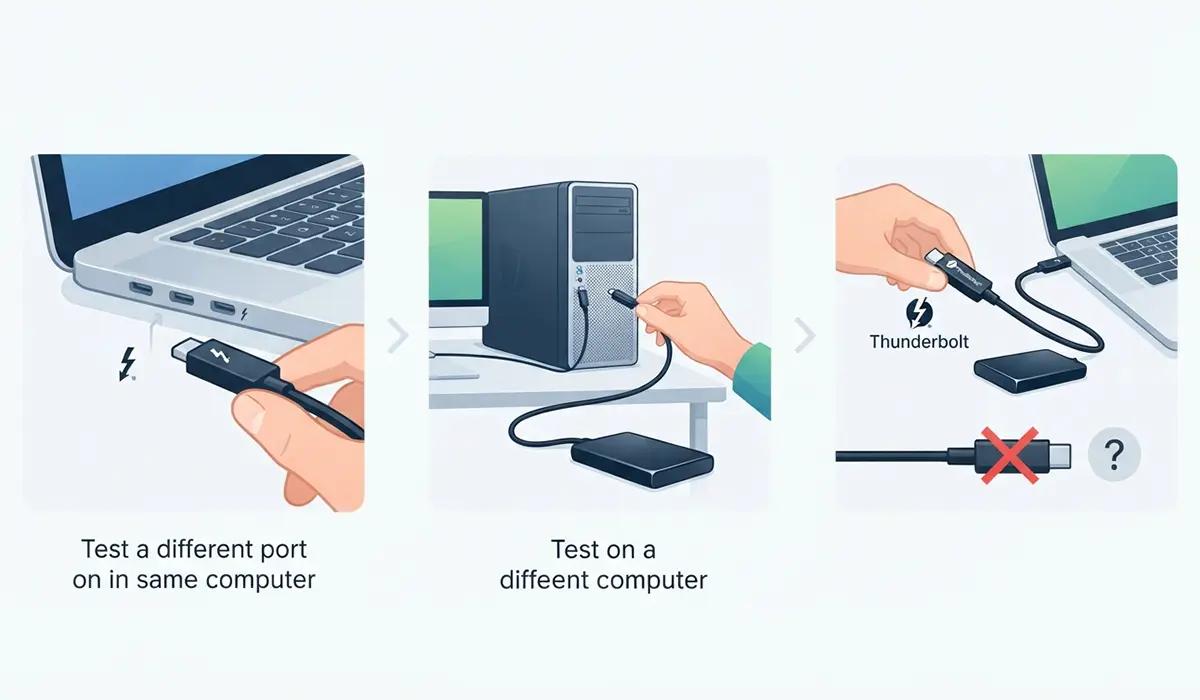
Tip: A cable that only supports charging often looks identical to a full-featured Thunderbolt cable, so swapping it out is one of the fastest ways to rule out a hardware problem.
Step 2: Restart With the Device Connected
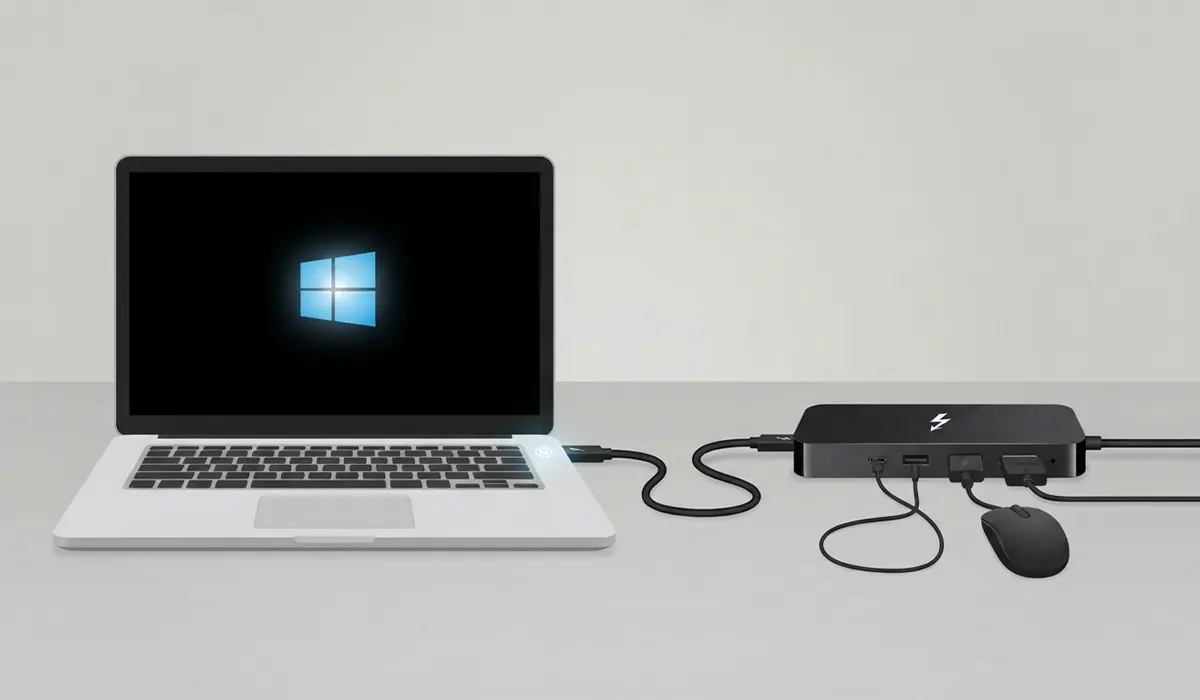
- Step 1: Shut the computer down completely rather than using sleep or restart.
- Step 2: Plug the Thunderbolt device or dock into the port.
- Step 3: Power the computer back on and let it fully boot into Windows before checking if the device appears.
Step 3: Update the Thunderbolt Driver in Device Manager
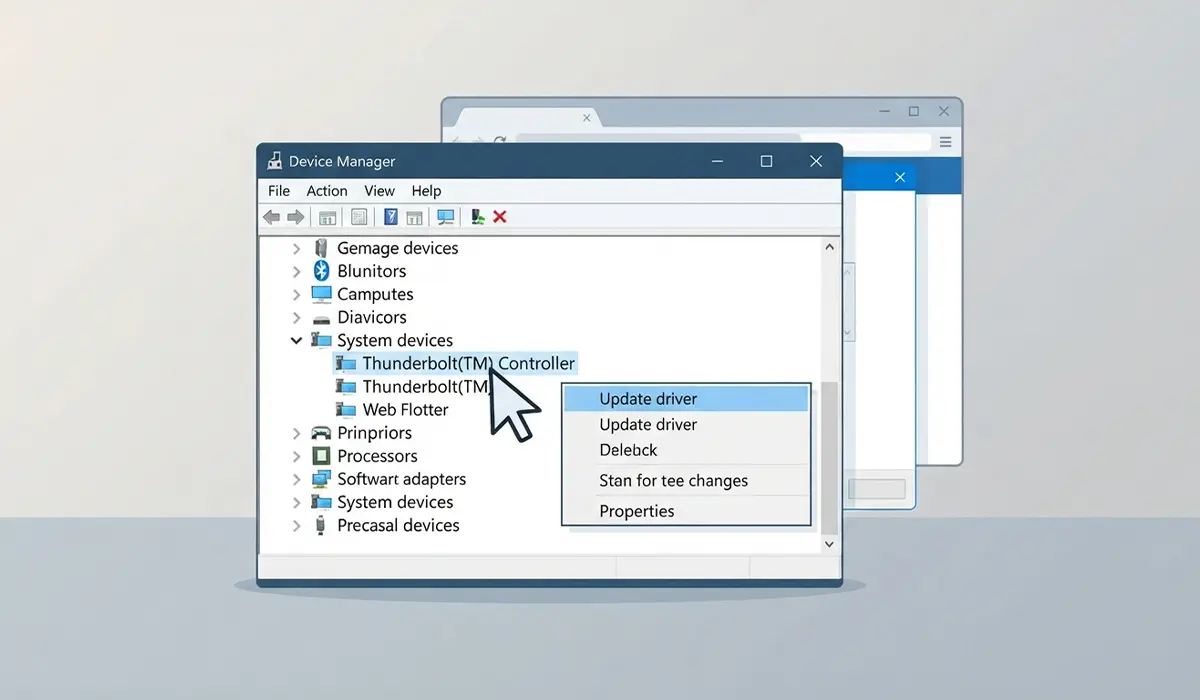
- Step 1: Right-click the Start menu and open Device Manager.
- Step 2: Expand the ‘System devices’ or ‘Universal Serial Bus controllers’ section and look for a Thunderbolt controller entry.
- Step 3: Right-click it and select ‘Update driver’, then choose to search automatically.
- Step 4: If no update is found this way, visit the computer manufacturer’s support page and download the latest Thunderbolt driver package directly, since generic Windows Update results are not always current for this component.
Step 4: Check and Update the Thunderbolt Control Center Settings
- Step 1: Open the Thunderbolt Control Center or Intel Thunderbolt software if it came pre-installed with the computer.
- Step 2: Look for a security level setting and confirm it is not set to a mode that blocks new devices automatically.
- Step 3: If the connected device shows as blocked or unauthorized in this software, approve or authorize it manually.
Step 5: Enable Thunderbolt Support in BIOS/UEFI
- Step 1: Restart the computer and enter BIOS/UEFI setup, usually by pressing Delete, F2, or a similar key during startup.
- Step 2: Look for a section related to Thunderbolt, USB4, or onboard devices.
- Step 3: Confirm the Thunderbolt controller is enabled, and if there is a security level option, set it to a lower or ‘No Security’ level for testing purposes.
- Step 4: Save changes and exit, then check if the device is detected after Windows loads.
Tip: Switching the BIOS security level to a less restrictive mode is a useful troubleshooting step, but a stricter setting can be restored later once the device is confirmed working, for users who want tighter control over which devices can connect.
Step 6: Update Thunderbolt Firmware
- Step 1: Open the Thunderbolt Control Center software and check for a firmware update option, or check the manufacturer’s support site for a Thunderbolt firmware update tool.
- Step 2: Run the firmware update while the computer is connected to power, since interrupting this process can cause further issues.
- Step 3: Restart the computer once the update finishes and reconnect the device.
Step 7: Adjust Power Management Settings
- Step 1: Open Device Manager and locate the Thunderbolt controller again.
- Step 2: Right-click it, choose ‘Properties’, and open the ‘Power Management’ tab if available.
- Step 3: Uncheck the option that allows Windows to turn off the device to save power.
Common Problems and Fixes
Device Works After Reboot but Disconnects Randomly
This usually points to a power management or sleep conflict. Disabling USB selective suspend in the advanced power plan settings, alongside the power management fix above, often resolves intermittent drops.
Thunderbolt Dock Detected but External Monitor Stays Blank
This is often a separate display-output issue rather than a Thunderbolt detection failure. Confirm the monitor’s input source is set correctly and that the dock firmware is current before assuming the port itself is at fault.
Device Detected in BIOS but Not in Windows
This points toward a driver problem rather than a hardware fault, since the port is clearly communicating with the device at a low level. Reinstalling the Thunderbolt driver package fresh, rather than just updating it, often clears this up.
Nothing Works After Trying Every Software Fix
At this point, the issue is more likely a damaged port, failed controller chip, or motherboard-level fault. Opening a laptop to inspect internal Thunderbolt connections carries real risk of further damage and can affect the warranty, so this is a reasonable point to hand the device to a qualified repair technician rather than continuing on its own.
Frequently Asked Questions
Why does my Thunderbolt port work with USB devices but not Thunderbolt devices?
Thunderbolt ports are backward compatible with standard USB, so basic USB devices can work even when the Thunderbolt-specific communication is failing. This almost always points to a driver, firmware, or BIOS setting issue rather than a fully dead port.
Can a bad cable really cause a Thunderbolt port not to detect a device?
Yes. Many USB-C cables are only rated for charging or slower data speeds and cannot carry the full Thunderbolt signal, which makes the connected device appear completely undetected.
Does updating Windows fix Thunderbolt detection issues?
Sometimes, but Windows Update does not always include the latest Thunderbolt controller driver. Checking the computer manufacturer’s support site directly is usually more reliable.
Is it safe to lower the Thunderbolt security level in BIOS?
Lowering it temporarily for troubleshooting is generally safe on a personal computer, though it does reduce protection against unauthorized devices. Restoring a stricter setting afterward is a reasonable precaution.
Why does my Thunderbolt dock only work after a full restart?
This pattern usually points to a power management or sleep-state issue where the Thunderbolt controller fails to reinitialize properly after the computer wakes up.
Do all USB-C ports support Thunderbolt?
No. USB-C is a connector shape, not a guarantee of Thunderbolt support. Only ports specifically labeled as Thunderbolt, or confirmed in the system specifications, carry the Thunderbolt protocol.
Can a Thunderbolt firmware update break something if it fails midway?
An interrupted firmware update can cause serious issues with the controller. Keeping the computer plugged into power and letting the process finish without interruption avoids this risk.
How can someone tell if the problem is the port itself rather than software?
Testing the same cable and device on a different computer or a different port on the same machine is the clearest way to isolate a hardware fault from a software or driver issue.
Does a Thunderbolt port not detected issue mean the motherboard is failing?
Not necessarily. Most cases trace back to drivers, firmware, or BIOS settings. A motherboard-level fault is only likely once every software fix has been tried without success.
