
This guide explains how to fix card reader showing wrong drive letter problems in Windows, so backups, photo imports, and editing software always find the card where they expect it. Windows hands out drive letters automatically, and that choice can clash with network drives, empty reader slots, or leftovers from old devices. The good news is that the fix usually takes only a few minutes.
Key Takeaways
- Windows assigns drive letters automatically, and a wrong letter is almost always a software conflict rather than a hardware fault.
- Disk Management lets you change the letter of any card reader volume in a few clicks.
- Mapped network drives and empty reader slots are the two most common reasons a letter looks wrong or keeps changing.
- Removing greyed-out ghost devices in Device Manager frees up letters that old hardware is still holding.
- Once a letter is assigned to a card or reader, Windows normally remembers it the next time the same device is connected.
Common Causes of a Card Reader Showing the Wrong Drive Letter
Before changing anything, it helps to know why the letter looks wrong. Most cases trace back to one of these causes.
- Multi-slot readers: Many readers expose each slot (SD, microSD, CF, and so on) as its own drive, so several letters appear even when only one card is inserted.
- Mapped network drives: A network share that already uses a letter can block Windows from giving that same letter to a newly connected card.
- Ghost devices: Old USB drives, cards, and readers that were connected in the past can still reserve their letters in the background.
- Connection order: Windows gives the next free letter to whatever connects first, so a card can land on a different letter than last time when other drives are attached.
- Driver or detection glitches: A stalled or outdated storage driver can leave a volume without a proper letter or with an unexpected one.
How to Fix Card Reader Showing Wrong Drive Letter Step by Step
Work through the methods in order. The first one solves most cases, and the later ones handle stubborn conflicts.
Method 1: Change the Drive Letter in Disk Management
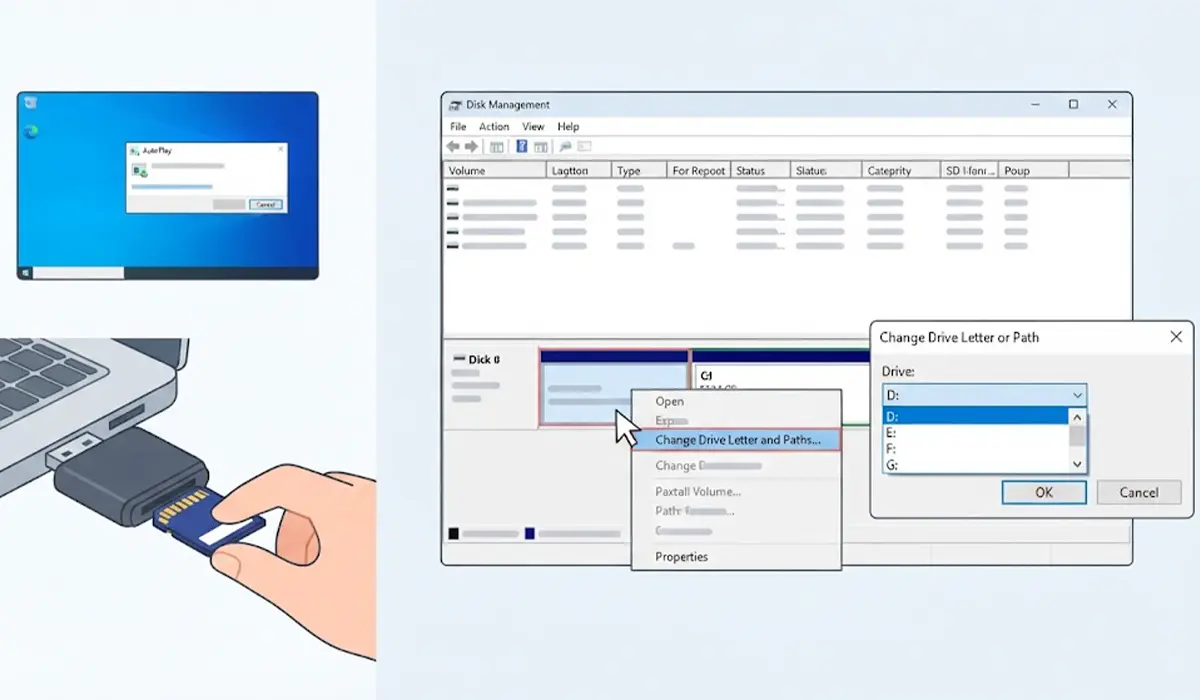
- Step 1: Insert the memory card into the reader and wait a few seconds for Windows to detect it. Close any app that is currently using the card, such as a photo importer or file backup tool.
- Step 2: Right-click the Start button and choose Disk Management. On Windows 10 and Windows 11, pressing Win + X also opens this menu.
- Step 3: In the lower pane, find the removable volume that belongs to the card. It is usually labeled Removable and matches the card’s size.
- Step 4: Right-click that volume and choose Change Drive Letter and Paths.
- Step 5: Click Change, select Assign the following drive letter, and pick the letter needed from the drop-down list.
- Step 6: Click OK, then confirm the warning that some programs may rely on the old letter. The new letter appears in File Explorer right away.
Tip: Choosing a letter near the end of the alphabet, such as R through Z, keeps card readers away from the letters Windows normally hands out to internal drives and other USB devices. That makes a repeat conflict much less likely.
Method 2: Assign Letters to Empty Reader Slots
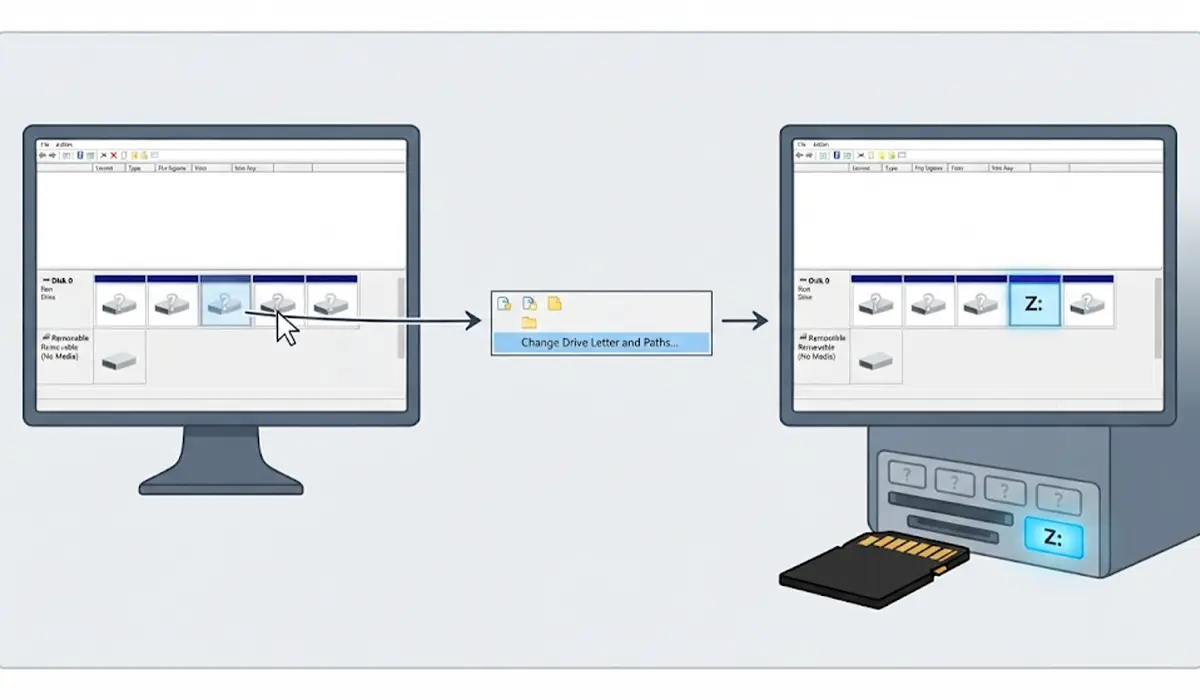
- Step 7: Open Disk Management again and look for entries in the lower pane labeled Removable with No Media. Each one is an empty slot on the reader.
- Step 8: Right-click each empty slot, choose Change Drive Letter and Paths, and assign a letter from the end of the alphabet.
- Step 9: Reinsert the card into its slot. The card now appears under a predictable, fixed letter instead of shifting around.
Method 3: Free the Letter from a Mapped Network Drive
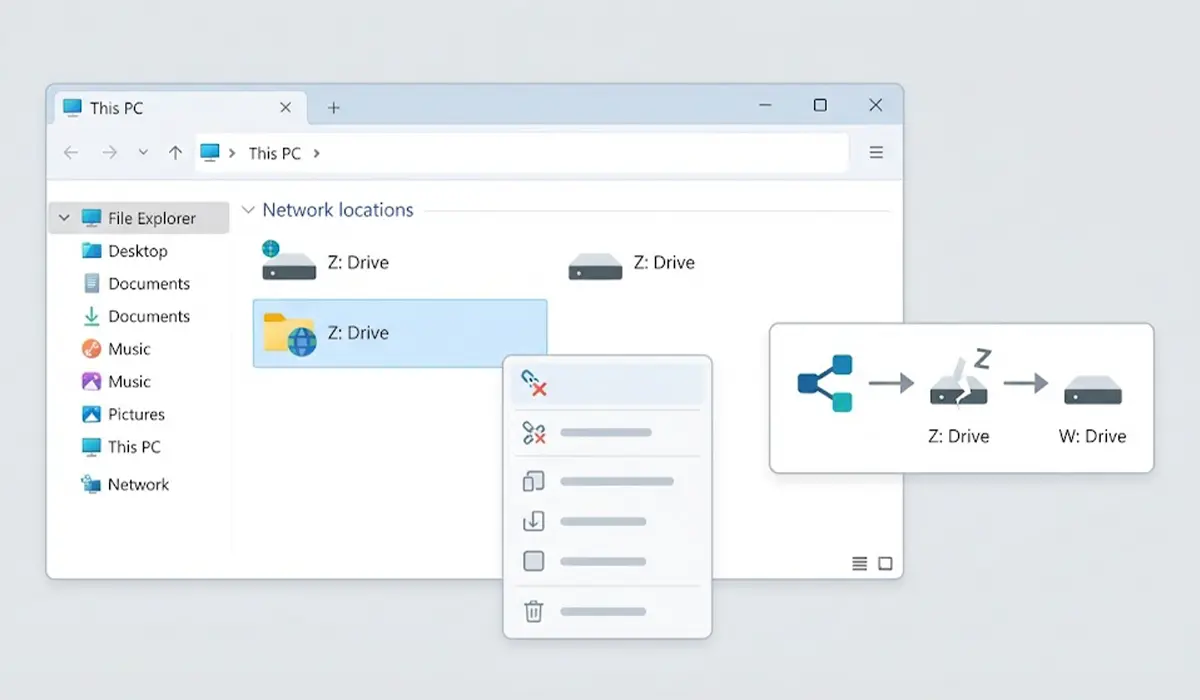
- Step 10: Open File Explorer, select This PC, and look under Network locations for a mapped drive using the letter the card should have.
- Step 11: Right-click that network drive and choose Disconnect.
- Step 12: Reconnect the network share with a different letter through Map network drive, ideally from the far end of the alphabet, and then assign the desired letter to the card in Disk Management.
Method 4: Use Diskpart When Disk Management Fails
- Step 13: Right-click the Start button and open Terminal (Admin) or Command Prompt (Admin).
- Step 14: Type diskpart and press Enter, then type list volume and press Enter. Find the removable volume by its size and label, and note its volume number.
- Step 15: Type select volume N, replacing N with that number, and press Enter.
- Step 16: Type assign letter=X, replacing X with the letter needed, and press Enter. Type exit to close the tool.
Double-check the volume number before running the command. Selecting the wrong volume would change the letter of a different drive.
Method 5: Remove Ghost Devices and Reinstall the Reader Driver
- Step 17: Right-click the Start button, open Device Manager, and choose Show hidden devices from the View menu.
- Step 18: Expand Disk drives and Storage volumes. Greyed-out entries are devices that were connected before but are not attached now.
- Step 19: Right-click each greyed-out entry that clearly belongs to an old card, USB drive, or reader, and choose Uninstall device. Leave any active, non-greyed entry untouched.
- Step 20: Under Disk drives, right-click the active card reader entry, choose Uninstall device, then unplug the reader (or remove the card), restart the PC, and reconnect. Windows reinstalls the driver and reassigns a letter cleanly.
- Step 21: Return to Disk Management and set the preferred letter using Method 1.
Tip: Try a different USB port before reinstalling drivers. A reader that connects through a different port is sometimes treated as a new device, which can shake loose a stuck letter assignment.
Common Problems and Fixes
Change Drive Letter and Paths Is Greyed Out
This usually means the slot has no media or the card is not detected properly. Reseat the card, make sure it clicks fully into the slot, and refresh Disk Management from the Action menu. If the volume still shows no media, try another card to rule out a damaged one.
The Letter Changes Back After Restarting
A mapped network drive or another storage device is usually reclaiming that letter at startup. Move the network drive to a different letter, then assign a fixed letter to the card reader volume again.
The Drive Letter Is Not Available in the List
The letter is already in use by a visible drive, a network share, or a hidden ghost device. Clear ghost entries in Device Manager as described in Method 5, or choose a different free letter.
Several Extra Drive Letters Appear with the Reader
That is normal for multi-slot readers. Each slot gets its own letter. Assigning fixed letters to every slot, as in Method 2, keeps the layout consistent.
The Card Shows Up Without Any Letter at All
Open Disk Management and check whether the volume is listed. If it is, right-click it and assign a letter. If it appears as unallocated or unformatted, the card’s file system may be damaged, and any important files should be copied off before it is formatted.
Frequently Asked Questions
Why does my card reader show a different drive letter every time?
Windows gives each newly detected volume the next free letter, so the result changes with whatever else is connected. Assigning a fixed letter in Disk Management makes Windows remember it for that device.
Is it safe to change the drive letter of an SD card?
Yes. Changing the letter does not touch the files on the card. Only programs that saved the old path, such as backup jobs or shortcuts, may need to be pointed to the new letter.
Why does a card reader with no card inserted still show drive letters?
Multi-slot readers register each slot as a separate drive. Empty slots appear in File Explorer or Disk Management as removable drives with no media.
Can a mapped network drive cause the wrong drive letter on a card reader?
Yes. If a network share already uses a letter, Windows may skip it or fail to assign it to the card. Remapping the share to a letter near the end of the alphabet usually solves the conflict.
Which drive letter is best for a card reader?
Letters from the later part of the alphabet, such as R through Z, work well because they are rarely taken by internal drives or other everyday USB devices.
What if Disk Management does not show the card reader volume?
Reseat the card, try another USB port, and refresh Disk Management from the Action menu. If the volume is still missing, reinstall the reader driver in Device Manager and test with a different card to rule out a faulty one.
Will the drive letter stay the same on another computer?
No. Each Windows PC makes its own assignment, so the same card or reader can receive a different letter on a different computer.
Do I need special software to change a card reader drive letter?
No. Disk Management and Diskpart are both built into Windows and handle drive letter changes without any extra software.
