
Learning how to enable hardware accelerated GPU scheduling takes only a few minutes and a single restart. The feature lets the graphics card manage its own memory queue instead of leaving that job to the CPU. This guide covers the requirements, the Settings method, a registry alternative, and fixes for the most common snags.
Key Takeaways
- Hardware accelerated GPU scheduling needs Windows 10 version 2004 or later (or Windows 11), a supported graphics card, and a current graphics driver.
- The switch lives in Settings under System, Display, Graphics, then the default graphics settings page.
- A restart is required before the change takes effect.
- If the toggle is missing or greyed out, an outdated driver or an unsupported GPU is almost always the reason.
- The setting can be reversed at any time by flipping the same switch off.
Before You Start
This is a software setting, so no tools or disassembly are involved. A few quick checks save time later.
- Sign in with an administrator account.
- Install the latest graphics driver from NVIDIA, AMD, or Intel, or through Windows Update. The toggle only appears when the installed driver supports the feature.
- Save any open work, because a restart is needed to finish the process.
Tip: A driver update alone often makes a missing toggle appear. Updating first avoids a lot of unnecessary hunting through menus.
Requirements for Hardware Accelerated GPU Scheduling
The feature is not available on every system. Three things need to line up.
- Windows 10 version 2004 (May 2020 Update) or newer, or any version of Windows 11.
- A graphics card from a recent NVIDIA, AMD, or Intel generation with a driver that supports the feature. Older cards simply do not offer the option.
- A graphics driver built on WDDM 2.7 or higher, which current drivers from the major vendors already meet.
How to Enable Hardware Accelerated GPU Scheduling in Windows Settings
This is the simplest route and works on both Windows 11 and Windows 10.
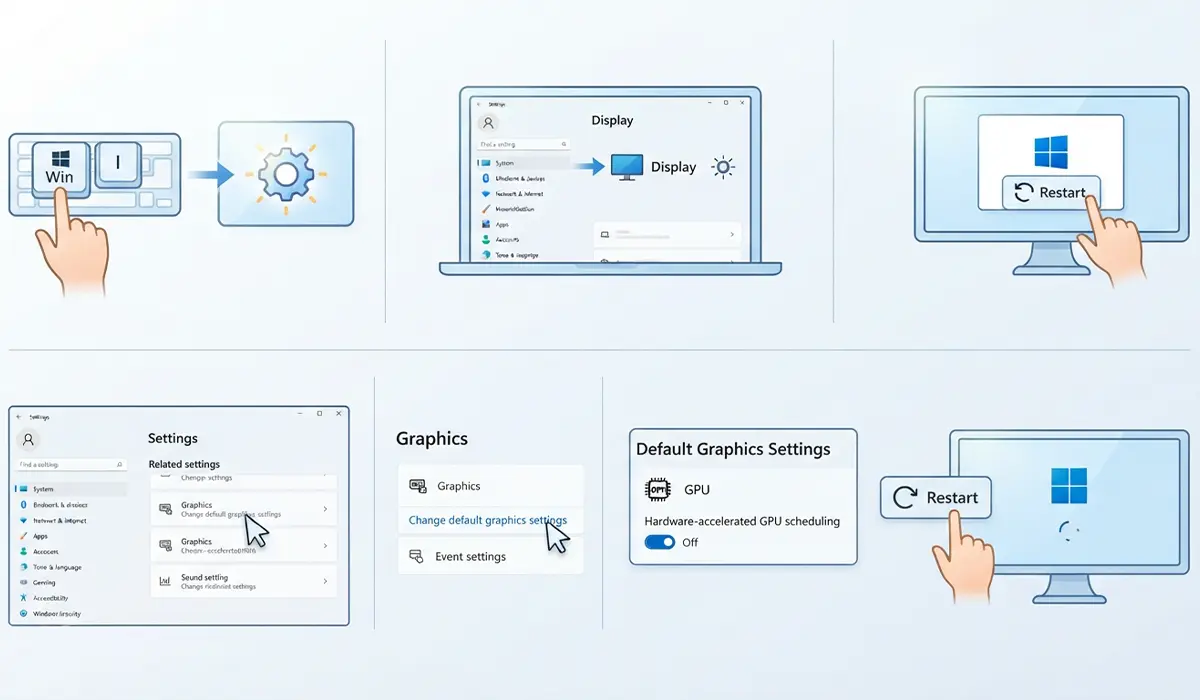
Windows 11 Steps
- Step 1: Press the Windows key plus I to open Settings.
- Step 2: Select System in the left pane, then choose Display.
- Step 3: Scroll down and click Graphics.
- Step 4: Click ‘Change default graphics settings’.
- Step 5: Turn on the ‘Hardware-accelerated GPU scheduling’ toggle.
- Step 6: Restart the computer so the change can apply.
Windows 10 Steps
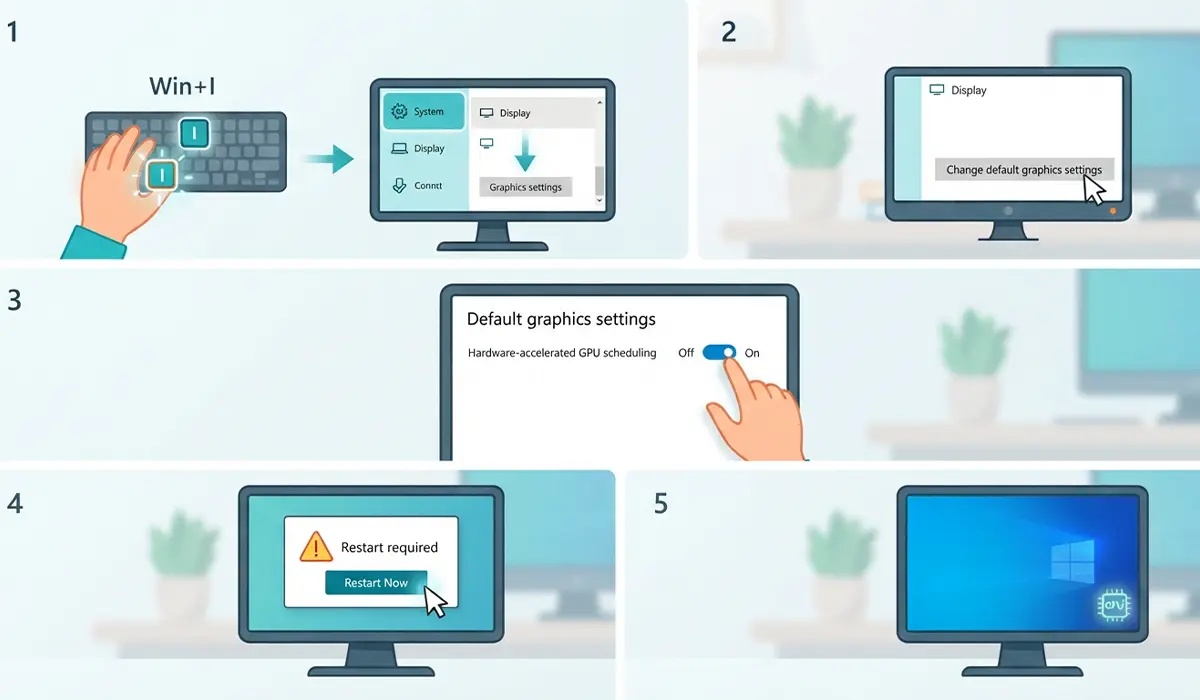
- Step 1: Press the Windows key plus I, then open System.
- Step 2: Choose Display on the left, scroll to the bottom, and click ‘Graphics settings’.
- Step 3: Click ‘Change default graphics settings’.
- Step 4: Switch ‘Hardware-accelerated GPU scheduling’ to On.
- Step 5: Restart the PC.
After the restart, open the same page again. If the toggle still shows On, the feature is active.
Enabling Hardware Accelerated GPU Scheduling Through the Registry
The registry method is a fallback for cases where the toggle is unavailable but the hardware and driver are known to support the feature. Editing the registry carries some risk, so create a restore point first. If the steps feel unfamiliar, stick with the Settings method.
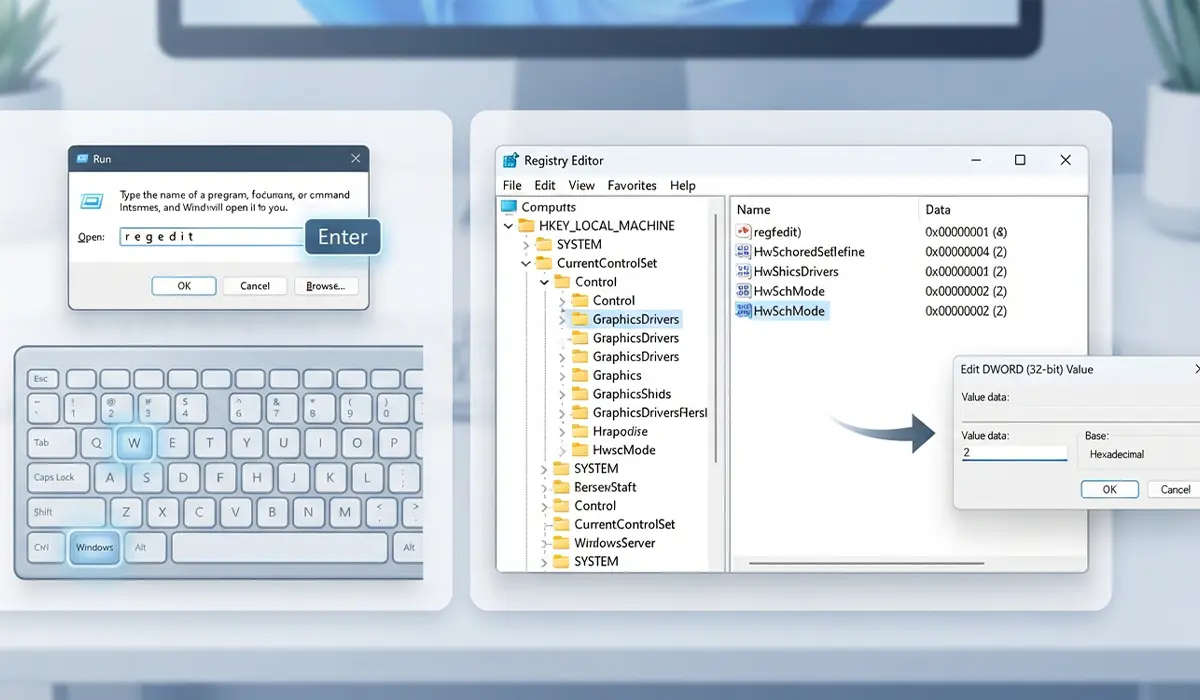
- Step 1: Press the Windows key plus R, type regedit, and press Enter.
- Step 2: Go to HKEY_LOCAL_MACHINE\SYSTEM\CurrentControlSet\Control\GraphicsDrivers.
- Step 3: Find the DWORD value named HwSchMode. If it does not exist, right-click an empty area, choose New, then DWORD (32-bit) Value, and name it HwSchMode.
- Step 4: Double-click HwSchMode and set the value data to 2 to enable the feature. A value of 1 turns it off.
- Step 5: Close the Registry Editor and restart the computer.
Tip: Right-click the GraphicsDrivers key and choose Export before changing anything. That creates a backup file that can be double-clicked to restore the original state.
How to Turn It Off Again
Some games and older applications behave better with the feature disabled, so it helps to know the way back. Return to the same graphics settings page, switch the ‘Hardware-accelerated GPU scheduling’ toggle to Off, and restart. Registry users can set HwSchMode back to 1.
Common Problems and Fixes
The Toggle Is Missing
The most likely causes are an outdated graphics driver, an older Windows version, or a graphics card that does not support the feature. Update the driver, install pending Windows updates, and check the page again.
The Toggle Is Greyed Out
A greyed-out switch usually means the current driver does not expose the feature. A clean installation of the latest driver from the manufacturer’s website often resolves it.
The Setting Reverts After Restarting
This tends to happen when a driver update or a Windows update resets graphics options. Enable the feature again after updating, and confirm that no third-party tuning tool is overriding the value.
Games Stutter or Crash After Enabling
Not every game and driver combination cooperates. Turn the feature off, restart, and check whether the problem clears. If it does, keep it off for that setup or try a newer driver later.
The Registry Value Has No Effect
If HwSchMode is set to 2 but the feature is still inactive, the driver or GPU likely does not support it. The registry cannot force support that the hardware and driver lack.
Frequently Asked Questions
What is hardware accelerated GPU scheduling?
It is a Windows feature that lets the graphics processor handle scheduling of its own memory and workloads, work that the CPU normally manages. It is available on supported hardware and drivers.
Should hardware accelerated GPU scheduling be turned on?
For most modern systems with current drivers, leaving it on is fine and is the default on many new installations. If a specific game or application misbehaves, turning it off is a quick test.
Which Windows versions support it?
Windows 10 version 2004 and later, along with all versions of Windows 11, include the setting. Older Windows builds do not have it.
Why is the option missing on my PC?
The usual reasons are an outdated graphics driver, an older Windows build, or a graphics card that does not support the feature. Updating the driver and Windows is the first fix to try.
Will it increase FPS in games?
Results vary by hardware, driver, and game. Some systems see small improvements or smoother frame pacing, while others notice no difference, so it is best judged by testing on the specific setup.
Is a restart required after enabling it?
Yes. The change does not take effect until Windows restarts, so the toggle should be confirmed again after rebooting.
Is it safe to enable?
Yes. It is an official Windows setting and can be switched off at any time. The only risk comes from editing the registry incorrectly, which is why the Settings method is recommended.
Can it be disabled after turning it on?
Yes. Switch the same toggle to Off and restart the computer. The registry value HwSchMode can also be set to 1 for the same result.
