
Knowing how to fix a swollen laptop battery safely starts with one hard truth: a bulging battery cannot be repaired, only removed and replaced. The swelling is a sign that gas has built up inside the cells, and that makes the pack a fire risk. This guide covers how to confirm the problem, take the battery out without making things worse, and dispose of it the right way.
Key Takeaways
- A swollen laptop battery cannot be fixed or reconditioned. The only safe solution is to stop using it, remove it, and replace it.
- Never charge, press, puncture, bend, or heat a swollen battery.
- Internal batteries are often glued or tucked under other parts, so patience and plastic tools matter more than force.
- Swollen batteries must go to a proper battery or e-waste recycling point, never into household trash.
- If the battery is hot, hissing, smoking, or badly deformed, leave it alone and get a professional.
Signs of a Swollen Laptop Battery
Swelling is not always obvious at first. Most people notice something odd about the laptop body before they ever see the battery itself. Look for these signs:
- The trackpad is lifted, stiff, or clicks poorly, or it pushes up against the palm rest.
- The keyboard looks bowed or some keys sit higher than others.
- The bottom case has a bulge, or the laptop rocks on a flat desk when it used to sit flat.
- Seams along the chassis have widened, or the screen bezel and hinge area look pushed out.
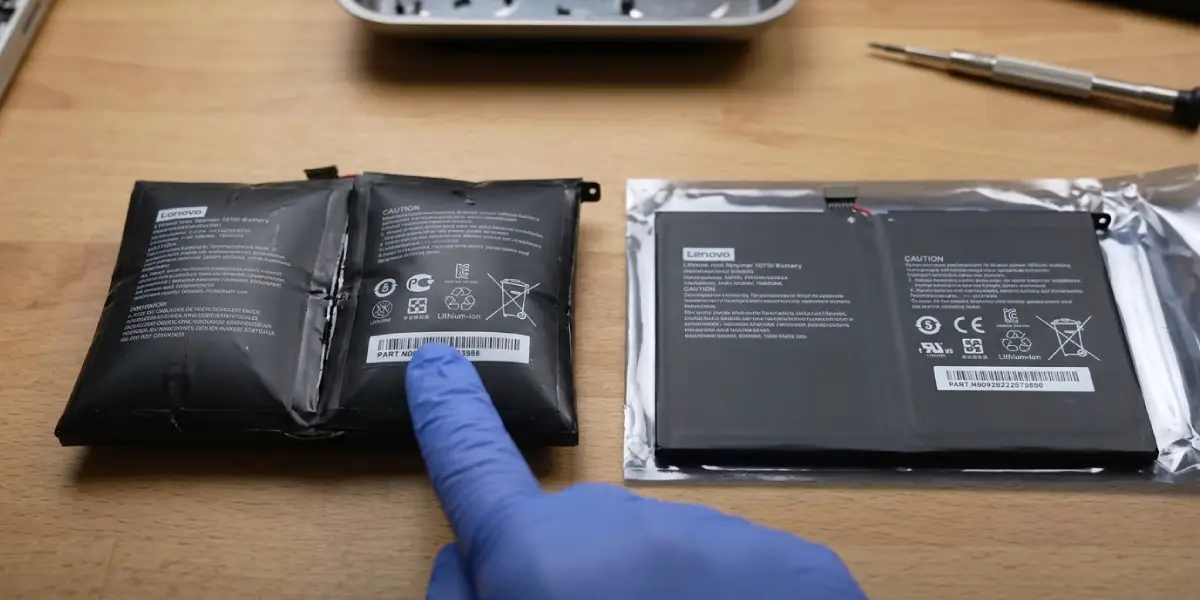
- On a removable battery, the pack no longer sits flush in its bay or looks puffy when placed on a flat surface.
Common Causes of a Swollen Battery
Laptop batteries are lithium-ion or lithium-polymer packs. When the electrolyte inside breaks down, it releases gas, and the soft pouch cells expand like a slowly inflating balloon. The usual triggers are:
- Age and a high number of charge cycles.
- Long-term exposure to heat, such as a laptop used on a bed or a blocked fan vent.
- A faulty or non-original charger that feeds the pack incorrectly.
- Physical damage from drops, pressure, or a crushed bag.
- A manufacturing defect in the cells.
Before You Start
Safety comes first here, because a damaged lithium pack can react badly to mistakes. Set up a calm, uncluttered workspace on a hard, non-flammable surface such as a ceramic tile or a metal tray, well away from paper, fabric, and other flammable items.
Safety Prep
- Do not plug in the charger. If the laptop is on, save work, shut it down fully, and unplug the power adapter and all accessories.
- If the laptop feels hot, let it cool completely before touching anything.
- Touch a bare metal part of the chassis or wear an anti-static strap to discharge static before handling internal parts.
- Wear safety glasses and nitrile gloves as a sensible precaution.
Tools and Materials
- A precision screwdriver set that matches the screws in the laptop, usually Phillips.
- Plastic pry tools or plastic opening picks. Never use metal tools near a swollen battery.
- A non-flammable tray or container for temporary storage of the old pack.
- A replacement battery that matches the exact model number of the laptop.
- Optionally, 90 percent or higher isopropyl alcohol and a lint-free cloth for softening adhesive on glued packs.
Opening the laptop may affect its warranty, so check the warranty terms first. A swollen battery is often covered if the laptop is still in its warranty period, and the manufacturer may handle the replacement for free. If the battery is hot, leaking, smoking, or hissing, or if the deformation is severe, stop and let a professional handle it.
How to Remove a Swollen Laptop Battery Step by Step
The process differs slightly between removable and internal batteries, but the golden rule is the same for both: gentle, slow movements and no pressure on the pack.
- Step 1: Stop using the laptop right away. Power it down, unplug the charger, and move it to the non-flammable surface. Do not keep charging to see whether the problem goes away.
- Step 2: Check what type of battery the laptop has. A removable pack usually sits in an external bay with slide latches. An internal pack requires removing the bottom panel. The service manual for the exact model, available from the manufacturer, shows the correct screws and layout.
- Step 3: For a removable battery, slide the release latches and lift the pack out carefully, handling it by the edges. Place it on the tray and skip ahead to Step 8.
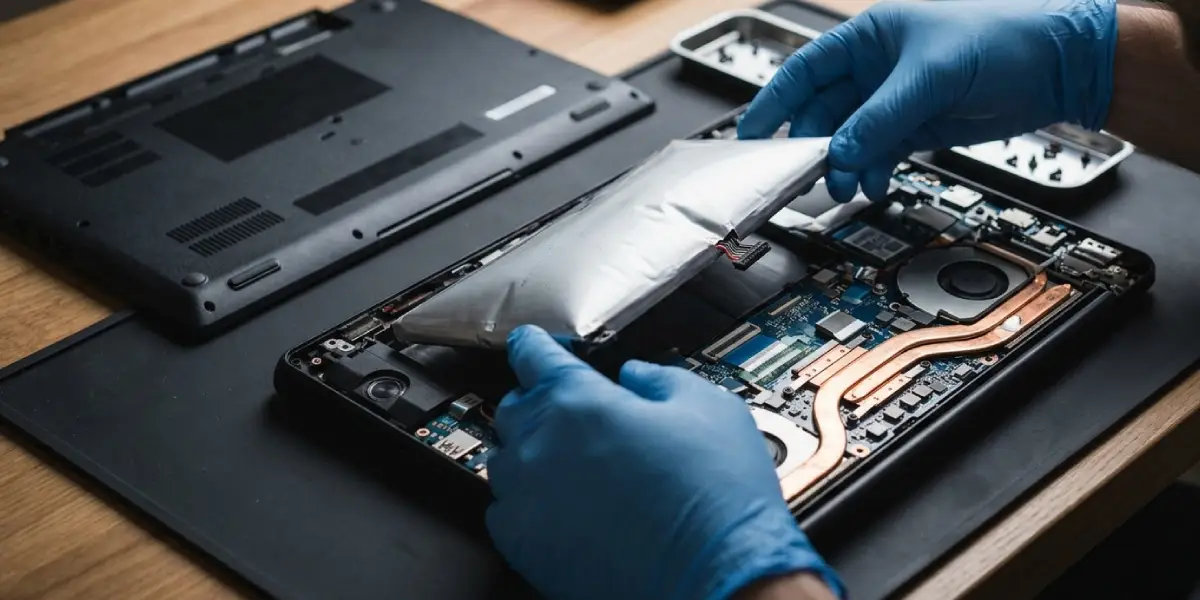
- Step 4: For an internal battery, remove the bottom cover screws. Keep them sorted, since screw lengths often differ. Use a plastic pick along the seam to release the clips, working slowly because a swollen pack may be pressing against the cover.
- Step 5: Locate the battery connector on the motherboard and disconnect it before doing anything else. Lift the connector straight up with a plastic tool or fingernail instead of pulling on the wires.
- Step 6: Remove the screws holding the battery in place. Some packs are also secured by adhesive strips or pull tabs. If pull tabs are present, pull them slowly and evenly at a low angle so they stretch out instead of snapping.
- Step 7: If the battery is glued down and does not release, work a plastic pick gently under the edge. A small amount of 90 percent or higher isopropyl alcohol along the adhesive edge can help soften it. Never bend, twist, press, or puncture the pack. If it will not come free without force, stop and take the laptop to a repair shop.
- Step 8: Lift the battery out with both hands and set it on the non-flammable tray, away from anything combustible. Keep it out of direct sun and away from heat sources until it can be recycled.
- Step 9: Inspect the empty battery bay. Check for leaked fluid, discoloration, or warped plastic. Wipe residue only with a lint-free cloth lightly dampened with isopropyl alcohol, with the laptop still powered off and the connector disconnected.
- Step 10: Install the replacement battery, reconnect the battery connector fully, and screw the pack down. Refit the bottom cover and screws, then charge the laptop normally and monitor the battery in the first few cycles.
Tip: Take a quick photo of the screw layout and connector positions before disassembling. It makes reassembly far less stressful, especially on laptops with mixed screw lengths.
Choosing a Safe Replacement Battery
The replacement matters as much as the removal. A poor-quality pack can swell again in months.
- Match the battery part number or model listed on the label of the old pack or in the laptop service documentation.
- Buy from the laptop manufacturer or a reputable, well-reviewed seller. Unusually cheap packs from unknown brands are a common source of repeat failures.
- Avoid batteries that arrive already puffy, damaged, or without proper labeling.
How to Dispose of a Swollen Laptop Battery Safely
A swollen battery should never go into household trash or a regular recycling bin, because damaged cells can ignite in a garbage truck or sorting facility. Take it to an electronics retailer with a battery drop-off, a municipal hazardous waste or e-waste facility, or a certified battery recycler. Call ahead and mention that the pack is swollen, since some locations have special handling for damaged batteries. Until then, keep it on the non-flammable tray, away from flammable items and out of reach of children and pets.
Tip: Do not try to discharge a swollen battery or store it inside a bag or drawer. Leave it in a cool, open spot on a non-flammable surface until it can be dropped off.
Common Problems and Fixes
The battery will not come out because it is glued in
Many thin laptops use adhesive under the pack. Work slowly with plastic tools and a small amount of 90 percent or higher isopropyl alcohol on the adhesive edges. If it still resists, stop. Forcing a swollen cell risks puncturing it, and a repair technician is the safer route.
The trackpad or keyboard is still raised after the battery is out
The swelling may have warped the trackpad or the top case. Once the pressure is gone, the parts often settle back, but a badly stretched trackpad or cracked case may need to be replaced.
The laptop will not turn on after the replacement
Recheck that the battery connector is seated fully and that the pack is the correct model. Power the laptop with the charger connected, and confirm that all internal connectors touched during the job are properly reseated.
The new battery does not charge or shows the wrong percentage
Confirm the charger is the original or a compatible unit with the correct wattage. Then update the BIOS and power drivers from the manufacturer and let the laptop complete a full charge cycle so the battery gauge can recalibrate.
The new battery seems to swell soon after installation
Stop using it immediately and check for a faulty charger or excess internal heat. Contact the seller for a warranty replacement, and have the charging circuit inspected if the problem repeats.
How to Prevent a Battery From Swelling Again
- Use only the original charger or a reputable compatible one with the correct rating.
- Keep the laptop on hard, flat surfaces so the vents stay clear, especially during charging.
- Avoid leaving the laptop in a hot car or in direct sun.
- If a laptop is used mostly on a desk plugged in, many models include a battery-care or charge-limit setting in the BIOS or manufacturer software that holds the charge below 100 percent.
- Replace old batteries once the runtime drops sharply, instead of waiting for visible damage.
Frequently Asked Questions
Can a swollen laptop battery be fixed?
No. Swelling is caused by gas building up inside the cells, and there is no safe way to reverse it. The battery must be removed and replaced.
Is it safe to keep using a laptop with a swollen battery?
No. A swollen battery can leak, overheat, or catch fire, and it can also damage the trackpad, keyboard, and case. Stop using and charging the laptop right away.
Can a swollen laptop battery be pressed flat or punctured to release the gas?
No. Pressing or puncturing a lithium cell can cause a short circuit, fire, or a release of toxic fumes. The pack should never be pressed, bent, or pierced.
Can the laptop run on AC power without the battery?
Many laptops can run on the charger alone, but it depends on the model. Some will throttle performance or refuse to boot without a battery, so check the manufacturer documentation for the specific laptop.
What causes a laptop battery to swell?
The most common causes are age, heat, repeated charge cycles, a faulty charger, physical damage, and manufacturing defects. Each of these can break down the electrolyte and produce gas inside the cells.
How should a swollen laptop battery be disposed of?
It should be taken to a battery recycling point, an electronics retailer with a battery drop-off, or a hazardous waste or e-waste facility. It must never be thrown in household trash or regular recycling.
Will the warranty cover a swollen laptop battery?
Often yes, if the laptop is still within its warranty period, though coverage terms vary and some manufacturers treat batteries as consumables with shorter cover. Contacting the manufacturer before opening the laptop is the best way to protect the warranty.
How long can a swollen battery stay in the laptop before it becomes dangerous?
There is no safe timeframe. Swelling is a sign that the cells are already damaged, and the behavior of a damaged pack is unpredictable, so removal should happen as soon as possible.
Should a swollen battery be taken on a plane?
No. Damaged or defective lithium batteries are not allowed on aircraft. The pack should be recycled properly, and a new battery should be used for travel.
