
Knowing how to fix Wi-Fi not showing available networks saves a lot of frustration when the list under the Wi-Fi icon is completely empty. The good news is that this problem usually comes down to a switched-off adapter, a stopped Windows service, or a driver that needs a refresh. The fixes below work on Windows 10 and Windows 11, and they go from quickest to most thorough.
Key Takeaways
- Check Airplane mode and the Wi-Fi toggle first. It takes ten seconds.
- Restarting the WLAN AutoConfig service brings back the network list in many cases.
- A driver update or reinstall fixes most adapter-related problems.
- Network reset is the last step, since it removes saved Wi-Fi networks.
Step-by-Step Guide to Fix Wi-Fi Not Showing Available Networks
Fix 1: Turn On Wi-Fi and Switch Off Airplane Mode
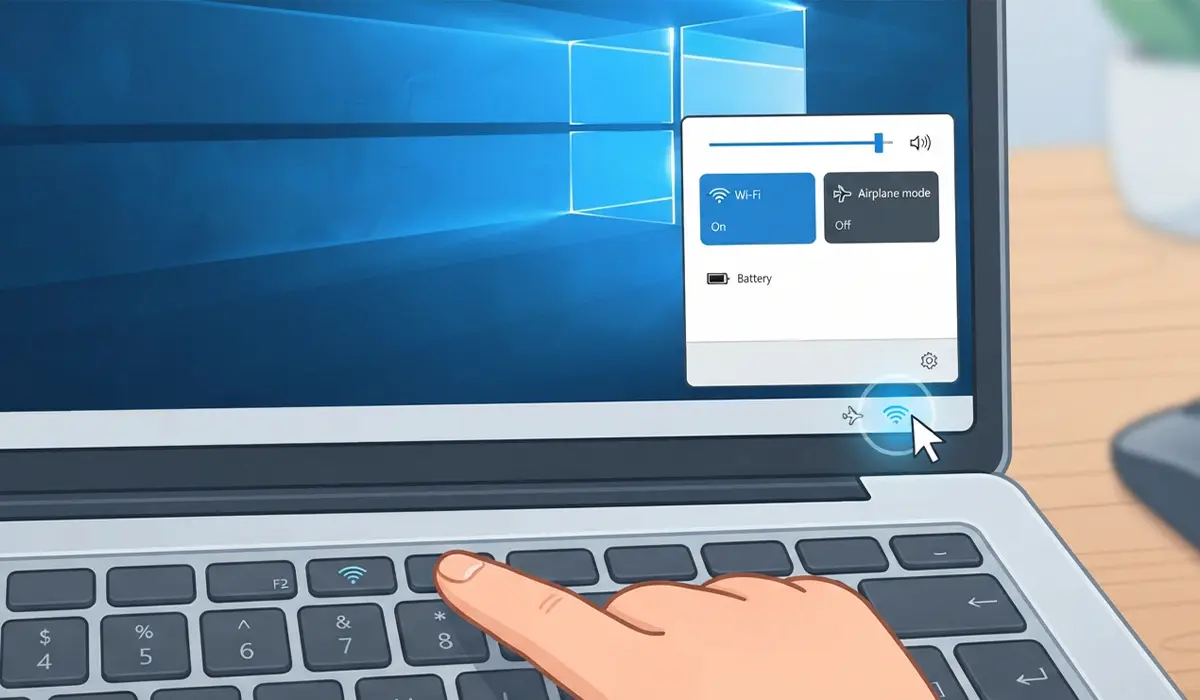
It sounds too simple, but a toggled setting or a laptop function key catches plenty of people out. Start here before touching anything else.
- Step 1: Click the network icon at the right end of the taskbar to open Quick Settings.
- Step 2: Make sure ‘Airplane mode’ is off and the Wi-Fi tile is turned on.
- Step 3: If the laptop has a Wi-Fi function key or a physical wireless switch, make sure it is set to on.
- Step 4: Restart the PC and open the network list again.
Fix 2: Restart the WLAN AutoConfig Service
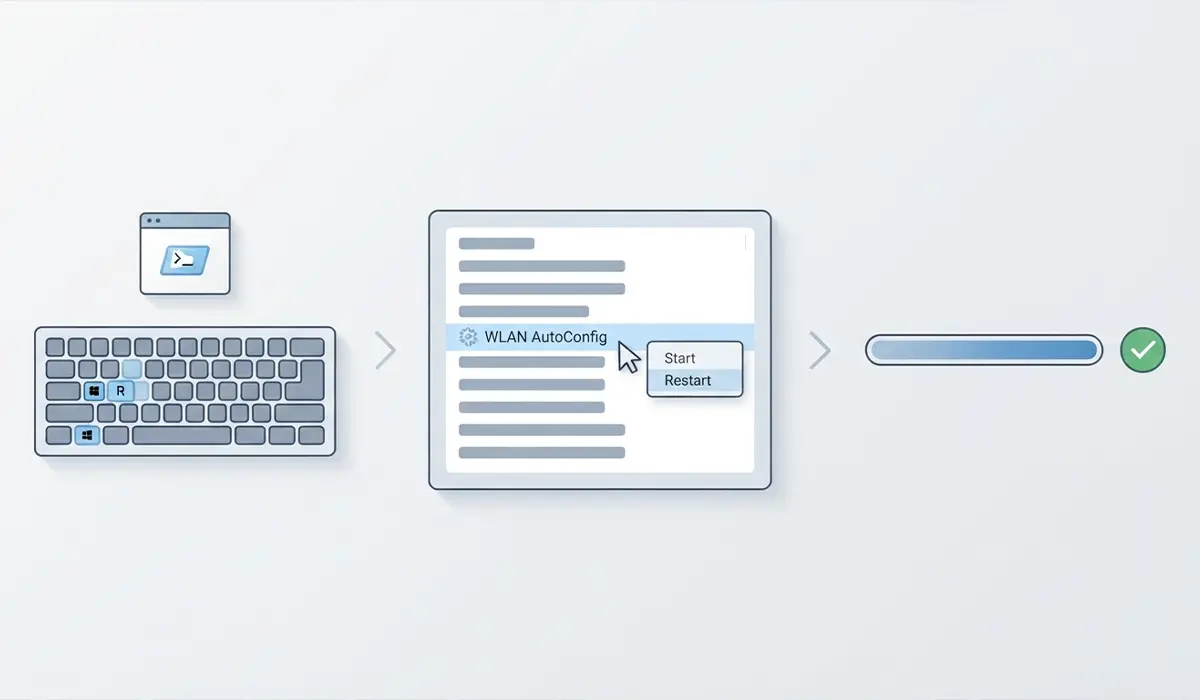
WLAN AutoConfig is the Windows service that scans for nearby networks and builds the list. When it stops, the list stays empty. Restarting it works much like restarting the print spooler service.
- Step 1: Press the Windows key + R, type ‘services.msc’, and press Enter.
- Step 2: Scroll down to ‘WLAN AutoConfig’.
- Step 3: Right-click it and choose ‘Restart’. If Restart is greyed out, choose ‘Start’ instead.
- Step 4: Double-click the service, set ‘Startup type’ to ‘Automatic’, then click ‘Apply’ and ‘OK’.
Pro-Tip: Always leave WLAN AutoConfig on ‘Automatic’. Setting it correctly takes a few seconds and stops the same empty list from coming back after every restart.
Fix 3: Turn the Wi-Fi Adapter Off and On
Think of this as a mini reboot for the adapter alone. It clears small glitches without restarting the whole PC.
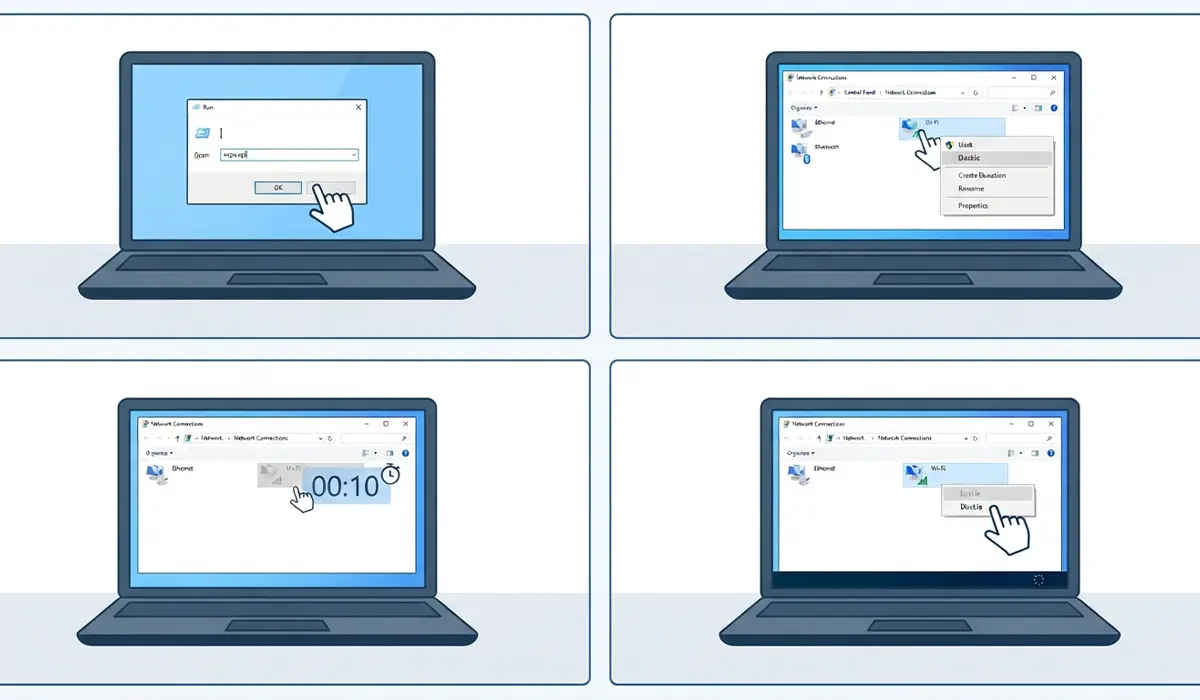
- Step 1: Press the Windows key + R, type ‘ncpa.cpl’, and press Enter.
- Step 2: Right-click the ‘Wi-Fi’ adapter and choose ‘Disable’.
- Step 3: Wait about ten seconds, then right-click the adapter again and choose ‘Enable’.
- Step 4: Open the network icon in the taskbar and check the list.
Fix 4: Run the Windows Network Troubleshooter
Windows has a built-in troubleshooter that checks the adapter and resets common settings automatically.
- Step 1: On Windows 11, open Settings, go to ‘System’, then ‘Troubleshoot’, then ‘Other troubleshooters’. On Windows 10, open Settings, go to ‘Update & Security’, then ‘Troubleshoot’, then ‘Additional troubleshooters’.
- Step 2: Select ‘Network and Internet’ on Windows 11 or ‘Internet Connections’ on Windows 10, then click ‘Run’.
- Step 3: Follow the prompts and apply any fix it suggests.
Fix 5: Update or Reinstall the Wi-Fi Driver
A corrupted or outdated driver is one of the most common reasons the adapter stops finding networks.
- Step 1: Right-click the Start button and open ‘Device Manager’.
- Step 2: Expand ‘Network adapters’ and find the Wi-Fi adapter. The name usually includes ‘Wireless’, ‘WLAN’, or ‘802.11’.
- Step 3: Right-click it, choose ‘Update driver’, then ‘Search automatically for drivers’.
- Step 4: If the update does not help, right-click the adapter again and choose ‘Uninstall device’. Leave the driver removal box unticked, then restart the PC. Windows reinstalls the adapter during startup.
Fix 6: Stop Windows From Turning Off the Wi-Fi Adapter
Windows can switch off network adapters to save power. Turning that option off keeps the adapter awake.
- Step 1: Open ‘Device Manager’ and expand ‘Network adapters’.
- Step 2: Double-click the Wi-Fi adapter and open the ‘Power Management’ tab.
- Step 3: Untick ‘Allow the computer to turn off this device to save power’.
- Step 4: Click ‘OK’ and restart the PC.
Fix 7: Reset the Network Stack With Command Prompt
This clears out damaged network configuration files and sets them back to defaults. It sounds technical, but it only takes a few typed lines.
- Step 1: Type ‘cmd’ in the Windows search box, right-click ‘Command Prompt’, and choose ‘Run as administrator’.
- Step 2: Type ‘netsh winsock reset’ and press Enter.
- Step 3: Type ‘netsh int ip reset’ and press Enter.
- Step 4: Type ‘ipconfig /flushdns’ and press Enter.
- Step 5: Restart the PC and check the network list.
Fix 8: Use Network Reset as the Final Step
Network reset reinstalls the network adapters and returns networking components to their original settings. It is the strongest fix here, so it goes last.
- Step 1: On Windows 11, open Settings, go to ‘Network & internet’, then ‘Advanced network settings’, then ‘Network reset’. On Windows 10, open Settings, go to ‘Network & Internet’, then ‘Status’, then ‘Network reset’.
- Step 2: Click ‘Reset now’ and confirm with ‘Yes’.
- Step 3: Wait for the PC to restart, then reconnect to the Wi-Fi network by entering the password again.
Pro-Tip: Network reset erases saved Wi-Fi networks and may remove VPN adapters. Write down the Wi-Fi password before starting, and keep VPN login details handy in case the app needs reinstalling.
Tips to Keep Available Networks Showing
- Keep Windows Update running. Driver fixes for Wi-Fi adapters often arrive through it.
- If Windows Update offers no newer driver, download the Wi-Fi driver from the laptop or motherboard maker’s support page and install it manually.
- Be careful with tune-up or optimizer tools. Some of them disable Windows services, and turning off WLAN AutoConfig empties the network list.
- Once the list is back, a wireless printer is easy to add. This guide on how to connect a wireless printer covers the setup.
Frequently Asked Questions
Why is Wi-Fi not showing available networks on Windows?
The usual causes are Airplane mode being on, a stopped WLAN AutoConfig service, an outdated or corrupted Wi-Fi driver, or damaged network settings. The fixes above cover each one.
Which Windows service controls the list of Wi-Fi networks?
WLAN AutoConfig. It scans for nearby networks and manages wireless connections, so the list stays empty when it is stopped.
Does this fix work on both Windows 10 and Windows 11?
Yes. The steps apply to both versions. Only a few menu names and paths in Settings differ slightly, and both are covered above.
Will Network reset delete my files?
No. It does not touch personal files. It removes saved Wi-Fi networks and reinstalls network adapters, so the Wi-Fi password needs to be entered again.
Is it safe to uninstall the Wi-Fi driver in Device Manager?
Yes, as long as the option to delete the driver software is left unticked. Windows detects the adapter after a restart and reinstalls the driver.
What does the netsh winsock reset command do?
It resets the Winsock catalog, which handles how programs talk to the network, back to its default state. A restart is needed afterward.
Do these fixes need administrator rights?
Yes. Restarting services, changing driver settings, and running the reset commands all require an administrator account.
Where can the correct Wi-Fi driver be downloaded?
Windows Update is the first place to check. If it has nothing newer, the support page of the laptop or motherboard manufacturer lists the matching driver for the exact model.
Can power saving settings cause the Wi-Fi network list to disappear?
Windows can switch off the adapter to save power. Unticking the power-saving option in the adapter properties keeps the adapter active.
What should be tried first if the network list is empty?
Start with Airplane mode and the Wi-Fi toggle, then restart the WLAN AutoConfig service. Those two fixes are quick and solve a large share of cases.
